How to Add MCP to Felo Agent (and Call 10,000+ Data Tools)

A step-by-step guide to connecting MCP servers to Felo Agent, so your agent can pull live data from Notion, Slack, databases, and thousands of other tools.
Most AI agents can write. Very few can reach into your actual systems and pull the number you need.
Ask a plain chatbot for "last quarter's churn rate" and you get a polite explanation of where churn data usually lives. Ask an agent wired to MCP and you get the figure, the trend, and a chart — pulled straight from the source.
MCP (Model Context Protocol) is the open standard that makes this possible. It lets an AI agent connect to external tools and data sources through a single, consistent interface. Add an MCP server to Felo Agent and your agent stops guessing. It starts calling real tools.
This guide walks through the whole setup in about five minutes. No code required.

What MCP Actually Gives Your Agent
Think of MCP as a universal adapter. Before MCP, every integration was a custom job — a different API, a different auth flow, a different data shape. MCP standardizes all of it.
An MCP server exposes three kinds of things to your agent:
- Tools — actions the agent can take, like "create a Notion page" or "query this database"
- Data sources — files, documents, records, and live feeds the agent can read
- Prompts — reusable templates the agent can follow for a specific task
Because the protocol is open, the same server works across any MCP-compatible client. Write it once, use it everywhere.
The practical effect: your Felo Agent goes from a smart writer to a system that can fetch, filter, and act on live data from the tools your team already uses.
That's where the "10,000+ tools" number comes from. The MCP ecosystem now spans thousands of servers — Notion, Slack, GitHub, Postgres, Stripe, Google Drive, and a long tail of niche services. You connect the ones you need, and the agent decides when to call them.
Before You Start
You need two things:
- A Felo account. Sign in at felo.ai. MCP is available inside Felo Agent, so no separate setup or API key is required on the Felo side.
- The MCP server you want to connect. For this walkthrough we'll use Notion, since it's one of the most useful and the setup is quick. You'll need access to the Notion workspace you want the agent to read from.
If you don't have a specific server in mind yet, skip to the last section — there's a directory that makes finding one easy.
Step 1: Create a New Agent
From the Felo Agent workspace, click Create Agent in the top right.
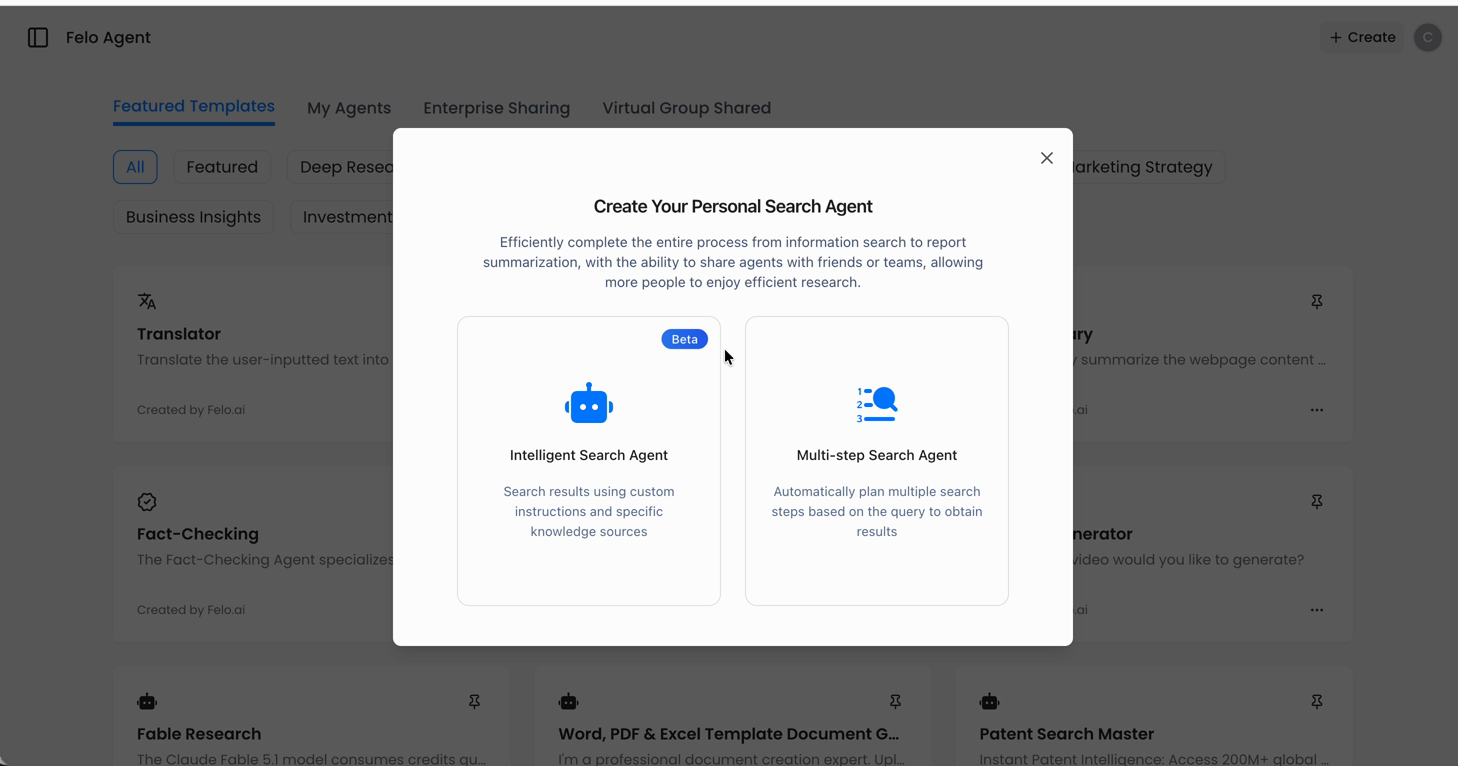
You'll land in the agent builder. Give your agent a name and a short description of what it should do. Be specific — "Weekly Notion report builder" beats "My assistant." The description shapes how the agent reasons about when to use its tools.
Step 2: Open the Tools Panel
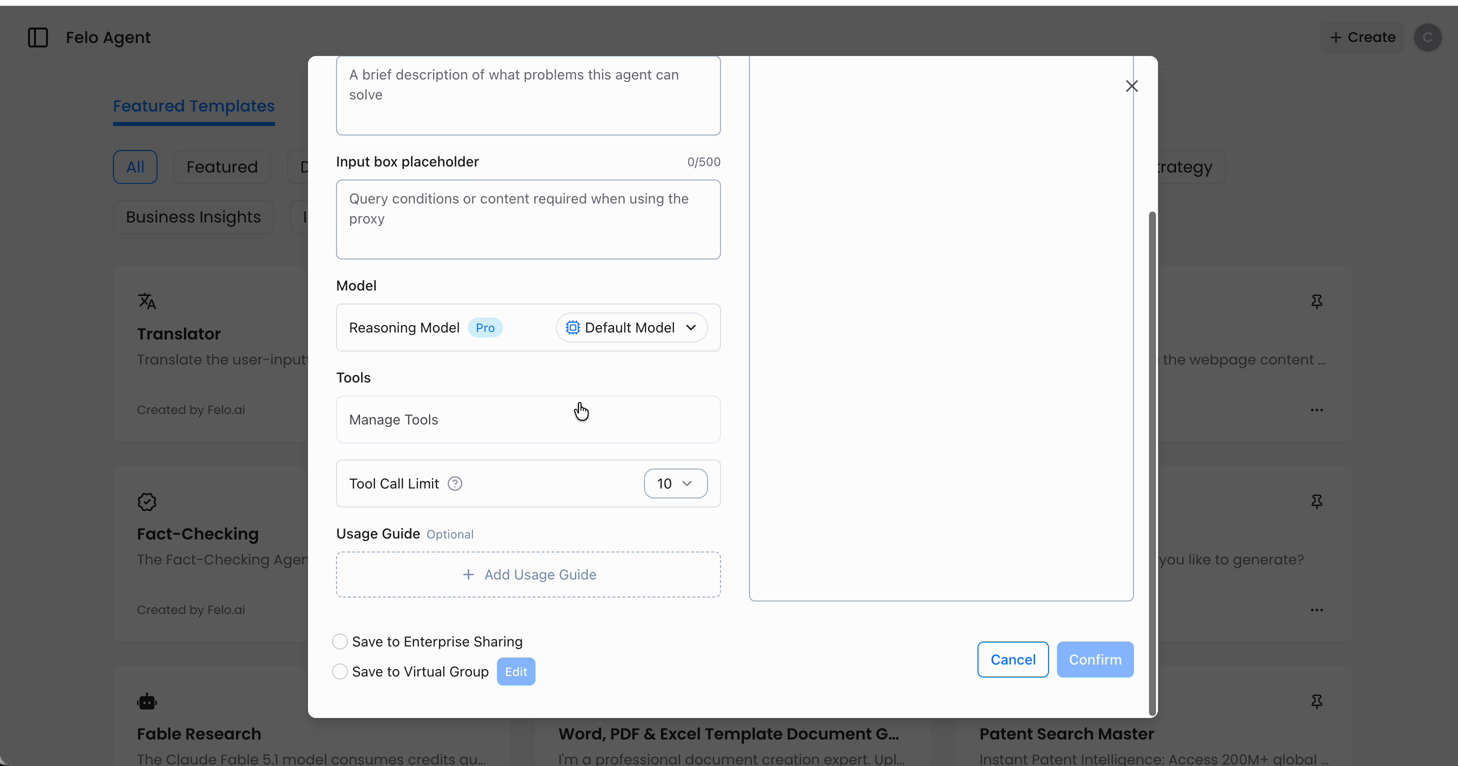
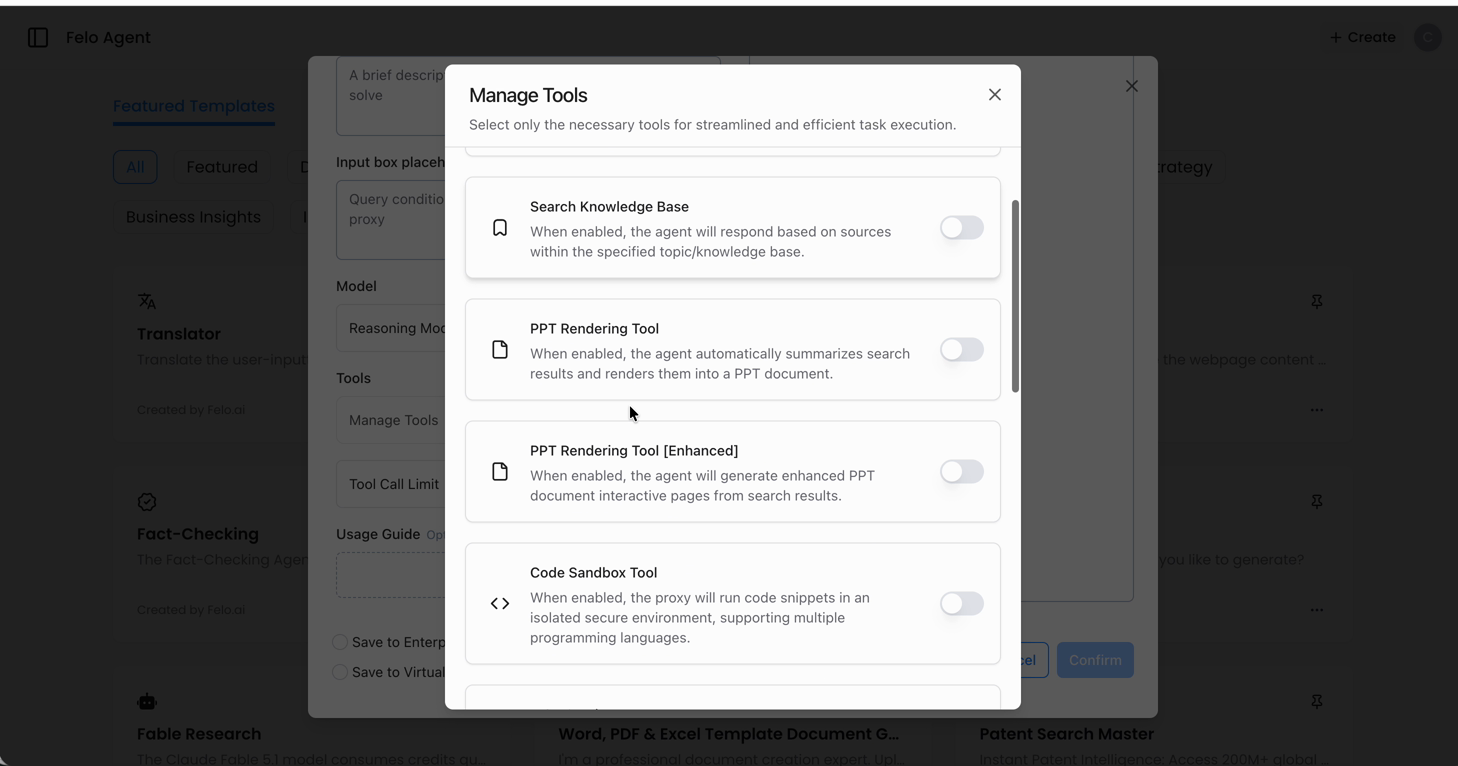
Inside the builder, find the Tools section and open it.
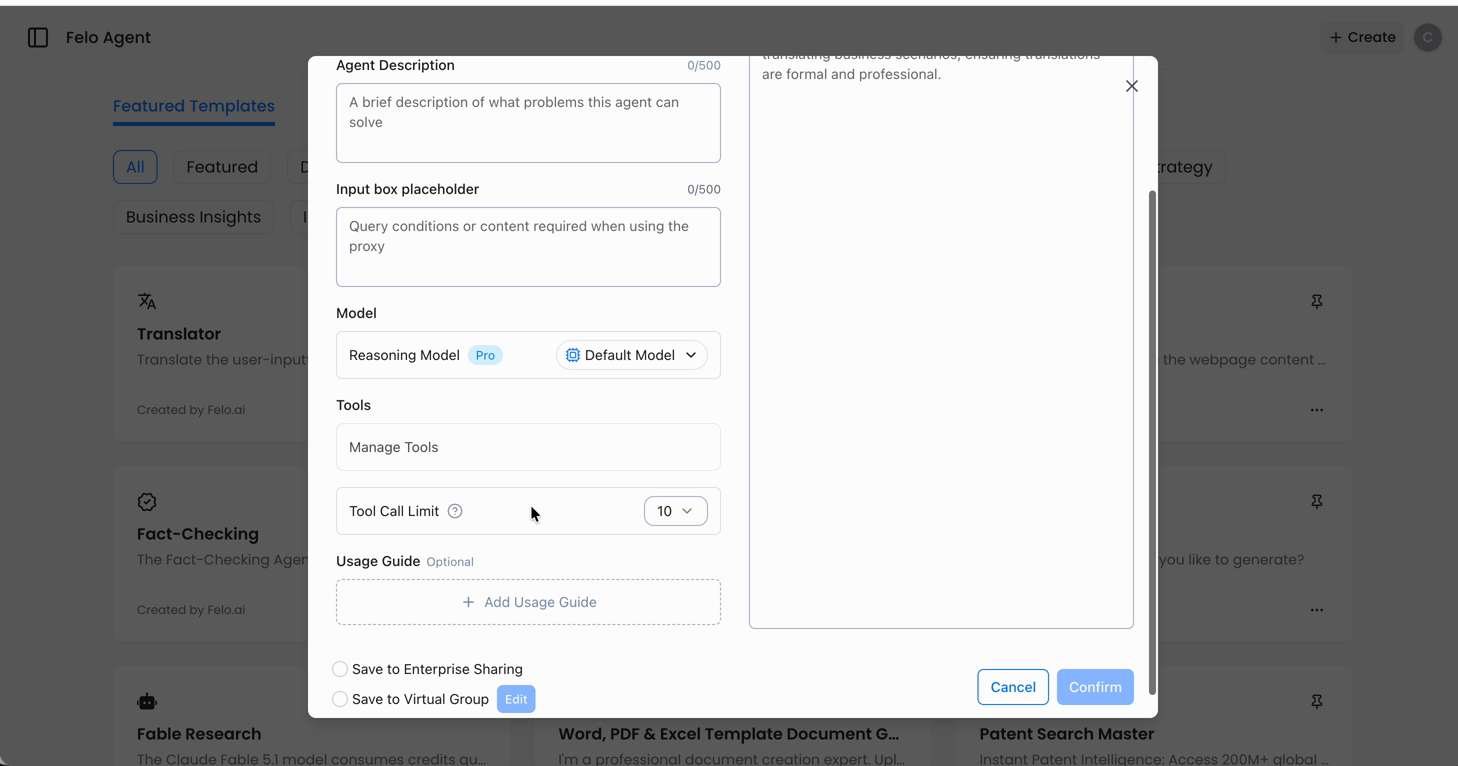
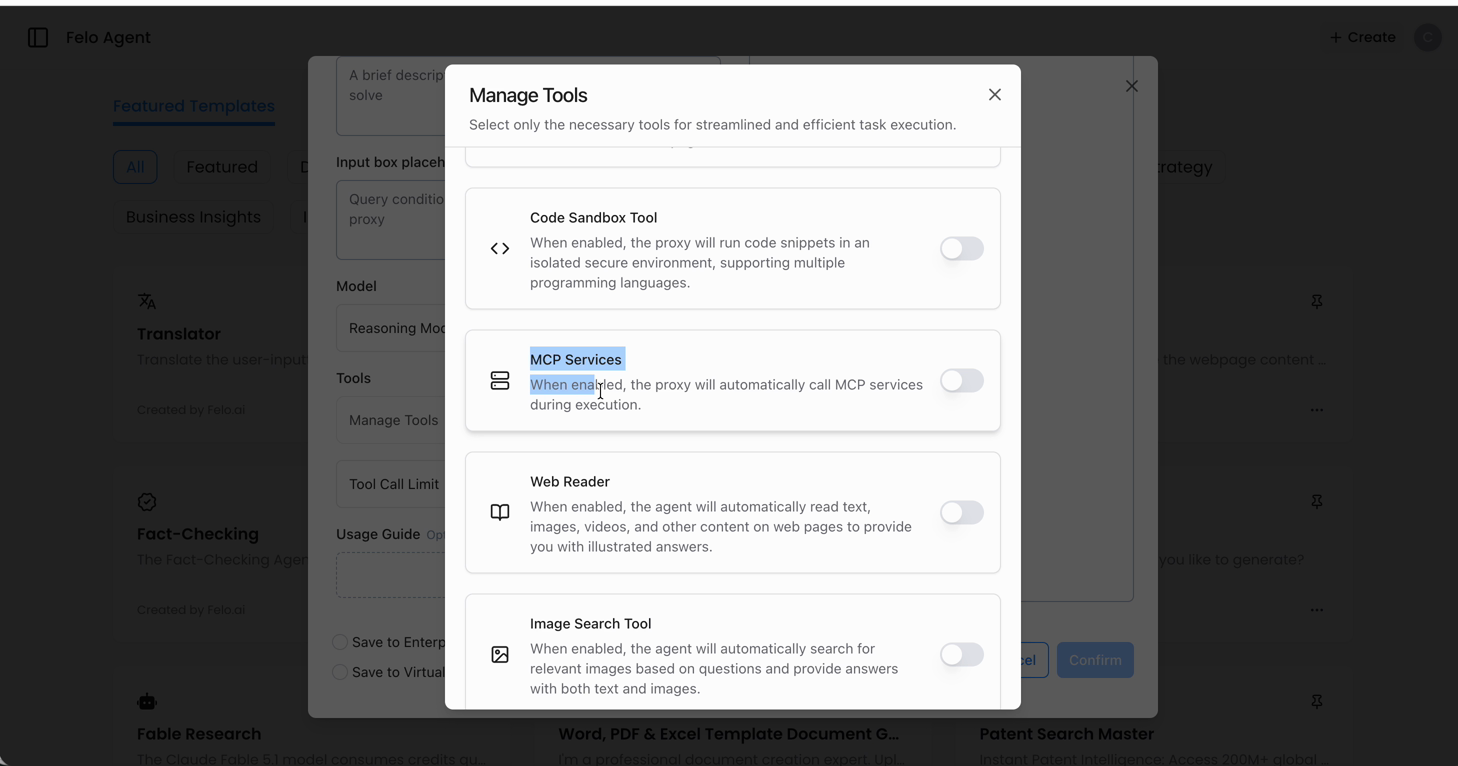
This is where everything the agent can do lives. By default you'll see built-in capabilities like web search, code execution, and file handling. The MCP servers you add show up in the same list, which means the agent treats them as first-class tools — no special syntax, no separate mode.
Step 3: Add an MCP Service
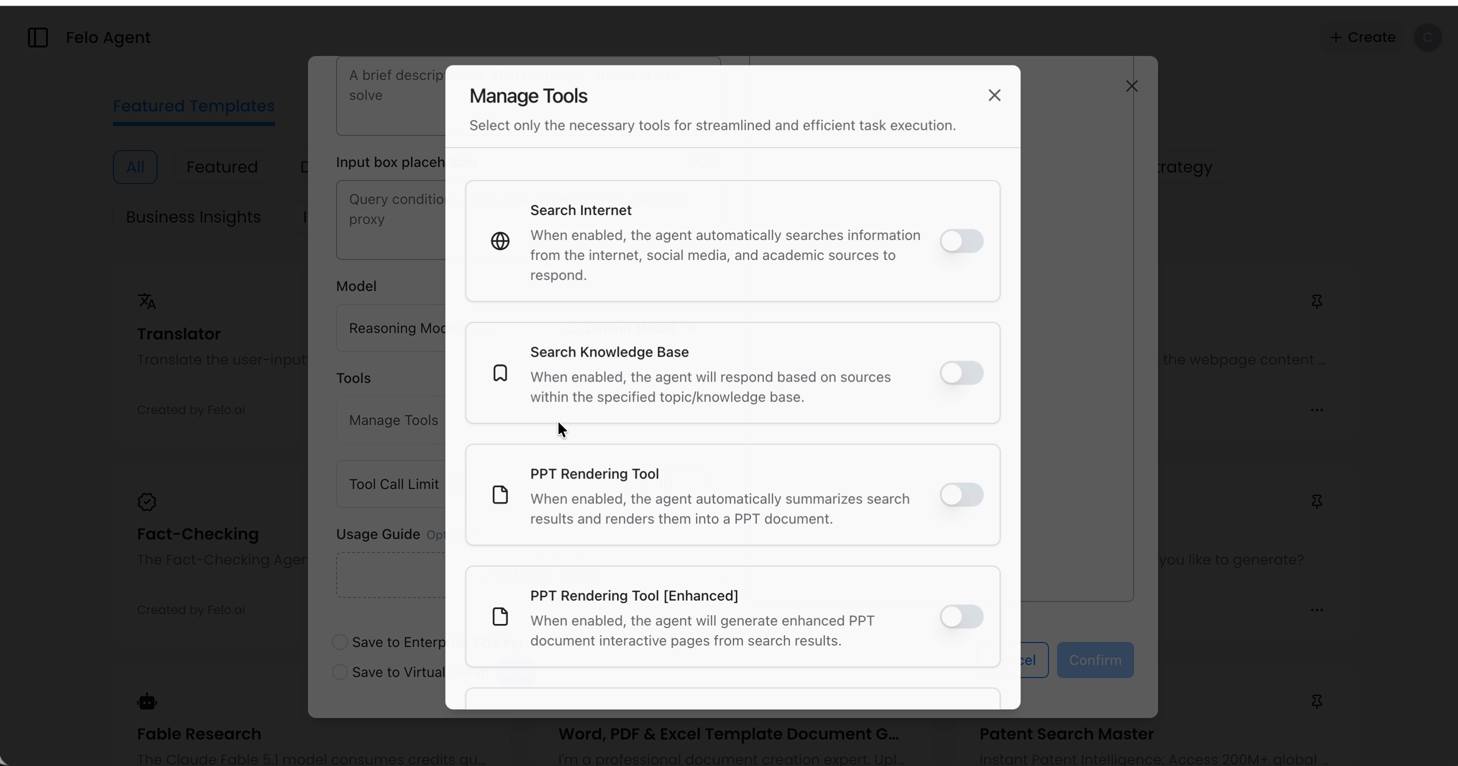
In the Tools panel, select MCP Services.
A dialog opens with two options:
- Popular MCP services — a curated list of servers that are known to work well, including Notion, Slack, and others
- Add custom MCP server — for anything not on the list, where you paste in the server URL
Start with the popular list if your tool is there. It saves you the step of hunting down a URL and checking compatibility.
Step 4: Choose Your Server and Authenticate
Pick the server you want. For this walkthrough, choose Notion MCP.
Felo Agent handles the connection for you. Click Connect, then authorize the agent against your Notion account when the OAuth window appears.
Once authorized, the server's tools are pulled into your agent automatically. You'll see them listed under the MCP service — things like reading pages, creating database entries, and updating existing notes.
You don't need to know which specific tools to enable. Connect the server, and the agent picks the right tool at the right moment based on your request.
If you're adding a custom server instead, paste its URL into the Add custom MCP server field and complete any authentication it requires. The rest of the flow is identical.
Step 5: Save and Test
Save the agent. Then open a chat with it and give it a task that requires the tool.
For the Notion example, try something like:
"Pull the open items from my project tracker and summarize what's blocked."
Watch the response. A working setup looks like this:
- The agent acknowledges the task and states it will query Notion
- It calls the MCP tool and returns real data — not a placeholder
- The output reflects your actual workspace content
If the agent answers generically without touching the tool, the connection didn't take. Reopen the Tools panel and confirm the MCP service shows as connected.
What This Unlocks in Practice
Once one server is connected, the pattern repeats. Add a second, a third, a tenth — the agent routes each request to the right tool.
A few workflows that become possible:
- Daily standup digest — pull open tickets from your tracker, recent commits from GitHub, and yesterday's notes from Notion into one summary
- Customer research on demand — query your database for usage patterns, then have the agent write the analysis
- Content pipeline — read a brief from Notion, draft in Felo, and push the finished piece back to your CMS
- Finance checks — pull figures from Stripe or your warehouse and generate a variance report without exporting a single CSV
The common thread: the agent does the fetching and the thinking. You review the output instead of assembling it.
Where to Find More MCP Servers
The MCP ecosystem moves fast. New servers ship every week, and finding the right one is half the battle.
A good starting point is mcpmeasure.com — a searchable directory of MCP servers. What makes it useful is the depth of its search: it matches against server names, descriptions, tags, and the individual tool names each server exposes. So if you're looking for something specific like "invoice" or "calendar sync," you can find servers that actually expose that capability rather than guessing from a vague description.
Browse it, find a server that fits your workflow, and connect it to your agent the same way you connected Notion. One server takes five minutes. Ten servers turn your agent into a system that can reach almost anything your team works with.
Start With One Connection
The gap between an agent that talks and an agent that works is usually a single integration. Pick the tool you touch most — your notes app, your tracker, your database — and connect it.
Open Felo Agent, create an agent, and add your first MCP service. The setup takes less time than reading this article.
Try Felo AI for Free → felo.ai
This post is also available in 简体中文, 日本語, 한국어, 繁體中文, हिन्दी, Français, العربية, Русский, اردو, Bahasa Indonesia, Deutsch, Tiếng Việt, Türkçe, Italiano, ไทย, Español, বাংলা and Português.