AI B-Roll Generator: Build the Inserts Your Edit Needs
Use an AI B-roll generator to fill specific gaps in your edit. Plan inserts, write focused prompts and review Felo clips beside your existing footage.
Felo tools: AI B-Roll Generator · Text to Video.
A missing shot can hold up an otherwise finished edit: a quiet room for a transition, a close-up to support a sentence or an establishing view before the speaker returns. An AI B-roll generator can help you create a specific supporting clip when the story already tells you what is missing.
The useful starting point is the gap in the edit. Once you know its job, you can describe a shot, generate a version and judge whether it belongs beside the surrounding footage.
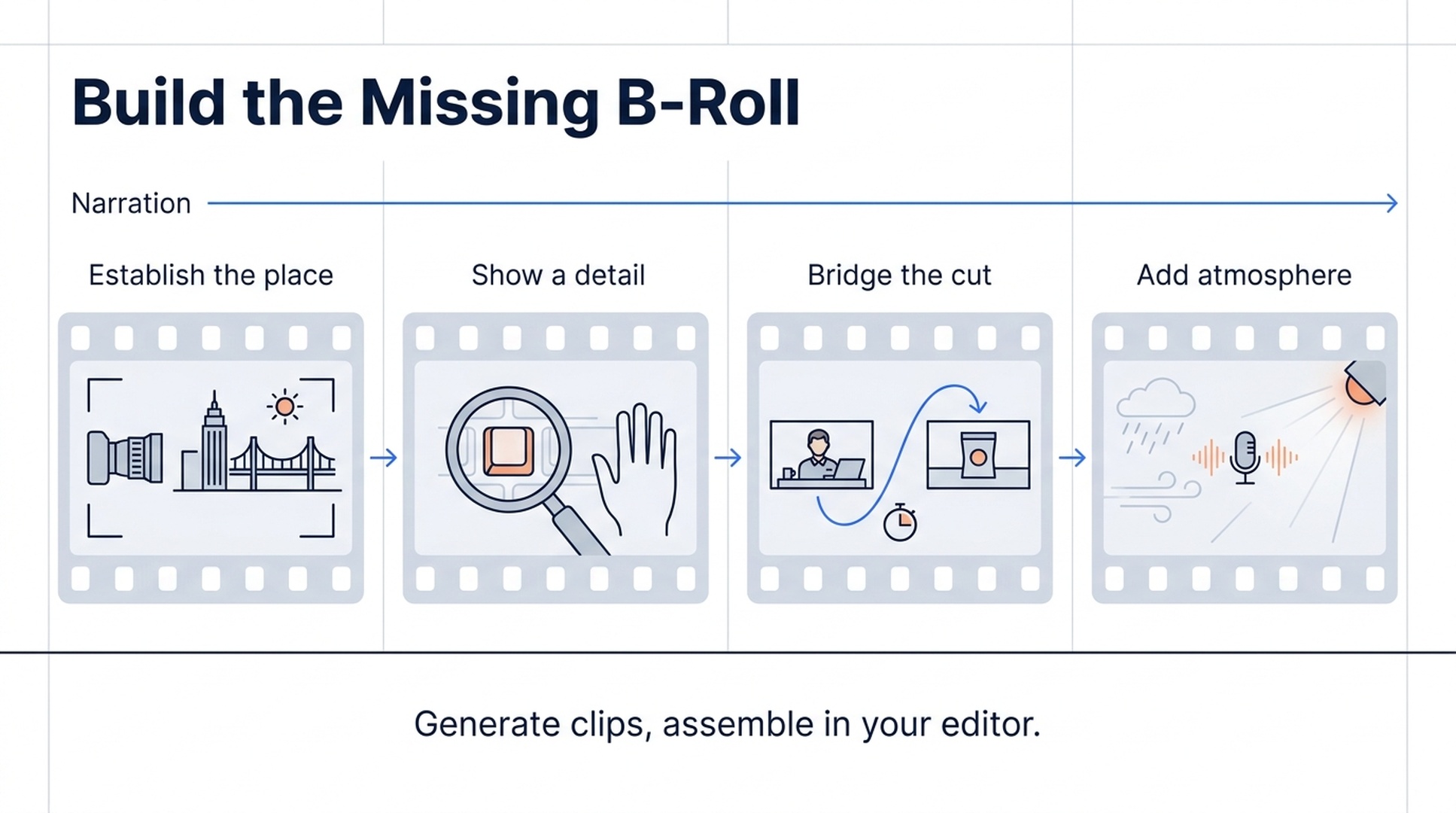
Illustrative guide; not a screenshot or a generated-video result.
What an AI B-roll generator produces
B-roll is supporting footage that complements the main visual or spoken narrative. Felo generates those clips from a written description or supported reference inputs. You download the takes you want and assemble them in your video editor.
Felo's B-roll workflow does not automatically cut a sequence to your narration or add a complete captioned timeline. Its role is to create individual shots that you can use in that sequence. The B-roll tool page describes the standalone-clip workflow.
A generated shot is also an illustration, not documentary proof. A synthetic warehouse scene can illustrate a general idea about logistics; it should not be presented as footage of a particular company's actual operations unless that representation is accurate and clearly established.
Give every B-roll shot a job
Before opening the generator, look at your script or rough cut. Mark the places where the viewer needs context, a detail or a visual pause.
| Shot type | What it contributes | Example brief |
|---|---|---|
| Establishing shot | Shows where the scene belongs | A quiet workshop before the interview begins |
| Detail insert | Makes a particular object visible | A close-up of a ceramic cup's textured surface |
| Cutaway | Gives a relevant visual break | A lamp beside a desk during a discussion of evening work |
| Transition | Helps the edit move between sections | A soft change in window light between two topics |
| Atmosphere | Adds a place's texture or mood | Rain rippling across an empty pavement |
An insert does not need to tell the entire story. If the narration already explains what is happening, a complicated visual can compete with it. A small, readable event often leaves more room for the speaker.
Plan a short B-roll set for one edit
Consider an illustrative 30-second video about a handmade ceramic mug. This is a suggested production plan, not a claim that the clips below have been generated or tested.
| Part of the narration | Needed supporting shot | Review condition |
|---|---|---|
| Introduce the object | A still mug on a simple table | The silhouette is immediately legible |
| Discuss the surface | A slow close view of ceramic texture | Texture and shape remain stable |
| Suggest a use context | A mug beside a closed book and lamp | The composition leaves room for the story |
| Return to the closing message | A settled, uncluttered view | The end can cut back to the main footage |
If this is a real product, use accurate references and compare the generated object against them. Use actual footage for any manufacturing process, performance claim or physical detail that must be shown faithfully.
The plan is deliberately small. You are filling four editorial needs, not generating a library before you know what the edit requires.
Write AI B-roll prompts around one action
A practical structure is: subject, small action, camera, light, ending. Add sound only if you intend to use generated audio and select a model that supports it.
Texture insert
Suggested settings: 16:9, 6 seconds, with a suitable product reference.
Close view of the ceramic surface of the referenced mug. A slow, short lateral camera move reveals the subtle handmade texture under soft side lighting. Keep the mug's shape, glaze color and handle unchanged. The mug stays still. End on a clear section of the surface. No hands, extra objects, labels or cuts.
Review the rim and handle as well as the surface. A beautiful texture shot is unusable if the object changes shape during the camera movement.
Quiet context shot
Suggested settings: 16:9, 6 seconds.
A ceramic mug sits beside a closed book on a simple wooden desk. A warm lamp lights the scene while a faint curtain shadow moves across the background. The camera stays fixed. The mug and book do not move. Calm natural colors, no visible writing. Finish with the same stable composition.
If the shot belongs under narration, movement should be restrained enough that it does not draw attention away from the speaker's point.
General atmosphere
Suggested settings: 16:9 or 9:16, 5 seconds.
Low close view of light rain landing in a shallow puddle on an empty pavement. Small ripples cross one warm window reflection. Fixed camera, subdued evening light, no people or vehicles. Let the ripples continue gently through the end. If generated audio is enabled, use only soft rain.
These prompts are starting briefs. Review the outputs in your own edit; the examples are not promises of a particular generation quality.
Match the footage around the insert
A generated clip may look attractive on its own and still feel unrelated to the main video. Compare it with the shot before and after it.
Check the direction and color of light, how close the camera is, the amount of movement and the background's complexity. If your interview is quiet and naturally lit, a fast orbit with dramatic spotlights may call attention to the change in production style.
Write those matching requirements into the prompt. “Soft daylight from the left, low contrast and a fixed camera” is easier to reuse across a set than “consistent cinematic look.” Keep the chosen wording with the shot list so later inserts have the same starting brief.
References can help communicate appearance or movement when the selected model accepts them. They do not turn the generator into a color-matching or frame-accurate editing tool.
Choose the model around delivery needs
The four Felo models have different practical limits. MiniMax H3 offers up to 2K, with 1080P/2K clips limited to 4–15 seconds. Seedance 2.5 offers up to 720P and generated audio. Wan 3.0 Prime reaches 1080P with optional generated audio and clips starting at two seconds. Kling 4.0 reaches 1080P and supports a middle frame, with silent output in Felo.
For narration-led B-roll, silent output may be entirely suitable. If location ambience matters, select an audio-capable model and listen to the result rather than assuming every clip contains usable sound. Felo's current model matrix documents those differences.
Choose the ratio for the actual edit. A vertical insert should be composed vertically from the start; it is not automatically a useful crop of a wide scene.
Generate, review and assemble
- Identify the missing shot in the rough cut.
- Write its purpose and acceptance condition in the shot list.
- Select a compatible model and a short initial duration.
- Generate after checking the credit estimate.
- Review the full take, including its first and final moments.
- Download the usable clip and cut it into your editor.
- Check the sequence with narration, music and neighboring shots in place.
A good-looking take can still fail at step seven. It may require an awkward cut, distract from the voice or duplicate information the viewer already has. Judge usefulness in context rather than keeping a clip simply because it cost credits to generate.
If a take nearly works, request one change. If it solves the wrong editorial problem, return to the shot list before spending on another version.
AI B-roll FAQ
Does Felo automatically assemble my B-roll sequence?
No. This workflow creates separate clips. Multi-clip editing, titles, subtitles and final audio placement happen in your editor.
Can I use it for vertical video?
Yes. Choose a model with the required ratio and compose for that frame. All four currently listed Felo models support 9:16, though their other ratios differ.
How many clips should I generate?
Start with the missing shots you can name. Keep a small test set, review it in the edit and expand only when another clip has a clear purpose.
Will a regenerated higher-resolution take look identical?
It may change. Re-generating at a higher resolution creates another take rather than upscaling the exact approved file. Keep the draft and review the replacement.
The best B-roll is the shot that helps the viewer follow the story. Give the generator that specific assignment, then let the edit decide whether the result belongs.
Create a B-roll clip with Felo →
This post is also available in 简体中文, 日本語, 한국어, 繁體中文, हिन्दी, Français, العربية, Русский, اردو, Bahasa Indonesia, Deutsch, Tiếng Việt, Türkçe, Italiano, ไทย, Español, বাংলা and Português.