Introducing “Auto Illustration for Documents” in Felo

Felo's Auto Illustration for Documents makes it easy to add visuals. Create stunning documents with AI-generated images. Get started now!
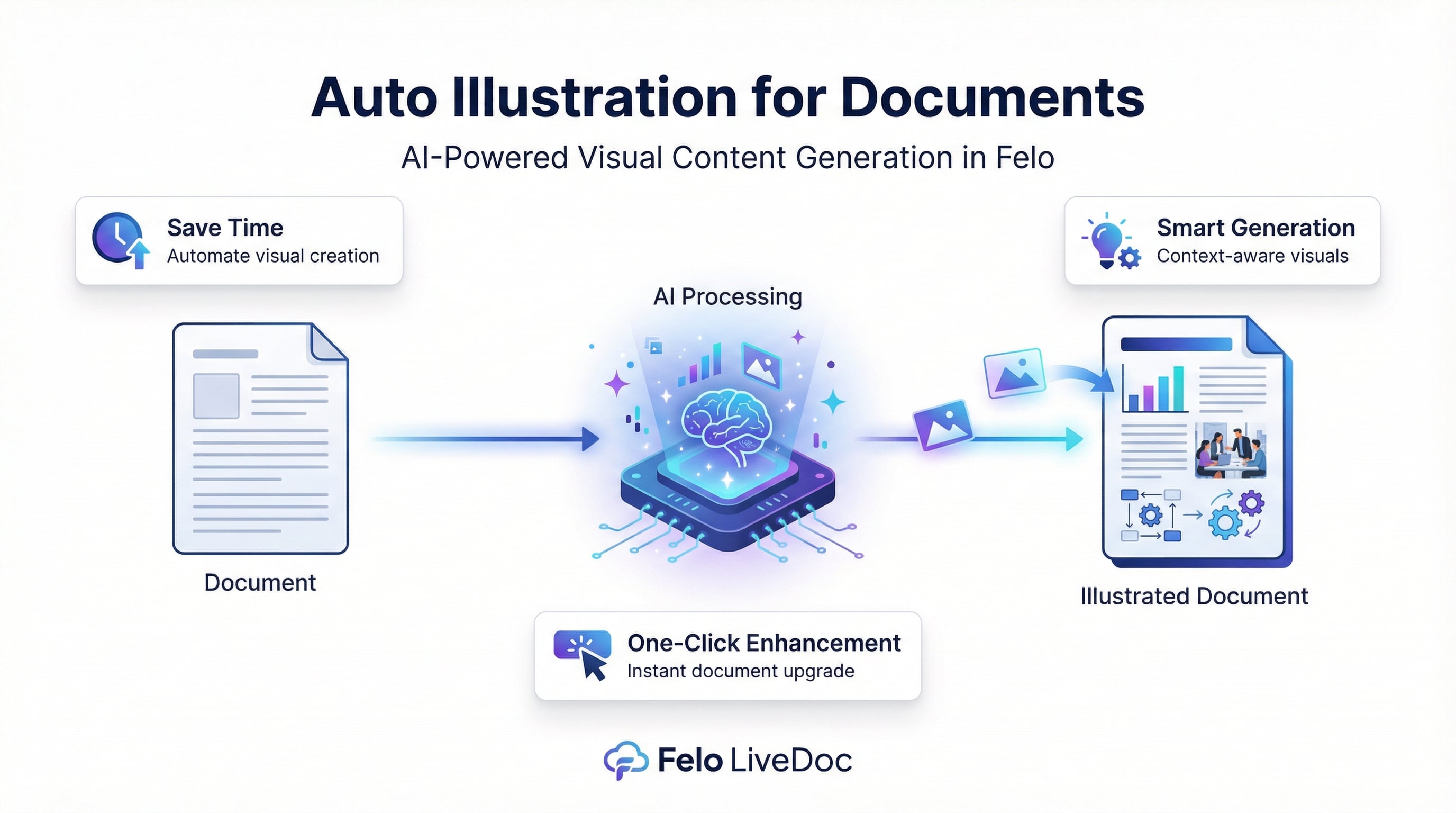
If you’ve ever finished writing a document in Felo and then sighed, thinking: “Now I still need to find a cover image…”, this new feature is for you.
We’re excited to introduce a new capability in Felo LiveDoc: automatically generating images for your documents. In plain terms, you select a doc, tell Felo what you want (a cover, an illustration, a more visual version), and Felo will read your content and create matching images for you.
This post walks you through what it does, when it’s useful, and how it actually works in the product.
Why we built Auto Illustration
Felo is already very good at helping you generate text: articles, plans, PPT outlines, and more. But we noticed a common problem:
- After users finish the text, they still spend a lot of time searching for images or manually designing covers.
- Some users already have both documents and images, but lack an easy way to “assemble” them into a polished deliverable.
So we set ourselves two simple goals:
- Save your time
Let AI read your document and generate suitable images automatically, so you don’t have to leave Felo to search for or create visuals. - Make content more powerful
Support selecting multiple items (documents + images) and let AI understand the relationships, so it can help you recombine content and visuals into richer layouts and new docs.
What this feature can do
The new capability is built around two main modules:
1. Smart illustration for a single document
When you select one Felo Doc, you can ask AI to create images based on the document content:
- Generate a cover image for the whole document
- Insert illustrations into the body to make it more visual
- Beautify a long document into a more “picture + text” style layout
Felo will:
- Read your document to understand the theme and key ideas.
- Generate a drawing prompt (usually in English, with style hints) suitable for your topic.
- Call the image generation model to create the image.
- Apply the result: set it as the document’s cover or insert it at the right place in the content.
You don’t need to learn prompt engineering for image models. Plain language like “Give this document a cover image” is enough.
2. Mixed instructions for documents + images
Sometimes you don’t start from zero. You might already have:
- Several documents
- A few reference images
- Maybe a draft cover that you like
In these cases, you can multi-select content and let AI help you “assemble” them:
- Select at least one document and at least one image
- Open AI Task and type a natural-language instruction like:
- “Create a new document and use #3 as the cover image.”
- “Based on image #3, write a paragraph and append it to doc #1.”
Under the hood, Felo will:
- Show small number badges like
#1,#2,#3on the selected items so you can easily refer to them in your prompt. - Convert these selected items into structured context for the model, including types, IDs, and content.
- Understand what you mean by “#3 picture”, “use #1 as content source”, and then build or update the target document accordingly.
This is useful when you want to:
- Use an existing image as the cover of a new synthesized document
- Ask AI to write around an image (e.g., describe or explain a chart, a UI, or a scene)
- Quickly re-layout mixed text-and-image content without manual copy‑paste
How to use it in Felo
You can use the new feature in two main ways: with a single doc, and with multiple selected items.
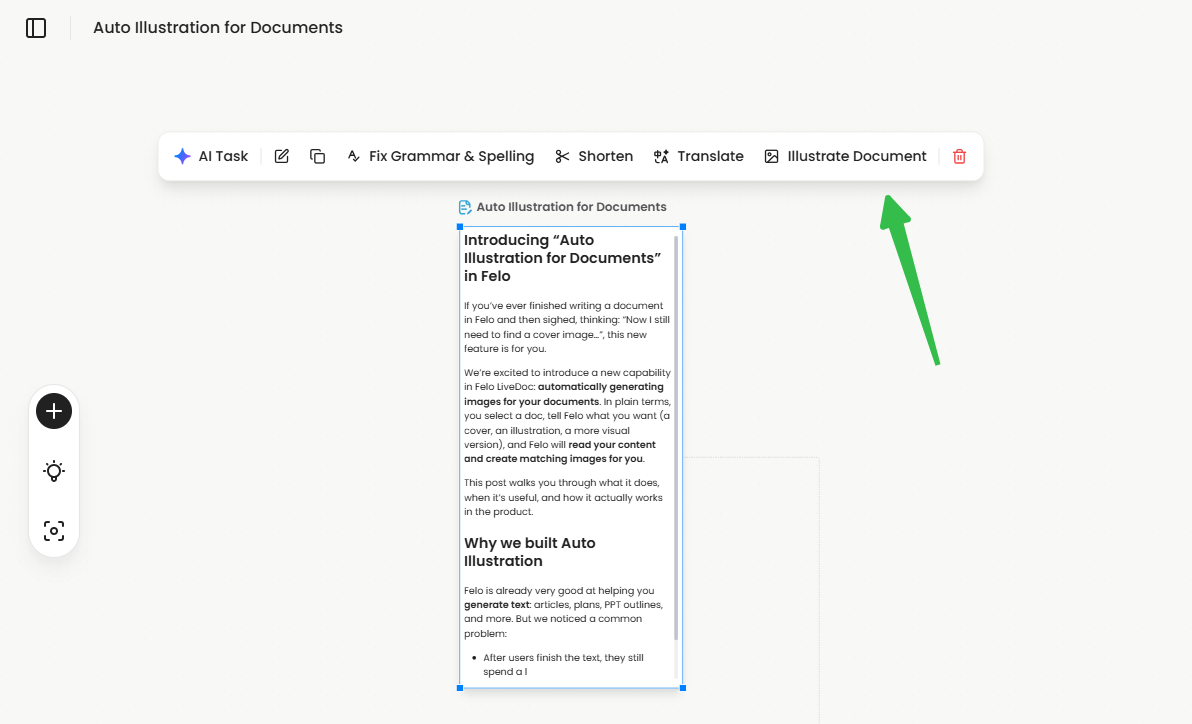
A. Auto illustration for one document
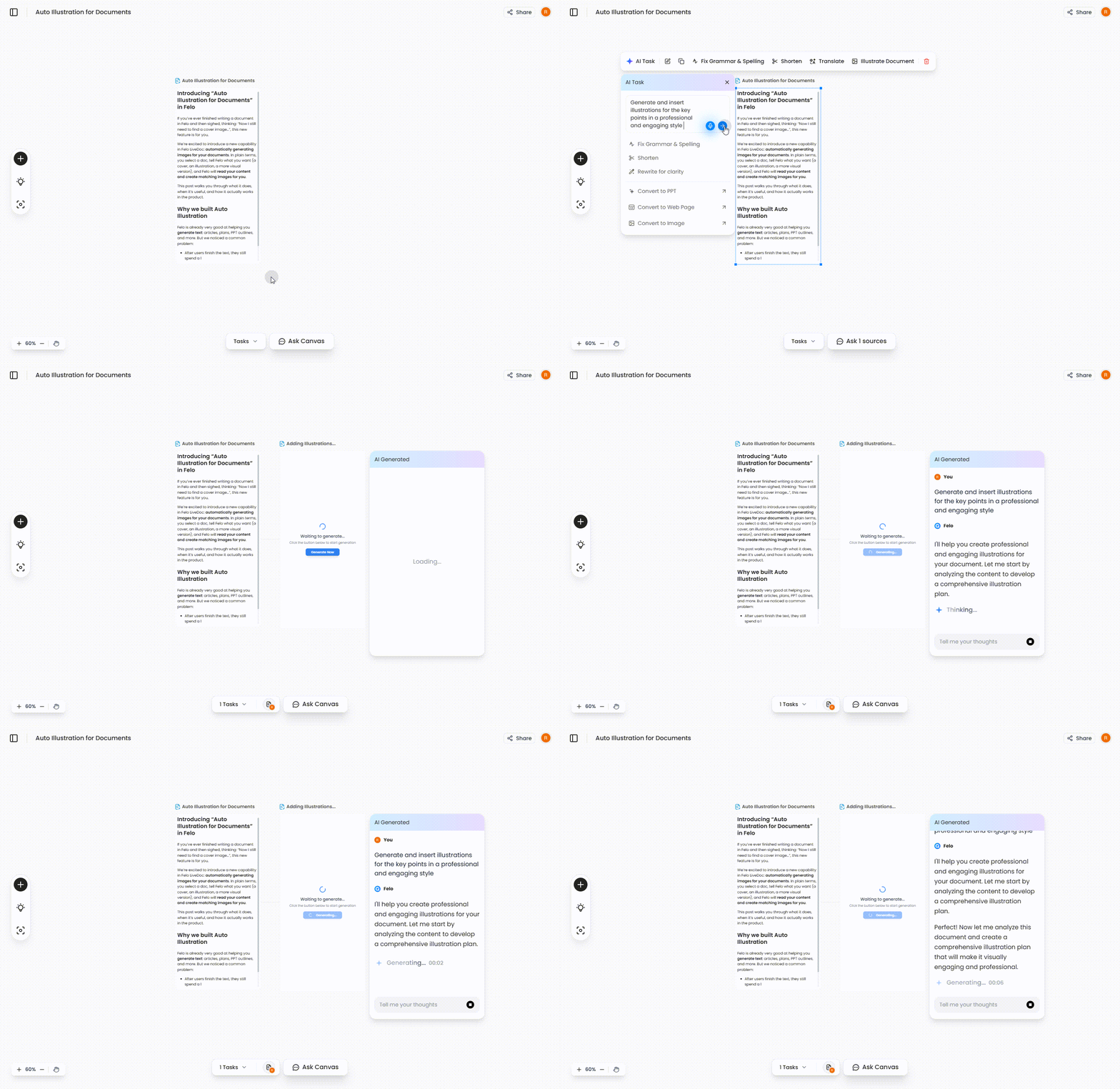
- Select a document node in LiveDoc.
- Open AI Task.
- Use one of the following patterns:
- Quick cover generation
- Example: “Give this document a cover image.”
- Felo will read your doc, create a prompt, generate an image, and set it as the cover or insert it at the top.
- General illustration
- Example: “Add illustrations to make this article more visual.”
- Felo will generate images closely related to your content and insert them into the document body.
- “Picture + text” beautification
- Example: “Make this more visual and rich in images.”
- Felo reads your document, generates multiple related images, and inserts them in context to help you present your ideas more clearly.
While the image is being generated, you’ll see a loading state in the AI Task panel so you know something is in progress.
B. Mixed instructions with docs and images
- In the canvas, hold Shift or Cmd/Ctrl to multi-select:
- At least one document node
- At least one image node
- Open AI Task.
- You’ll see a subtle UI cue like “Selected 3 items” and numbered badges
#1,#2,#3on your selections. You can now write prompts like:
-
Use an image as cover of a new doc
“Create a new document and use #3 as the cover image.”
Felo will:
- Identify your intent: “create new doc”
- Use selected text docs as source content
- Set
Cover_Image = #3.urlon the new doc - Write the summarized or combined content into the body
- Output the new LiveDoc node back to the canvas.
-
Write from an image into an existing doc
“Based on image #3, write a description and append it to doc #1.”
Felo will:
- Use a multimodal model to analyze the image
- Generate a suitable text description
- Append it to the tail of the target document.
If your prompt refers to a number that doesn’t exist (e.g., #5 when only #1–#3 are selected), Felo will gently tell you that it can’t find that object and ask you to check your selection. If you mistakenly refer to a text item as an image (e.g., “Make #1 the cover image” but #1 is a doc), Felo can either convert #1’s text into an image prompt or ask you to adjust your reference.
A few examples of real-world use
Here are some situations where this feature can be particularly helpful:
- Articles & blog posts
You’ve drafted a 3,000-word article. Instead of opening another tab to search stock photos, just ask Felo for a cover and a few in‑line illustrations. One step, inside the same workspace. - Proposals, reports, and PPT outlines
You need a decent cover and a few diagrams to make your proposal more convincing. Let Felo read your outline and create simple, relevant visuals that fit the tone of your content. - Whitepapers and documentation
For long, dense documents, you can ask Felo to add images to make the core ideas stand out more intuitively and break up the wall of text. - Mixing existing assets into new deliverables
You have old images and multiple text docs from past work. Multi‑select them, then ask Felo to create a new summarized doc with a specific image as the cover, rather than rebuilding everything manually.
Designed to be reliable in real workflows
Beyond the “wow” factor of AI images, we also put effort into making the experience robust:
- There are clear visual cues when you’re in multi‑select mode and when objects have been numbered for referencing in prompts.
- Felo tracks when image generation fails, and will let you know without risking any loss of your document content.
We’ll also be tracking usage and retention of auto‑generated images—essentially, how often users keep the images instead of immediately deleting or replacing them—to understand whether the results are actually helpful in real work.
Try it out and see what it changes for you
The idea behind this feature is simple: you stay focused on your ideas; Felo takes care of the visuals.
Next time you finish a document in Felo, try one of these:
- “ a cover image.”- “Add illustrations so this reads more like a visual guide.”
- (With multiple selections) “Create a new doc using these texts, and set #3 as the cover image.”
- Generate illustrations for the document: Create illustrations for this novel in a Japanese live-action style.
- Create illustrations for the text content in the [Studio Ghibli style]
- Add a timeline at the end of the document.
- Replace all images with a hand-drawn illustration style
- Generate an accompanying image for each key paragraph based on the content.
We hope this makes your workflows a bit lighter and your docs a lot more expressive. And as you start using it, your feedback—what works, what doesn’t, and what you wish it could do next—will directly shape how we evolve this capability.