Claude Code Agent: How to Build a Persistent AI Workspace That Actually Remembers

Claude Code agent is powerful but forgets everything after each session. This guide shows you how to build a persistent AI workspace using MemClaw and MCP — complete setup, best practices, and honest limitations.
Claude Code agent is one of the most capable coding assistants available right now. It reads your files, runs commands, edits code, and reasons through complex problems. But there's a catch every developer hits within the first week: every new session starts from zero.
You spend five minutes re-explaining your stack. You paste the same architecture notes again. You remind it about that one quirky API behavior you documented last Tuesday. The agent is powerful, but your context keeps evaporating.
This guide shows you how to fix that.
What Claude Code Agent Actually Does
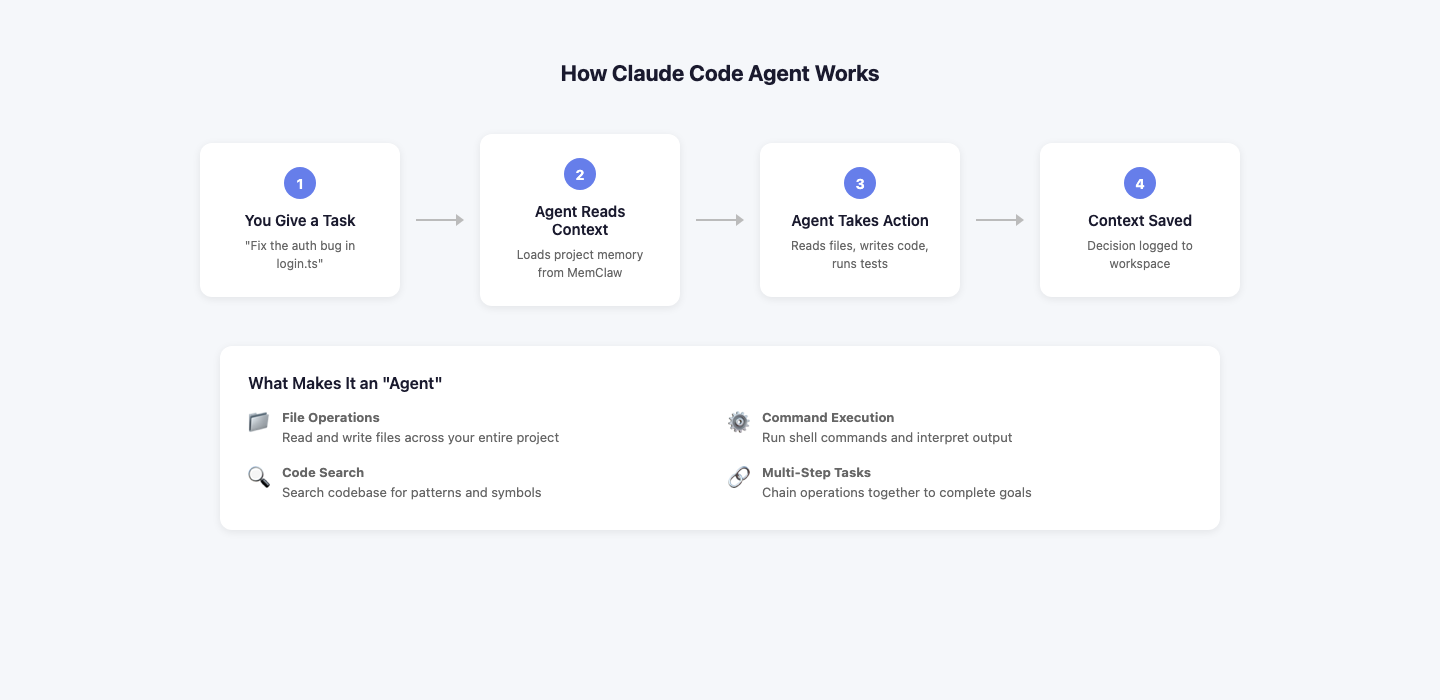
Claude Code is Anthropic's official CLI tool. You run it in your terminal, point it at a codebase, and it operates as an autonomous agent — reading files, writing code, running tests, and chaining together multi-step tasks without you micromanaging each move.
What makes it an "agent" rather than a chatbot is the tool use. Claude Code can:
- Read and write files across your project
- Execute shell commands and interpret the output
- Search codebases for patterns and symbols
- Chain multiple operations together to complete a goal
Where it falls short is persistence. Claude Code has no built-in memory between sessions. Each conversation is stateless.
The Context Problem in Real Development
You're three weeks into a project. You've made dozens of decisions: why you chose Postgres over MongoDB, how your deployment pipeline handles environment variables, which third-party APIs have rate limits you need to work around. You know all of this. Your agent doesn't.
Every morning you either paste a long context block, watch the agent contradict your architecture, or spend time correcting avoidable mistakes.
How MCP Solves the Memory Gap
The Model Context Protocol (MCP) is an open standard that lets Claude connect to external tools and data sources. With MCP, Claude Code can reach outside its session and pull in structured context from a server you control.
MemClaw implements an MCP server that stores your project knowledge in organized workspaces. When Claude Code starts a session, it queries MemClaw and loads the relevant context automatically.
Setting Up MemClaw with Claude Code Agent
Step 1: Install Claude Code
npm install -g @anthropic-ai/claude-code
Step 2: Create Your MemClaw Workspace
Go to memclaw.me, create an account, and create a workspace for your project.
Step 3: Configure the MCP Connection
In your Claude Code project directory, create .claude/mcp_config.json:
{
"mcpServers": {
"memclaw": {
"command": "npx",
"args": ["-y", "@memclaw/mcp-server"],
"env": {
"MEMCLAW_API_KEY": "your_api_key_here",
"MEMCLAW_WORKSPACE_ID": "your_workspace_id"
}
}
}
}
Step 4: Add Your Project Context
Before your first session, populate your workspace with architecture notes, coding conventions, current sprint goals, and any constraints that should persist.
Step 5: Start a Claude Code Session
The MCP server starts automatically. Claude Code can now query your MemClaw workspace.
Managing Multiple Projects with Workspaces
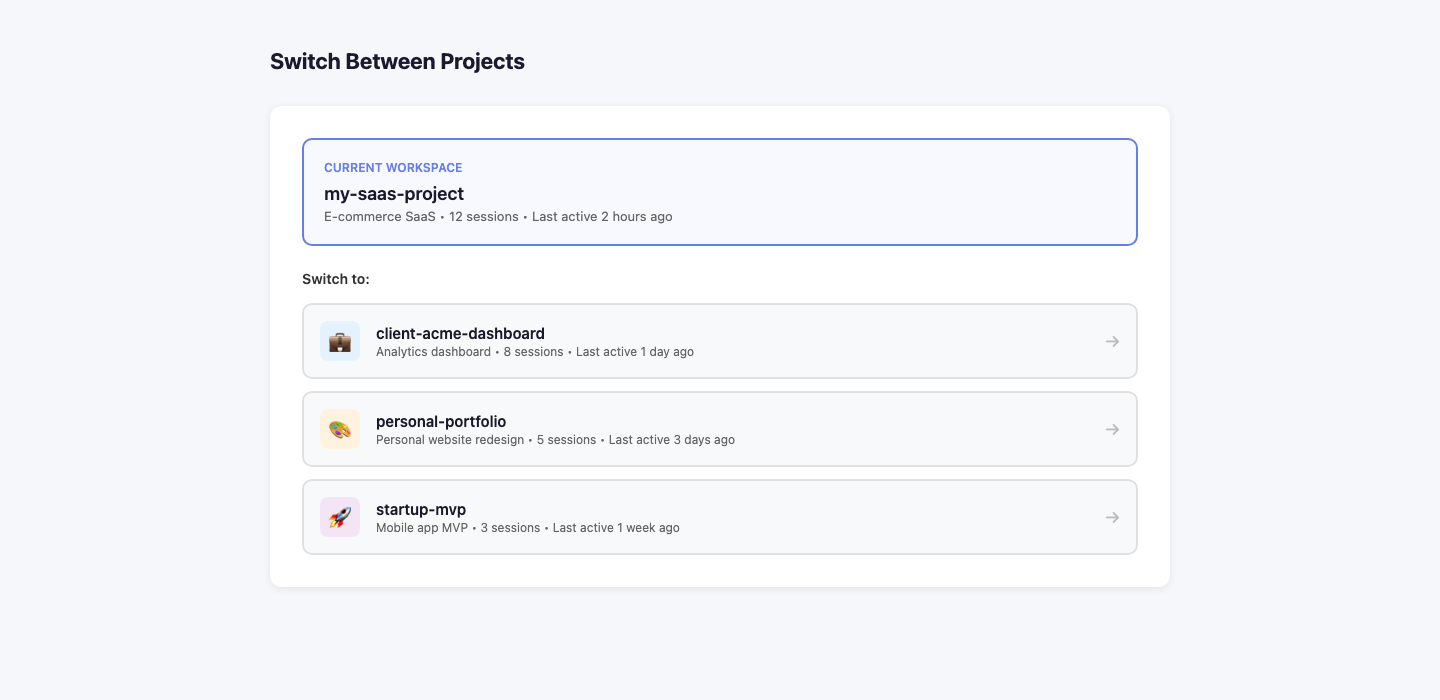
Each project gets its own workspace. Switching between them is clean — no context bleed.
Best Practices for Claude Code Agent Sessions
Keep your workspace current. When you make a significant architectural decision, add a note. The agent is only as good as the context you give it.
Use conversation history as a log. MemClaw stores your conversation history with timestamps — this doubles as a project log.
Scope your workspaces appropriately. Don't put everything in one workspace. A workspace that contains your entire company's knowledge is too noisy.
Honest Limitations of MemClaw
The MCP integration requires a stable network connection — offline work won't have context retrieval.
Workspace search is semantic but not perfect. Very large workspaces may not surface the most relevant piece on the first query.
Agent write-back requires prompting — agents don't automatically log decisions. You need to include that instruction in your prompts.
MemClaw is a paid product after the free tier. Evaluate the cost against your actual usage before committing.
Getting Started Checklist
- Install Claude Code via npm
- Create a MemClaw account at memclaw.me
- Create a workspace for your current project
- Add architecture notes, conventions, and key decisions
- Configure .claude/mcp_config.json
- Run a test session and verify context retrieval works
- Build the habit of updating your workspace after significant decisions