Claude Code Memory: How to Give Your AI Persistent Context Across Projects

Claude Code forgets everything after each session. This guide shows you how to give it persistent memory across projects using MemClaw — workspace isolation, context accumulation, and conversational access to your project history.
You open Claude Code. You paste your project structure. You explain the architecture. You describe the bug. You get a great answer.
You close the session.
Tomorrow, you do it all again.
This is the core frustration with Claude Code — not the quality of its answers, but the fact that it starts from zero every single time. No memory of your codebase. No memory of decisions you made last week. No memory of the three hours you spent explaining why you chose that particular database schema.
This guide covers exactly how to fix that.
Try MemClaw free → memclaw.me
Why Claude Code Has No Memory
(And Why That's a Problem)
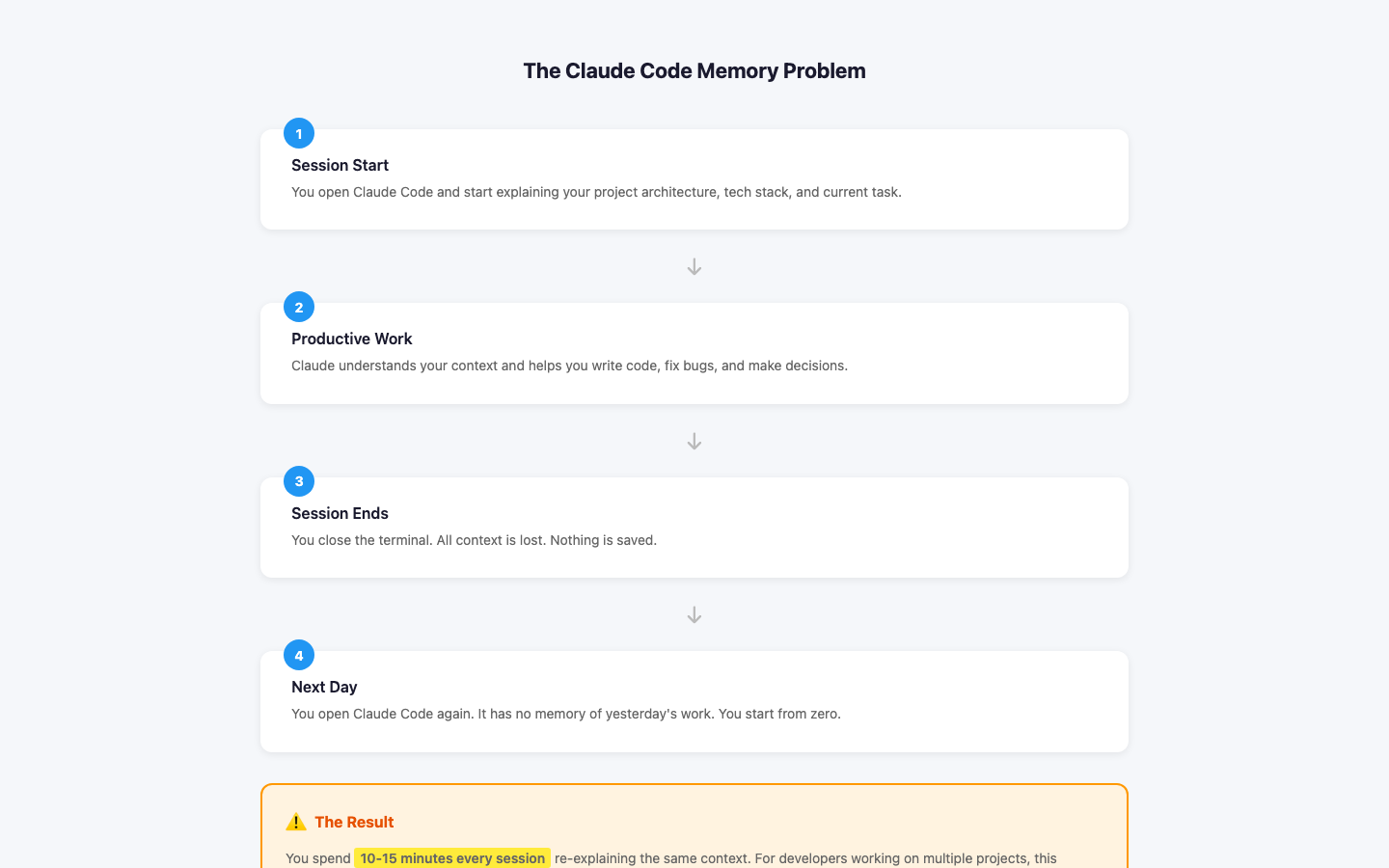
Claude Code operates within a context window — a fixed amount of text it can "see" at once. When a session ends, that window closes. Nothing carries over.
For a quick one-off task, this is fine. For ongoing development work, it creates real friction:
- Re-explaining architecture every session wastes 10-15 minutes before you get to actual work
- Switching between projects means manually loading different context each time
- Team handoffs require someone to reconstruct context that already existed somewhere
- Long-running decisions — why you chose library X over Y, why that function is structured that way — live only in someone's head
The problem isn't that Claude Code is bad at remembering. It's that it has no mechanism to remember at all.
What "Claude Code Memory" Actually Means
When people search for "claude code memory," they're usually looking for one of three things:
- Session persistence — resuming a conversation where it left off
- Project context — having Claude understand your codebase without re-explaining it
- Cross-project isolation — keeping context for Project A separate from Project B
Native Claude Code handles none of these well. The context window fills up, sessions end, and projects bleed into each other if you're not careful.
The solution is a dedicated workspace memory layer that sits between your work and Claude.
How MemClaw Solves Claude Code Memory
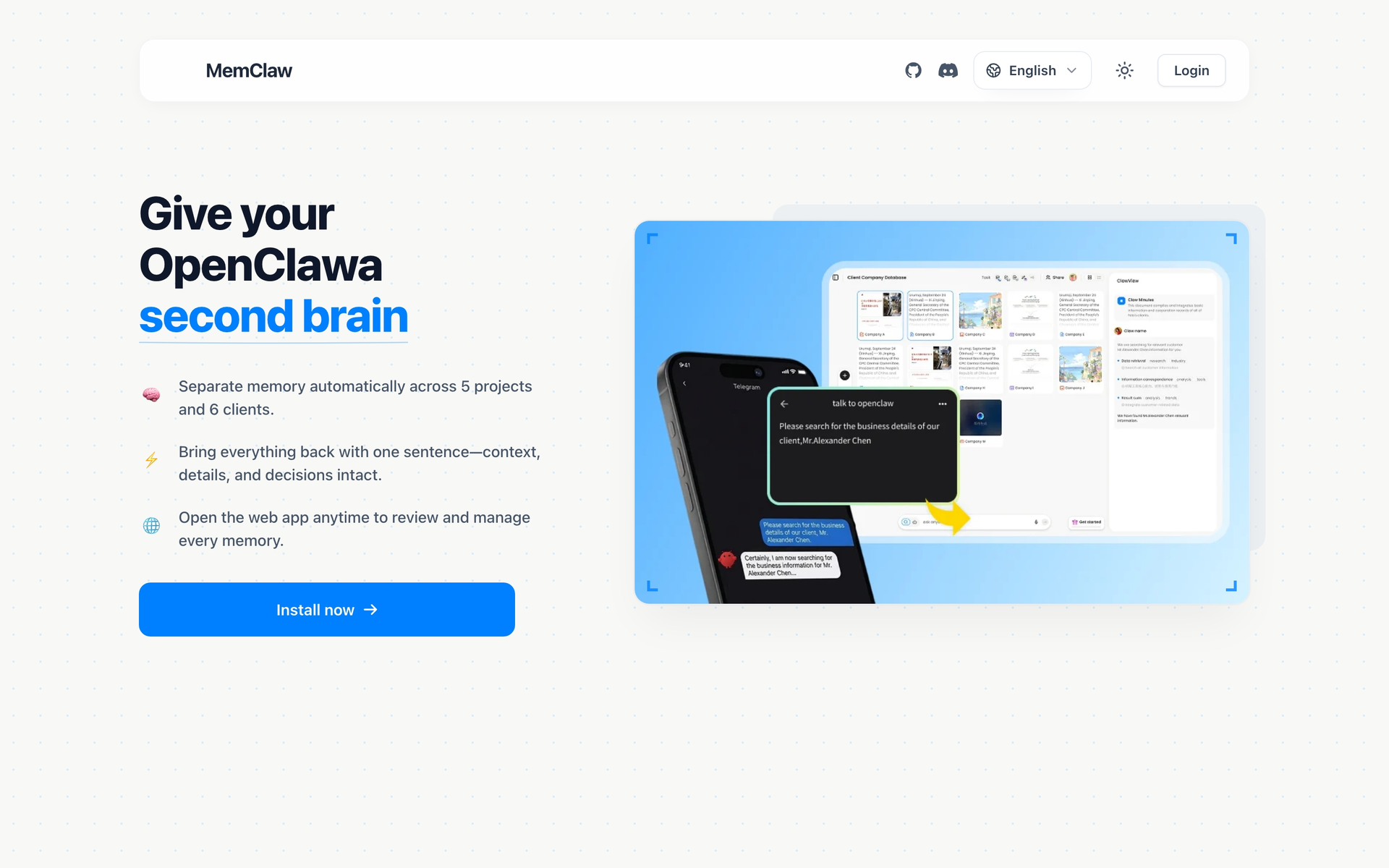
MemClaw is an AI workspace memory system built specifically for multi-project workers. The core idea: every project gets its own isolated workspace that accumulates context over time and makes it available to Claude on demand.
Here's what that looks like in practice:
Workspace Isolation
Each project lives in its own workspace. The context, history, decisions, and files for Project A never touch Project B. When you switch projects, you switch workspaces — Claude immediately has the right context without any manual loading.
This matters most if you're working on multiple codebases, serving multiple clients, or juggling feature branches with very different contexts.
Persistent Context Layer
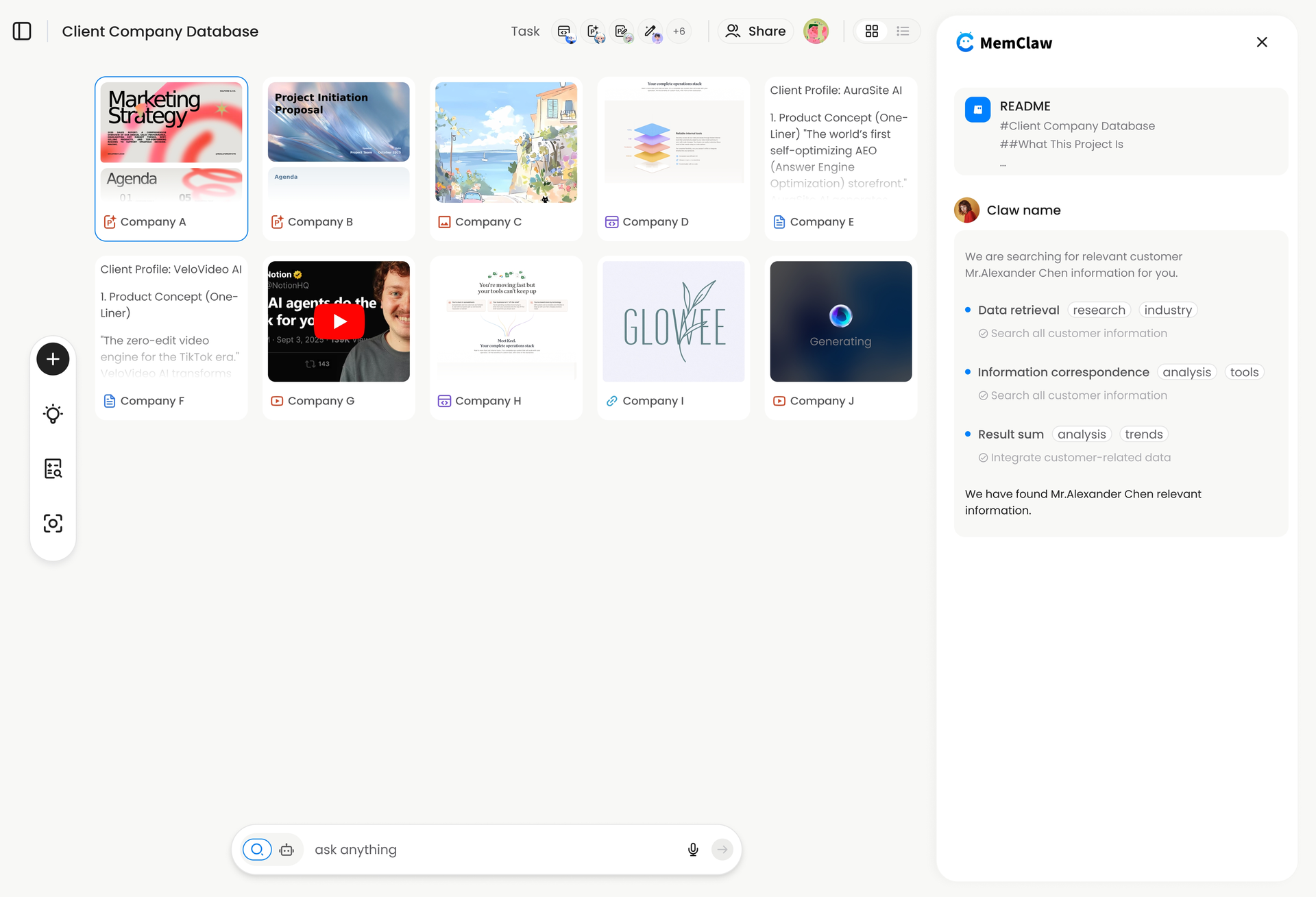
Instead of pasting your README and architecture docs every session, you add them to your MemClaw workspace once. From then on, Claude can pull from that context automatically. Add a meeting note, a decision log, a Slack thread — it all becomes part of the workspace's memory.
The workspace doesn't just store files. It stores the meaning of those files in relation to your project, so Claude can answer questions like "why did we decide not to use Redis here?" without you having to find and paste the original discussion.
Conversational Access
Everything in a workspace is queryable. You can ask "what did we decide about authentication last month?" or "what's the current state of the payment integration?" and get a direct answer from your accumulated project context — not a search result, an actual synthesized answer.
Set up your first workspace → memclaw.me
Setting Up MemClaw with Claude Code
Step 1: Create a Workspace for Each Project
Go to memclaw.me and create a new workspace. Name it after your project — something specific enough that switching between workspaces is unambiguous.
If you're working on three projects, create three workspaces. The isolation is the point.
Step 2: Add Your Project Context
Start with the documents Claude needs most:
- Architecture overview or README
- Key technical decisions and their rationale
- Current sprint goals or active issues
- Any recurring context you find yourself pasting into Claude
You can import documents directly, paste text, or connect external sources. MemClaw supports continuous sync from sources like YouTube channels — useful if your project has video documentation or recorded meetings.
Step 3: Install the MemClaw Skill in Claude Code
MemClaw integrates with Claude Code via the MCP protocol. Install the skill:
npx clawhub@latest install memclaw
Or via OpenClaw:
npx openclaw install memclaw
Once installed, Claude Code can query your MemClaw workspace directly during a session. You don't need to paste context manually — Claude pulls it from the workspace when it's relevant.
Step 4: Switch Workspaces When You Switch Projects
When you move from one project to another, switch your active MemClaw workspace. Claude immediately operates with the correct project context. No manual loading, no risk of cross-project contamination.
Real Scenarios Where This Changes How You Work
Scenario: Picking Up After a Week Away
You worked on a feature two weeks ago, got pulled onto something else, and now you're back. Without MemClaw, you spend 20 minutes re-reading your own code and notes before you can have a useful conversation with Claude.
With MemClaw, you open the workspace, ask "where did I leave off on the payment integration?" and get a direct summary of the last session's decisions and open questions. You're back in context in under two minutes.
Scenario: Freelancer with Multiple Clients
You're serving six clients. Each has different tech stacks, different conventions, different ongoing discussions. Switching between them in a single Claude session is a recipe for confusion — and occasionally, for sending the wrong context to the wrong client.
MemClaw gives each client their own workspace. Switching clients means switching workspaces. Claude's context resets cleanly. The risk of cross-contamination drops to zero.
Scenario: Team Handoff
A teammate has been working on a module for three weeks. They're going on leave. You need to pick it up.
Instead of a 90-minute knowledge transfer call, they share their MemClaw workspace with you. You have access to every decision, every discussion, every piece of context they accumulated. You can ask the workspace questions directly. The handoff takes 15 minutes.
MemClaw vs. Other Claude Memory Approaches
There are a few other ways people try to solve the Claude Code memory problem. Here's how they compare:
Manual Context Files
Some developers maintain a CONTEXT.md or CLAUDE.md file in their repo and paste it at the start of every session. This works, but it's manual, it doesn't scale across projects, and it doesn't capture conversational context — only what you remember to write down.
MCP Memory Servers
There are open-source MCP memory servers (like mcp-memory or memory-os) that provide basic persistence. These are good for simple use cases but require self-hosting, manual setup, and don't handle multi-project isolation well.
MemClaw is a managed solution — no infrastructure to maintain, workspace isolation built in, and a conversational interface on top of the stored context.
Claude Projects (Native)
Claude's native Projects feature provides some persistence within the Claude.ai interface. It doesn't integrate with Claude Code's MCP ecosystem, and it doesn't support the kind of structured, queryable workspace that MemClaw provides.
One honest limitation of MemClaw: it's a separate tool that requires a setup step. If you only work on one project and don't mind re-loading context manually, the overhead may not be worth it. It's most valuable when you're managing multiple projects or need context to persist across weeks or months.
MCP Memory: The Technical Layer
For developers who want to understand what's happening under the hood:
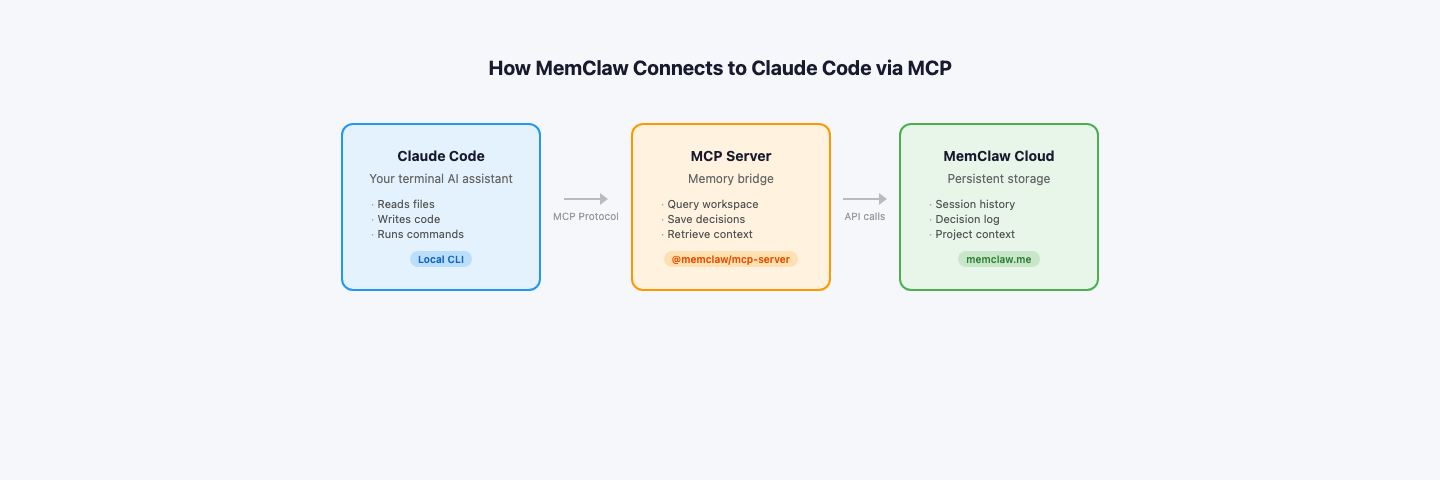
MemClaw implements the Model Context Protocol (MCP), which is the standard interface for giving Claude Code access to external tools and data sources. When you install the MemClaw skill, it registers as an MCP server that Claude Code can query.
During a session, Claude can call the MemClaw MCP server to:
- Retrieve relevant context from the active workspace
- Store new information (decisions, notes, code snippets) back to the workspace
- Switch between workspaces when you change projects
This means the memory layer is active and bidirectional — Claude isn't just reading from a static file, it's interacting with a live workspace that updates as you work.
The MCP integration also means MemClaw works with any Claude Code setup, including custom configurations and other MCP tools you might already be using.
Getting Started
The fastest path to persistent Claude Code memory:
- Go to memclaw.me and create a free account
- Create one workspace for your most active project
- Add your project's README, architecture notes, and any key decision logs
- Install the MemClaw skill in Claude Code
- Start a session — Claude now has access to your project context without manual pasting
The difference is noticeable from the first session. You stop spending the first 15 minutes of every Claude conversation re-establishing context, and start spending that time on actual work.
Start with MemClaw free → memclaw.me
Frequently Asked Questions
Does MemClaw work with Claude Code specifically, or just Claude.ai?
MemClaw integrates with Claude Code via MCP, so it works in the CLI environment where you're actually writing code. It also works with other MCP-compatible tools.
How is this different from just keeping a CLAUDE.md file?
A CLAUDE.md file is static — you have to manually update it and paste it into sessions. MemClaw is dynamic: it accumulates context automatically, supports conversational queries, and handles multi-project isolation without manual file management.
Can I share a workspace with my team?
Yes. MemClaw supports shared workspaces, which makes it useful for team handoffs and collaborative projects where multiple people need access to the same accumulated context.
What happens to my context if I stop using MemClaw?
Your workspace data is exportable. You're not locked in.
Does this work with the MCP memory servers I'm already using?
MemClaw is a standalone MCP server. It can coexist with other MCP tools in your Claude Code setup.