How to Use Claude Code for Multiple Projects Without Losing Context

Managing multiple projects in Claude Code? Here's how to stop context bleed, organize workspaces, and keep each project's state across sessions.
You're building an API for Client A. You switch to Client B's frontend. You come back to Client A and Claude thinks you're still working on React components.
This is the multi-project problem in Claude Code. The more projects you juggle, the worse it gets — context bleeds between them, decisions from one project leak into another, and you spend the first five minutes of every session re-explaining which project you're working on.
Claude Code doesn't ship with built-in project isolation. But there are practical ways to manage multiple projects without losing your mind. This guide covers the approaches that actually work, from simple to comprehensive.
The Problem: Why Claude Code Struggles with Multiple Projects
Claude Code uses session-based memory. Within a single session, it tracks everything — your files, your decisions, your preferences. But that memory has two limitations:
- No persistence across sessions. Close the terminal, lose the context. Next session starts fresh.
- No project boundaries. If you work on two projects in one session, or switch between projects across sessions, Claude has no way to separate the contexts.
In practice, this means:
- You explain your tech stack every morning
- Decisions from Project A ("we're using Redis") get applied to Project B
- You can't pick up where you left off after a weekend
- The more projects you run in parallel, the more time you waste on re-briefing
If you work on one project at a time, this is manageable. If you're a freelancer with five clients or a developer on three codebases, it's a real productivity drain.
Approach 1: One Directory Per Project with CLAUDE.md
The simplest approach. Claude Code automatically reads a CLAUDE.md file from your working directory at session start.
Setup:
Create a CLAUDE.md in each project root:
~/projects/client-acme/CLAUDE.md
~/projects/client-beta/CLAUDE.md
~/projects/internal-tool/CLAUDE.md
Each file contains that project's static context:
# Client Acme — Billing Dashboard

## Tech Stack
- Next.js 14, TypeScript, Prisma, PostgreSQL
- Deployed on Vercel, DB on Supabase

## Coding Conventions
- Use functional components, no class components
- Prefer Zod for validation
- Error handling: always return typed errors, never throw

## Current Status
- Invoice listing: done
- Payment integration: in progress (Stripe)
- Admin panel: not started
How to use:
Always cd into the right project directory before starting Claude Code:
cd ~/projects/client-acme
claude
Claude picks up the CLAUDE.md and starts with that project's context.
Strengths:
- Zero dependencies — built into Claude Code
- Version controlled (lives in your git repo)
- You control exactly what Claude reads
Limitations:
- Static — you have to manually update it after significant work
- Doesn't track decisions, progress, or artifacts automatically
- If you forget to
cdto the right directory, you get the wrong context - Doesn't work if you switch projects within a session
Best for: Developers working on 2-3 codebases with relatively stable context.
Approach 2: Git Worktrees for Parallel Sessions
If you need to work on multiple projects simultaneously (not just switching between them), git worktrees let you run separate Claude Code instances in isolated directories.
Setup:
# Create worktrees for different branches/projects
git worktree add ../acme-feature-auth feature/auth
git worktree add ../acme-feature-billing feature/billing
Each worktree gets its own directory, its own CLAUDE.md, and its own Claude Code session.
How to use:
Open separate terminals:
# Terminal 1
cd ~/worktrees/acme-feature-auth
claude

# Terminal 2
cd ~/worktrees/acme-feature-billing
claude
Strengths:
- True parallel execution — two Claude instances, two contexts
- Each worktree can have its own CLAUDE.md
- Native git feature, no external tools
Limitations:
- Only works for branches within the same repo, not across different projects
- Managing many worktrees gets messy
- Each instance uses a separate session on your Claude plan
- No shared memory between worktrees — if you make a decision in one, the other doesn't know
Best for: Developers working on multiple features within the same codebase simultaneously.
Approach 3: Persistent Workspaces with MemClaw
For people managing multiple unrelated projects (different clients, different codebases, different contexts), the previous approaches hit a wall. CLAUDE.md is static. Git worktrees only work within one repo. Neither tracks your decisions, progress, or artifacts across sessions.
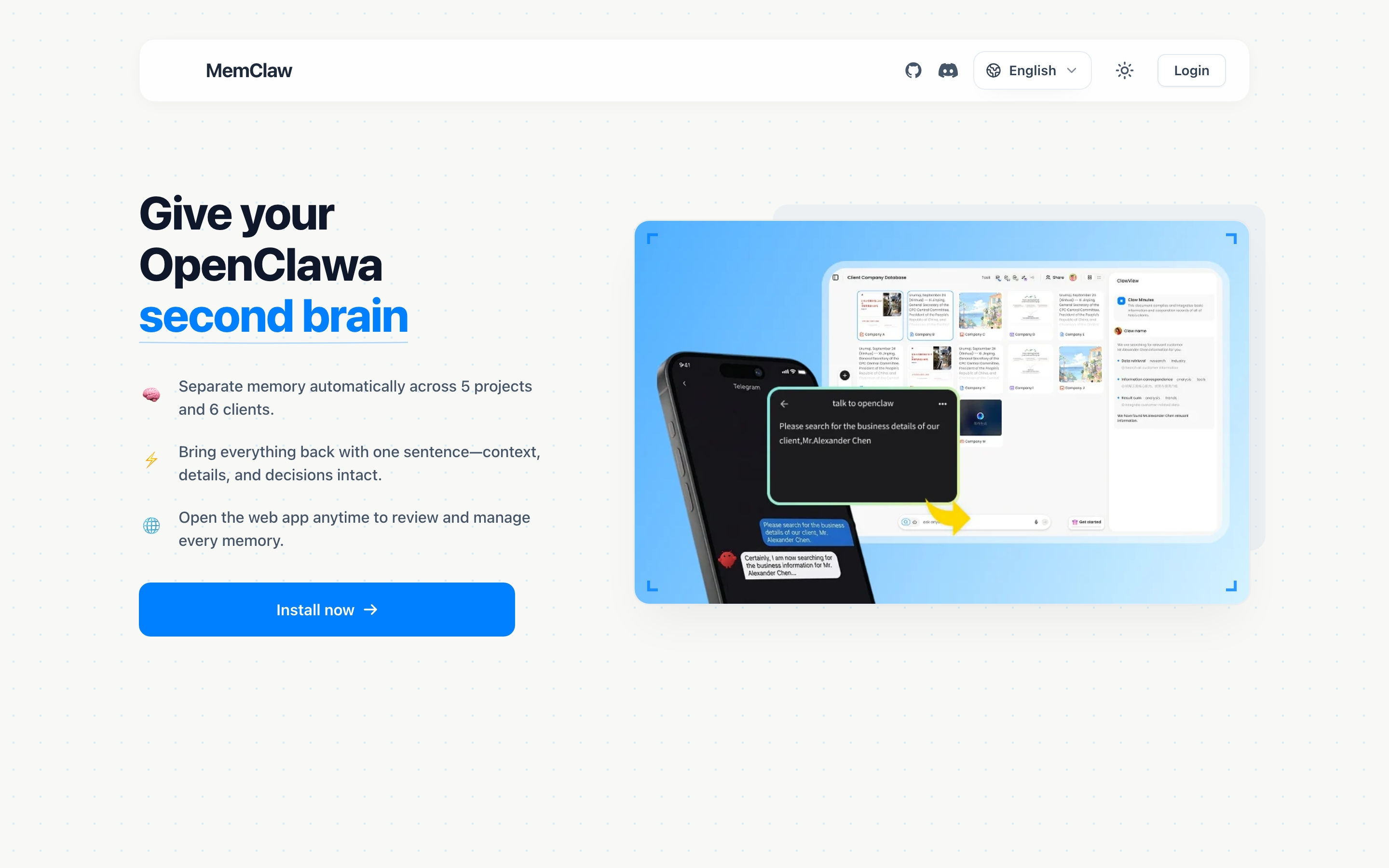
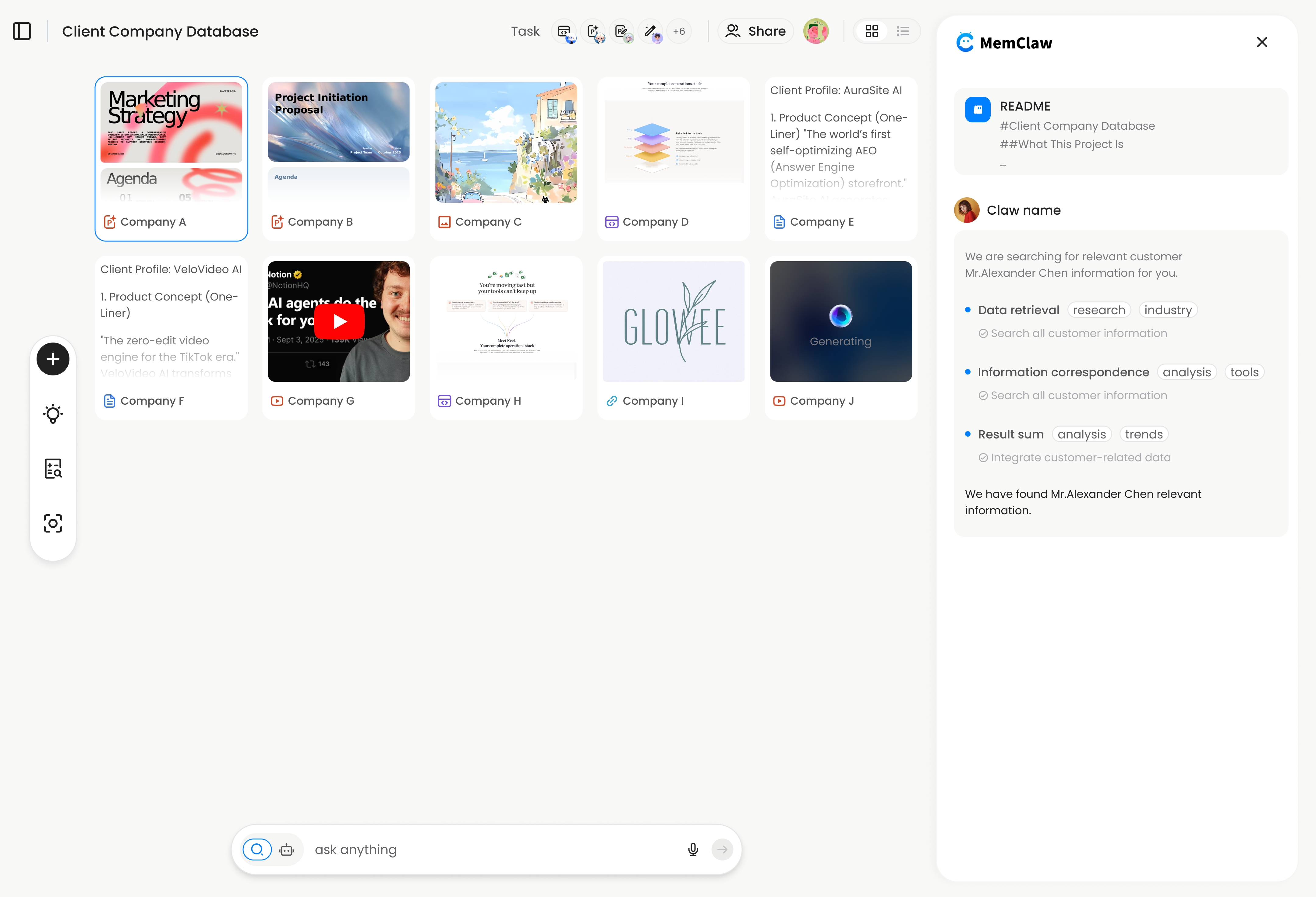
MemClaw adds project-scoped persistent workspaces to Claude Code. Each project gets its own isolated memory that carries across sessions.
Setup:
# Set API key (free tier available)
export FELO_API_KEY="your-api-key-here"
# Get your key at: https://felo.ai/settings/api-keys
Install:
/plugin marketplace add Felo-Inc/memclaw
/plugin install memclaw@memclaw
How to use:
Create a workspace per project:
"Create a workspace called Client Acme"
Load it at the start of any session:
"Load the Acme workspace"
Context restores in about 8 seconds. Claude knows the project background, what's been decided, what's in progress, and what's next.
Switch projects mid-session:
"Load the Beta workspace"
Context switches instantly. Acme's state stays saved; Beta's state loads in.
What it tracks automatically:
- Living README — project background, preferences, current status (updates as you work)
- Artifacts — documents, reports, URLs, code snippets saved during conversations
- Tasks — auto-tracked as Claude works on things
Strengths:
- Dynamic — updates automatically, not just when you remember to edit a file
- Project isolation — Client A's context never leaks into Client B
- Works across agents (Claude Code, OpenClaw, Gemini CLI, Codex share the same workspace)
- Natural language — "Load the Acme workspace" instead of
cdinto a directory - Team sharing — invite teammates to a workspace
Limitations:
- Requires a Felo API key (free tier available at felo.ai/settings/api-keys)
- You need to explicitly load a workspace at session start
- External dependency — your workspace data lives in the Felo API
Best for: Freelancers with multiple clients, developers on multiple unrelated codebases, anyone managing 3+ parallel projects.
Approach 4: Combine CLAUDE.md + MemClaw
The approaches aren't mutually exclusive. A practical setup:
- CLAUDE.md for static coding conventions that rarely change (linting rules, naming conventions, framework preferences)
- MemClaw workspace for dynamic project state (current progress, decisions, artifacts, tasks)
Claude Code reads CLAUDE.md automatically. You load the workspace manually at session start. Together, they give you both static and dynamic context without redundancy.
CLAUDE.md → "always use TypeScript strict mode, prefer Zod for validation"
MemClaw   → "payment integration is half-done, client approved mockup Thursday,
             next step is Stripe webhook handler"
Practical Tips for Multi-Project Workflows
Regardless of which approach you use, these habits help:
Name things clearly
If you use CLAUDE.md per project, put the project name in the first line:
# Client Acme — Billing Dashboard v2
If you use MemClaw, use descriptive workspace names: "Client Acme" not "Project 1".
Save decisions explicitly
When you make a decision during a session, save it somewhere — whether that's editing CLAUDE.md, telling MemClaw ("Add to workspace: we chose Stripe because..."), or adding a comment to your codebase. Decisions are the context you'll miss most when you return to a project after a break.
Don't work on two projects in one session
Even with workspace isolation, it's cleaner to dedicate each Claude Code session to one project. Start the session, load the context, do the work, end the session. Mixing projects in one conversation increases the chance of context bleed.
Review context periodically
Every few sessions, check your project context:
- CLAUDE.md: Is it still accurate? Update anything that's changed.
- MemClaw: "Summarize the current state of this project" — does it match reality?
Stale context is worse than no context. It leads Claude to make decisions based on outdated information.
Choosing the Right Approach
| Scenario | Recommended |
|---|---|
| 2-3 codebases, mostly solo | CLAUDE.md per project |
| Multiple features in one repo, parallel | Git worktrees |
| 3+ unrelated projects, different clients | MemClaw workspaces |
| Team collaboration, handoffs | MemClaw (team sharing) |
| Claude Code + OpenClaw on same projects | MemClaw (cross-agent) |
| Maximum control, zero dependencies | CLAUDE.md only |
There's no single right answer. The best setup is the one you'll actually maintain. A CLAUDE.md you update regularly beats a workspace system you set up once and forget.
Getting Started
If you're currently re-briefing Claude every session:
- Minimum viable setup: Create a CLAUDE.md in your most active project with tech stack, conventions, and current status. Start there.
- If you manage 3+ projects: Try MemClaw — install takes two commands, and the workspace isolation is immediate. memclaw.me
- If you work on parallel features: Set up git worktrees for your most active branches.
The goal is the same regardless: spend less time explaining and more time building.
MemClaw is made by the Felo team. Get started free at memclaw.me. View the code at github.com/Felo-Inc/memclaw.