Claude Code Skills: How to Install and Use Custom Skills

Complete guide to Claude Code skills — what they are, how to install them, and the best skills for memory, automation, and workflow. Includes setup examples.
Claude Code is powerful out of the box. But the real value comes from skills — modular add-ons that give the agent new capabilities it does not have by default. Persistent memory, web search, file automation, browser control, slide generation — these are all skills that someone built and you can install in seconds.
If you have been using Claude Code without skills, you are using maybe 40% of what it can do.
This guide covers what claude code skills are, how to find and install them, how to build your own, and which ones are worth installing right now.
What Are Claude Code Skills?
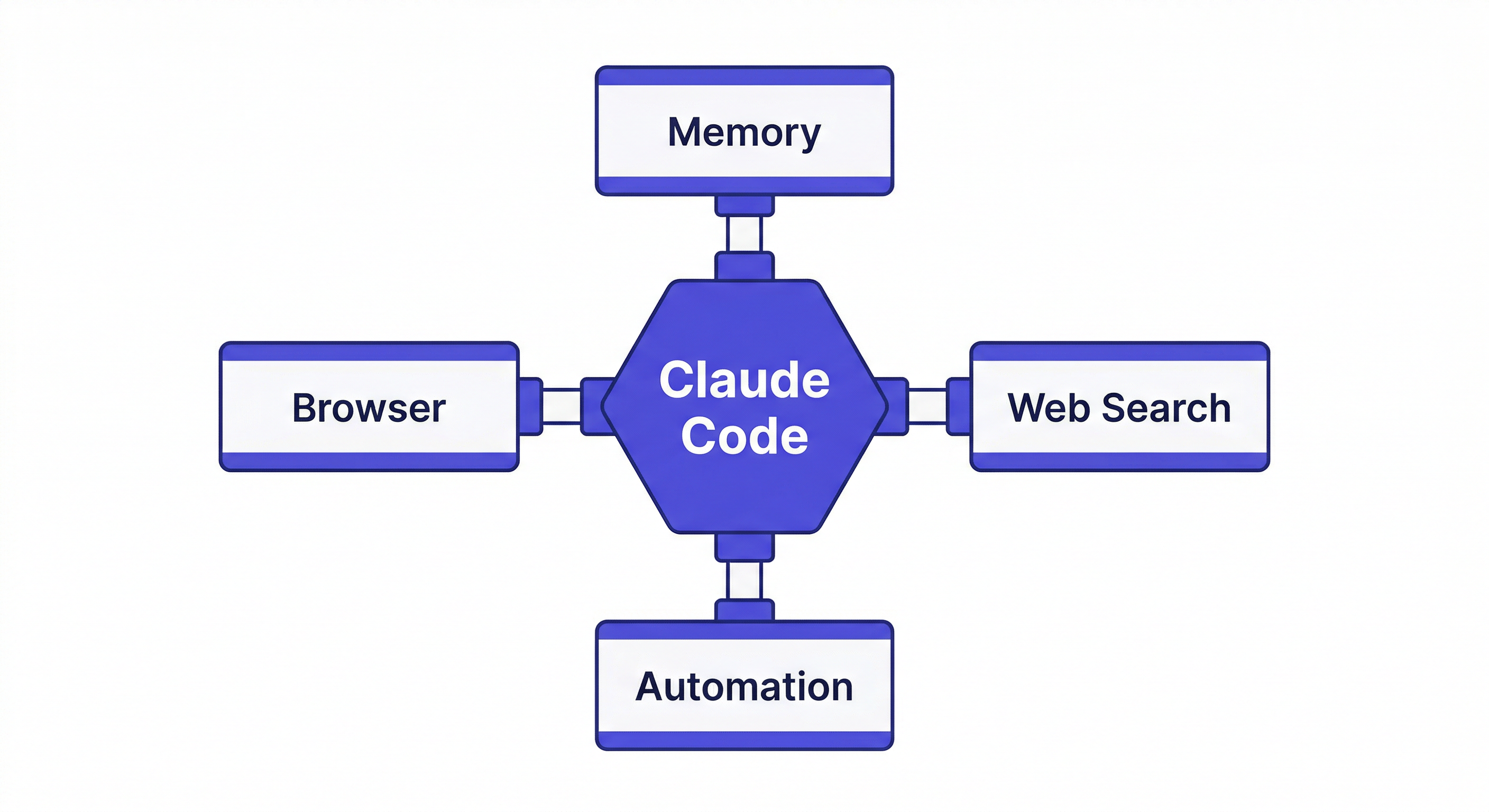
A claude code skill is a self-contained module that extends what the agent can do. Think of it like a browser extension — the base browser works fine, but extensions let it do things the developers never built in.
Skills live in your local ~/.claude/skills/ directory. When Claude Code starts a session, it reads the skill files and gains access to whatever capabilities they provide. The agent can then use those capabilities when relevant — you do not need to manually activate them.
What a skill can do:
- Give the agent access to external APIs (search engines, databases, CMS platforms)
- Add persistent memory across sessions
- Enable browser automation and web scraping
- Provide slash commands for common workflows
- Connect to third-party services (GitHub, Slack, analytics platforms)
- Automate repetitive tasks (content generation, data processing, reporting)
What a skill cannot do:
- A skill cannot override Claude's safety policies
- It cannot access files outside the permissions Claude Code already has
- It runs within the same sandbox as the base agent
How to Install Claude Code Skills
There are two main ways to install claude code skills:
From the Plugin Marketplace
The simplest path. The marketplace hosts verified skills you can install with two commands:
/plugin marketplace add [publisher]/[skill-name]
/plugin install [skill-name]@[skill-name]
For example, to install MemClaw (a persistent memory skill):
/plugin marketplace add Felo-Inc/memclaw
/plugin install memclaw@memclaw
The marketplace handles version management and updates. You can browse available skills with /plugin marketplace list.
Manual Installation
For skills not on the marketplace, or if you prefer manual control:
# Clone the skill repository
git clone https://github.com/[publisher]/[skill-name].git

# Copy to skills directory
cp -r [skill-name]/[skill-name] ~/.claude/skills/
For OpenClaw users, skills go to ~/.gemini/skills/ or ~/.codex/skills/ depending on your agent.
After installation, restart Claude Code or start a new session. The agent will automatically detect and load the skill.
Full installation walkthrough →
Claude Code Slash Commands and Custom Commands
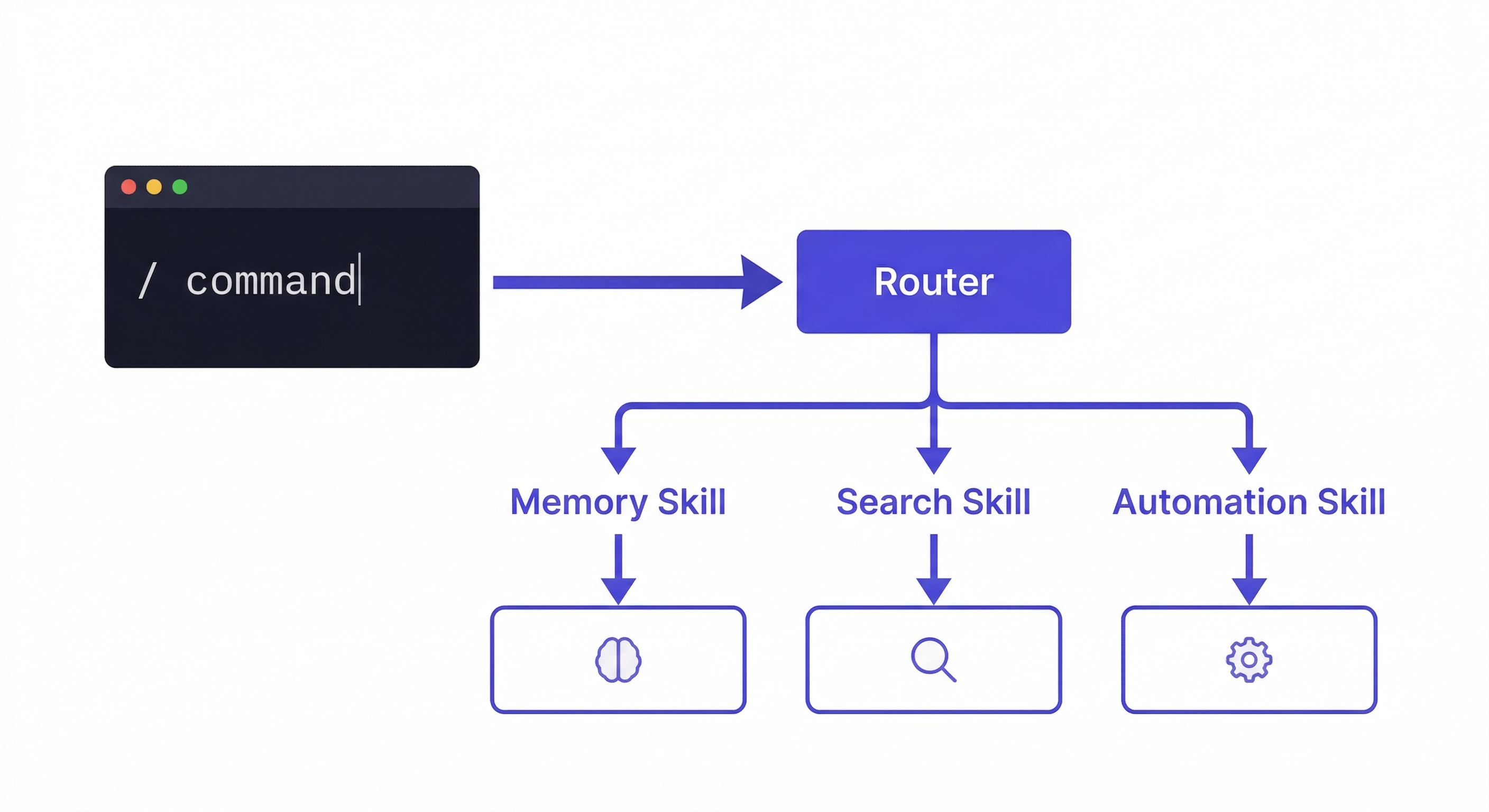
Many claude code skills register claude code slash commands — shortcuts you type directly in the chat. Instead of explaining what you want in natural language, you invoke a specific capability with a single command.
Built-in slash commands (no skill needed):
/help— Show available commands/clear— Clear conversation history/compact— Summarize and compress context
Skill-provided slash commands (installed skills add these):
The exact commands depend on which skills you have installed. For example, a memory skill might add commands like "create workspace" or "load workspace" that you invoke through natural language. A search skill might add web search capabilities. A content skill might add commands for generating specific content types.
Building Custom Commands
You can create your own claude code custom commands by writing skill files. A skill is essentially a markdown file with instructions that Claude Code reads at session start.
The basic structure:
~/.claude/skills/my-skill/
  my-skill.md        # Main instruction file
  scripts/            # Optional helper scripts
  config/             # Optional configuration
The .md file tells Claude Code what the skill does, when to use it, and how to execute it. Claude reads this at session start and follows the instructions when relevant.
Example: A simple daily standup skill
Create ~/.claude/skills/standup/standup.md:
# Daily Standup Skill

When the user says "standup" or "daily update", do the following:
1. Check git log for commits since yesterday
2. List any modified files in the working directory
3. Format as a standup update: What I did / What I'm doing / Blockers
Now when you type "standup" in Claude Code, the agent will automatically generate your daily update from your actual git activity. No manual reporting needed.
Essential Claude Code Skills Worth Installing
Here are the most useful claude code skills for different workflows:
Persistent Memory: MemClaw
The most common pain point with Claude Code is that it forgets everything between sessions. MemClaw solves this by giving each project its own persistent workspace.
What it adds:
- Project-scoped memory that persists across sessions
- Living README that tracks project background, decisions, and progress
- Artifact storage for documents, reports, and deliverables
- Cross-agent compatibility (works across Claude Code, OpenClaw, Gemini CLI)
Install:
export FELO_API_KEY="your-api-key-here"
/plugin marketplace add Felo-Inc/memclaw
/plugin install memclaw@memclaw
Get your API key at felo.ai/settings/api-keys.
After installation, tell the agent: "Create a workspace called [project name]." From that point, the agent remembers your project context — decisions, progress, artifacts — across every session.
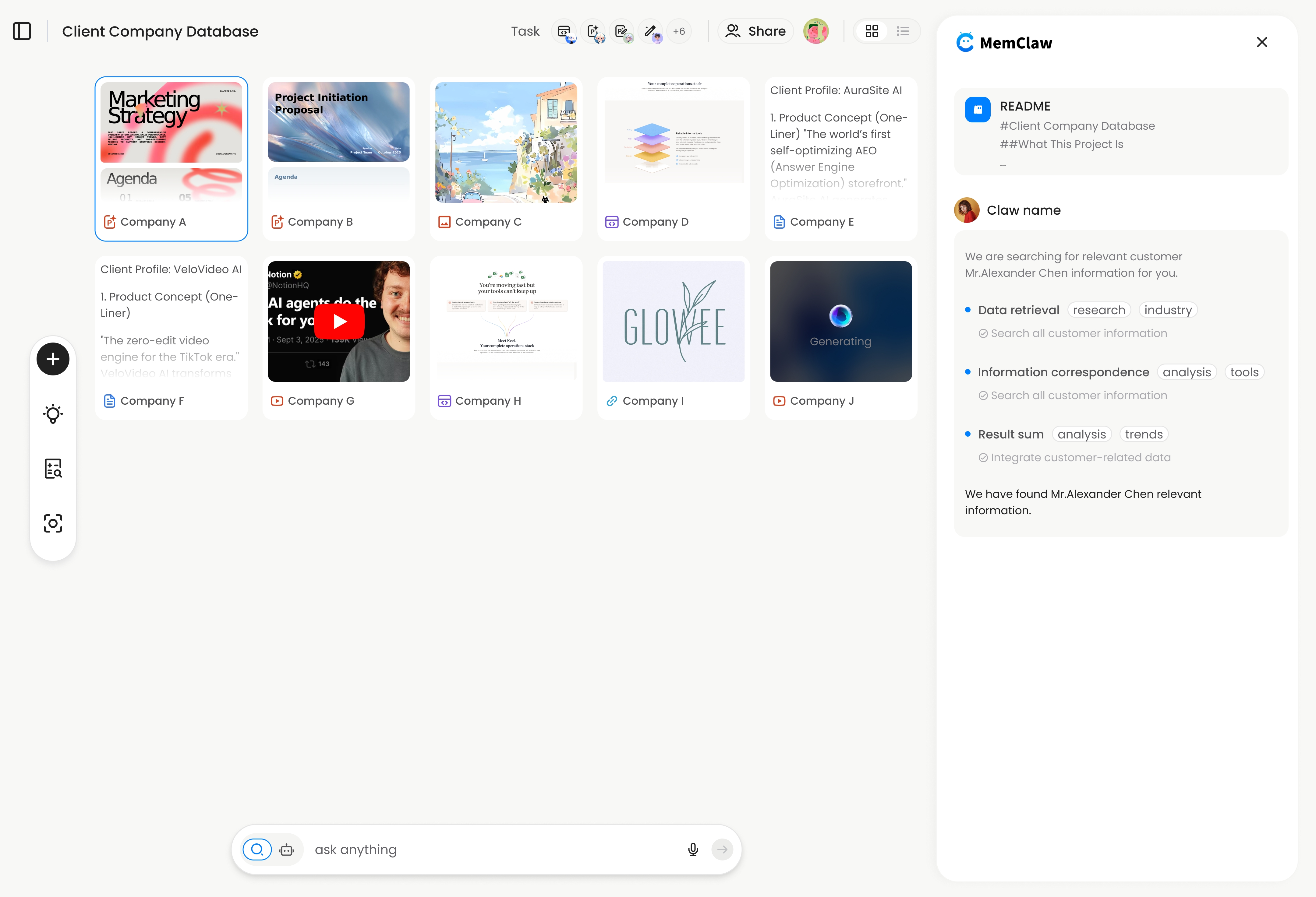
This is particularly valuable if you manage multiple projects. Each project gets its own workspace with zero cross-contamination. Switch with load workspace "Project Name" and the agent has full context in about 8 seconds.
Web Search and Research
Skills that connect Claude Code to live web data. Useful for research-heavy workflows where you need current information — market data, documentation, competitor analysis — without leaving the terminal. Search skills typically wrap APIs like Felo Search or Perplexity and return structured results the agent can reason over.
The practical difference is significant. Without a search skill, you copy-paste URLs or switch to a browser. With one, you ask the agent "find the latest pricing for Stripe's API" and get an answer inline.
Browser Automation
Skills that let Claude Code interact with web pages directly. Fill out forms, scrape content, take screenshots, navigate multi-step flows. Particularly useful for testing, data collection, and workflow automation.
A browser automation skill typically uses a headless browser (Playwright or Puppeteer) behind the scenes. You describe what you want — "go to this URL, click the login button, fill in these credentials, take a screenshot" — and the skill handles the execution.
Content and CMS Integration
Skills that connect Claude Code to content management systems. Write, edit, and publish content directly from the terminal. Useful for teams that manage blogs, documentation, or marketing content.
For example, a Strapi CMS skill can push markdown articles to your blog, handle image uploads, and set SEO metadata — all without opening the CMS admin panel.
How to Choose the Right Skills
Do not install everything. More skills means more instruction text Claude reads at session start, which consumes context window tokens. Install what you actually use.
Decision framework:
- Do you work on multiple projects? → Install a memory skill (MemClaw)
- Do you need live web data? → Install a search skill
- Do you automate browser workflows? → Install a browser skill
- Do you publish content from the terminal? → Install a CMS skill
- Do you have a repetitive workflow? → Build a custom skill for it
The best approach is to start with one or two skills that address your biggest pain points, use them for a week, and then decide if you need more.
Learn about the Claude Code plugin ecosystem →
Building Your Own Claude Code Skill
If none of the existing skills solve your specific problem, you can build your own. The barrier is low — a skill is a markdown file with optional helper scripts.
Steps to build a skill:
- Create a directory:
~/.claude/skills/my-skill/ - Write the instruction file:
my-skill.md - Add any helper scripts the skill needs (Python, Node, bash)
- Test by starting a new Claude Code session and invoking the skill
Tips for effective skills:
- Be specific in the instruction file. Vague instructions lead to unpredictable behavior.
- Include examples of when the skill should and should not be used
- If the skill calls external APIs, handle errors gracefully
- Keep the instruction file concise — every token counts against the context window
The skill format is the same across Claude Code, OpenClaw, Gemini CLI, and Codex. Write once, use everywhere.
Explore cross-agent skill compatibility →
Troubleshooting Common Skill Issues
A few things that trip people up when getting started:
Skill not loading: Make sure the skill directory is in ~/.claude/skills/ (not nested one level too deep). The structure should be ~/.claude/skills/my-skill/my-skill.md, not ~/.claude/skills/my-skill/my-skill/my-skill.md.
Slash command not recognized: Start a new session after installing the skill. Skills are loaded at session start, not mid-conversation.
API key errors: Most skills that connect to external services need an environment variable set. Check the skill's README for which variable it expects. Common pattern: export SERVICE_API_KEY="your-key" in your shell profile.
Too many skills slowing things down: Each skill adds to the system prompt that Claude reads at session start. If you have 15 skills installed, that is a lot of instruction text consuming your context window. Uninstall skills you do not actively use.
Skill works in Claude Code but not in OpenClaw: Most well-built skills work across agents, but some have agent-specific commands. Check the skill documentation for cross-agent compatibility notes.
The Bottom Line
Claude code skills are the fastest way to make the agent work the way you work. Memory, search, automation, custom workflows — they are all one install away.
Start with the skill that solves your biggest daily friction. For most users, that is persistent memory (never re-explain your project again). From there, add skills as your workflow demands them.