Claude Code Workflow: Structure Your Sessions for Maximum Output

A practical Claude Code workflow built around session habits, context management, and MemClaw workspaces — so every session starts oriented and ends with progress logged.
Most developers use Claude Code reactively — open it, ask a question, get an answer, close it. This works for one-off tasks. For ongoing development work, it creates significant overhead: re-explaining context, re-discovering decisions, re-loading state every session.
A structured workflow eliminates that overhead. Here's what actually works.
The Core Problem with Unstructured Sessions
Without structure, every Claude Code session has the same shape:
- Open Claude
- Re-explain the project (5-10 min)
- Do the actual work (20-40 min)
- Close — everything is gone
The re-explanation isn't just wasted time. It's unreliable. You forget to mention the constraint you added last week. You don't remember the approach you already ruled out. Claude gives advice based on incomplete context.
A structured workflow solves this by making context loading automatic and decision logging habitual.
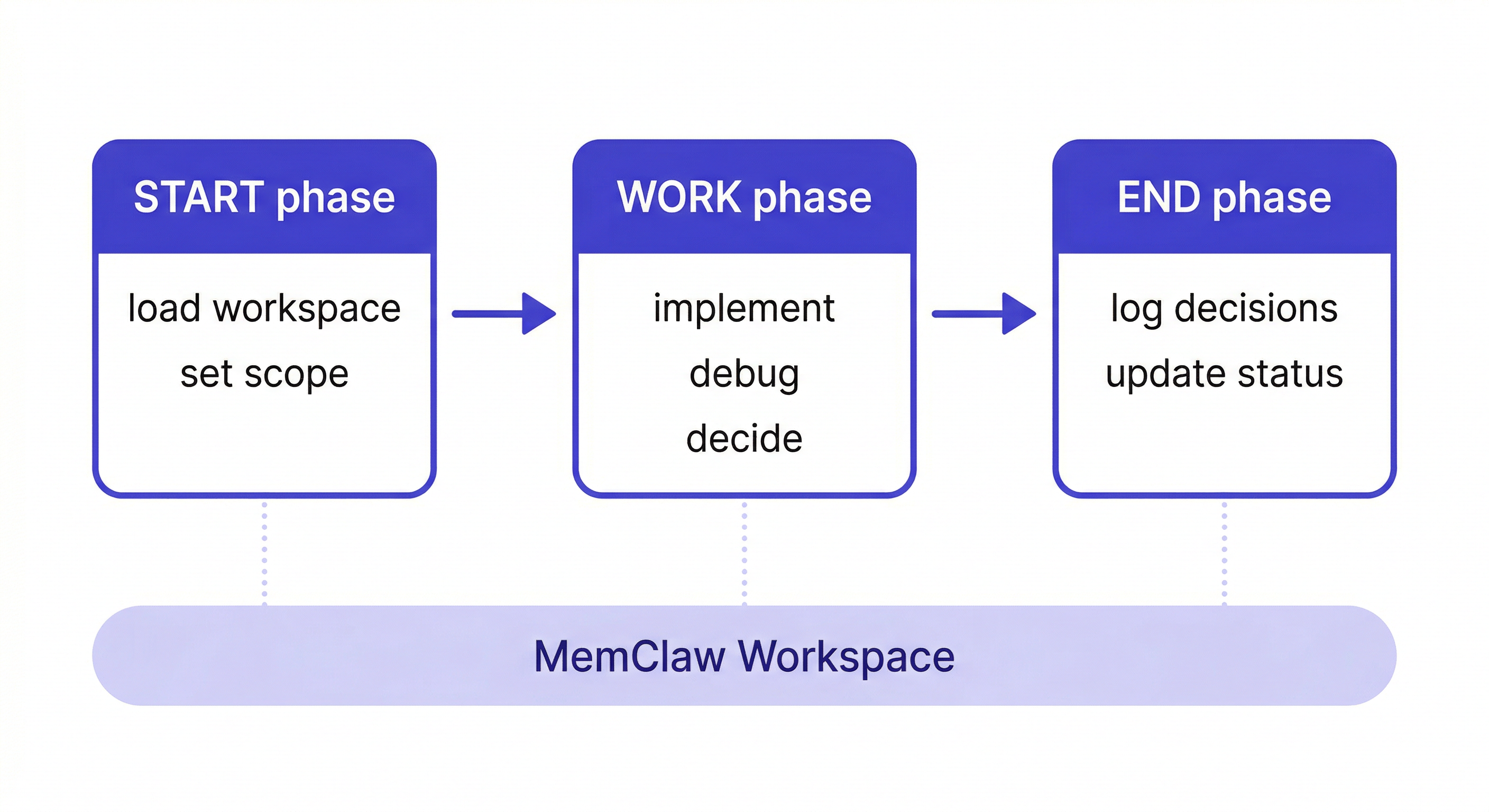
Session Start: 2 Minutes
Load your workspace:
Load the MyApp workspace
Claude reads the workspace — project background, recent decisions, current status. Takes about 8 seconds. You skip the re-explanation entirely.
Set the session scope:
Today I'm working on the payment webhook retry logic.
The webhook handler is done — I need to implement exponential backoff
for failed payments. Read src/webhooks/stripe.ts.
Narrow scope + loaded context = Claude is immediately useful.
If you're returning after time away:
Load the MyApp workspace
Where did I leave off? What's the current status on the auth refactor?
Claude reads the status you logged at the end of your last session and orients you instantly.
During the Session: Working Patterns
For implementation work:
Keep sessions focused on one task. Claude gives better output when the context is narrow and specific than when it's broad and general.
Read src/webhooks/stripe.ts and src/lib/payment-retry.ts
Implement exponential backoff for failed payment webhooks.
Requirements: max 3 retries, 1s/2s/4s delays, log each attempt.
For debugging:
Load the relevant files and describe the symptom precisely. Let Claude ask questions rather than flooding it with everything upfront.
Read src/api/checkout.ts
The checkout flow fails intermittently with a 500 error.
It happens about 1 in 10 times, only on the first payment attempt.
What's the most likely cause?
For architecture decisions:
Use the workspace as the decision record. When you reach a conclusion:
Add decision to workspace: using optimistic updates for the cart UI
because latency testing showed 200ms average API response —
too slow for real-time feel without optimistic updates. 2026-04-08.
Session End: 2 Minutes
This is the habit that makes the workflow compound.
Log what you decided:
Add decision to workspace: exponential backoff implemented with
1s/2s/4s delays, max 3 retries. Using database-level idempotency
keys to prevent duplicate charges. Tested with Stripe test webhooks.
Update status:
Update workspace status: payment retry logic complete and tested.
Next: implement the admin dashboard view for failed payment tracking.
That's it. Two minutes. Next session, you load the workspace and pick up exactly where you left off.
Multi-Project Workflow
If you work on multiple projects:
Create a workspace called Client Alpha
Create a workspace called Client Beta
Create a workspace called Internal Dashboard
Each morning, load the workspace for the project you're starting with:
Load the Client Alpha workspace
Switch projects:
Load the Client Beta workspace
Claude switches context completely. Client Alpha's decisions and constraints don't bleed into Client Beta's session.
MemClaw for multi-project management →
Weekly Rhythm
Start of week: Load each active workspace and check status — takes 5 minutes total, gives you a clear picture of where every project stands.
During the week: Session start + session end habits, every day.
End of week: Review each workspace for stale decisions or outdated status entries. Update anything that's changed.
After a month of this rhythm, each workspace has 15-20 logged decisions, a current status trail, and a set of artifacts Claude has produced. The sessions get faster as the workspace gets richer.
Team Workflow
If you're on a team, share the workspace:
One developer creates the workspace and invites teammates. Each developer loads the same workspace at session start. Decisions logged by one developer are immediately available to all others.
This solves a common team problem: Claude gives different advice to different developers because they each explain the project differently. With a shared workspace, all sessions pull from the same context.
Getting Started
- Install MemClaw (memclaw.me)
- Create a workspace per active project
- Start sessions by loading the workspace
- End sessions by logging decisions and updating status
The workflow takes about 4 minutes of overhead per session. The compounding effect starts in week one.