Claude Memory: 5 Methods to Make Claude Remember Everything

Claude forgets everything between sessions. Here are 5 methods to give Claude persistent memory — from CLAUDE.md for solo projects to MemClaw workspaces for teams.
Claude is stateless. Every session starts from zero — no memory of your project, your decisions, or the three hours you spent explaining your codebase last week.
But there are five distinct methods for giving Claude persistent memory. Each has different trade-offs. This guide covers all of them so you can pick the right one for your situation.
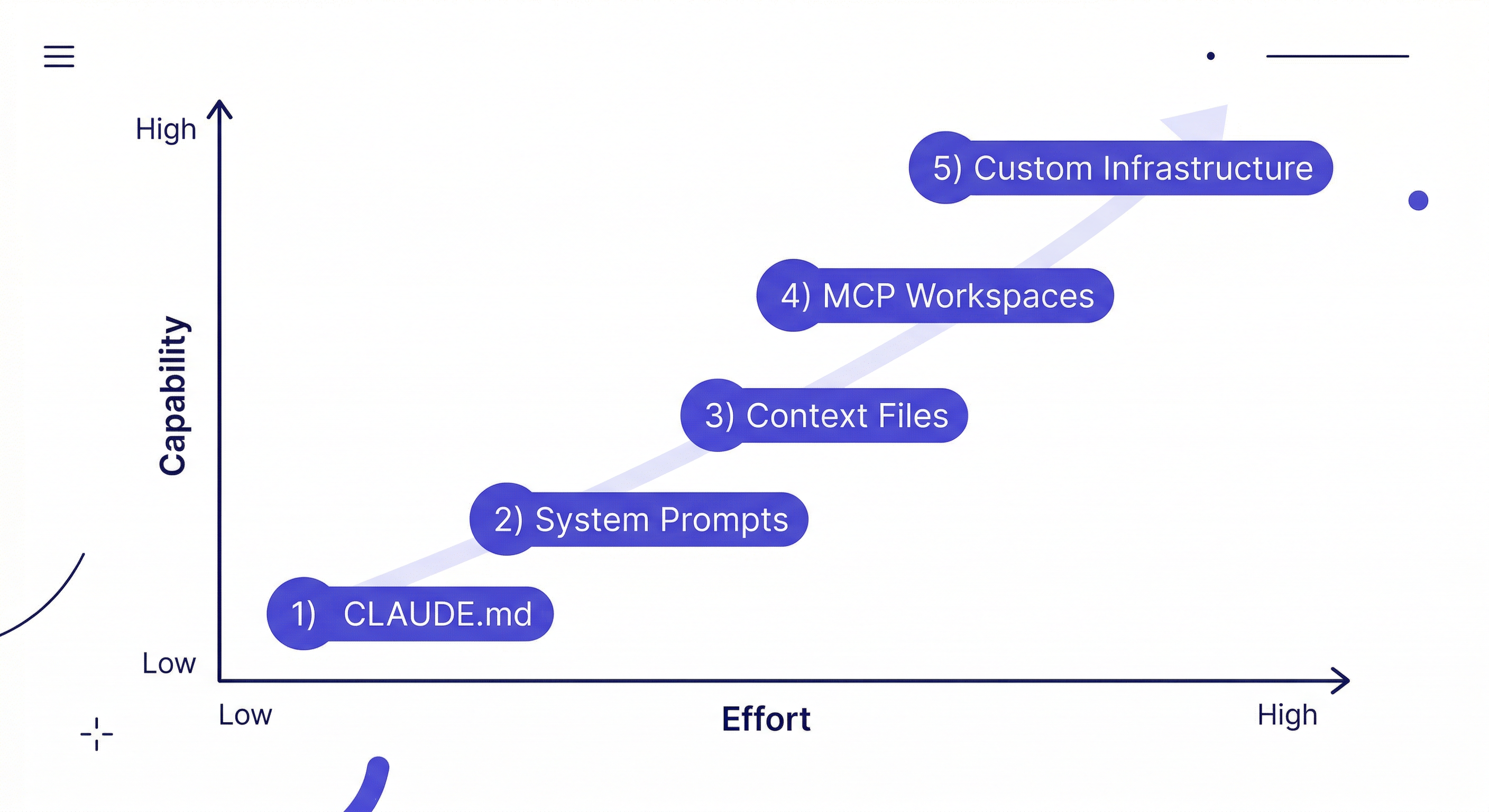
Method 1: CLAUDE.md (Built-in, Free)
The simplest approach. Create a CLAUDE.md file in your project root — Claude reads it automatically at session start.
# MyApp
Stack: Next.js 14, TypeScript, PostgreSQL
Auth: JWT in httpOnly cookies (security team requirement)
Current focus: Auth refactor
Known issues: Stripe webhook fires twice — check idempotency key
Pros: Zero setup. Version-controlled with your code. Works offline. No external dependencies.
Cons: Static — you maintain it manually, it goes stale. No conversation history. Single flat file. Not searchable. No cross-project management.
Best for: Single project, solo developer, short lifespan (under a month).
Method 2: System Prompts (Claude.ai)
In Claude.ai (the web interface), you can set a persistent system prompt in your profile settings. This context appears in every conversation automatically.
I'm a senior TypeScript developer. I prefer functional patterns,
avoid classes unless necessary, and always handle errors explicitly.
I work primarily with Next.js 14 and Postgres.
Pros: Works in Claude.ai without any setup. Persistent across all web conversations.
Cons: Web interface only — doesn't carry over to Claude Code CLI. Generic personal context, not project-specific.
Best for: Persistent personal preferences in Claude.ai web interface.
Method 3: Context Files + Slash Commands
A more structured version of CLAUDE.md: maintain a set of markdown files with different types of context, and load them via custom slash commands.
/load-project    → reads PROJECT.md, DECISIONS.md, STATUS.md
/load-context    → reads current sprint context
/save-decision   → appends to DECISIONS.md with today's date
Pros: More organized than a single CLAUDE.md. Can load context selectively.
Cons: Still static files you maintain manually. No semantic search. File management overhead.
Best for: Developers who want more structure than CLAUDE.md but don't need full persistence.
Method 4: MemClaw Workspaces (Most Robust)
MemClaw installs as a skill on Claude Code and gives each project a persistent, searchable workspace. The agent reads it at session start and writes decisions and status back automatically.
Install:
/plugin marketplace add Felo-Inc/memclaw
/plugin install memclaw@memclaw
export FELO_API_KEY="your-api-key-here"
Create one workspace per project:
Create a workspace called MyApp
Load at session start:
Load the MyApp workspace
Log decisions as you make them:
Add decision to workspace: using Postgres over MySQL —
client DBA requirement. 2026-04-08.
The workspace accumulates context over time. Decisions made six months ago are still there and searchable. The context compounds every session.
Pros: Persistent and searchable. Automatic write-back. Project isolation. Team sharing. Works across Claude Code, OpenClaw, Gemini CLI. Free tier available.
Cons: Requires Felo API key. Needs network connection.
Best for: Multiple projects, long-running projects, teams. This is the right choice for most ongoing development work.
Method 5: Custom Memory Infrastructure
Build your own persistent memory layer: a vector database (ChromaDB, Pinecone, pgvector) connected to your AI agent. Full control over what gets stored, how it's retrieved, and where data lives.
Pros: Maximum flexibility. Self-hosted. Can be tailored to specific use cases.
Cons: Significant engineering overhead. Maintenance burden. You're solving a solved problem.
Best for: Organizations with specific data sovereignty requirements, or teams with custom memory needs that off-the-shelf tools don't cover.
Which Method Should You Use?
| Situation | Recommended Method |
|---|---|
| Quick one-off task | Nothing (just explain in session) |
| Single project, solo, < 1 month | CLAUDE.md |
| Personal preferences in Claude.ai | System Prompts |
| Multiple projects or > 1 month | MemClaw |
| Team of 2+ developers | MemClaw shared workspace |
| Custom data sovereignty needs | Custom infrastructure |
The most common mistake: using CLAUDE.md for situations that need MemClaw. CLAUDE.md works well for simple cases but breaks down when you have multiple projects, a long-running codebase, or a team.
The Habit That Makes Any Method Work
Regardless of which method you choose, the habit that determines whether it actually helps:
Log decisions when you make them, not later.
Add decision to workspace: chose Server Components over client rendering
for the dashboard — SEO requirement, confirmed with client. 2026-04-08.
A memory system with stale or incomplete context is worse than no memory system — it gives Claude false confidence about decisions that may have changed. Keep it current and it compounds. Let it go stale and it misleads.
Getting Started with MemClaw
For most ongoing development work, MemClaw is the right choice:
- Install on Claude Code (memclaw.me)
- Create one workspace per active project
- Add baseline context: stack, key decisions, current status
- Load at the start of every session