You Can Now Create AI Videos in the Felo App

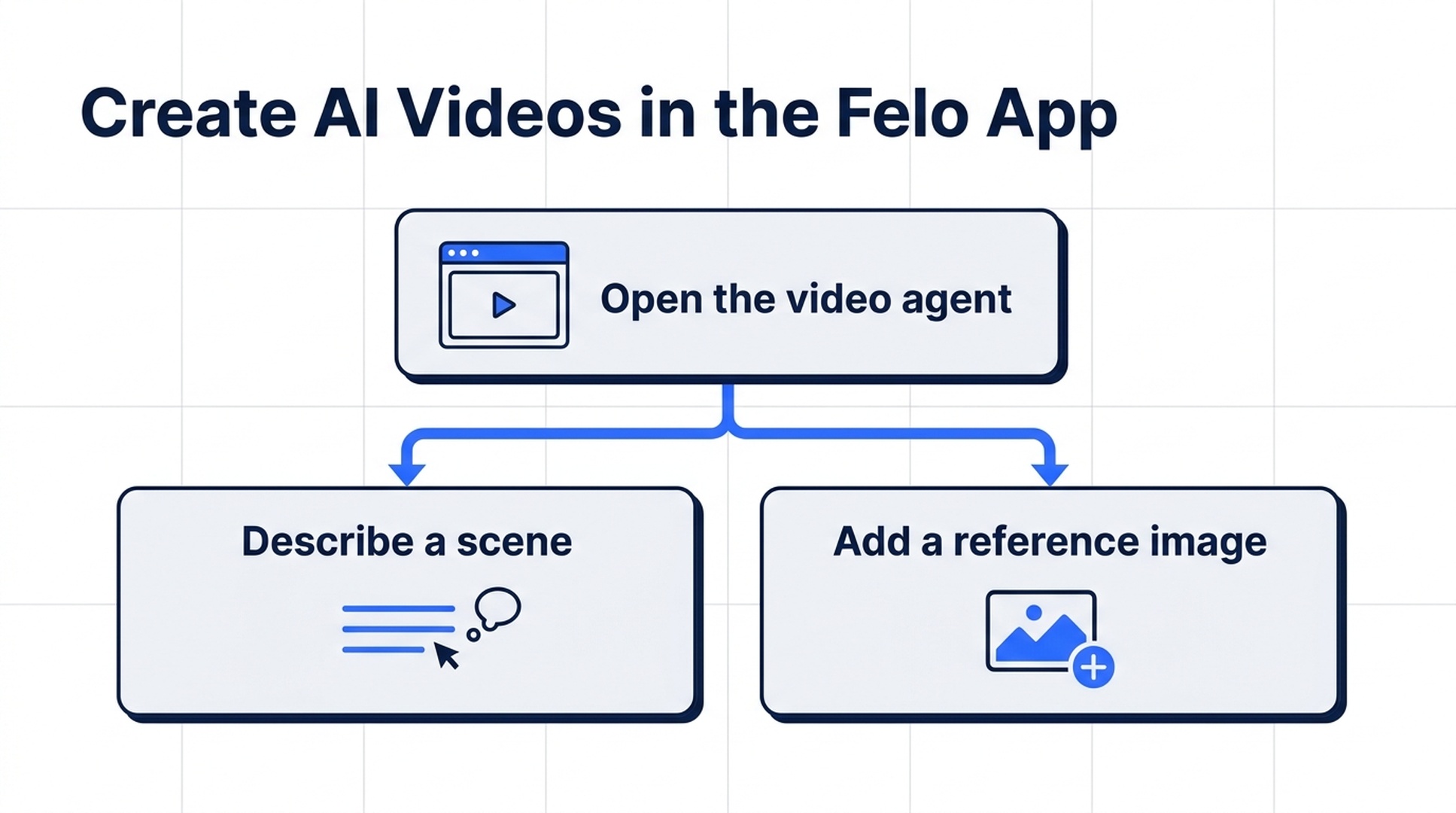
Create AI videos in the Felo app. Open the video agent, describe a scene or add a reference image, and bring your next product or creative concept into motion.
Felo tools: AI Video Generator.
Felo now supports AI video generation inside the app. Open AI Video Generation Agent from the home screen, describe the scene you have in mind, or add a reference image to start bringing it to life.
A product photo can become the starting point for a moving shot. A campaign idea can become a visual concept. A scene you have only described in words can become something your team can watch and discuss. The video creation entry point is now right there in the Felo app, alongside the tools you already use for research and creative work.
A new way to create in the Felo app
The update puts a clear entry point on the app's home screen: AI Video Generation Agent. Select it to open the AI Video Generator workspace, where the central question is simple: what kind of video would you like to generate?
The composer supports a written description or a reference image. Below it, a built-in usage guide helps you describe the shot, while a use-case gallery offers visual inspiration. You can begin with an idea of your own or explore a style before deciding what to make.
That gives you two practical starting points:
- An idea in words: describe a subject, an action, a camera move, and a visual style.
- An existing image: use a photo or illustration as a reference, then explain the movement you want to introduce.
The benefit is especially clear when you already have part of the creative work done. Perhaps you know the product, the mood, or the audience, but have not decided how the shot should move. Opening the video agent gives that decision a place in your existing app workflow.
The screenshots below show the Felo app on macOS.
How to start an AI video in the Felo app
1. Open AI Video Generation Agent
On the home screen, select AI Video Generation Agent. In the demonstrated interface, the shortcut appears beneath View all agents.
This opens the video workspace directly. You will see the prompt composer, the current video settings, a usage guide, and examples further down the page. Start with the composer if you already have a scene in mind; use the guide if you need help turning a general idea into a clear request.
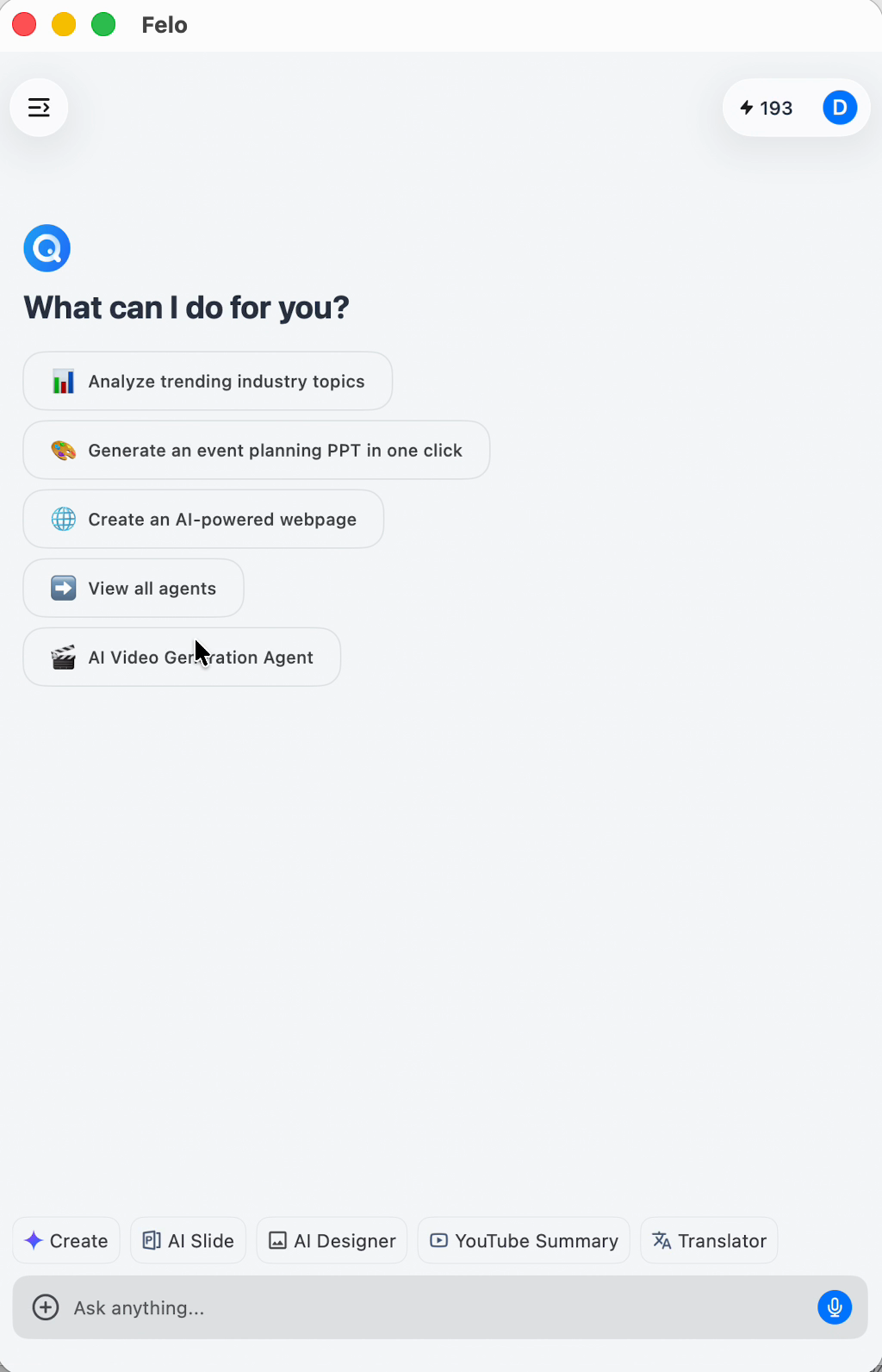
The video agent is accessible from the Felo app home screen.
2. Describe a scene or add a reference image
For a first attempt, choose one subject and one main action. “Make a product video” leaves many decisions open. “A ceramic cup sits beside a window as steam rises and the camera slowly moves closer” gives the generation a specific scene to work with.
If you already have an image, add it as a reference and describe what should move. Be clear about what matters in the original: the subject's appearance, its position, the background, or the composition. A reference gives the request visual context; it still helps to explain the motion in words.
You do not need to write a long screenplay. A focused paragraph is often easier to work from than a list of unrelated visual effects. Decide what the viewer should notice first, then build the shot around that detail.
3. Check the video settings
The composer displays a compact settings summary. In the recorded app interface, it reads 16:9 · 480P · 6s: the aspect ratio, resolution, and duration for that particular setup.
Use those dimensions to think through the shot before submitting it. A wide composition leaves room for a subject and its surroundings. A shorter clip needs an action that can read quickly. Resolution is a separate decision from the idea itself: a clear composition matters before fine detail does.
Review the options available in your current workspace and choose the settings that fit your intended use. The values shown in the screenshot are an example configuration, not a statement of the app's maximum capabilities or a preset every user will see.
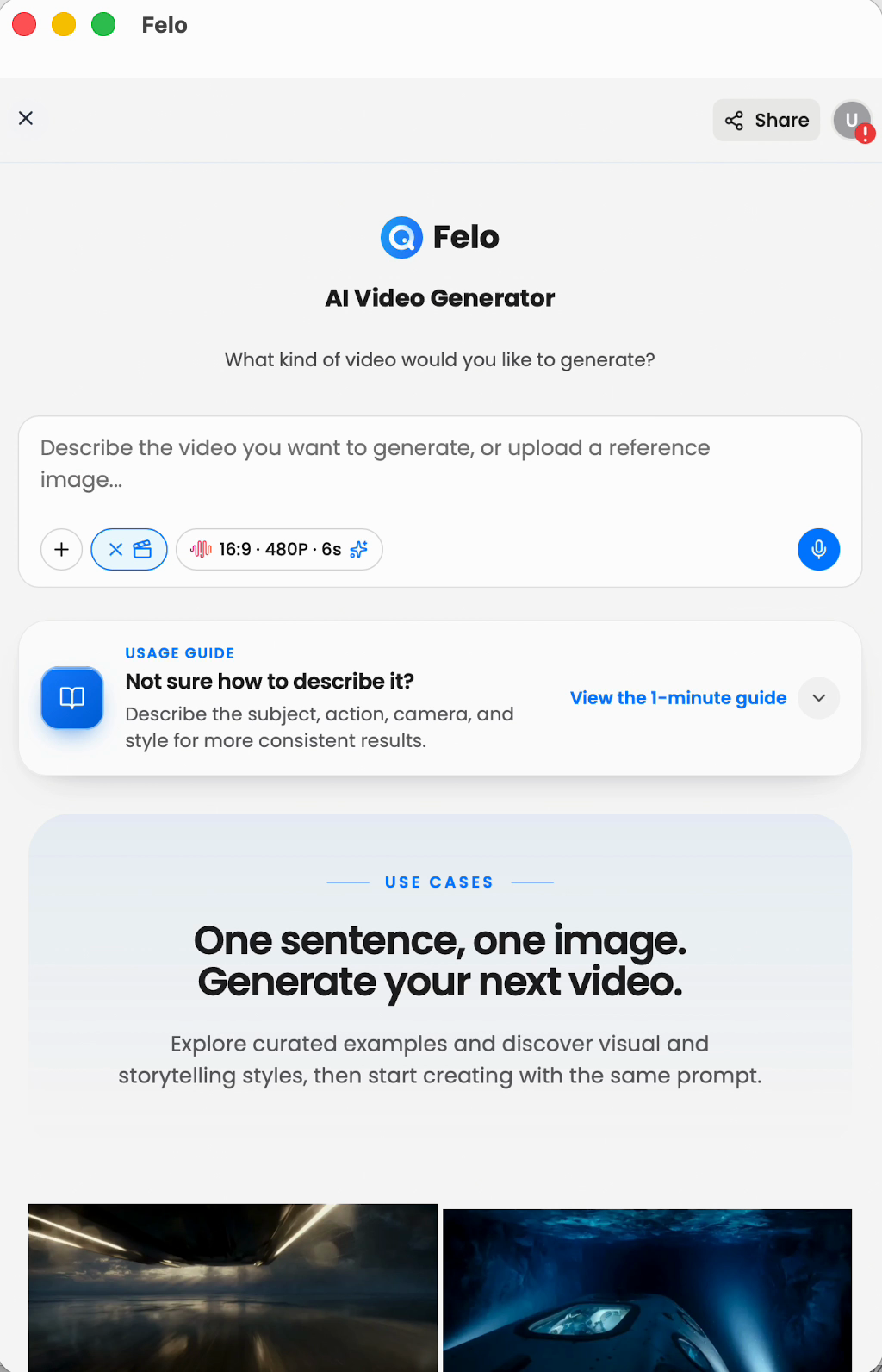
The composer brings the prompt and video settings together, with a usage guide directly underneath.
4. Generate, review, and refine
Once your prompt and settings are ready, submit the request. Felo's documented Video Agent workflow includes generation progress, a result preview, and download. Follow-up requests let you ask for another version with a different creative direction. See Felo's release notes.
When reviewing a result, start with the purpose of the shot. Does the product remain easy to recognize? Is the main action clear? Does the camera movement help the scene? If one part needs work, describe that change specifically in your next request.
For example, replace “make it better” with “keep the camera still and make the steam movement gentler.” That gives the next generation a useful direction. Review the new version again before choosing it for your project.
Three ideas to try first
You do not need a complete campaign to begin. A single useful shot is a good first project: a product detail, an atmospheric opening, or a short character moment.
The prompts below are suggested starting points, not claims about tested outputs. Adjust them to your own subject and the settings available in your app.
Turn a product photo into a motion concept
Suppose you have a photograph of a ceramic mug for an upcoming launch. The first creative question might be whether the shot should feel calm and domestic or clean and studio-like. A reference image gives you a concrete subject while your prompt defines the direction.
Try:
Use the attached ceramic mug photo as the visual reference. Keep the mug as the main subject on a light wooden table beside a window. A thin ribbon of steam rises from the cup. The camera makes a gentle push toward the rim. Soft morning light, natural colors, and a quiet, uncluttered background.
Use the first result to assess the composition and movement. Check the mug's shape, handle, surface, and any visible markings before treating the clip as a product asset. If the camera move distracts from the object, try a fixed camera with only the steam moving.
This is a useful way to explore a creative direction before deciding what belongs in a finished product post. Add final campaign copy and other finishing elements in your usual production workflow.
Create an atmospheric opening shot
A place can set the tone of a story before any explanation appears. For a travel concept, a café announcement, or a personal creative project, begin with a location and one movement that makes the scene feel alive.
Try:
A quiet café entrance on a rainy evening. Warm light spills through the window onto the wet pavement. A person with a closed umbrella walks past the doorway. The camera remains at street level and slowly moves toward the entrance. Natural reflections, restrained colors, and a welcoming mood.
The central idea is the contrast between the rainy street and the warm interior. Keeping that intention clear helps you judge the result. If the scene becomes too busy, remove the passerby and focus on the entrance, the rain, and the light.
An opening shot does not have to explain the whole story. It needs to establish one feeling clearly enough that the next shot or line of copy has somewhere to begin.
Explore motion for an illustrated character
A character design can suggest a personality without showing how that character behaves. A short motion study lets you explore a gesture: a glance, a wave, or a small reaction.
Try:
Use the attached illustrated character as a reference. The character stands beside a small potted plant, notices a new leaf, and leans forward with curiosity. Keep the movement gentle and the framing steady. Preserve the illustration's soft colors and simple background. Focus on one readable expression.
Choose a gesture that suits the design. Large movements can make fine details harder to assess, while a restrained action makes it easier to compare the result with the reference. Look at the face, clothing, proportions, and background as well as the motion.
For a second attempt, change just the gesture. That gives you a more useful comparison than changing the character, setting, camera, and style at the same time.
A simple prompt structure that keeps the shot focused
The app's usage guide highlights four useful ingredients: subject, action, camera, and style. Treat them as decisions to make, rather than a formula that needs more adjectives.
| Ingredient | Decide this | Example |
|---|---|---|
| Subject | What should the viewer notice? | A ceramic mug beside a window |
| Action | What changes during the shot? | Steam rises from the cup |
| Camera | How does the viewer see the action? | A gentle move toward the rim |
| Style | What should the scene feel like? | Natural morning light and quiet colors |
A practical way to write is to describe the shot in that order. First name the subject. Then give it one action. Add the camera direction only if it contributes something. Finish with the lighting or visual treatment that matters most.
Read the prompt once before submitting it. If the same camera is supposed to stay still, circle the subject, and pull back, choose the movement you actually want. If several events compete for attention, decide which one belongs in this clip and save the others for separate shots.
Use the first version to make a better creative decision
A useful first generation answers a question. Does the product work better in natural light? Should the scene open wide or close? Does the character feel more expressive with a small gesture?
Choose that question before you generate. When the result arrives, review it against the question instead of judging every possible feature at once. Then keep the parts that serve the idea and give the next request one clear change.
For a product shot, you might retain the composition and soften the lighting. For an atmospheric opening, you might retain the location and reduce the camera movement. For a character study, you might retain the style and simplify the action.
This keeps iteration purposeful. It also gives collaborators something concrete to respond to: the pace of a movement, the placement of a subject, or the mood of a scene. Those observations are easier to act on than a general request for a more exciting video.
Bring your next idea into motion
The Felo app now gives video ideas a direct starting point. Open the agent, choose a scene or reference image, and describe the movement that would make it worth watching.
Start small: one subject, one action, and one clear creative intention. Build from the result that best expresses your idea.
Open Felo and select AI Video Generation Agent—or explore the Felo AI Video Generator on the web.
This post is also available in 简体中文, 日本語, 한국어, 繁體中文, हिन्दी, Français, العربية, Русский, اردو, Bahasa Indonesia, Deutsch, Tiếng Việt, Türkçe, Italiano, ไทย, Español, বাংলা and Português.