
How to Create an AI Voiceover with Codex and a Text-to-Speech API

Learn how to use Codex and the Felo Text-to-Speech API to turn a script into an MP3 voiceover for your video.
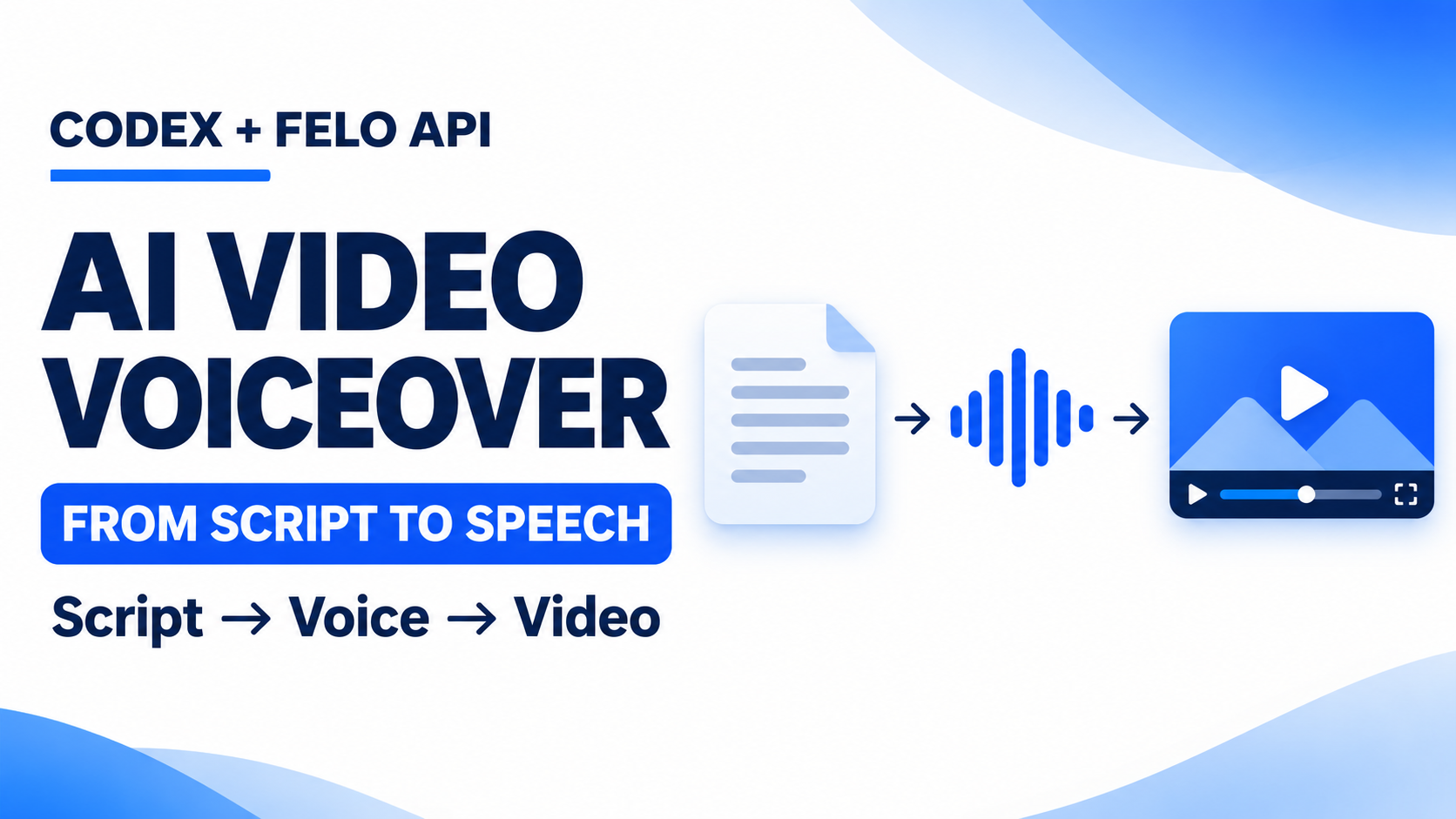
You have a video ready, but the narration still needs recording. Instead of setting up a microphone and starting over every time you change a sentence, you can turn your script into an audio file and add it to your video.
This guide shows how to ask Codex to prepare a script and use the Felo Text-to-Speech API to generate an MP3 voiceover. You'll also learn what to check before adding that audio to your video.
The result: a narration script and an MP3 file you can review and import into your video editor. Felo generates the speech audio; combining it with video is a separate step.
How Codex and the Felo TTS API work together
Codex helps you work with the files and commands in your workspace. It can prepare the narration text, help send a request to the API, and save the result. The Felo Text-to-Speech API receives text and returns generated audio.
The API workflow described on the Felo Text-to-Speech models page supports up to 4,096 Unicode code points per request. It returns MP3 or raw PCM depending on the channel. Streaming and voice cloning are unavailable through the endpoint described there.
The instructions and request example below follow the published model page. The API request has not been successfully tested for this article. Check the current model and voice availability before running it, and treat the script shown here as an illustrative example rather than an audio sample produced by the API.
What you need
- Codex with access to a workspace where it can read and write files and run commands, subject to your environment's permissions.
- A script for your video, or a short description Codex can use to help draft one.
- A Felo API key with access to the text-to-speech endpoint and any required account balance. API calls may incur charges.
- A video editor if you want to combine the finished MP3 with video.
Configure FELO_API_KEY securely in the environment that will make the request. Don't paste the key into a prompt, commit it to a repository, or share it in the script. The exact setup depends on your operating system and Codex session; a key available in one terminal may not be available in another.
Codex access and Felo API access are separate. Having one does not automatically provide the other.
Step 1: Prepare a short narration script
Start with what the viewer needs to understand. For a short video, write one idea per sentence and leave room for the visuals to do part of the explaining.
Imagine you are making a brief demo for a photo-editing app. An illustrative script might read:
Give your photos a cleaner finish in a few steps. Choose a picture, add a border, and adjust the color until it fits your style. When you're ready, save the result and share it.
Save your own script as voiceover-script.txt in the workspace. If you have rough notes instead, ask Codex to turn them into a narration draft:
Turn my notes in product-notes.txt into a short, natural
voiceover script for a product demo video. Keep the wording
clear and easy to say aloud. Do not add product features or
claims that aren't in my notes. Save it as voiceover-script.txt.
Read the draft before generating audio. Check product names, numbers, and any promises about what the product can do. The model that produces speech reads the text it receives; it does not verify the claims in your script.
Step 2: Ask Codex to prepare the request
Once the script is ready and the API key is configured, ask Codex to check the current API requirements:
I want an MP3 voiceover from voiceover-script.txt using the
Felo Text-to-Speech API. Check the current model, voice, format,
and input-length requirements on the Felo text-to-speech page.
Use FELO_API_KEY from the environment without printing or saving
it. Tell me what you plan to send before making the request.
Confirm the script is the one you intend to submit. Felo's page provides a quick-start example using qwen3-tts-1.7b and the example voice vivian. Model and voice availability can change, so check the current page before relying on those values.
For a longer script, ask Codex to count Unicode code points and split the text at sentence or paragraph boundaries. The endpoint accepts up to 4,096 Unicode code points per request; do not assume a character count based on bytes or UTF-16 units is the same for every language.
Step 3: Generate the voiceover
When you're ready, ask Codex to send the text and save the result:
Use the Felo Text-to-Speech API to generate an MP3 from
voiceover-script.txt. Choose a model and voice currently
supported by the Felo model page. Save the result as
voiceover.mp3 in this workspace. Don't expose my API key.
If the request fails, report the error instead of claiming
that audio was generated.
For a minimal request, the published quick start has this form:
curl --fail https://openapi.felo.ai/api/v1/audio/speech \
  -H "Authorization: Bearer $FELO_API_KEY" \
  -H "Content-Type: application/json" \
  --output voiceover.mp3 \
  --data '{"model":"qwen3-tts-1.7b","input":"Hello!","voice":"vivian","response_format":"mp3"}'
That example generates speech from the literal text Hello!; it does not read your script file. To use your actual script, ask Codex to read voiceover-script.txt and construct valid JSON with your chosen model and voice. It should handle quotation marks, newlines, and non-English characters safely rather than pasting arbitrary script text into a shell command.
Check the command result and the resulting file before continuing. A file name alone doesn't prove the request produced playable audio. If the API returns an error or no valid audio, resolve that issue before moving to video editing.
Step 4: Listen and make revisions
Listen to the whole voiceover, not only the first sentence. Check:
- Names and abbreviations: Does the voice pronounce the product and company names clearly?
- Numbers and dates: Are prices, versions, and dates read as intended?
- Pacing: Is there enough time for the viewer to see what the narration describes?
- Pauses: Do sentences and transitions sound natural?
- Accuracy: Does the narration match the script and the product shown?
If something sounds wrong, revise the text or punctuation and generate the affected section again. For example, spelling out a number may help a particular voice read it the way you intend. Listen to the revised audio rather than assuming the change worked.
When comparing voices, generate the same passage with each option and listen under the same conditions. Voices and formats depend on model and channel; the example voice in the quick start isn't necessarily the right fit for every video.
Step 5: Add the audio to your video
Import voiceover.mp3 into your video editor and place it on an audio track. Align the narration with the relevant shots, then adjust the video and narration until viewers have enough time to follow both.
If you also use music, listen to the final mix at a normal volume and check that the speech remains intelligible. Export a short preview before rendering the full video, especially if the script has been split into several sections.
Codex can help with local file preparation or an editing command if your environment has the necessary tools, but the Felo speech endpoint itself returns audio. It does not place narration on a video timeline or render a completed video.
Working with longer voiceover scripts
A long narration may need several API requests. Ask Codex to:
- Count the text using Unicode code points and divide it into sections within the current limit.
- Split at sentence or paragraph boundaries where possible.
- Save each section and its resulting audio with an ordered name, such as
voiceover-01.mp3. - Report any failed section instead of skipping it.
- Help assemble the parts using an appropriate local audio tool, if available.
Listen at each join. A pause that sounds natural at the end of one file may feel too long or too abrupt when the next segment begins. Keep the original script and the individual segments so you can regenerate just one section if needed.
Generating multiple versions and retrying requests may increase usage. Review the current pricing and your account's billing details before processing a large batch.
Troubleshooting
Codex cannot find the API key
Make sure FELO_API_KEY is available to the environment that runs the request and that the key has the required access. A key configured in your shell is not always inherited by an already running application. Never print the key to diagnose the problem.
The model or voice is rejected
Check the current Felo text-to-speech page for a supported model and voice combination. The listed example voices and formats apply to the default channel and may change. Felo selects TTS channels automatically for this endpoint.
The output file does not play
Check whether the request succeeded and whether the response is actually audio in the requested format. An error response or incomplete download should not be treated as a valid MP3. Ask Codex to report the failure and investigate it before retrying.
The script exceeds the request limit
Split it into smaller sections within the 4,096 Unicode code point request limit, generate them in order, and review the transitions. Don't discard your original script while splitting it.
Frequently asked questions
Can I generate a voiceover without recording my own voice?
Yes. A text-to-speech model can generate speech from a written script using a supported voice. The Felo endpoint covered here does not offer voice cloning, so don't expect it to reproduce your own voice.
Can Felo add the voiceover directly to my video?
The API workflow described here returns audio. You need a separate video editor or processing step to combine that audio with footage and export a video.
Can I create a voiceover for a YouTube video?
You can generate an audio narration and use it in a video workflow. Before publication, check the applicable terms for the model, channel, and intended use, and review the voiceover for accuracy.
Does the API stream speech as it is generated?
The Felo text-to-speech endpoint covered in this guide does not support streaming. It returns a complete MP3 or raw PCM result, depending on the channel.
How much does an AI voiceover cost?
The cost depends on the selected model, channel, and usage. Some models charge by input characters or bytes; others use input and output tokens, audio duration, or actual generation cost. Compare the current billing details for your script before making a request.
A good voiceover starts with a clear script. Use Codex to organize the workflow, generate the narration with a supported Felo text-to-speech model, and listen before you put the final audio in front of an audience.