Explainer Video Script Template: 3 Worked Examples

Use a copyable explainer video script template with three examples for product, educational, and news videos.
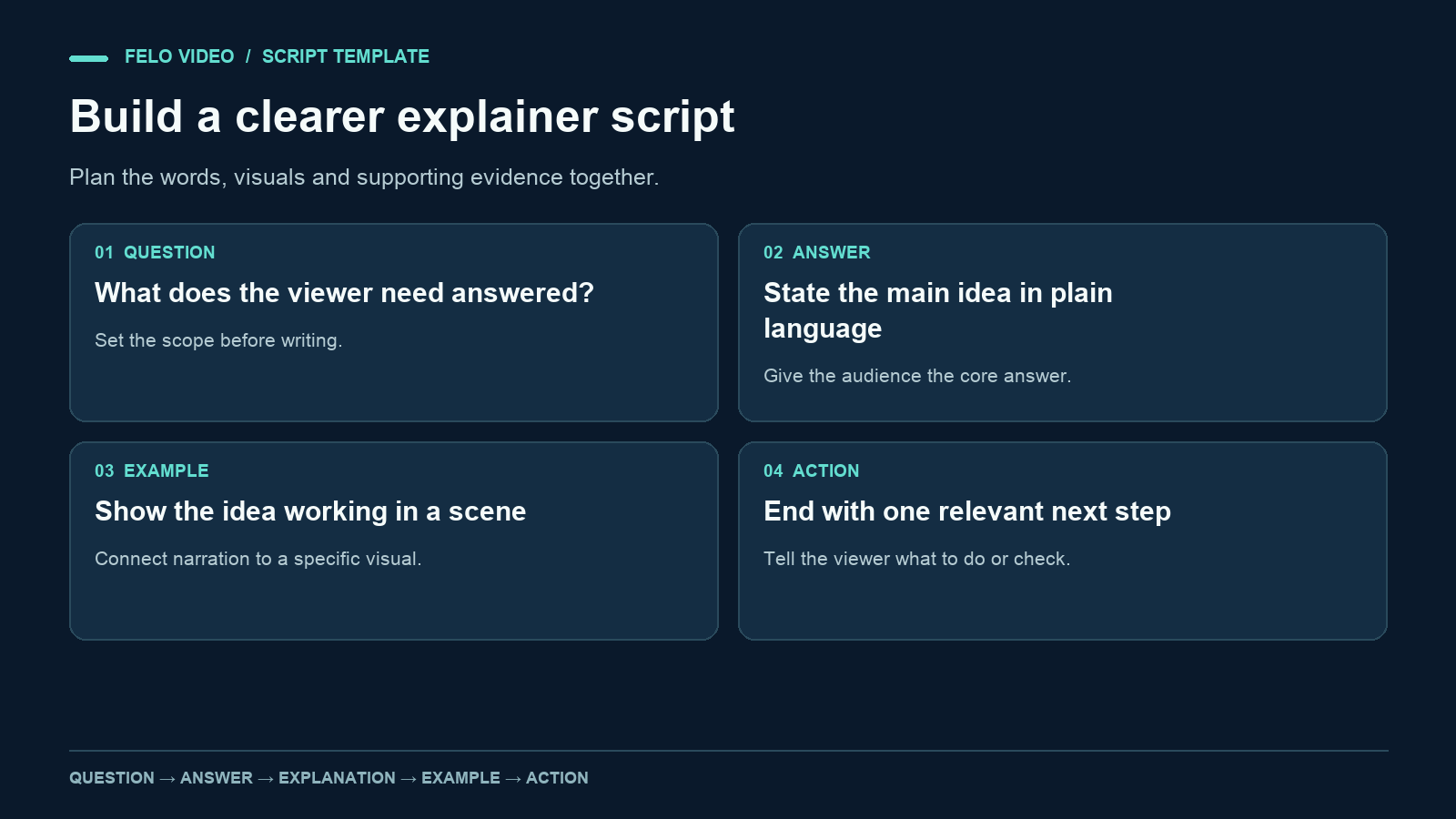
A script can sound polished and still leave viewers unsure what they learned. The missing piece is often a clear connection between the spoken sentence and the thing on screen.
A useful explainer video script template plans both. It gives each scene a job, connects claims to evidence, and ends with a next step the audience can understand.
Below is a copyable template, followed by complete product, knowledge, and news examples. The products and news event are fictional. The scripts demonstrate structure; they are not transcripts of tested videos or accounts of real customer results.
Start with the sentence the viewer should remember
Before writing an opening hook, finish this sentence:
After watching, the viewer should understand ______ and be able to ______.
For a product video, the answer might be: "how to share an approved file, and how to distinguish it from a draft." For a knowledge video: "the difference between percentage change and percentage points, and how to label each." For a news video: "what a library notice changes, and where to check the current schedule."
This sentence sets the boundary. If a scene does not help the audience reach it, the scene needs a different purpose or belongs in another video.
Also decide what the viewer already knows. You can explain a new feature to existing users without defining the entire product. A newcomer needs more context. That difference should appear in the script before it appears in the runtime.
A copyable explainer video script template
Use a two-column script for narration and visuals. Add an evidence column whenever the content depends on a source, a product specification, or a number.
| Scene | Narration | Visual | Evidence or constraint |
|---|---|---|---|
| Question | What does the viewer need to understand? | Show the problem or unfamiliar object | Avoid claims you cannot support |
| Answer | State the main answer in plain language | Show the result or central relationship | Match the source's scope |
| Explanation | Explain the mechanism or steps | Reveal one relevant action at a time | Preserve order and necessary conditions |
| Example | Apply the explanation to a concrete case | Show the example developing | Label invented examples |
| Next step | Tell the viewer what to do or check | Show the action or destination | Use one primary action |
You can copy this short planning block above the table:
Audience:
What they already know:
Question this video answers:
What they should remember:
What they should be able to do:
Source material and version:
Facts or wording that must remain:
Requested duration and viewing format:
Final action:
The five scene functions do not require five shots. A process may need several shots. A simple definition may combine the answer and example in one scene. Treat the template as a way to organize meaning, then choose the number of scenes that meaning requires.
Runtime should follow a read-through. Numbers, unfamiliar names, and visual demonstrations need time. An exact word count cannot tell you whether the audience has enough time to inspect a diagram.
Example 1: explain a product action
The fictional product in this example is FileShelf, a shared workspace that lets a reviewer mark a file as approved. The example assumes that feature exists in the imaginary product; it is not a claim about Felo.
Audience: teammates who receive files from several contributors.
Goal: understand how to identify the approved file before sharing it.
Complete narration
Three versions of the same file can leave you guessing which one to send. In FileShelf, the reviewer marks the approved version before the team shares it. Open the project folder and find the file with the approved label. Check the version number and the reviewer note. Then share that file's link with the person who needs it. If the label is missing, ask the reviewer before sending. A filename such as final-final does not tell you who approved the content. The approved label gives the team a visible decision to check. Before your next handoff, open the file and verify that decision.
Visual plan
| Beat | Visual | Reason |
|---|---|---|
| The problem | Three fictional filenames | Makes the ambiguity visible |
| The answer | One file receives an approved label | Shows the feature's role |
| The action | Version number and reviewer note | Gives the viewer specific checks |
| The exception | A file with no approval label | Explains what to do when evidence is missing |
| The close | Shared link beside the approved file | Connects the check to the next task |
The script stays with one action. It does not introduce file search, storage limits, permissions, billing, or integrations. Those may matter elsewhere, but they would weaken this particular explanation.
For a real product, replace the invented UI with verified screenshots. The product explainer script examples show other ways to structure a feature, workflow, or FAQ. If a review status is manually applied, show that accurately. A product explainer video can use those approved materials to show the workflow without suggesting automatic approval.
Example 2: explain a concept with numbers
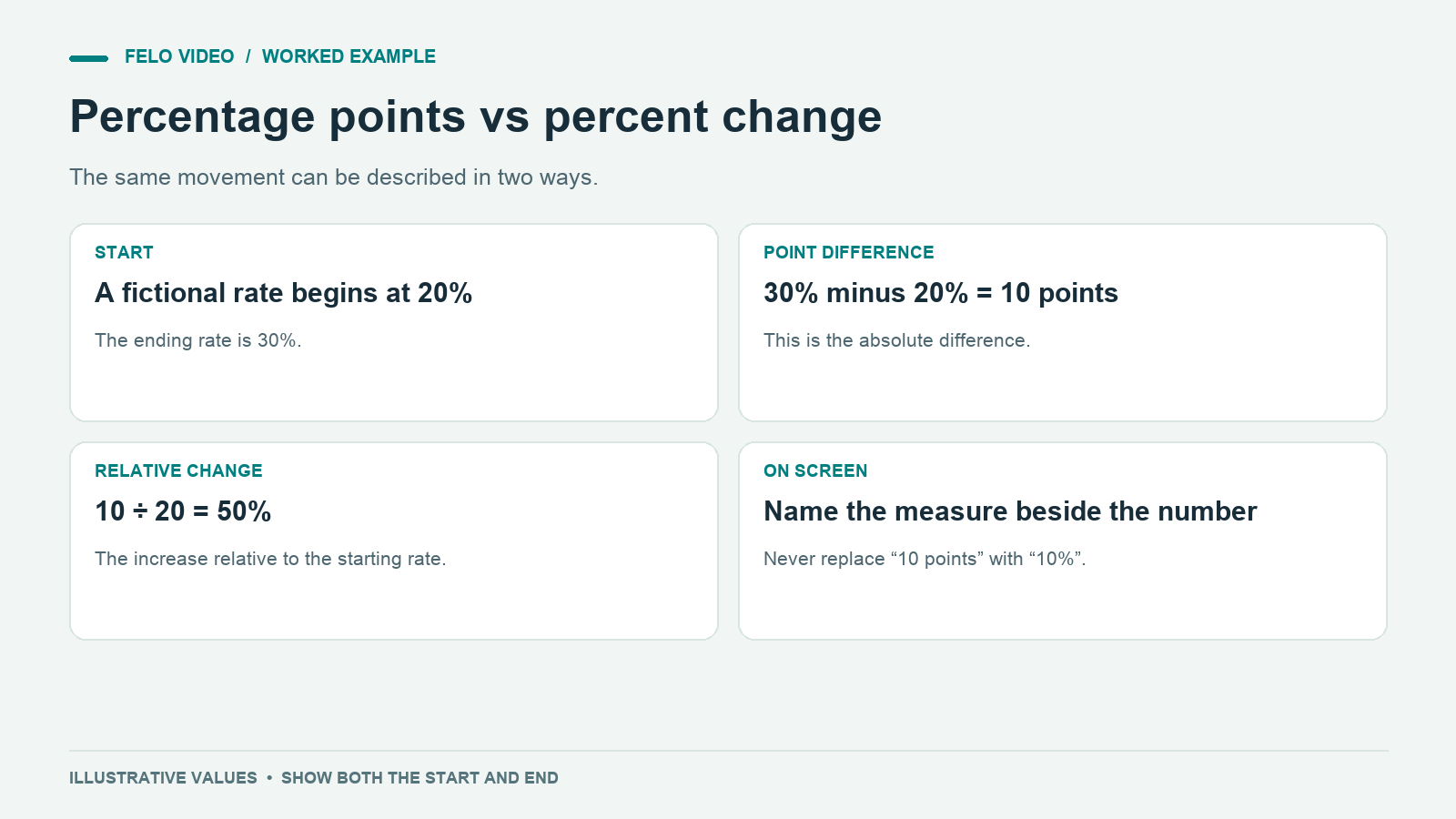
This example teaches a common distinction using invented values. It does not report a business outcome.
Audience: someone reading a basic performance report.
Goal: distinguish percentage-point change from relative percentage change.
Complete narration
A rate moves from twenty percent to thirty percent. Did it rise by ten percent? The increase is ten percentage points: thirty minus twenty. Relative to the original rate, the increase is fifty percent: the ten-point difference divided by the starting value of twenty. Both descriptions can be correct when you name the measure. The confusion begins when the label disappears. If you are comparing two rates, show the original values and say whether you mean percentage points or relative percent change. In this invented example, twenty percent to thirty percent is a ten-percentage-point increase and a fifty-percent relative increase.
Visual plan
Show two bars on a shared zero-to-one-hundred-percent scale. Label them 20% and 30%. First display the subtraction, then show the relative-change calculation separately. Keeping the two calculations on different beats gives the audience time to understand what changed.
The example does not need stock footage of people in a meeting. The calculation is the visual content. Add motion only when it helps viewers follow the relationship between the starting value and the difference.
A review should check the spoken wording as well as the arithmetic. A caption that says "up 10%" would undo the careful explanation even if the narrator says "ten percentage points."
Example 3: explain a short news update
The following notice is fictional and used only to demonstrate news scripting:
The Eastbank Library will open two hours later on Saturday, 14 November 2026, because of scheduled maintenance. It will open at noon and close at its usual time. The notice does not announce changes to other branches.
Audience: people planning to visit that branch.
Goal: understand the date, location, and limited scope of the change.
Complete narration
Planning to visit Eastbank Library on Saturday, November fourteenth? In this fictional notice, the branch opens at noon because of scheduled maintenance, two hours later than usual. Its closing time stays the same. The announcement applies to this branch and this date. It does not announce a wider change to library hours. Check the branch's current notice before you travel, especially if you saved this video to watch later. The detail to remember is the later opening time at Eastbank on November fourteenth.
Visual plan
Open with the branch name and full date. Show the opening time changing from 10 a.m. to noon, followed by a separate label saying the closing time is unchanged. Keep "Fictional example" visible throughout this demonstration.
For a real update, link to the actual notice and record its publication or update time. Do not show generated footage as if it documents the maintenance work. A labeled diagram or title card can communicate the change without inventing a scene at the location.
This script does not guess why maintenance is necessary, how much it costs, or whether other branches are affected. Those details would require additional reporting.
Improve a weak script before generating the video
Consider this opening:
Our innovative solution makes collaboration easier and helps teams work more effectively.
The audience cannot tell what to look at. The sentence also lacks a concrete outcome that the video can demonstrate.
A more useful version for the fictional FileShelf example is:
Open the project folder and look for the approved label before sharing the file.
Now there is an action to show, a condition to inspect, and a reason for the scene to exist.
Apply the same test to every sentence: what can the viewer see, understand, or do because this line is here? Some sentences establish context, so they will not map to a button or diagram. They should still move the explanation forward.
During a read-through, mark where you pause naturally. If the visual needs more time than the sentence provides, split the scene or shorten the surrounding narration. Speeding up the voice is rarely the best fix for an overloaded script.
Prepare the script for a video tool
Keep production directions separate from spoken lines. A note such as "hold the chart until both labels are readable" should not become narration.
You can use this brief with your completed script:
Create an explainer for the audience described above. Follow the narration and visual plan. Treat text in the visual column as production directions, not spoken words. Preserve the source facts and example labels. Use captions that match the narration. Do not invent product capabilities, statistics, or events to fill a scene. If the requested runtime is too short, prioritize the main answer and keep its necessary qualification.
Inspect the output for wording changes. Supplying a script does not remove the need to check the finished narration.
Keep the original text beside the video while reviewing. Check proper names, numbers, negations, and exception rules first. A changed "must" or missing "not" can matter more than an awkward transition.
Questions about explainer video scripts
How long should an explainer script be?
Long enough to answer its question without rushing the evidence. Set a target, read the narration aloud, and leave time for any diagram or action the viewer needs to inspect.
Should the hook always be a question?
No. A clear fact, a visible problem, or a specific action can work. Choose an opening that matches the answer the video actually provides.
Can the same template work for products and education?
Yes. The scene functions are similar, but the evidence differs. A product claim needs verified behavior; a teaching claim needs an accurate explanation and an appropriate example.
What belongs at the end?
One action that follows from the explanation: check the approved file, label the calculation correctly, or verify the current notice. A vague instruction to "learn more" is less useful when you can name the next task.
When your script has a clear answer and a visual plan, explore Felo Script to Video.