Felo AI Image Gets an Upgrade: Brush-Select Editing + Instant Canvas Tools

Felo AI upgraded image generation: brush-select any area on canvas for precise AI editing, instantly activate image tools from LiveDoc canvas panel.
The hardest part of AI image generation isn't getting a good result. It's changing one thing without breaking everything else.
You've probably been there. The image is mostly right, but one detail is off. Before this update, you'd rewrite the whole prompt and hope the regeneration keeps the good parts. Sometimes it does. Usually it doesn't.
Felo just fixed that.
AI Edit: Paint the Area, Tell AI What to Change
AI Edit is a feature in Felo AI Image, Felo's canvas-based image generation tool. Here's how it works:
- Select the image after generating it
- Pick the Brush tool from the toolbar
- Paint over the area you want to change
- Type your instruction in the prompt box
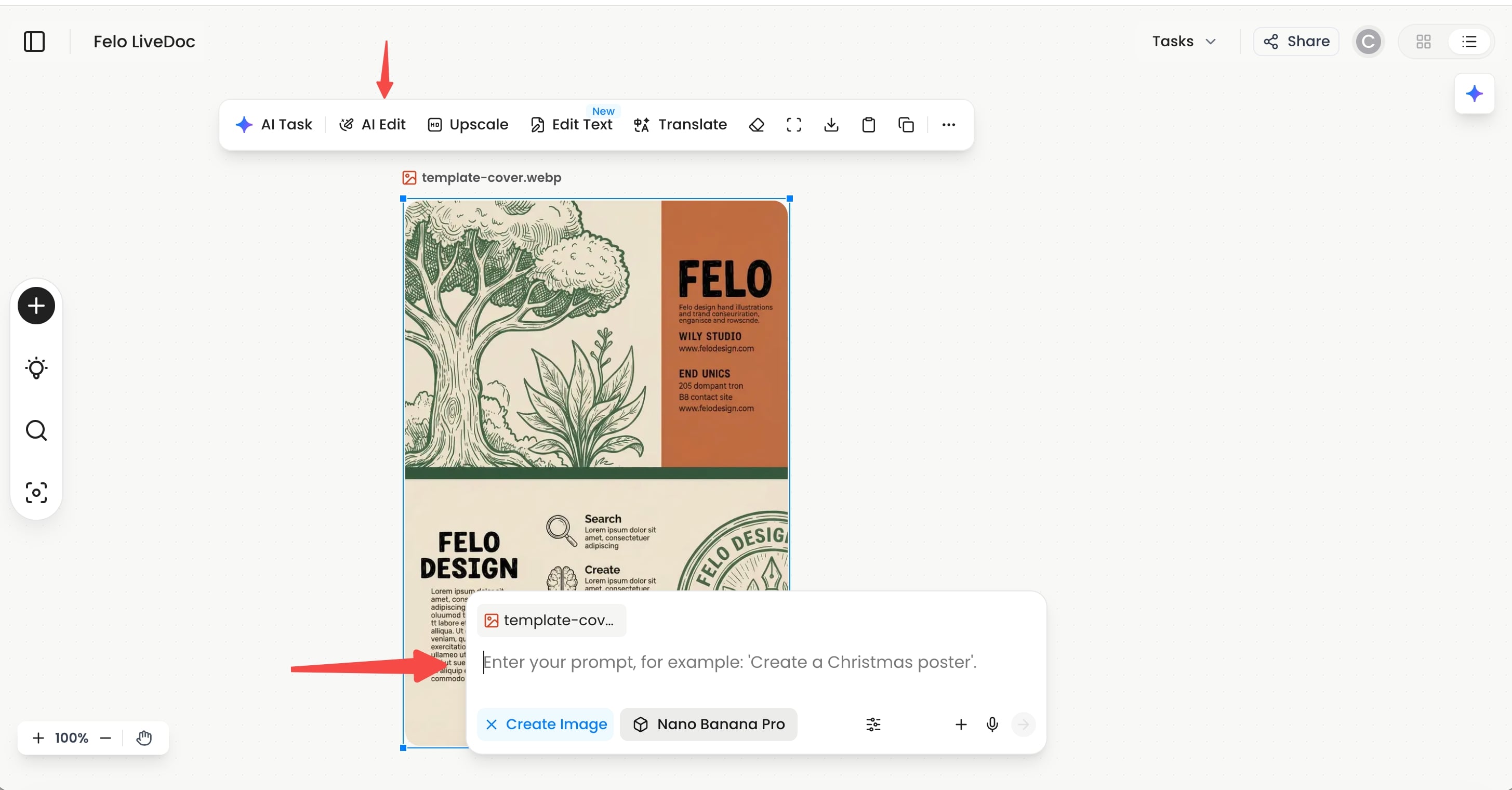
Only the painted area gets modified. Everything else stays exactly as it was. No regeneration, no roulette.
See It in Action
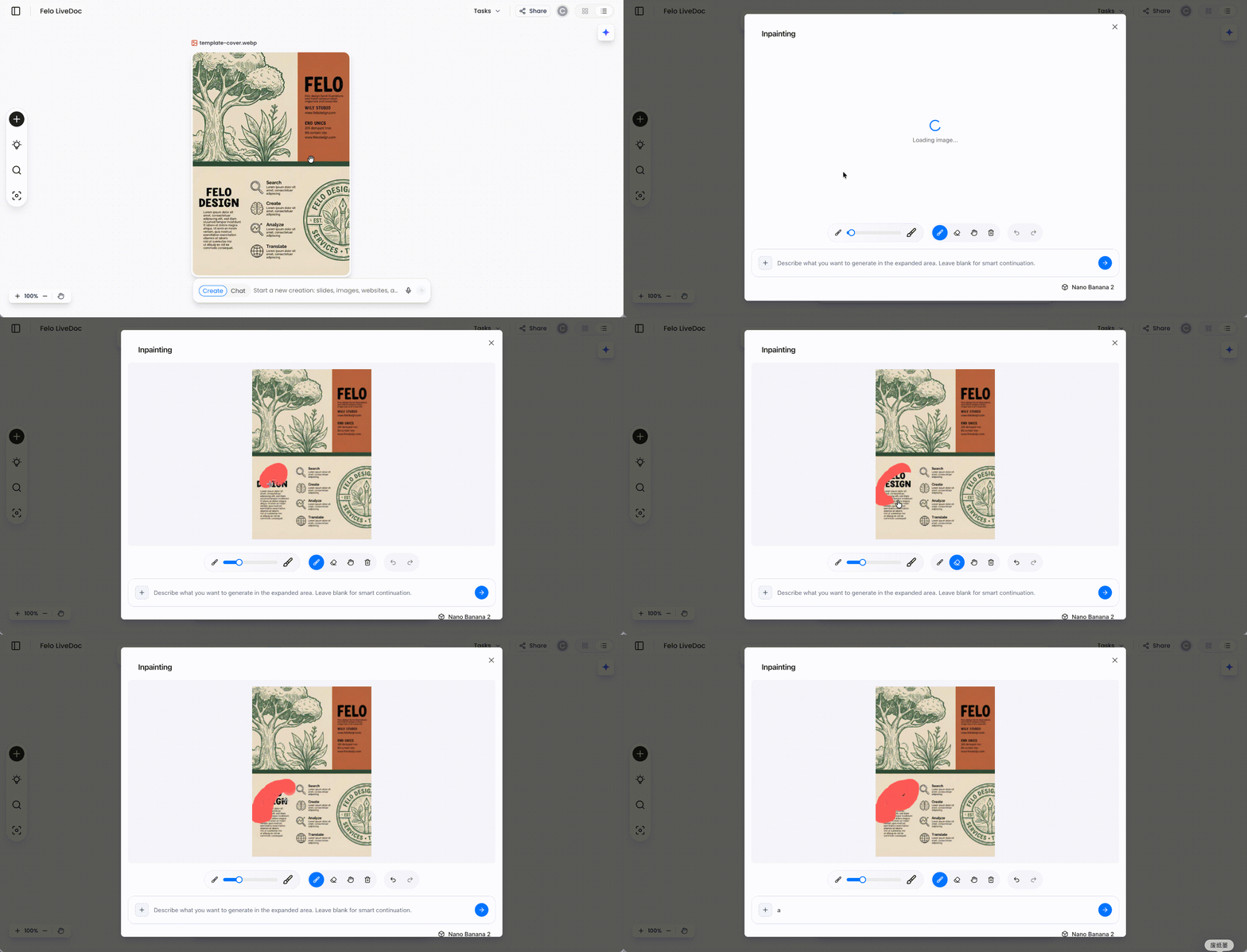
The workflow speaks for itself. You're not negotiating with a text box anymore — you're pointing directly at what needs to change and telling AI how to fix it.
The obvious use cases: swap out a background element, fix a typo in generated text, change one object without affecting the rest of the composition. Anything that used to require a full re-roll now takes one brush stroke and a sentence.
LiveDoc Canvas Panel: Instant Image Tools
The second change is in Felo's LiveDoc canvas panel. Select any image on the canvas and the image toolbar activates immediately. No extra clicks, no digging through menus.
Two workflows this makes noticeably faster:
Merging multiple images. Select several images on the canvas, the toolbar appears, and you can tell AI how to combine or arrange them.
Quick single-image adjustments. Select an image, type a prompt to adjust the style or add an element, and get a result. The whole flow is one selection and one prompt instead of navigating menus.
Using Both Together
Generate images as usual, merge or arrange multiple ones on the LiveDoc canvas, then use the Brush tool to fine-tune specific areas. Repeat until it looks right. The entire process from generation to final edit happens inside Felo.
Summary
AI Edit lets you paint over a region and tell AI what to change in that area only. The LiveDoc canvas toolbar now activates instantly when you select an image, making multi-image merging and quick adjustments faster.
Both features are live now.
Head to Felo AI Image to try them out.