Felo AI Image Adds Sketch-to-Image: Draw, Describe, Generate
Draw a rough idea, describe the final look, and let GPT-Image 2.5 turn your sketch into a finished image. Felo AI Image's new drawing canvas is free to try.
The hardest part of AI image generation is not usually the prompt. It is telling the model what your idea looks like.
You can write "a modern logo" or "a children's book illustration" a hundred ways and still get a composition that is not yours. A hand-drawn sketch fixes that. It shows the model where the tree should stand, how the character should sit, and which part of the idea matters most.
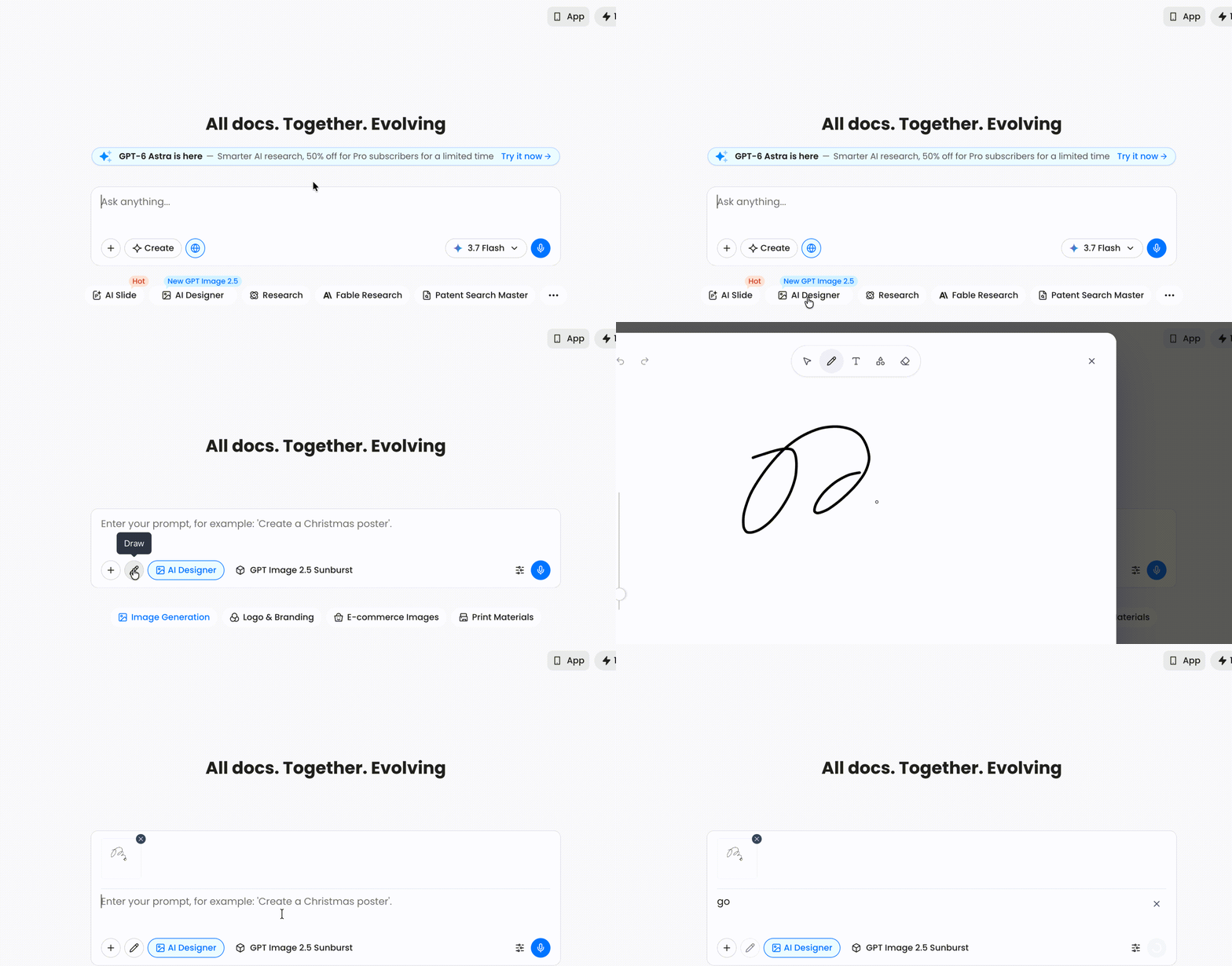
Felo AI Image now includes that workflow. Open the image composer, click the pencil, draw a rough idea, add a short prompt, and generate a finished image with GPT-Image 2.5.
Why sketching beats a longer prompt
A prompt is an abstract description. A sketch is a spatial instruction. The difference matters most when composition, layout, or interaction between objects is the point of the image.
Think about these three ideas:
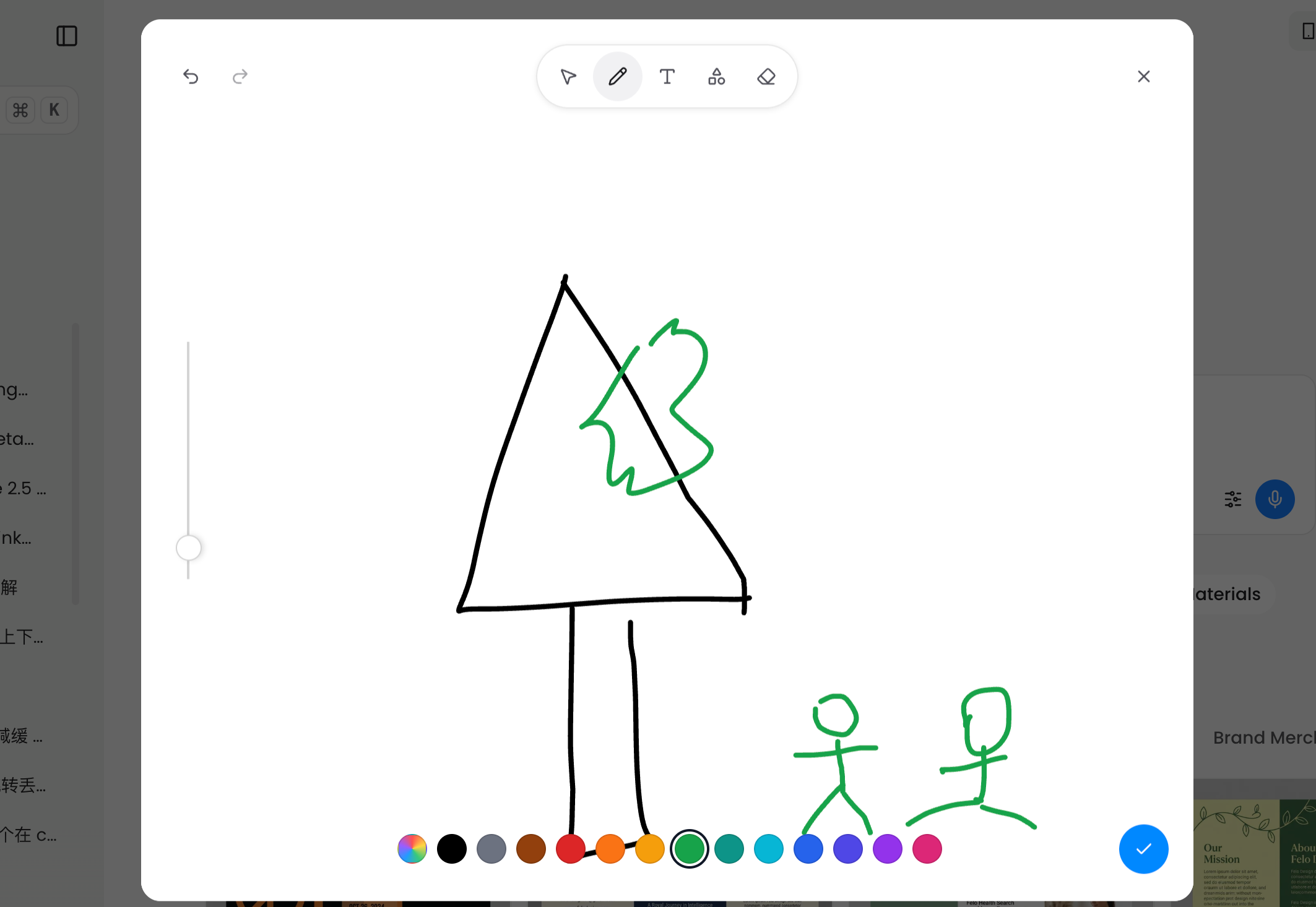
- A tall tree at the center, two children on the right, and a green animal halfway up the trunk
- A product bottle on the left of a counter with packaging behind it
- A three-panel character sheet with the same person in different poses
All three are easy to describe in words. None of them is easy to describe with enough control to get the exact arrangement on the first try. A quick drawing removes most of that ambiguity.
That is why ChatGPT's new Sketch feature got so much attention this week. OpenAI's ChatGPT Images 2.5 launch on September 8, 2026 included the ability to draw directly in the composer and use the drawing as a reference. Felo AI Image brings the same shape of workflow into its image-generation workspace — with no separate app and no need to export a sketch file first.
What the new drawing canvas gives you
The pencil button sits beside the image attachment and prompt controls. Click it, and a full drawing canvas opens.
The canvas includes the tools most people need to make a clear visual reference:
- Pen and color palette for drawing shapes, people, objects, and layout
- Text tool for labels or short notes that should stay in the image
- Shape tool for boxes, circles, and linear structures
- Eraser for fixing mistakes
- Undo and redo so you can experiment without losing the drawing
When you are finished, confirm the sketch. Felo attaches it to your prompt like a reference image, and you can still add a natural-language instruction.
In the example below, the sketch was attached first and the prompt was kept simple:
Generate a children's colorful watercolor marker drawing based on this image
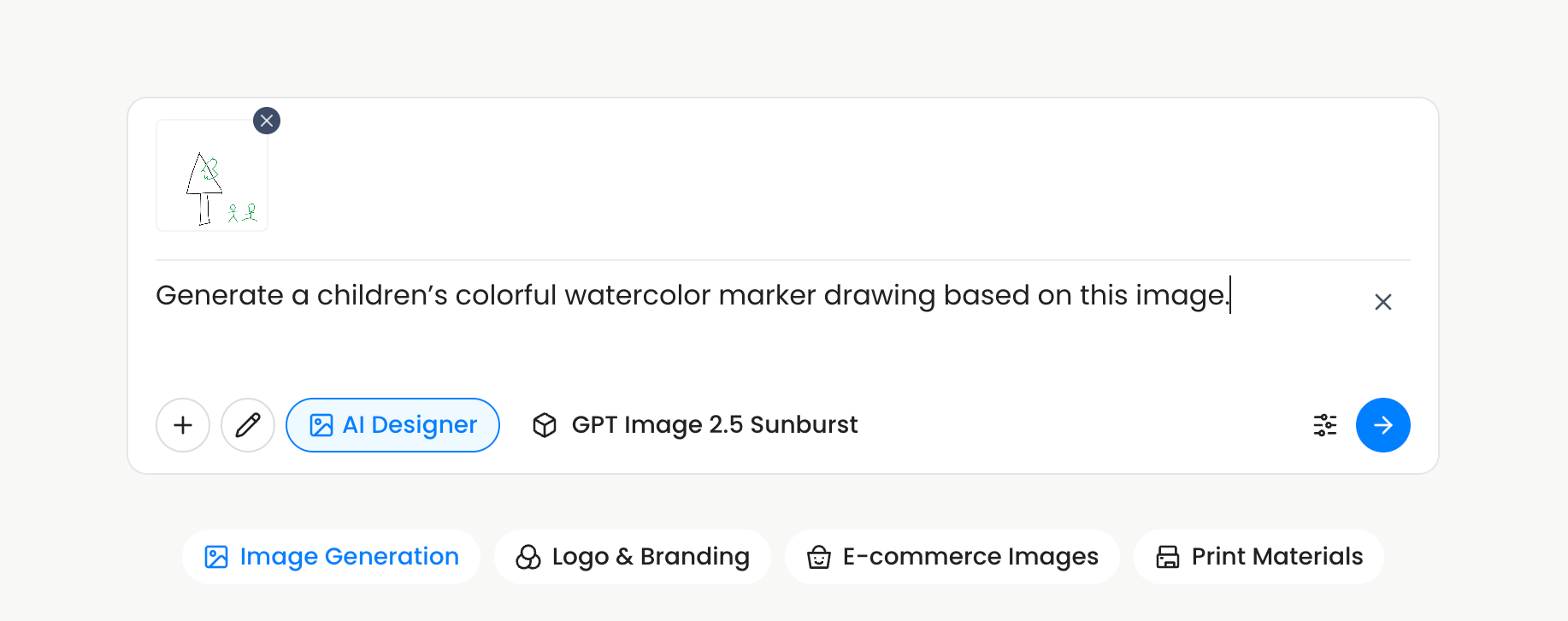
The screenshot uses GPT-Image 2.5 Sunburst, the precision-oriented variant of OpenAI's latest image model. The model takes the sketch plus the prompt and fills in the visual detail without inventing a different composition.
How to turn a sketch into an AI image on Felo
The full flow takes less time than writing a prompt for a model you have never seen before.
1. Open Felo AI Image
Go to Felo AI Designer and sign in free. Choose Image Generation from the mode selector.
2. Pick your model
Select a model from the workspace. GPT-Image 2.5 Sunburst is a good choice when you want the model to preserve detail and follow a composition closely. If your workspace offers the regular GPT Image 2.5 default, it is fine for most first attempts.
3. Open the drawing canvas
Click the pencil icon next to the plus button in the prompt composer.
4. Draw the structure, not the masterpiece
Keep the drawing rough. A triangle can become a tree, a rectangle can become a product label, and two circles can become characters. The point is to establish:
- What is central
- What is to the left or right
- What is large or small
- Where the objects touch or overlap
Use one color for the main structure and another color for the element the model should emphasize. In the reference drawing, black gives the tree its shape and green tells the model where the animal belongs.
5. Confirm the sketch
Tap the checkmark to close the canvas. The sketch will appear as an attachment in the composer.
6. Tell the model how to finish it
Write the style, medium, mood, and any visual detail the sketch does not carry. The prompt does not need to be long.
For the demo drawing, the complete instruction was just one sentence. The sketch already answered the composition question, so the prompt only needed to answer the style question.
7. Generate and refine
Send the request. If the first output is close but not right, change one variable and generate again. With GPT-Image 2.5, earlier changes are more likely to stay consistent across a multi-turn edit.
What sketch-to-image is best for
The workflow makes sense whenever "where should it be" matters more than "what should it look like."
- Brand layouts. Show where the logo, headline, image, and CTA should sit before asking for a finished design.
- Product concepts. Draw the silhouette, label placement, and packaging arrangement instead of guessing in a prompt.
- Room and interior ideas. Sketch the windows, furniture, and walking space with a quick floor plan.
- Characters and storyboards. Set the pose, the relationship between characters, and the framing for each panel.
- Merch and apparel. Sketch a print on a shirt, hat, or bag and describe the finished style.
- Presentation and social visuals. Control the relationship between text blocks and imagery before the model adds polish.
The rule is simple: draw anything you can see in your head, then describe everything you want the AI to add.
Five prompt tips for sketch-to-image
- Lead with the final medium. Start with
children's book illustration,studio product photo,flat brand poster, orwatercolor drawing. The model uses that first phrase to set the whole render style. - Describe what the sketch represents. Do not assume the model knows a triangle is a tree. Say
a tall triangular tree,a bottle with a round cap, ora three-panel layout. - Keep the prompt non-positional when the sketch handles position. Use
based on this sketch, preserve the compositionand then add the style. This reduces the chance of the model overriding your drawing. - Put exact copy in quotes.
headline reads "SUMMER MARKET"works better than asking for placeholder text. - Change one thing at a time. Fix the style first, then the lighting, then the colors. Each pass tells you which instruction the model actually followed.
Felo AI Image vs. ChatGPT Sketch
ChatGPT Sketch and Felo AI Image share the same core idea: draw first, describe the finish, generate. The workflows are not identical outside the canvas.
Felo AI Image keeps the drawing canvas inside a broader image workspace. You can switch models, attach reference images, generate in different styles, and continue editing on the same canvas. Felo also gives you direct browser access to GPT-Image 2.5 without needing a ChatGPT subscription, API key, or separate design app.
The value is not in writing a more complicated prompt. It is in giving the model a layout it cannot misunderstand.
Frequently asked questions
Is the sketch-to-image drawing feature free on Felo? Yes. Felo AI Image is free to start with daily credits, and no credit card is required. Premium plans are available when you need more credits or higher generation volumes.
Do I need ChatGPT to use this feature? No. The drawing canvas is part of Felo AI Image. You can draw, attach a reference, and generate with GPT-Image 2.5 directly in the browser.
Is this the same as ChatGPT Sketch? It is the same shape of workflow. Both let you draw a rough reference, add a description, and create a finished image. On Felo, the canvas is part of the image-generation workspace and can be combined with other reference images and Felo's editing tools.
What model should I use? The reference workflow in this article uses GPT-Image 2.5 Sunburst, which is designed for detailed creative tasks. Use the model already selected in your Felo workspace first, then switch if you want a different output style.
Can I use a photo instead of a drawing? Yes. The plus button lets you attach an image, while the pencil button opens the drawing canvas. You can even use both if a photo needs a sketch to explain the final composition.
Can I edit the image after generation? Felo AI Image is built around a canvas. Generated images can be selected, arranged, and refined with the workspace's editing tools, so the drawing, generation, and polish can happen in one project.
Start with the drawing, not the guess
The fastest way to get an image that looks like the one in your head is to stop guessing and start drawing. Even a five-second doodle gives the model the one thing text cannot.
Open the Felo AI Image workspace, click the pencil, and turn your next rough sketch into the finished image you actually wanted.