Unlock the Power of Your Voice: Introducing Voice Notes in Felo Livedoc 🎙️✨

Voice Notes in Felo Livedoc help you capture ideas, create meeting notes with AI, and collaborate faster using voice-to-text productivity tools. Try it now.
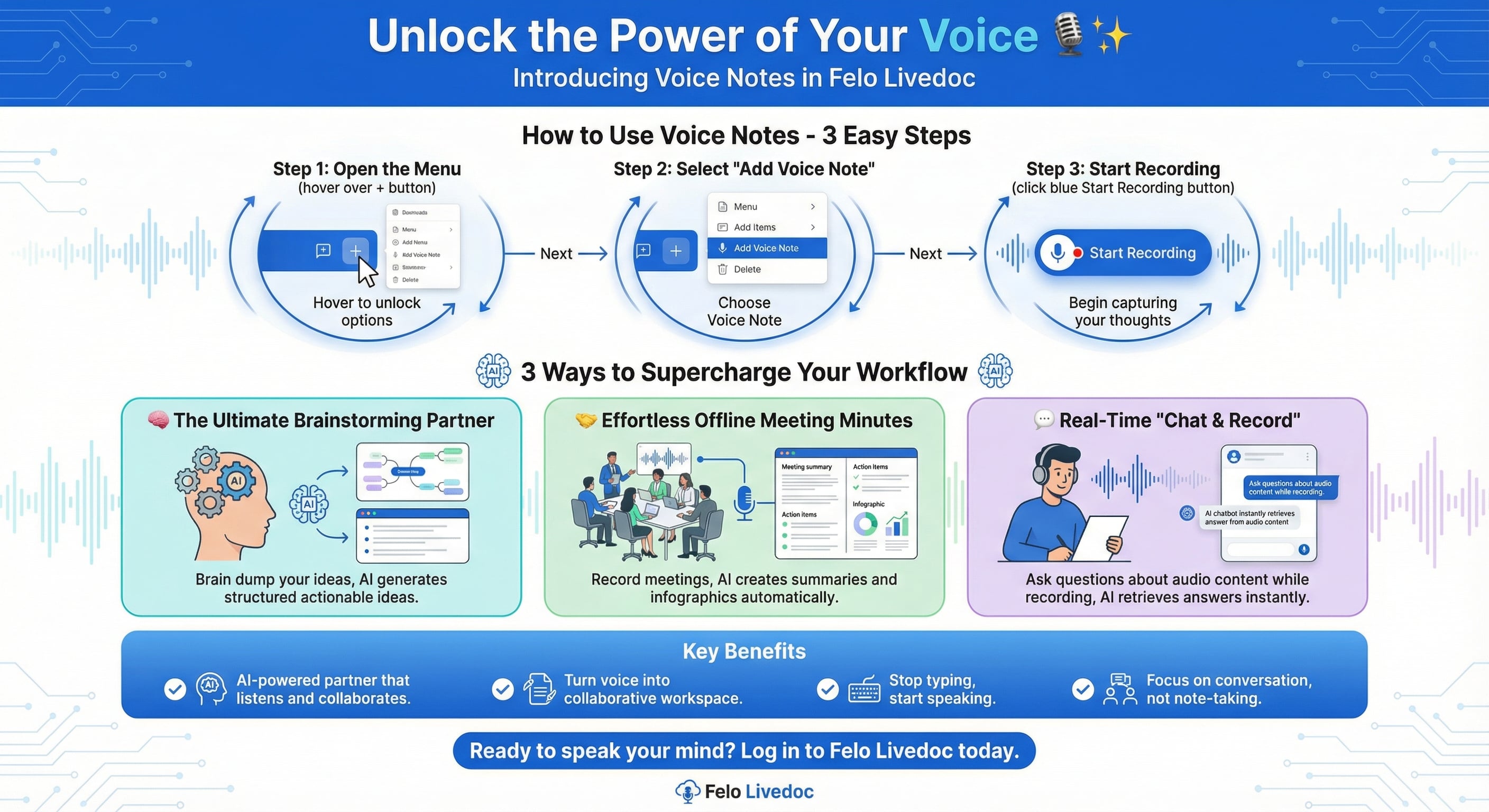
Have you ever had a brilliant idea while walking, or sat through a meeting wishing you could focus on the conversation instead of frantically taking notes
We’ve all been there. Sometimes, typing just isn't fast enough to keep up with your thoughts. That’s why we are thrilled to announce the new Voice Note feature for Felo Livedoc. It’s not just a recorder; it’s an AI-powered partner that listens to your spoken words and lets you collaborate with them instantly.
Here is how to get started and three powerful ways to use this feature to boost your productivity.
🚀 How to Use Voice Notes (In 3 Easy Steps)
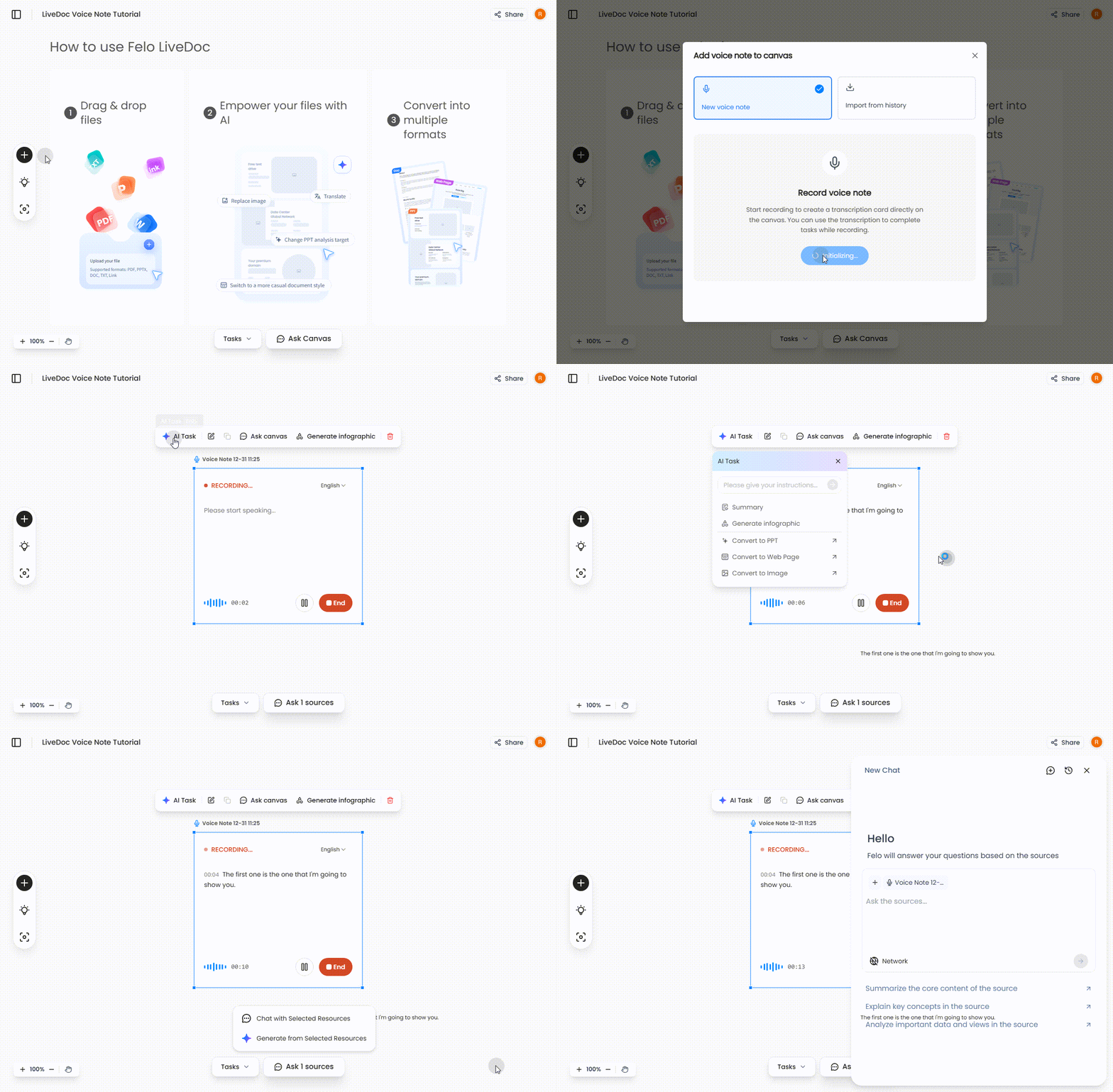
Getting your voice onto the canvas is incredibly simple.
Step 1: Open the Menu Hover over the + button on the left side of your screen or right-click anywhere on the canvas to open the "Add to Canvas" menu.
Step 2: Select "Add Voice Note" Click on Add Voice Note. A pop-up will appear giving you the choice to start a new recording or import audio from your history.
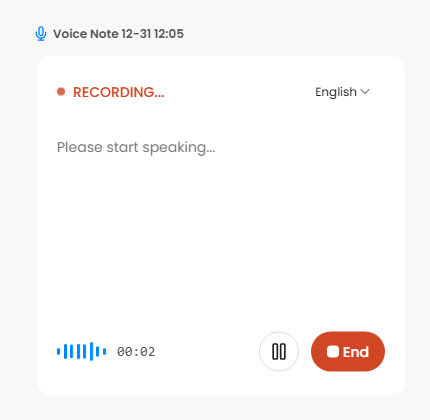
Step 3: Start Recording Click the blue Start Recording button. A Voice Note card will appear on your canvas. As you speak, Felo captures everything.
💡 3 Ways to Supercharge Your Workflow with Voice Notes
The real magic happens after (or even while) you record. Here is how to apply this feature to real-world scenarios:
1. The Ultimate Brainstorming Partner 🧠
Staring at a blank page is tough. Speaking your mind is easy. Use Felo as a creative co-pilot.
-
The Scenario: You have the seeds of an idea—maybe a product launch or a blog topic—but it’s unstructured and messy.
-
The Workflow: Open a Voice Note and just start "brain dumping." Don't worry about logic or structure; just speak your stream of consciousness.
-
The AI Magic: Once you are done, don't just ask for a summary. Click the "Ask 1 sources" (or "Chat") button to open the chat window. Treat the AI like a creative partner by typing:
"Based on this recording, can you give me 5 structured ideas for a marketing campaign?"
The AI will analyze your messy audio and immediately generate clear, actionable ideas for you to choose from.
2. Effortless Offline Meeting Minutes 🤝
Stop being the scribe and start being a participant.
- The Scenario: You are in an offline team meeting or a client consultation. You need to pay attention to body language and the conversation, not your notebook.
- The Workflow: Place your laptop on the table, open Felo Livedoc, and start a Voice Note.
- The AI Magic: Let the recording run for the duration of the meeting. When finished, use the AI Task menu on the card and select "Summary" or "Generate Infographic." Felo will instantly visualize the meeting takeaways and action items, ready to be shared with the team.
3. Real-Time "Chat & Record" 💬
This is a game-changer for deep research and active learning.
-
The Scenario: You are recording a lecture, a long interview, or listening to a verbal report, and you want to clarify a point while the topic is still fresh.
-
The Workflow: While the Voice Note is still on the canvas, select "Chat with Selected Resources."
-
The AI Magic: You can ask the AI specific questions about the audio content right there in the chat box:
- "What was the main argument regarding the budget?"
- "Did he mention the deadline?"
The AI acts as a second brain, retrieving answers directly from the audio source so you don't have to scrub back and listen again.
Ready to speak your mind?
Your voice is the fastest tool you have. With Felo Livedoc's new Voice Note feature, you aren't just recording audio—you are turning your voice into a collaborative workspace.