Felo AI Video Adds Seedance, Wan and Kling

Explore three new video models in Felo: Seedance 2.5, Wan 3.0 Prime and Kling 4.0. Compare sound, frame controls and settings before creating your next clip.
Felo tools: Felo AI Video Generator · Seedance 2.5 · Wan 3.0 Prime · Kling 4.0 · Text to Video.
You can now choose Seedance 2.5, Wan 3.0 Prime and Kling 4.0 in Felo AI Video Generator. They join MiniMax H3 in the same workspace, giving you more ways to build a shot around sound, reference material and frame control.
The useful question is what your next clip needs. A product reveal with a fixed ending, a moving scene with generated sound and a detailed 2K close-up call for different settings. This update makes those choices available without moving your brief into another conversation.
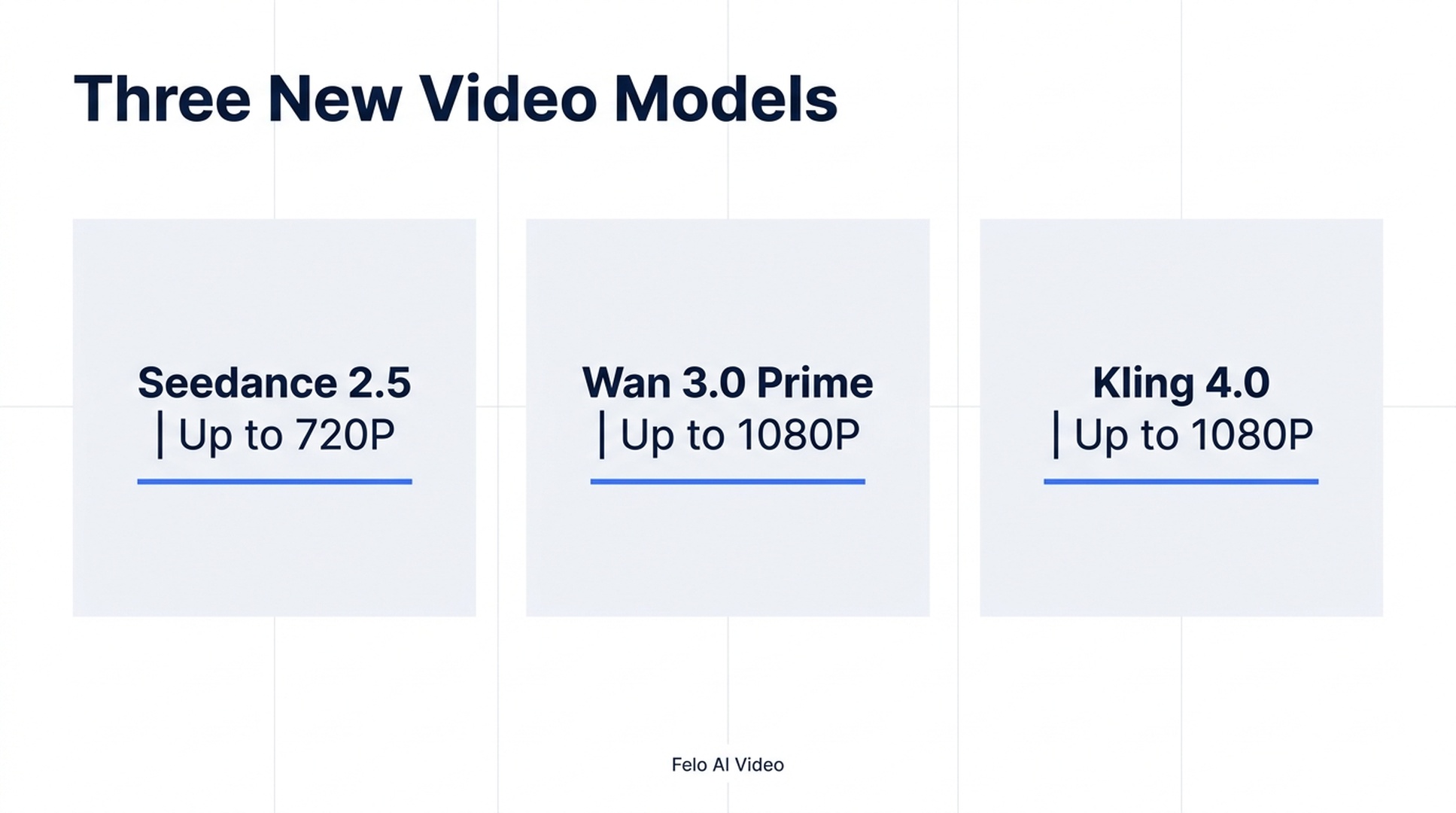
Illustrative guide; not a screenshot or a generated-video result.
Three new models, three different starting points
Seedance 2.5 supports 4–30-second clips at 480P or 720P in Felo. It accepts image, video and audio references, or first and last frames, and can generate sound with the video. Use it when the brief depends on motion and audio together, then review whether the result actually delivers both.
Wan 3.0 Prime supports 2–30-second clips at up to 1080P, with optional generated audio. It takes text or first and last frames. Its Felo page includes ink, paper and other stylized examples, making it a useful place to start when you have a specific visual treatment in mind.
Kling 4.0 supports 3–30-second clips at 720P or 1080P. Alongside reference images and videos, it accepts first, middle and last frames. That additional middle frame gives you another way to describe the path through a shot. Kling clips generated through Felo currently have no soundtrack.
These are the capabilities exposed by Felo, checked on November 5, 2026. They should not be read as the maximum capabilities offered by every provider of each model. The individual Seedance, Wan and Kling pages document the current integration.
MiniMax H3 remains available
MiniMax H3 continues to support generation up to 2K. At 480P and 768P, clips can run 4–30 seconds; at 1080P and 2K, the range is 4–15 seconds.
It also accepts image, video and audio references. Those inputs guide generation, but an audio reference is not a promise of an audible output: Felo's current text-to-video model table lists MiniMax H3 as silent.
That distinction matters when choosing a model. If you need an opening shot with generated ambience, check the audio-capable options. If you need a 2K product close-up and will add music during editing, MiniMax H3 is the available route in this workspace.
Choose the capability your shot needs
| Your requirement | A starting choice | Check before generating |
|---|---|---|
| Generated sound with a moving scene | Seedance 2.5 | Felo output is currently limited to 720P |
| A short stylized shot at 1080P | Wan 3.0 Prime | No 21:9 ratio or extra reference-video input |
| Opening, middle and closing compositions | Kling 4.0 | The output has no soundtrack |
| A detailed 2K clip | MiniMax H3 | 2K clips are limited to 15 seconds |
This is a capability guide, not a ranking of visual quality. Whether a model handles your particular product, face or motion well still depends on the material and the generated result.
Felo's text-to-video page provides the model and sound matrix. The settings shown for the model you select are the final check before a run.
Keep planning and generation in one conversation
There are two ways to approach the brief. With Agent Mode on, Felo can interpret the request, search as needed and plan the shot before generating. With it off, generation follows your prompt and references directly.
This switch is an existing capability, not one of the three model additions. It is useful because an early idea and a production-ready prompt need different kinds of help.
For an early idea, ask for a short shot plan with a clear subject, action and ending. For a prepared shot, choose the model and supply your references. After reviewing the clip, ask for one specific change rather than rewriting the entire scene.
For example, a useful revision request might be:
Keep the bottle, background and lighting. Slow the camera movement and end with the bottle fully visible in the center of the frame.
This is a suggested instruction, not a result from a new benchmark. A revision produces another take, so you still need to check details that were meant to remain unchanged.
Start with one shot you can evaluate
- Open the generator or the page for your chosen model.
- Describe one subject, one main action and where the shot should end.
- Add references or frame images supported by that model.
- Select the ratio, resolution and duration. Check the credit estimate.
- Generate, review the full clip and decide whether to keep it or request a revision.
A good first test has a concrete acceptance condition: the product stays recognizable, the movement finishes, or the closing image has the intended composition. “Make it impressive” is harder to evaluate and harder to fix.
You can also browse the official examples on each model page. Treat them as demonstrations supplied by Felo, then adapt the idea to your own subject and check your result independently.
From generated clip to finished video
The generator creates and revises individual clips. It is not a timeline for cutting together a finished video with editable titles, subtitles and separate audio tracks. Download the clips you want and complete those tasks in your editor.
Generations and revisions use Felo credits. Costs depend on the model and settings; the workspace displays an estimate before generation, and the final charge may vary. Gemini Omni Flash remains marked as coming soon.
The three new models give you more choices at the point where they matter: deciding how to turn a specific brief into a useful shot.
Explore the updated Felo AI Video Generator →
This post is also available in 简体中文, 日本語, 한국어, 繁體中文, हिन्दी, Français, العربية, Русский, اردو, Bahasa Indonesia, Deutsch, Tiếng Việt, Türkçe, Italiano, ไทย, Español, বাংলা and Português.