How to Generate PPT Slides via API: A Developer's Guide

Step-by-step tutorial on programmatically generating presentations using the PPT API, from simple slides to themed decks with sourced content.
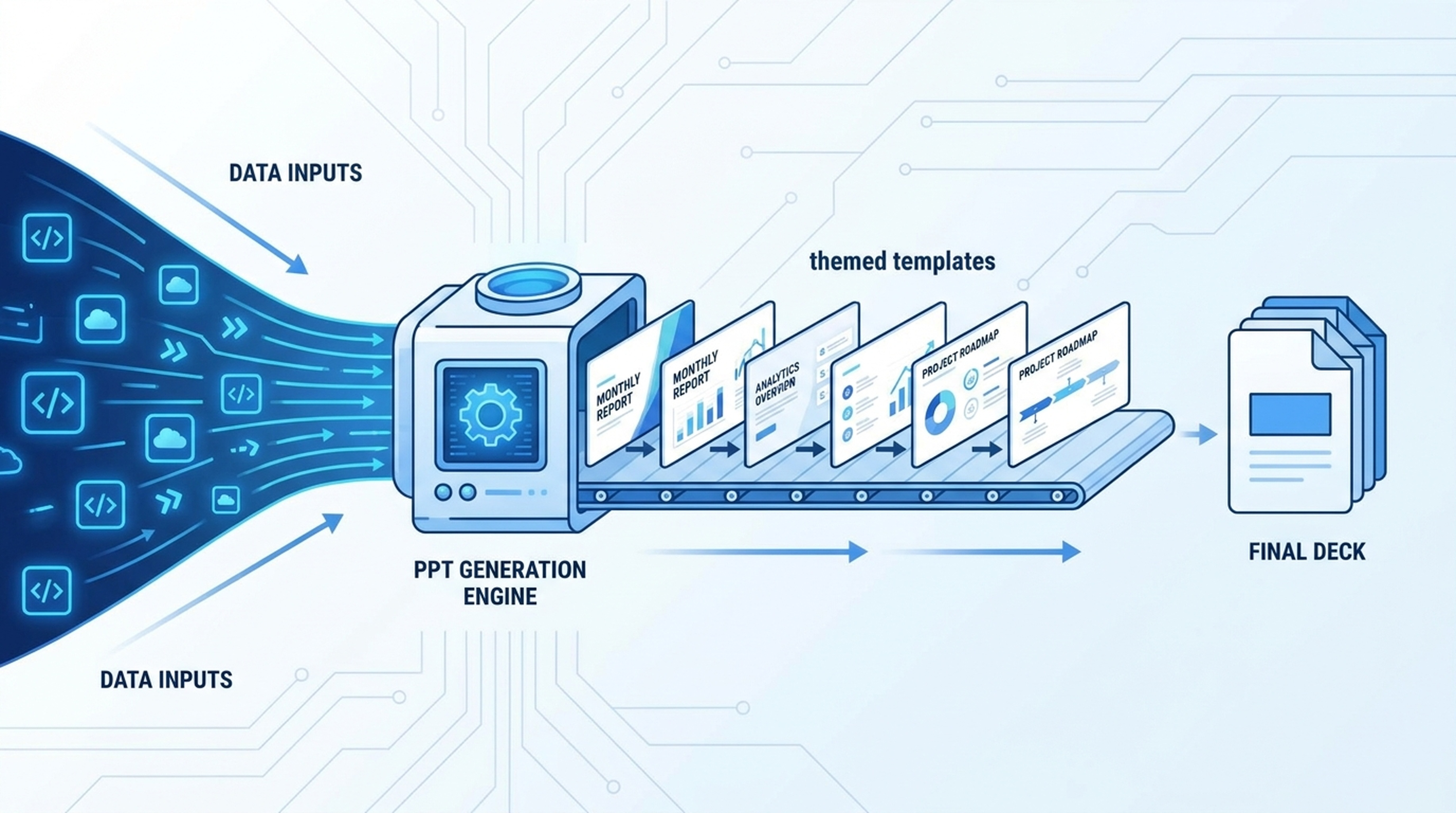
Presentations eat up hours every week. Research, structure, design, iterate. The PPT API changes that by letting agents generate complete slide decks programmatically — themed, sourced, and ready to present.
Here's how it works and how to use it.
What the PPT API Does
The PPT API takes a topic, outline, or set of content and generates a themed presentation file. It's not a text description of slides — it's an actual slide deck you can open, edit, and send to your team.
Key capabilities:
- Themed templates — consistent visual design across all slides
- Content structuring — automatic organization of input into logical sections
- Source integration — cite evidence collected from web search and page extraction
- Multi-format input — accept topics, outlines, or raw content
How It Fits Into Agent Workflows
The PPT API is rarely used alone. It's the output step in a longer workflow:
- Research — agent searches for data and pulls sources
- Extraction — agent reads web pages and extracts key points
- Memory — agent saves findings to LiveDocs for reuse
- Generation — agent calls the PPT API to build the deck
The result is a presentation backed by real research, not just AI-generated talking points.
Getting Started
Step 1: Get Your API Key
Sign up at Felo OpenAPI and generate an API key. You'll use this key for all API calls.
Step 2: Explore Available Themes
Before generating a deck, check what themes are available:
GET /v2/ppt-themes
This returns the list of available presentation themes with preview details. Pick one that matches your use case — business, creative, academic, or minimalist.
Step 3: Generate a Presentation
Send your content to the PPT endpoint:
POST /v2/ppts
Include your topic, outline, or raw content. The API structures it into a themed slide deck and returns a downloadable file.
Step 4: Download and Review
The API returns a URL to your generated presentation. Download it, review the content, make any adjustments, and you're ready to present.
Example: Market Research Presentation
Here's how a complete workflow looks:
Input: "Create a 10-slide presentation on the AI agent market in 2026, including market size, key players, trends, and predictions."
Agent workflow:
- Calls Search API for market data and trends
- Calls Web Fetch to read analyst reports and news articles
- Calls X Search to track industry sentiment and expert opinions
- Saves findings to LiveDocs with source attribution
- Calls PPT API with the researched content and a business theme
- Returns a finished presentation with cited sources
Output: A polished slide deck your team can review, with data points and sources preserved from the research phase.
Example: Product Launch Deck
Input: "Generate a product launch presentation for our new AI-powered search tool, targeting enterprise customers."
Agent workflow:
- Researches competitor products and market positioning
- Extracts key differentiators from web sources
- Generates visual assets using the Image API
- Calls PPT API with product details, competitive analysis, and generated visuals
- Returns a launch-ready deck
Output: A presentation that combines market research, competitive analysis, and visual assets into a cohesive launch narrative.
Advanced Usage
Themed Consistency
Use the same theme across all presentations your team generates. This creates visual consistency across internal decks, client proposals, and external presentations.
Source-Backed Slides
When the agent researches before generating, each data point in the presentation comes from a verified source. The PPT API can include source citations on relevant slides.
Multi-Deck Generation
Generate related presentations in sequence — an executive summary deck, a detailed technical deck, and a sales pitch deck — all from the same research base stored in LiveDocs.
Combining With Other APIs
The PPT API works alongside other output tools:
- Mindmap API — create a visual outline before generating slides
- Image API — generate custom visuals for the deck
- Landing Page API — produce a web version of the same content
Common Use Cases
Internal Team Updates
Weekly or monthly updates that pull data from multiple sources and generate consistent, branded slide decks automatically.
Client Proposals
Research-driven proposals that combine market data, competitive analysis, and customized recommendations into polished presentations.
Training Materials
Convert documentation, guides, and reference materials into structured training decks with consistent formatting.
Investor Updates
Data-rich presentations that pull financial data, market trends, and milestone tracking into a clean, professional format.
Conference Presentations
Research-backed talks where each claim is supported by cited sources and the visual design matches your brand.
Tips for Better Results
Start with a clear outline. The more structured your input, the better the output. Even a rough outline with section headers helps the API organize content logically.
Use themed templates consistently. Pick a theme and stick with it across related presentations. Visual consistency matters more than variety.
Research before generating. Let the agent pull fresh sources and save them to LiveDocs before calling the PPT API. Source-backed presentations carry more weight.
Generate, then refine. The API produces a complete first draft. Review it, adjust the narrative, tweak the design, and you're done in a fraction of the time it would take to start from scratch.
Integration With AI Agents
The PPT API works with all major agent platforms:
- Claude Code — connect via Felo OpenAPI setup guide
- Codex — model calls and tool APIs through one key
- OpenClaw — full tool layer including PPT generation
- Hermes Agent — custom agent workflows with PPT output
- Custom agents — any runtime that can make REST API calls
Your agent handles the research and reasoning. The PPT API handles the output.
Pricing
Get started with a free API key. Pricing details are available on the Felo OpenAPI pricing page.
Next Steps
- Create your free API key
- Browse available PPT themes
- Generate your first presentation
Stop spending hours on slide decks. Let your agent research, structure, and generate them.