How to Turn GPT Image 2.5 Images into Video on Felo
GPT Image 2.5 builds a first frame you can trust. How to animate it with Felo's Image to Video AI — motion prompts, first and last frames, and real costs.
A video generator gives you motion. It does not give you the frame.
That is fine for abstract footage. It falls apart the moment a clip has to show your product, your character, your street, or a headline someone can read. Text-to-video asks the model to invent your world and move it in one pass, and the world it invents drifts between takes.
Image-first video flips the order. You build the frame, check it, fix it, and only then hand it over to be animated. One image in, one shot out.
GPT Image 2.5, released by OpenAI on September 8, 2026, is the model that makes this pipeline practical. Its strength is holding a subject steady — the same face, the same bottle, the same headline — and that is what a first frame needs. Felo's Image to Video AI takes that frame and gives it motion.
This guide walks the whole route: generate the still, direct the shot, control the ending, and know the cost before you press generate.
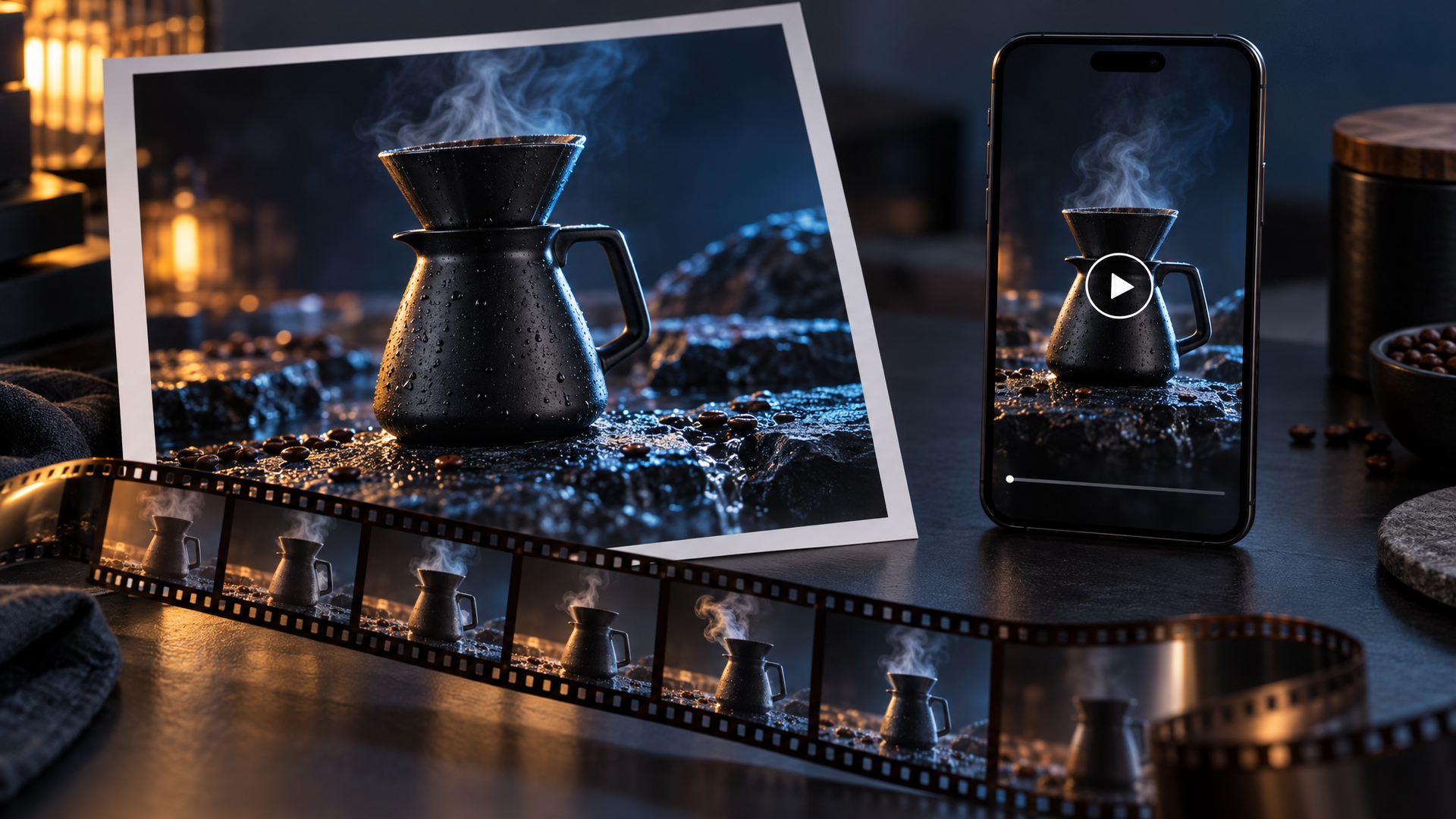
The cover image for this post was generated with GPT Image 2.5 on Felo. No design overlays.
Why the still comes first
A video model reads a starting frame as a contract. The subject's identity, the composition, the materials, and the color direction come from the image. The prompt only decides what changes next.
That split is the reason image-first workflows win for commercial work. Every property you can see in the still — the label on the jar, the shape of the sneaker, the cut of a jacket — survives because nobody asked the video model to imagine it. The model has one job: move things.
GPT Image 2.5 fits this job because of what it improved. Reference photos stay recognizable across generations. Edits change only what you ask, so a round of revisions lands where you aimed. Light and texture read like materials instead of surfaces, which means less of the warping that once made AI video feel uncanny. OpenAI cut generation latency by up to 50% versus Images 2.0, and the Flare variant runs about 2 to 4 times faster than GPT Image 2 in OpenAI's own tests.
The workflow has moved past prompt collecting into production use. The pattern shows up wherever a team already has approved visuals: a product page that needs a motion version for paid social, a campaign key visual that has to run vertically on Reels, a pitch film that needs moving previews of selected shots. The still is the asset. The video is a delivery format for it.
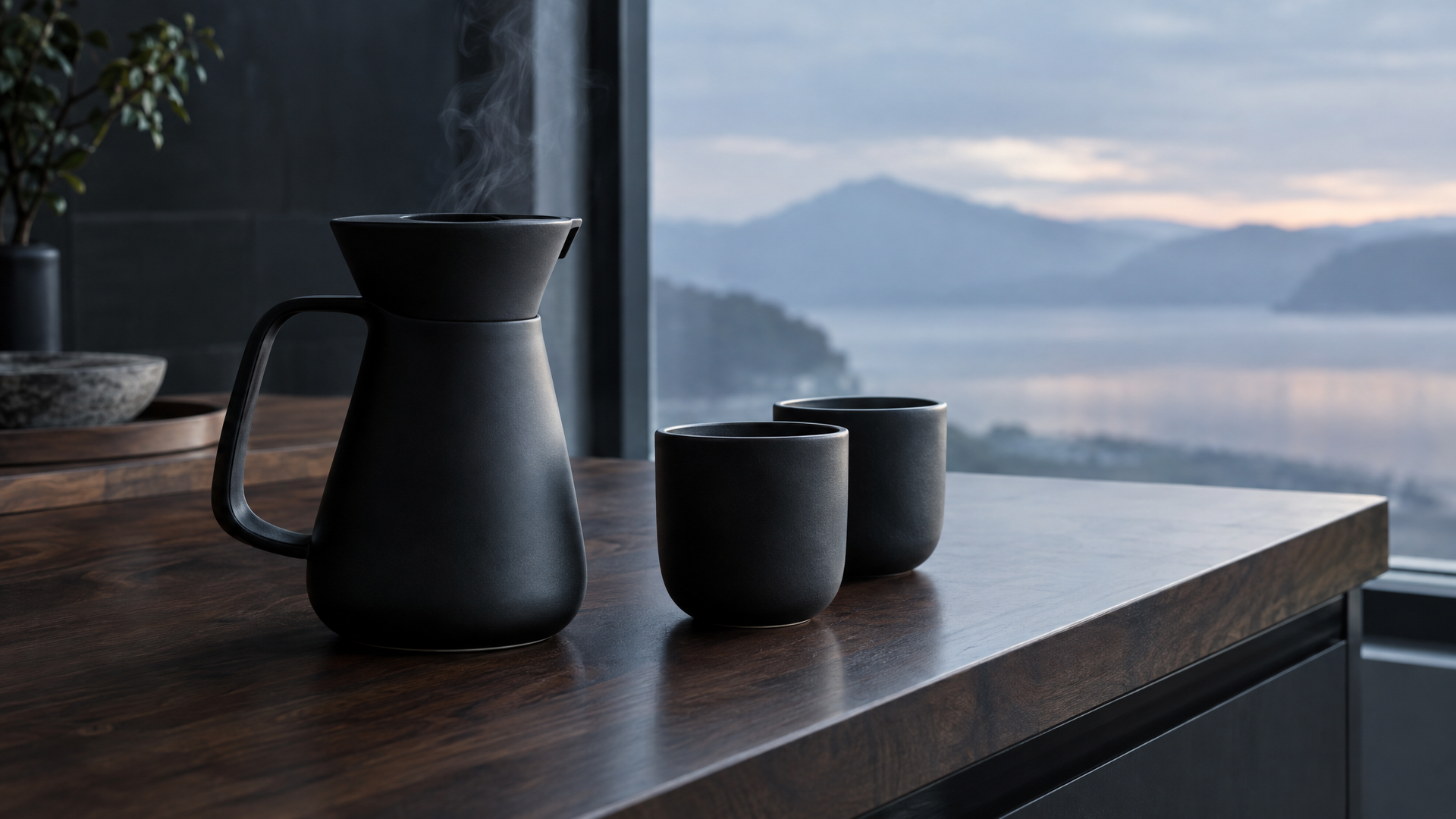
The still that starts this guide's example. Generated with GPT Image 2.5 on Felo. No design overlays.
The pipeline at a glance
- Build the frame. Generate the opening image in the aspect ratio you plan to publish. This is the step where GPT Image 2.5's fidelity does its work.
- Hand it to Image to Video AI. Upload the still, label what it controls, and describe the shot.
- Pick length and quality. Duration and resolution set the price; both appear before you generate.
- Change one variable per round. Motion range, camera speed, or the ending pose. One at a time.
The rest of this guide takes each step apart.
Step 1: Generate the first frame with GPT Image 2.5
The frame you animate decides most of the outcome, so treat its generation as the real creative work.
What a first frame needs:
- A readable subject. The person, product, or place should be identifiable at a glance. The video model will preserve what it can parse.
- Room for motion. If the subject fills the frame and nothing else is visible, steam has nowhere to rise and the camera has nowhere to travel. Leave surfaces, sky, or background space for the action.
- The right aspect ratio. The attached still wins: image-to-video generation keeps the photo's own framing. Want a Reel or a TikTok? Generate vertical. A YouTube spot or a site hero? Generate wide before you animate.
- Short, legible text. GPT Image 2.5 renders short headlines and labels with real accuracy. Keep on-screen copy to a few words, because in-frame text is the first thing motion softens.
If you want the prompt craft behind strong stills, the GPT Image 2.5 prompting guide covers the seven-part skeleton and twelve copy-paste prompts. The Felo workspace runs the model free in the browser, no API key, with no watermark, up to 4K output, and commercial rights included.
One mindset shift helps here: the tool page puts it well — treat the source image as the first frame, not as a loose mood board. A mood board leaves the model guessing. A first frame tells it where the shot begins.
Step 2: Give the frame a job in Image to Video AI
Open Image to Video AI and start with the still. The tool is available to Pro users, and credits are charged by the length and quality of the clip you generate.
A single image covers the common case: it sets the subject, the composition, and the opening frame. The prompt directs what moves next and how the camera follows.
The tool also handles setups that only work when the source material is precise:
- First and last frame. Upload an opening image and an ending image, then describe the transition. This is where GPT Image 2.5 earns its keep, and the next section shows the move in detail.
- Multiple references. Up to nine images can define a character, product details, clothing, a setting, a visual style, or an ending frame. State what each numbered image contributes.
- Image, video, and audio together. A reference video can supply motion or camera work, and audio can supply voice, sound, or rhythm. One request can carry up to twelve reference files.
The labeling habit matters more than any single setting. A short instruction that names the role of each asset — "Image 1 is the opening frame, Image 2 is the ending frame, Image 3 defines the character's clothing" — is easier for the model to follow and easier for you to revise when a take comes back wrong.
Step 3: Write the motion prompt like a shot
The tool page draws the line between two kinds of prompts. One asks for an action. The other describes a shot.
Too open: Make the coffee steam move.
Directed shot: Steam rises from the spout of a matte black pour-over carafe on a dark walnut counter at dawn and builds into a slow swirl that catches the window light. The camera pushes in from a wide framing to a close-up, then holds. The light warms from cool grey-blue to amber as the shot develops, and the two cups fill with dark coffee. Continuous single shot, calm pace, ending on a steady hero frame.
The second version answers five questions the first one ignores: what the subject does, where the camera goes, what changes in the environment, how fast the shot develops, and where it ends.
Two rules keep revisions cheap:
- Direct change with the prompt; anchor identity with the image. The still owns who and what is on screen. The prompt owns what happens next.
- Short beats comprehensive. A prompt with one clear movement is easier to judge and easier to fix than a list of five competing actions.
Step 4: Choose length, quality, and what to change next
Clips run four to fifteen seconds, and the length you pick sets the bill. Two quality tiers are available:
- 768P at 86 credits per second. About US$0.09 per second. The working tier for social cuts and drafts.
- 2K at 138 credits per second. About US$0.14 per second. For hero shots, product pages, and anything a client will zoom into.
Generation takes several minutes, and each request produces one video. That rhythm changes how you iterate. Instead of rerolling the same prompt, review the take and change one thing: the motion range, the camera speed, or the ending pose. One variable per round tells you what caused the difference.
Advanced: let GPT Image 2.5 direct the ending
The first-frame workflow animates a moment. The first-and-last-frame workflow stages a transition — a package opening, a product assembling, a scene changing from day to night — and it is the best argument for generating both frames with GPT Image 2.5.
Here is the move. Generate the opening frame. Then generate the ending frame from it as a reference: same carafe, same counter, same camera position, with the steam now rising in a swirl and the light turned warm. Because the model preserves the subject across generations, the two frames read as one continuous moment instead of two cousins.
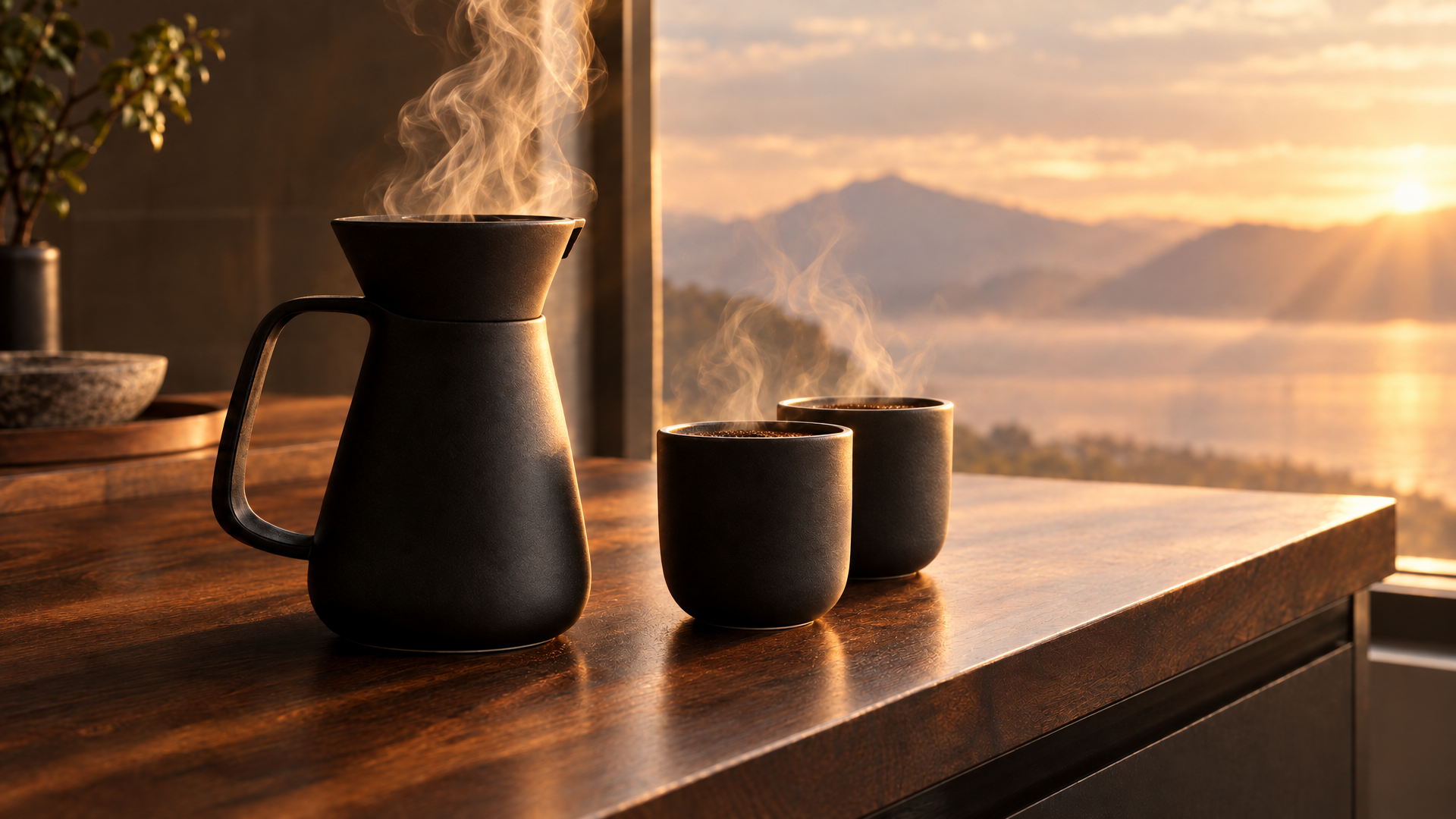
The ending frame, generated with the opening frame as a reference. Upload both in Image to Video AI and describe the transition between them.
Then describe the journey, not the destination: what changes, how fast, and what the camera does while it happens. The tool page names product reveals, transformations, and scene changes as the natural fits — a controlled take on shots that used to need a crew, a slider, and an afternoon.
Advanced: storyboard to sequence
A single clip is a shot. A sequence is a story, and GPT Image 2.5's storyboard workflows close that gap without a drawing tablet.
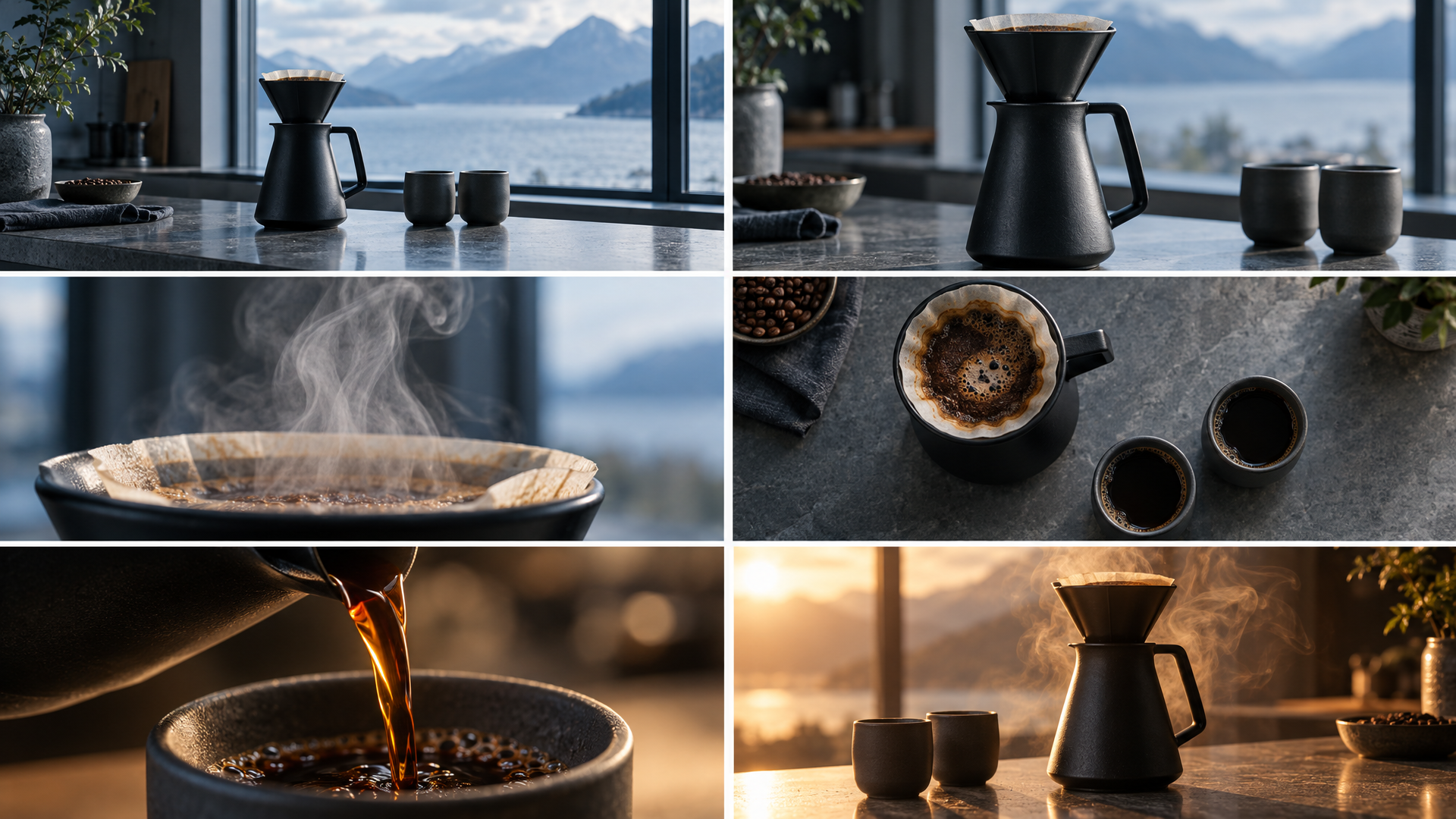
A six-panel storyboard generated with GPT Image 2.5 on Felo. Each panel becomes a shot: generate the panels, animate them one at a time, then cut the clips together.
Feed the model a scene and a character reference, and it returns a panel grid with shot angles and mood — cinematic storyboards, 3x3 grids, and character sheets are built-in workflows on the workspace. The panels come back consistent because the model holds style and subject across generations.
From there the pipeline is mechanical. Animate panel one, panel two, panel three. Keep each clip to one continuous moment. Cut them together, and you have a sequence whose every frame was approved before it moved.
What it costs
Image generation on the GPT Image 2.5 workspace starts free — daily credits, no card, no watermark, commercial rights included. Video generation is a Pro feature, and each clip spends credits by the second:
| Video length | 2K | 768P |
|---|---|---|
| 5 seconds | 690 credits · about US$0.69 | 430 credits · about US$0.43 |
| 10 seconds | 1,380 credits · about US$1.38 | 860 credits · about US$0.86 |
| 15 seconds | 2,070 credits · about US$2.07 | 1,290 credits · about US$1.29 |
The rate card uses roughly 1,000 credits as US$1, and the rates shown are limited-time offers. Your workspace shows the estimate before you generate.
Set those numbers against the traditional route. A ten-second product shot with a camera crew, a location, and an edit costs more than most teams spend on a month of software — and it takes a week, not an afternoon of iterations. A ten-second 768P clip here costs about US$0.86.
One approved still is cheaper to fix than one wrong video. That is the whole case for generating the frame first.
FAQ
Is GPT Image 2.5 free to use? Yes. The model runs free on Felo with daily credits and no card. Video generation is available to Pro users and consumes credits by clip length and quality.
What aspect ratio should the source image be? The still's framing wins. Image-to-video generation keeps the photo's own composition, so generate vertical for Reels, Shorts, and TikTok, and wide for YouTube, ads, and site heroes.
How long does one clip take? Several minutes. One request produces one video, and the result lands in your workspace when it is ready.
Can I keep the same character or product across several clips? Yes. Attach reference images — up to nine — and name what each one controls. This is the strongest use of GPT Image 2.5's reference fidelity: build the character once, and carry that identity into every shot.
Start with a still
The video model can only move what the frame gives it. So make the frame count: sharp subject, room to move, the right shape for the channel, and text short enough to survive motion.
Generate the first frame free on Felo — then bring it to Image to Video AI and direct the next five seconds.