GPT Image 2 Prompts: Find Better Prompts for Product Photos, Posters, Mockups, and More
Explore Felo's GPT Image 2 Prompts page: a free prompt library for creating better product photos, posters, social graphics, mockups, and text-rich AI images.
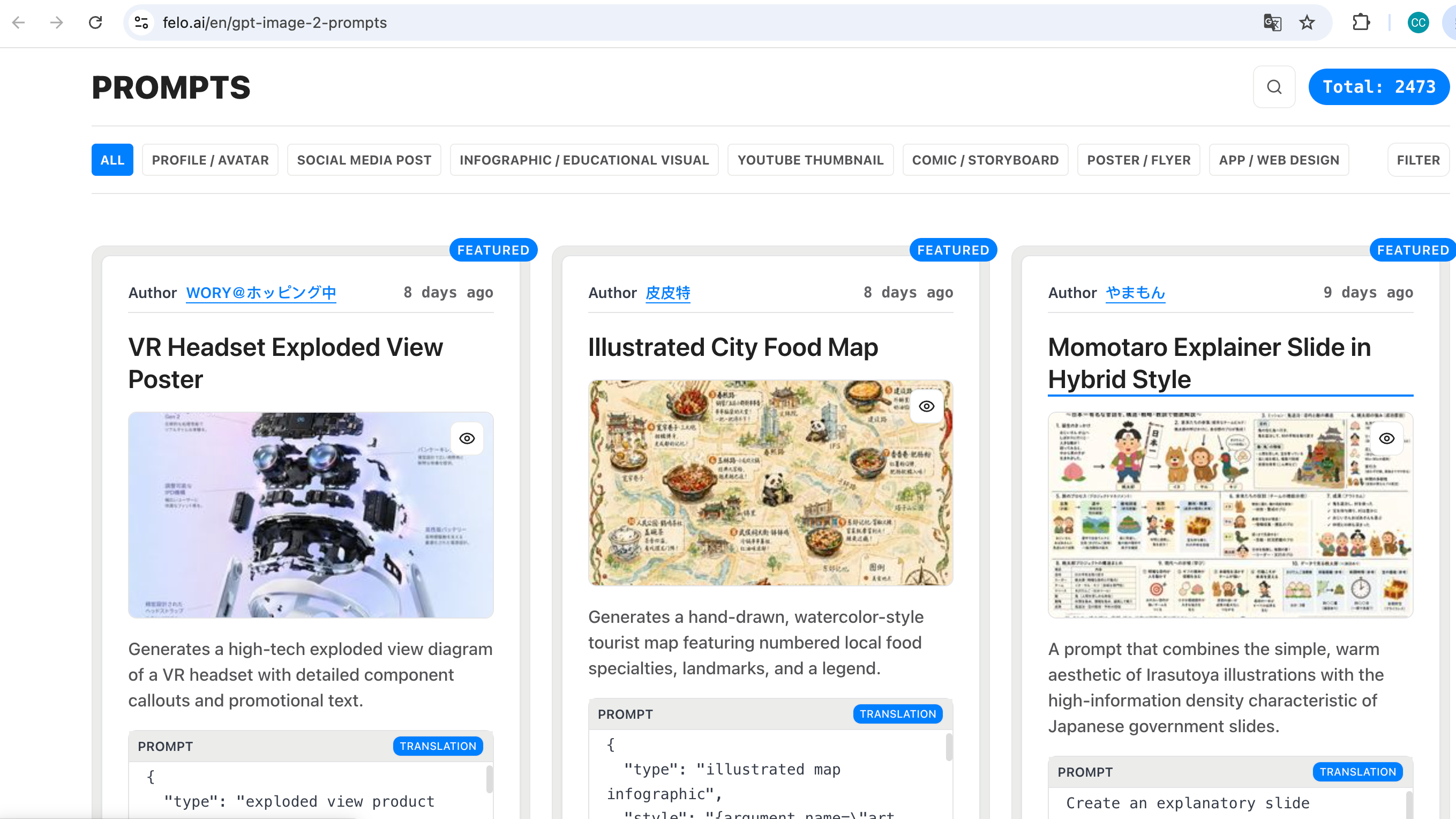
A good image model still needs a good prompt. GPT Image 2 can render cleaner text, follow detailed layouts, and produce polished visual assets, but the result depends heavily on how clearly you describe what you want.
That is why Felo created the GPT Image 2 Prompts page: a free prompt library built to help you find practical prompt ideas for GPT Image 2 and use them inside Felo.
Instead of starting from a blank box, you can browse prompt examples, filter for the style or use case you need, copy a prompt, and adapt it for your own image.
What is the GPT Image 2 Prompts page?
The GPT Image 2 Prompts page is a curated library of image and video prompts for OpenAI's GPT Image 2 model. It is designed for people who want better image results but do not want to write every prompt from scratch.
The page includes:
- a large prompt collection for GPT Image 2
- regularly updated prompt examples
- filters for browsing different prompt types
- prompt cards that users can copy and reuse
- FAQ guidance on how to use the prompts inside Felo
The workflow is simple: find a prompt, copy it, open GPT Image 2 in Felo, and customize the prompt for your product, brand, campaign, or creative idea.
Felo plans to improve the integration further so users can run prompts more directly in the future. For now, the page works as a fast prompt discovery tool.
Why GPT Image 2 prompts matter
Many AI image failures are prompt failures.
The model may be capable of making a great ecommerce product shot, but if the prompt only says "make a product photo," the output will be generic. If the prompt does not specify the background, lighting, label text, camera angle, aspect ratio, or intended use, the model has to guess.
A better prompt gives GPT Image 2 more useful constraints:
- what the subject is
- where it should appear in the frame
- what text should appear in the image
- what style the image should use
- what the final image will be used for
- what should be avoided
This is especially important for GPT Image 2 because the model is strong at precise layout, multilingual text rendering, consistency, and production-grade illustration quality. Those strengths show up most clearly when the prompt gives the model enough direction.
Use the prompt library for product photography
Product photography is one of the best use cases for GPT Image 2 prompts. A good product prompt needs more than the product name. It should describe the setting, material, label, lighting, camera distance, and mood.
For example, instead of writing:
Create a product photo of a skincare bottle.
A stronger GPT Image 2 prompt might say:
Create a realistic studio product photo of a matte white skincare bottle on a soft beige background. Add a clean label with the text "Hydra Calm Serum" and "30 ml". Use softbox lighting, a subtle shadow, and a premium minimalist beauty brand style. Center the bottle with enough negative space for website hero text.
That prompt gives the model a real creative brief. It tells GPT Image 2 what to make, how it should look, and where the image might be used.
The Felo prompt library helps users find these patterns faster. You can browse product-style prompts, copy the structure, then swap in your own product, label, colors, and campaign message.
Make posters and social graphics with readable text
Text rendering is one of the reasons people are paying attention to GPT Image 2. Older image models often produced beautiful posters with broken words. GPT Image 2 is much better at rendering short headlines, labels, and multilingual text.
Still, prompt structure matters.
If you want a poster, tell the model:
- the exact headline text
- where the headline should appear
- whether there is a subtitle
- the visual hierarchy
- the background style
- the target format, such as square, vertical, or 16:9
Example:
Create a vertical event poster for an AI design workshop. Use a dark navy background with soft blue gradients and abstract creative tools. Place the headline "Design Faster with AI" at the top in large readable text. Add the subtitle "Live Workshop | May 20" near the bottom. Keep the layout clean and modern.
For social media, this can save a lot of editing time. Instead of generating an image and adding the copy afterward in another tool, you can ask GPT Image 2 to build the message into the visual from the beginning.
The GPT Image 2 Prompts page gives you a starting point for these layouts, especially if you are creating LinkedIn banners, Instagram posts, webinar graphics, YouTube thumbnails, or launch announcements.
Generate app mockups and UI concepts faster
GPT Image 2 is also useful for mockups. Designers, founders, marketers, and product teams can use prompts to create quick visual concepts before moving into detailed design work.
A useful mockup prompt includes:
- device type or screen format
- product category
- UI style
- number of panels or cards
- main screen content
- background environment
- any text that must appear clearly
Example:
Create a clean SaaS dashboard mockup displayed on a laptop screen. The dashboard is for an AI writing assistant. Show a document editor on the left and an AI suggestion panel on the right. Use a white and light blue interface, rounded cards, and readable UI labels. Keep the design realistic but not tied to any real brand.
This kind of prompt is useful when you need a pitch deck visual, product concept image, landing page mockup, or internal brainstorm asset.
You should not treat generated UI as final product design, but it is a fast way to communicate direction.
How to use Felo's GPT Image 2 prompt library
The process is straightforward.
Step 1: Open the prompt library
Go to felo.ai/gpt-image-2-prompts. Browse the available prompt examples or use the filter interface to narrow the collection.
Step 2: Pick a prompt close to your use case
Look for a prompt that matches the type of image you want: product photo, poster, social graphic, mockup, illustration, character concept, or text-heavy design.
Do not worry if the prompt is not an exact match. The structure is the useful part.
Step 3: Replace the details
Swap in your own product name, headline, style, color palette, aspect ratio, and audience. If the image needs text, write the exact text in quotation marks.
Step 4: Use it with GPT Image 2 in Felo
Copy the prompt and use it with GPT Image 2 inside Felo. Review the result, then refine the prompt based on what needs to change.
Step 5: Save prompt patterns that work
When a prompt works well, save the structure. Good prompt patterns can be reused across campaigns, product categories, and markets.
Prompt tips for better GPT Image 2 results
You do not need to become a prompt engineer to get better images. A few habits help.
Write the prompt like a creative brief
A weak prompt lists keywords. A strong prompt explains the job.
Instead of:
futuristic poster, AI, blue, modern
Try:
Create a futuristic poster for an AI productivity tool. Use a deep blue background, subtle light trails, and a clean central composition. Add the headline "Workflows That Think Ahead" in large readable text. Make it suitable for a website announcement banner.
Keep text short
GPT Image 2 handles text better than older models, but short copy still works best. Use a headline, a short subtitle, or a label. Avoid asking the model to render a full paragraph inside the image.
Be specific about layout
If you need space for a CTA, logo, or headline, say where it should go. For example: "Leave empty space on the right side for copy" or "Place the product in the lower-left third."
Add negative constraints
Tell the model what to avoid. This can be just as important as describing what you want.
Examples:
- no generic robot imagery
- no distorted hands
- no fake brand logos
- no cluttered background
- no tiny unreadable text
- no watermark
Iterate one detail at a time
If the first image is close, do not rewrite the whole prompt. Change one thing: the layout, the lighting, the text, the color palette, or the camera angle. This makes it easier to learn what worked.
Who should use the GPT Image 2 Prompts page?
The page is useful for anyone who needs better image prompts quickly.
Marketers can use it for campaign visuals, social graphics, ads, and email headers.
Ecommerce sellers can use it for product photography concepts, packaging visuals, and seasonal promotional images.
Creators can use it for thumbnails, posters, character images, and content series.
Founders and product teams can use it for mockups, pitch deck visuals, app concepts, and landing page graphics.
Writers and researchers can use it to create visuals that support reports, guides, and presentations.
The common thread is simple: if you know roughly what you want but do not know how to describe it to GPT Image 2, the prompt library helps you start.
Try the GPT Image 2 Prompts page
Blank prompts slow people down. Felo's GPT Image 2 Prompts page gives you a faster starting point: browse, copy, customize, and generate inside Felo.
Use it when you need product photos, posters, social graphics, mockups, illustrations, or text-rich visuals and want a prompt structure that already points in the right direction.
Explore GPT Image 2 Prompts in Felo ->
FAQ
What are GPT Image 2 prompts?
GPT Image 2 prompts are text instructions that tell the model what image to create. A good prompt describes the subject, style, composition, text, aspect ratio, and intended use.
Is Felo's GPT Image 2 prompt library free?
Yes. The GPT Image 2 Prompts page is available for free browsing. You can copy prompts and adapt them for your own image generation workflows in Felo.
Can I use these prompts for product photography?
Yes. Product photography is one of the strongest use cases. Look for prompts that describe lighting, packaging, label text, background, and camera angle, then replace the product details with your own.
Can GPT Image 2 render text inside images?
GPT Image 2 is designed to handle text rendering better than earlier image models, including short headlines, labels, and multilingual text. You should still review the output before publishing.
How do I get better GPT Image 2 results?
Start with a prompt from the library, replace the details, keep image text short, describe the layout clearly, and refine one detail at a time after each generation.