How to Use Claude Code: From First Install to Daily Workflow

A practical guide to Claude Code covering installation, core commands, project setup, multi-file editing, and workflow patterns that experienced developers actually use.
Claude Code is a terminal-based AI coding agent from Anthropic. You type what you want in plain English, and it reads your codebase, plans changes, and executes them across multiple files. No GUI. No highlighting code and clicking buttons. You talk to it like a developer who has access to your entire repository.
This guide skips the marketing pitch and covers what you actually need to know: how to install it, how to use it effectively, and the workflow patterns that separate productive users from frustrated ones.
Installation
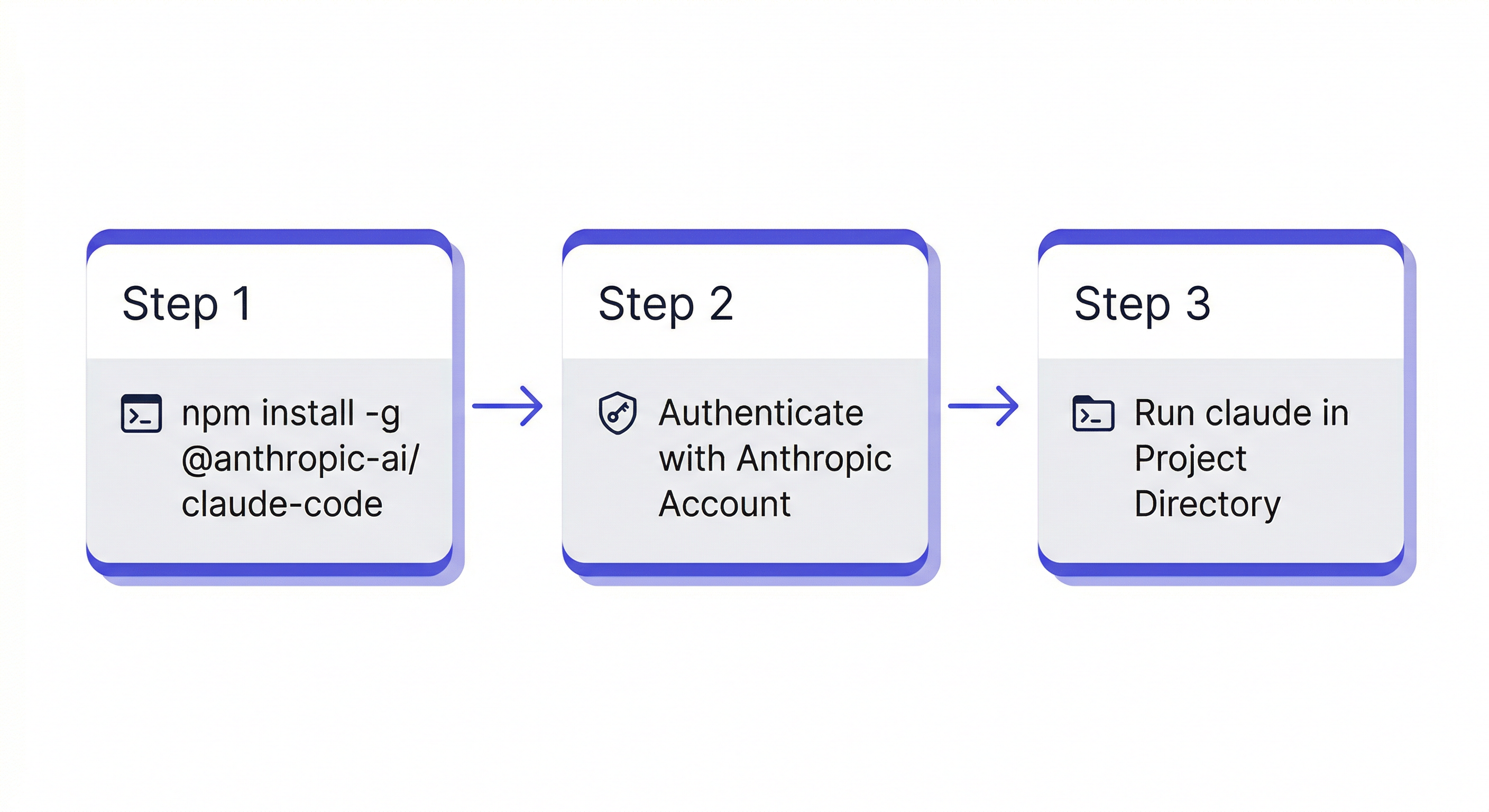
Claude Code requires Node.js 18+ and an Anthropic account.
npm install -g @anthropic-ai/claude-code
Navigate to your project directory and start a session:
cd ~/projects/my-app
claude
On first run, it opens a browser window for authentication. After that, you are in an interactive session with access to your entire project.
You need an active Anthropic plan. The Pro plan ($20/month) includes Claude Code access with usage limits. The Max plan ($100 or $200/month) removes most limits for heavy users.
Core Concepts
Claude Code is not an autocomplete tool. It is an agent. The distinction matters.
An autocomplete tool suggests the next line of code. Claude Code reads your project structure, understands file relationships, and makes changes across your codebase based on high-level instructions. You describe the outcome. It figures out the implementation.
Every session starts by Claude Code scanning your project. It reads your files, understands your directory structure, and builds context. This means it knows about your package.json, your test setup, your API routes — everything in the repository.
The tradeoff: this scanning costs tokens. Large codebases use more context, which means higher costs and occasionally hitting context window limits. For most projects under 100k lines, this is not an issue.
Essential Commands
Claude Code uses slash commands for common operations:
/help— list available commands/model— switch between Opus and Sonnet mid-session/compact— compress conversation history to free up context window space/clear— reset the conversation entirely/cost— show token usage and cost for the current session
You do not need to memorize these. /help shows everything. The ones you will use daily are /model (to switch between fast and powerful) and /compact (when long sessions start hitting context limits).
Effective Prompting Patterns
The biggest difference between productive Claude Code users and frustrated ones is how they describe tasks.
Bad prompt: "Fix the bug"
Good prompt: "The /api/users endpoint returns 500 when the email field is missing from the request body. It should return 400 with a validation error message. The route handler is in src/routes/users.ts."
The good prompt gives Claude Code three things: what is broken, what the correct behavior should be, and where to look. It does not need all three every time, but more context means fewer wrong turns.
Patterns that work well:
For new features: "Add a rate limiter to the /api/upload endpoint. Use express-rate-limit. Limit to 10 requests per minute per IP. Return 429 with a JSON error message when exceeded."
For refactors: "Move all database queries from the route handlers in src/routes/ into a new src/db/ directory. Each route file should import from the corresponding db module. Keep the existing function signatures."
For debugging: "The checkout flow fails silently when the Stripe webhook returns a 'payment_intent.succeeded' event but the order status does not update. The webhook handler is in src/webhooks/stripe.ts. Walk me through the code path and identify where it breaks."
For understanding code: "Explain how authentication works in this project. Start from the login endpoint and trace through middleware, token generation, and session management."
Working With Multiple Files
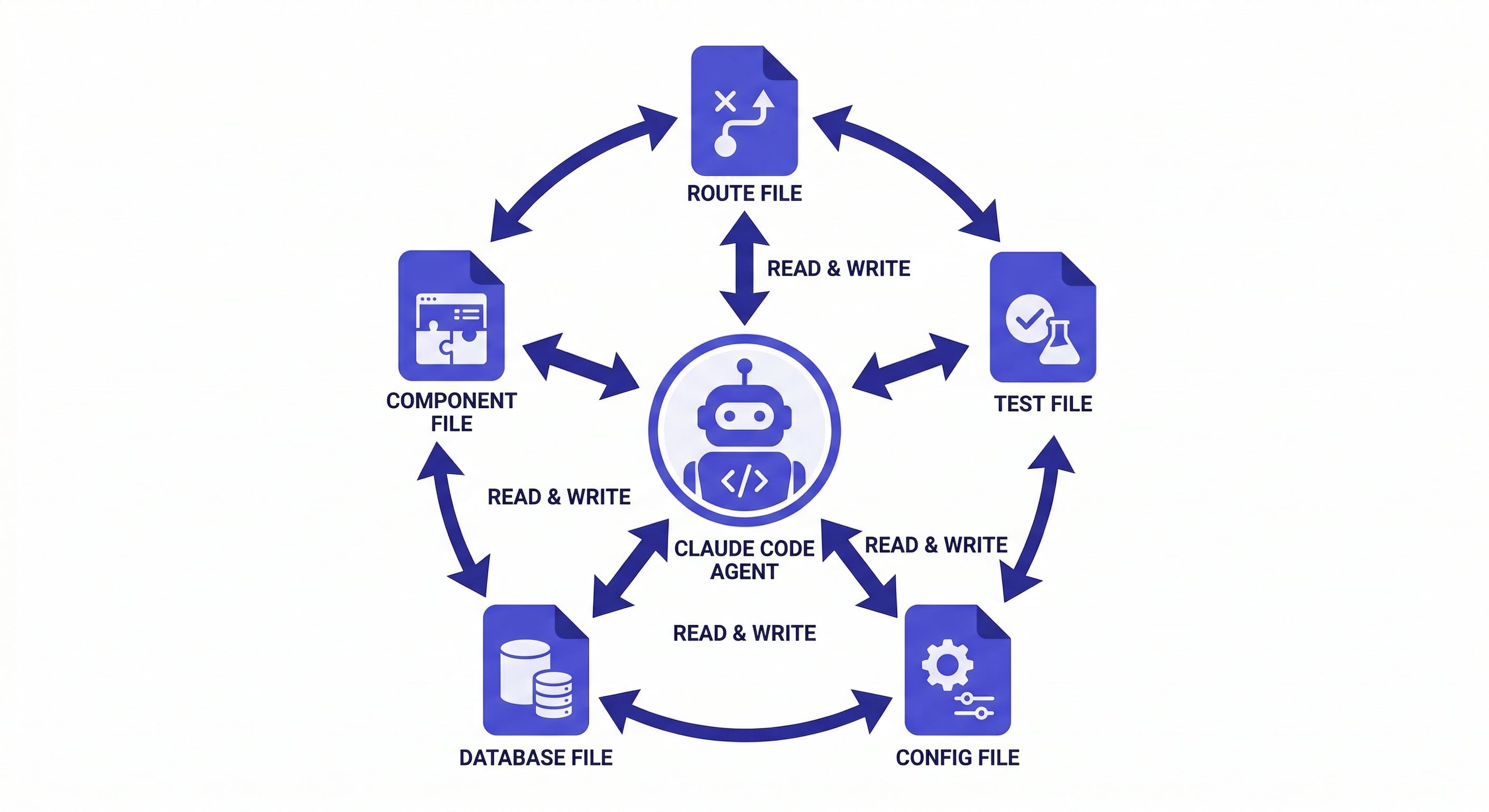
This is where Claude Code differs most from IDE-based AI tools. When you ask it to add a new API endpoint, it does not just create one file. It:
- Creates the route handler
- Adds the route to your router configuration
- Creates corresponding tests
- Updates any relevant documentation or type definitions
All in one pass. You review the complete change set after it finishes.
To get the best results with multi-file operations:
- Be specific about conventions. "Follow the same pattern as the existing /api/products endpoint" tells Claude Code to match your project's style.
- Mention test expectations. "Include unit tests using the same testing patterns in the tests directory" prevents it from inventing a new test structure.
- Set boundaries. "Only modify files in the src/api/ directory" prevents unexpected changes elsewhere.
CLAUDE.md: Project-Level Instructions
Create a CLAUDE.md file at your project root to give Claude Code persistent instructions:
# Project: My SaaS App

## Tech Stack
- Next.js 14, TypeScript, Prisma, PostgreSQL
- Tests: Vitest with React Testing Library

## Conventions
- Use named exports, not default exports
- API routes return { data, error } shape
- All database access through src/db/ modules

## Do Not
- Modify .env files
- Change the database schema without asking first
- Use any ORM other than Prisma
Claude Code reads this file at the start of every session. It is the simplest way to avoid repeating the same instructions.
The limitation: CLAUDE.md is static. It does not update as your project evolves. Decisions made during a session, completed tasks, and evolving architecture are not captured automatically.
Managing Context in Long Sessions
Claude Code has a context window limit. Long sessions — especially in large codebases — eventually hit it. When this happens, Claude Code starts losing earlier parts of the conversation.
Signs you are hitting the limit:
- Claude Code forgets instructions you gave earlier in the session
- It re-reads files it already analyzed
- Responses become less coherent or contradict earlier decisions
Solutions:
/compactcompresses the conversation history, keeping key decisions and discarding verbose tool outputs/clearresets entirely if the session has drifted too far- Break large tasks into smaller sessions instead of one marathon session
For developers who work on multiple projects or need context to persist across sessions, a persistent memory layer changes the workflow fundamentally. Instead of re-explaining your project every morning, your context loads automatically.
MemClaw stores project context in isolated workspaces — architecture decisions, coding conventions, task progress — and loads them in 8 seconds at session start. claude-code-context-window
Daily Workflow
After a few weeks with Claude Code, most developers settle into a pattern:
Session start: Open terminal, navigate to project, run claude. If using persistent memory, load your workspace context.
Task execution: Describe the task in one clear prompt. Review the changes. Ask for adjustments if needed. Commit when satisfied.
Context management: Use /compact when sessions get long. Use /model sonnet for quick tasks, /model opus for complex reasoning.
Session end: Commit your work. If using persistent memory, save session progress to your workspace.
The developers who get the most from Claude Code treat it as a capable junior developer with perfect memory of your codebase but zero memory of yesterday. Everything you tell it in a session, it remembers. Everything from previous sessions, it forgets — unless you give it a way to remember.
Next Steps
Start with a small task in a project you know well. Fix a bug. Add a test. Refactor a function. Get comfortable with the feedback loop before attempting large multi-file operations.
Once the basics feel natural, add workflow automation with hooks and persistent memory with MemClaw to eliminate the repetitive parts of every session.
Add persistent project memory to Claude Code → memclaw.me
export FELO_API_KEY="your-api-key-here"
/plugin marketplace add Felo-Inc/memclaw
/plugin install memclaw@memclaw
claude-code-vs-cursor | claude-code-hooks-guide | claude-opus-vs-sonnet-coding