How to Make YouTube Shorts with AI from an Article

Turn an article into a YouTube Short with AI: choose one idea, write a visual script, check the video, and prepare your upload.
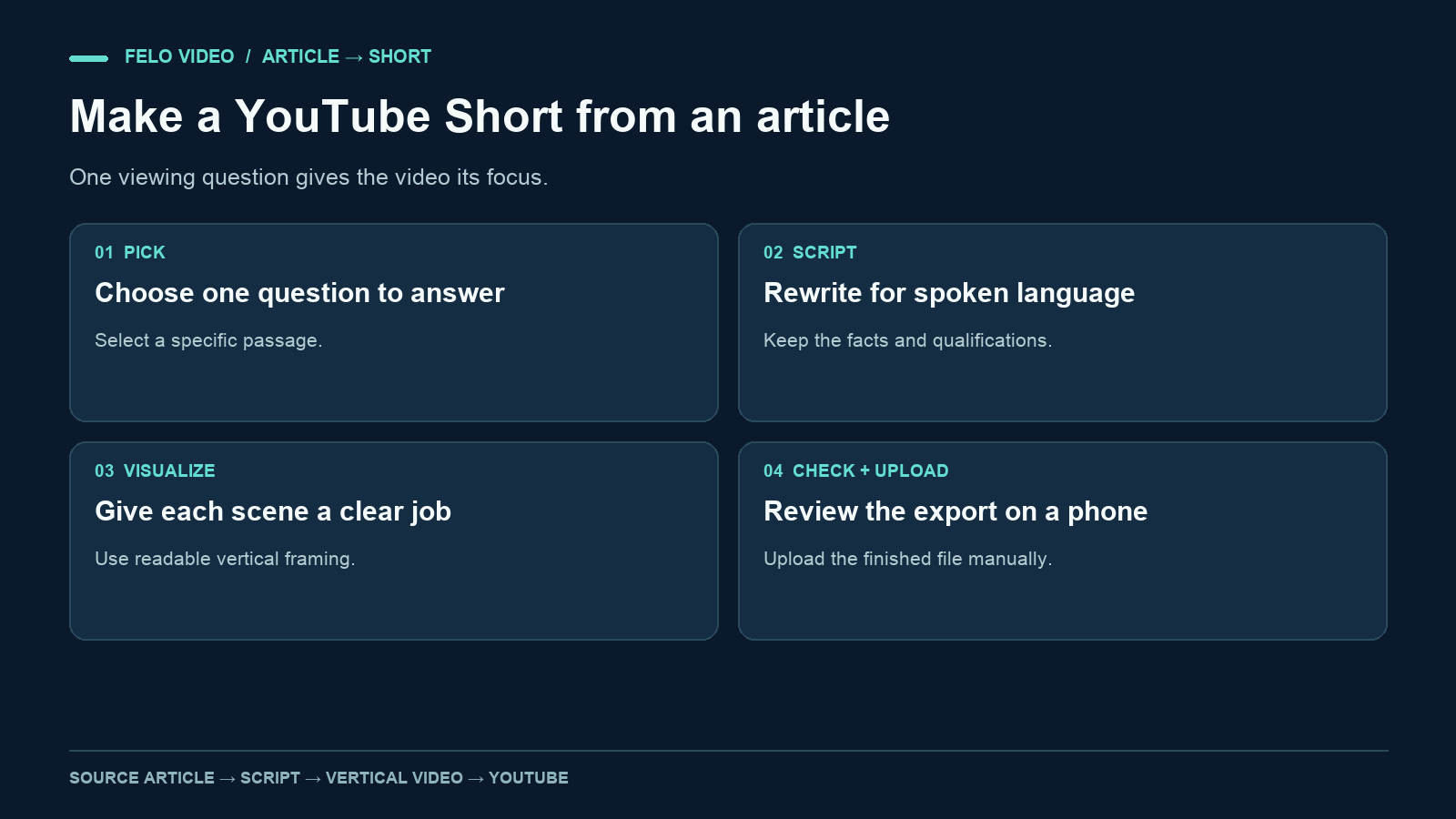
An article can answer ten questions. A useful Short can answer one of them well.
If you want to learn how to make YouTube Shorts with AI, start by choosing that one answer. Then turn it into spoken language and give each scene a specific visual job. The generation step becomes easier to direct because you know what the video is supposed to communicate.
This workflow starts with written source material. It is different from extracting highlights from a long recording. You are adapting an argument or explanation into a new video, so the important decisions happen in the script as well as the final edit.
Choose a question that fits a Short
A broad article title is often too large for the video. "A complete guide to project handoffs" might contain several useful Shorts: what a handoff includes, how to assign an owner, or what to do when the receiver is unavailable.
You can also develop several video scripts from one article before choosing the strongest one for a Short. Pick a question with an answer you can show. "What does a good handoff look like?" can become a checklist appearing on screen. "Why does our team struggle with communication?" requires much more context and may invite claims that the source cannot support.
For this guide, we will use an original, fictional tutorial about organizing files. Its central advice is simple: a folder full of draft versions needs an explicit way to identify the approved file. The tutorial describes a manual team process, not an automatic product feature.
The selected question is: How do you stop teammates from sharing the wrong file version?
That question gives the video a practical boundary. It does not need to explain storage providers, document permissions, or the history of the project.
Write a spoken answer before designing the scenes
Begin with the source's answer, then rewrite it for listening.
A written paragraph might say:
Teams should establish a clearly identifiable approved version, accompanied by a named reviewer and a record of the approval decision, before distributing files outside the working group.
For narration, you could say:
Before you share the file, check which version the reviewer approved. Keep that decision beside the file so the next person can check it too.
The second version is easier to follow in speech. It preserves the action and the evidence without asking the listener to hold several abstract nouns in memory.
Keep necessary conditions. If approval only applies to a particular audience or use, say so. A short video can simplify wording without broadening permission or changing the rule.
A complete sample narration
Three files say final. Which one should you share? In this example workflow, the reviewer identifies the approved version in a shared note. Open that note, check the filename and version number, then use the link recorded there. If the approval is missing, ask before sending. Naming a file final does not show that anyone reviewed it. Keep the approval decision with the link so the next teammate can make the same check. Before your next handoff, find the approved version and confirm that it is the one you are about to share.
This is an illustrative script, not a transcript of a generated Short. Its timing should be set through a read-through and preview. The point is to make the central action understandable, not to fit an arbitrary number of words into a timer.
Give each scene one visual job
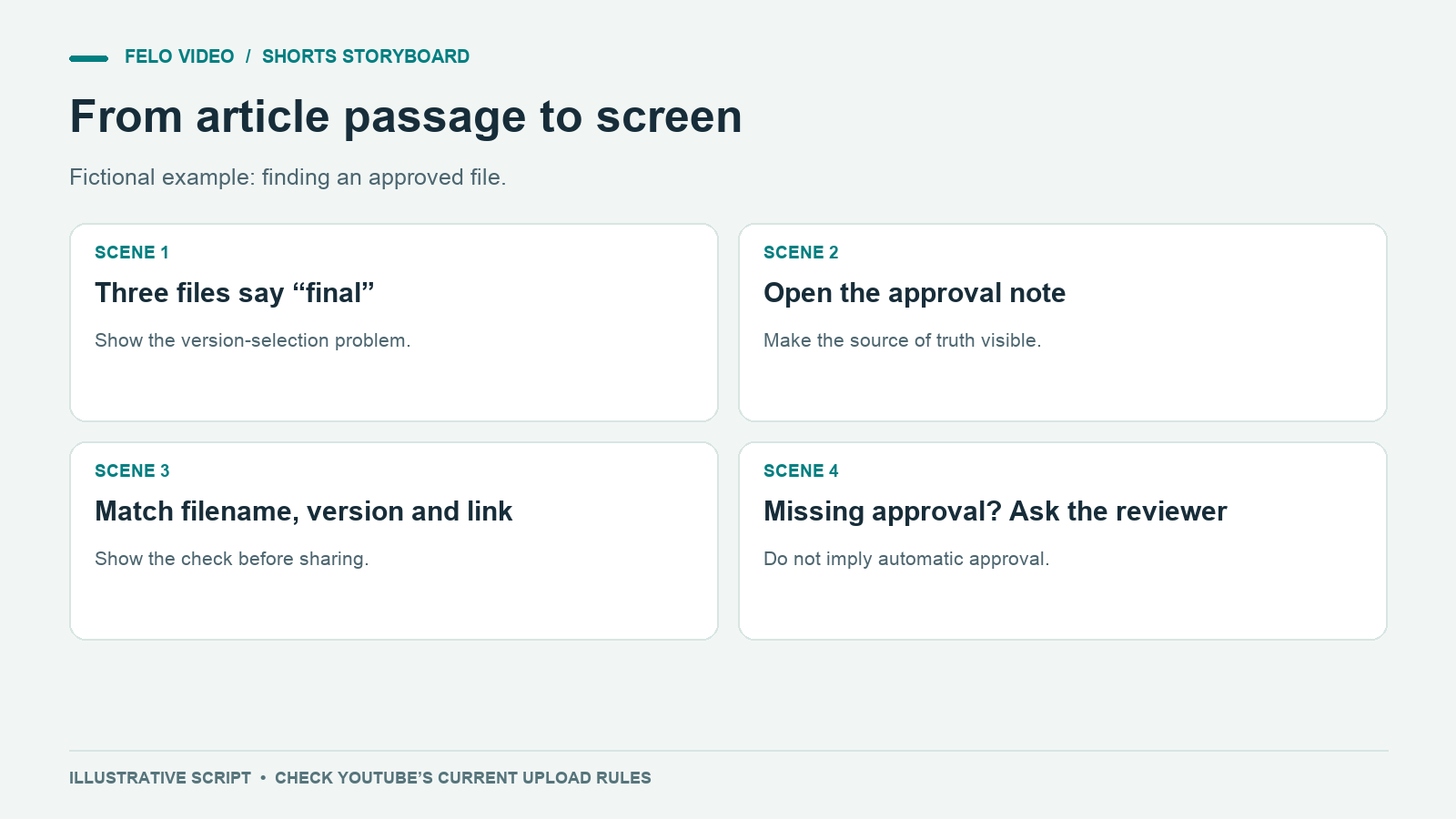
Plan visuals that explain the action. A generic office scene would establish a workplace, but it would not show how to identify the approved file.
| Scene | Visual job | Suggested treatment |
|---|---|---|
| Opening | Show the ambiguity | Three sample filenames, all containing final |
| Answer | Introduce the source of truth | A shared approval note beside the folder |
| Check | Show what must match | Filename and version number linked visually |
| Exception | Show what to do when approval is missing | An empty approval field and a request to the reviewer |
| Finish | Reinforce the action | The selected file link with its approval record |
Use invented filenames and a clearly labeled sample interface. If you demonstrate a real product, use current screenshots that match the behavior you describe.
For a vertical video, simplify dense material before shrinking it. A full desktop screenshot may contain the information, but the viewer may not be able to read it. Crop to the relevant area or prepare a diagram with fewer elements.
Leave room around critical text. Platform controls and captions can cover part of the display. There is no substitute for watching the result on a phone in the context where it will appear.
Create a specific brief for the AI video generator
A brief should separate the material the tool may adapt from the facts it must preserve.
For the file-version example:
Create a vertical explanatory Short from the attached script. Audience: teammates who share project files. Use the fictional workflow exactly as described: a reviewer records approval in a shared note, and the person sharing checks the filename, version, and link. Show a sample folder and approval note, not a real product interface. Use clear English narration, readable captions, and restrained motion. Keep the missing-approval exception. Do not add automatic approval, integrations, or measured productivity claims. Aim for a concise video, leaving enough time to read the version check.
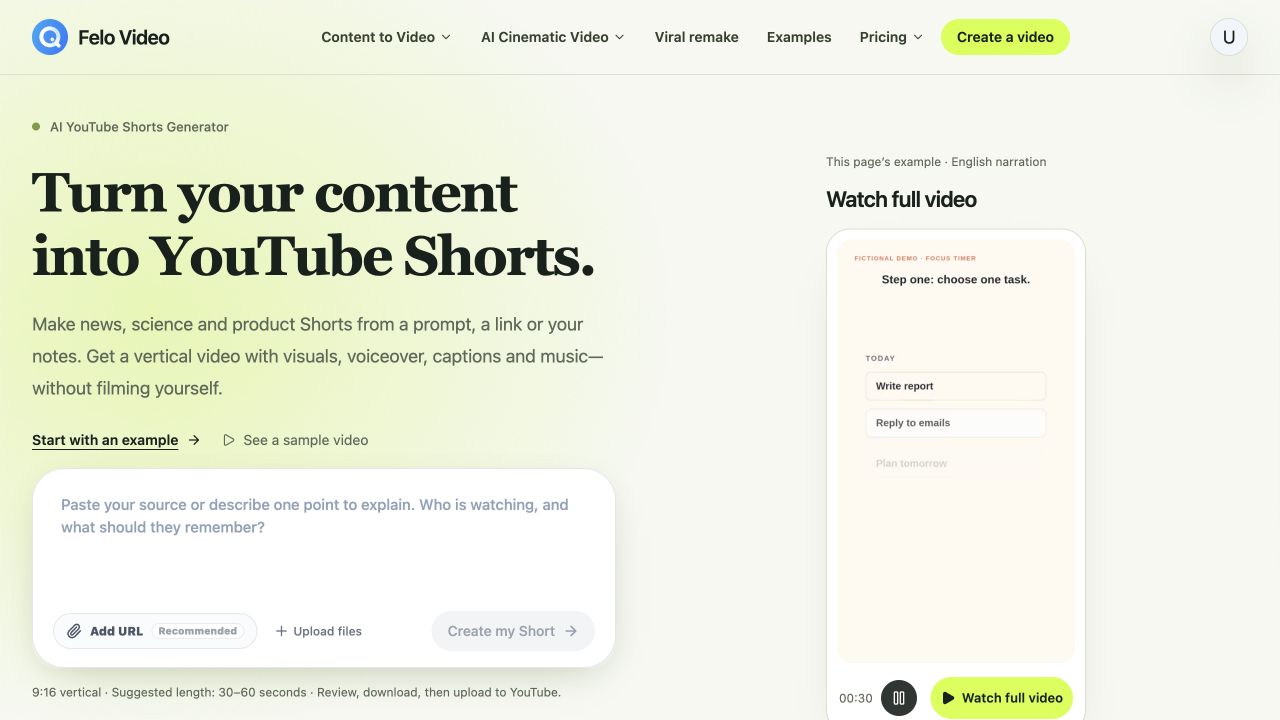
Felo can create a Short from text, a link, or a document. After reviewing the result, download it and upload it to YouTube yourself. For a vertical project, check the selected format and inspect the downloaded file.
If the article is long, identify the section to use. An article-to-video workflow can start with the source article, but the selected passage and intended audience still need to be clear.
You can provide the original URL for context and a prepared script for the intended explanation. Be explicit about which one governs the narration when they differ. The source controls the facts; your script controls the planned wording, subject to review of the output.
Check the Short in three separate passes
A single watch-through can miss errors because your attention follows the story. Review the parts separately.
First pass: source accuracy
Does the video teach the same process as the article? Check the order of actions, the person responsible, and the exception for missing approval.
Watch the visuals for invented behavior. A green checkmark appearing by itself might suggest that the software approves files automatically. If the source describes a human decision, make that decision visible.
Second pass: phone readability
Watch at ordinary playback size without zooming. Can you read the version number when it matters? Are the captions covering the approval note? Does the video move on before the viewer can compare the filenames?
A readable scene may need fewer words, a larger crop, or more time. Adding more visual effects will not make a tiny label easier to understand.
Third pass: audio and captions
Listen for names, numbers, and words that carry the rule. Read the captions with the sound off. A missing negative can reverse an instruction, and an incorrect version number can make the example internally inconsistent.
Lower background music if it competes with speech. Then watch the final export again rather than relying only on the generation preview.
Prepare the upload around the actual video
YouTube's current guidance says that square or vertical uploads of up to three minutes can be categorized as Shorts, with the applicable upload dates and channel details explained in its official Shorts documentation. A shorter production target is an editorial choice, not the platform's universal maximum.
Choose a title that names the problem the video solves. "Stop sharing the wrong file version" is more specific than "AI productivity hack." The title should match the answer rather than promise a result the video cannot demonstrate.
Use the description to link to the full source article and explain what additional material the reader will find there. If you used a fictional example, preserve that context when it could otherwise look like a real case study.
Check the rights and suitability of any music or visual assets for the intended upload. Also review YouTube's current disclosure prompts where they apply to your content. Generation and upload are separate steps; a downloaded video is not automatically cleared for every use.
Upload the reviewed file yourself through the YouTube app or Studio. Check the resulting post for caption placement and any platform notices before treating the task as complete.
Learn from the first Short before making ten more
A first video gives you a production sample you can inspect. Use it to learn which part of your article adapts well, where the narration needs space, and whether your visual style remains readable on a phone.
Once you have audience data, connect it to specific editorial decisions. If viewers leave during a dense diagram, review the diagram and narration together. If people ask a question you thought the video answered, revisit the explanation before changing the cover.
Avoid treating one upload as proof of a universal formula. The audience, subject, distribution, and viewing context all affect performance. Keep a record of the script, source, and changes so the next attempt has a clear reason behind it.
Questions about making Shorts with AI
Can I turn an entire article into one Short?
Sometimes, but a focused section is often easier to explain. Choose the viewer's question first, then include the source material needed to answer it.
Do I need to film myself?
A diagram, captioned example, or product explanation can work without a presenter. Choose visuals that communicate the idea rather than adding a face by default.
Will the tool publish to my channel?
The Felo workflow described here ends with a reviewed download. Upload it manually and complete YouTube's own publishing checks.
Does AI generation guarantee views or monetization?
No. Treat the tool as part of production. Audience response and platform eligibility depend on the content and the applicable policies.
Choose one answer from your article, prepare its visual script, and explore Felo's AI YouTube Shorts Generator.