MemClaw Artifacts: Save and Retrieve AI-Generated Work

Learn how to save documents, reports, and files to MemClaw workspaces so your AI agent's output persists across sessions and stays organized by project.
Every session with an AI agent produces something useful. A competitive analysis. A spec document. A set of test cases. Meeting notes. A draft email sequence.
Then the session ends — and where did it go?
If you didn't manually save it somewhere, it's buried in chat history. Technically still there, but practically lost. You can't search it, you can't reference it in a future session, and the agent has no idea it exists.
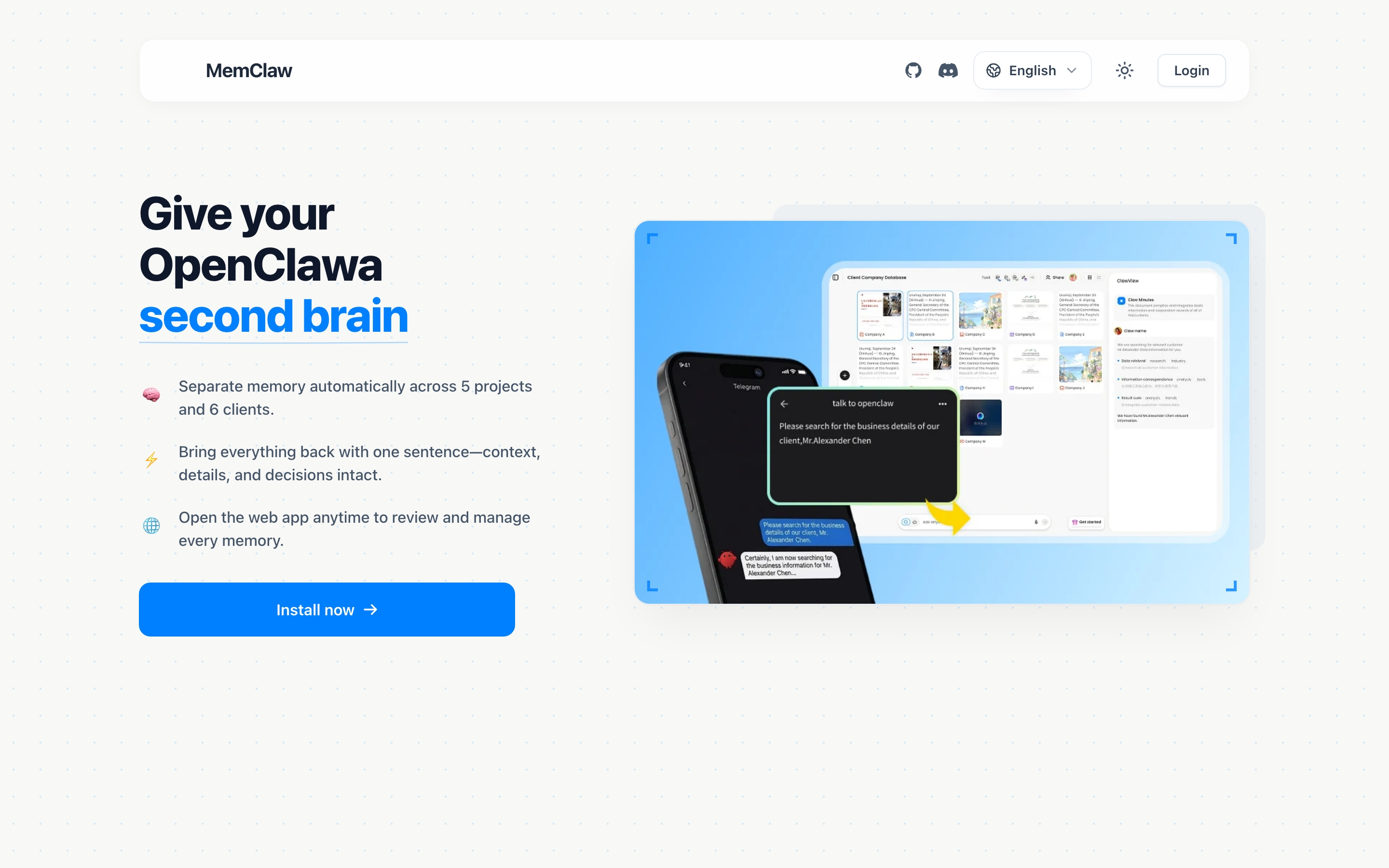
MemClaw artifacts solve this. Anything produced in a session — documents, reports, URLs, code snippets, notes — can be saved to the workspace with a single instruction. It persists across sessions, stays scoped to the right project, and is retrievable by the agent in any future session.
What Counts as an Artifact
An artifact is anything worth keeping from a session. The category is intentionally broad:
- Documents: specs, briefs, proposals, reports, analyses
- Notes: meeting summaries, decision rationale, research findings
- URLs: reference links, competitor pages, resources the agent should know about
- Code: snippets, configurations, scripts produced during the session
- Drafts: copy, emails, content in progress
If the agent produced it and you might want it later, it's an artifact worth saving.
Saving Artifacts
Saving is a natural language instruction. You don't need to specify a file format, a folder path, or any metadata.
Save something the agent just produced:
Save that to the workspace
Save that competitive analysis to the workspace
Add that spec document to the workspace
Save with a descriptive name:
Save that as "Q2 pricing analysis" in the workspace
Add that to the workspace as "API design decisions"
Save a URL or external resource:
Add this URL to the workspace: https://competitor.com/pricing
Save this as a reference: https://docs.example.com/api
Save a note or summary:
Add this to the workspace: client confirmed budget is $15k,
timeline is flexible as long as we hit the June launch
The agent handles the storage. You just tell it what to keep.
Retrieving Artifacts
Retrieval is equally straightforward. You can ask for artifacts by name, type, or timeframe.
Get a specific artifact:
Show me the competitive analysis
Pull up the API design decisions doc
Browse by type:
Show me all the documents in this workspace
List all the URLs I've saved to this workspace
Search by timeframe:
Find the pricing analysis from last week
What did we save in the March sessions?
Use an artifact in the current session:
Load the spec document and let's review it
Pull up the email draft and continue from where we left off
The agent retrieves the artifact and brings it into the current session context. You pick up where you left off without reconstructing anything from memory.
How To Build A Knowledge Base With Openclaw
Artifacts Are Project-Scoped
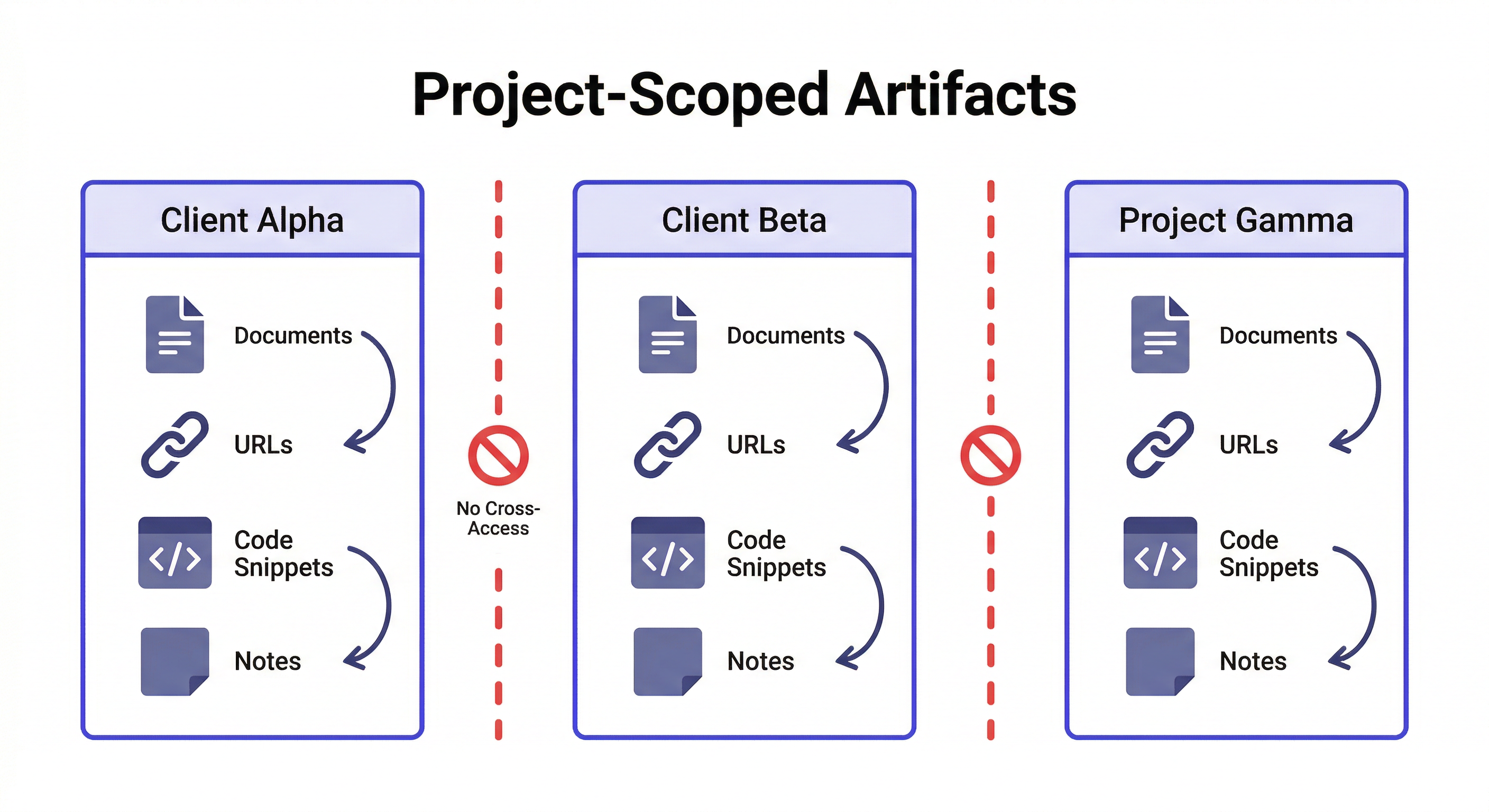
This is the part that matters most for anyone running multiple projects.
Artifacts are stored inside a workspace — which means they're scoped to a specific project. The competitive analysis you saved for Client Alpha doesn't appear when you're working on Client Beta. The spec document for Project Gamma isn't visible in Project Delta's workspace.
This is structural isolation, not filtering. You don't need to tag artifacts with project names or remember which folder things are in. Loading the workspace gives you that project's artifacts and nothing else.
Load the Client Alpha workspace
Show me all the documents in this workspace
→ Returns only Client Alpha's documents
Load the Client Beta workspace
Show me all the documents in this workspace
→ Returns only Client Beta's documents
No cross-contamination. No searching through a shared folder trying to remember which analysis belongs to which client.
Memclaw For Freelancers Managing Multiple Clients
Artifacts vs. Decisions vs. Status
MemClaw workspaces store three distinct types of information. It's worth understanding the difference:
| Type | What it is | Example |
|---|---|---|
| Artifacts | Documents and outputs produced during the project | Spec doc, competitive analysis, email draft |
| Decisions | Choices made with rationale | "Using REST not GraphQL because client's team doesn't know GraphQL" |
| Status | Current state of the project | "Payment integration 80% done, retry logic still pending" |
Artifacts are the outputs. Decisions are the choices. Status is where things stand.
You save them differently:
Save that report to the workspace          ← artifact
Add decision: using Postgres not MySQL     ← decision
Update status: finished auth, starting dashboard  ← status
And you retrieve them differently:
Show me the reports in this workspace      ← artifacts
What did we decide about the database?    ← decisions
Where did I leave off?                    ← status
Each type serves a different purpose. Together they give the agent a complete picture of the project — not just what was produced, but what was decided and where things stand right now.
A concrete example: you're building an e-commerce site for a client. Your workspace might contain:
- Artifact: the product spec document written in Session 2
- Artifact: the competitive analysis from Session 4
- Decision: "No guest checkout for v1 — client wants to maximize account signups"
- Decision: "Using Shopify Payments not Stripe — client already has an account"
- Status: "Checkout flow done. Cart page done. Product pages in progress."
When you load the workspace in Session 8, the agent knows all of this without you re-explaining any of it. It can reference the spec, respect the decisions, and pick up from the current status — all in the first message of the session.
Practical Artifact Workflows
Spec-driven development
Write a spec in one session, reference it across all future sessions:
Session 1:
→ Draft the product spec with the agent
→ "Save that as the product spec in the workspace"

Session 2-N:
→ "Load the product spec and let's work on the authentication section"
→ "Does the current implementation match the spec?"
→ "Update the spec to reflect the change we just made"
The spec lives in the workspace. Every session can reference it, update it, or check against it.
Research accumulation
Build up a research base over multiple sessions:
Session 1: Research competitors
→ "Save that competitor analysis to the workspace"

Session 2: Research pricing models
→ "Save that pricing research to the workspace"

Session 3: Synthesize
→ "Pull up all the research we've saved and help me synthesize it"
Each session adds to the research base. By Session 3, the agent has access to everything accumulated across previous sessions.
Client deliverable tracking
Keep track of what's been delivered:
→ "Save that proposal draft to the workspace as 'Proposal v1'"
→ "Save the revised version as 'Proposal v2 — after client feedback'"
→ "Show me all the proposal versions in this workspace"
Version history, organized by project, retrievable on demand.
Cross-Agent Artifact Access
Artifacts saved in one agent are accessible in another — as long as they're using the same workspace.
If you use OpenClaw for research and Claude Code for implementation, both agents share the same workspace. Research saved in an OpenClaw session is available in Claude Code:
# In OpenClaw — research session
Save that architecture analysis to the workspace

# Later, in Claude Code — implementation session
Load the workspace
Pull up the architecture analysis
Let's implement based on this
No copy-pasting between tools. No re-running research because you can't find where you saved it.
Cross-Agent Compatibility Guide
Keeping Artifacts Useful Over Time
A few habits that keep your artifact library from becoming cluttered:
Save with descriptive names. "Save that to the workspace" works, but "Save that as 'March competitive analysis'" is easier to retrieve later. The more specific the name, the easier the retrieval.
Save immediately, not later. If you think "I'll save that before I close the session" — you won't. Save it when the agent produces it.
Update artifacts when they change. If a spec gets revised, save the new version. You can keep both versions or replace the old one:
Save this as "Product spec v2 — updated after sprint review"
Don't save everything. Intermediate outputs, exploratory drafts, and throwaway analyses don't need to be saved. Save things you'll actually want to reference later.
What Artifacts Enable That Chat History Can't
It's worth being explicit about why artifacts are more useful than just scrolling back through chat history.
Searchability. Chat history is chronological. Artifacts are retrievable by name, type, or description. "Find the pricing analysis" works. "Scroll back through 40 sessions to find when we discussed pricing" doesn't.
Agent access. The agent can load and use an artifact in a new session. It can't read your chat history from a previous session — that context is gone when the session ends. Artifacts are the mechanism by which useful outputs from past sessions become available to future sessions.
Project scoping. Artifacts live inside a workspace. When you're working on Client A, only Client A's artifacts are accessible. When you switch to Client B, you get Client B's artifacts. Chat history doesn't have this isolation — it's one undifferentiated stream.
Durability. Chat interfaces delete old conversations. Contexts get cleared. Sessions expire. Artifacts persist in the workspace indefinitely, independent of the chat interface.
The practical implication: if something was worth producing in a session, it's worth saving as an artifact. The cost is one sentence. The benefit is that the work is accessible in every future session, by any agent, scoped to the right project.
Getting Started with Artifacts
If you're already using MemClaw, artifacts work out of the box — no additional setup required. Just tell the agent to save something:
Save that to the workspace
If you're not using MemClaw yet:
Install:
/plugin marketplace add Felo-Inc/memclaw
/plugin install memclaw@memclaw
Set API key:
export FELO_API_KEY="your-api-key-here"
Get your key at felo.ai/settings/api-keys.
Create a workspace and start saving:
Create a workspace called [project name]
Frequently Asked Questions
What file formats does MemClaw support for artifacts? Artifacts are stored as text content — markdown, plain text, code. MemClaw doesn't store binary files like PDFs or images directly, but you can save URLs pointing to those files.
Is there a limit on how many artifacts I can save? No hard limit per workspace. Save as many as your project needs.
Can I delete an artifact?
Yes: Delete the [artifact name] from the workspace
Can teammates access my artifacts? If you've shared the workspace with teammates, yes — they can retrieve and add artifacts to the same workspace.
What happens to artifacts if I delete a workspace? Deleting a workspace removes all its contents including artifacts. Export anything important before deleting.