MemClaw Complete Guide: Persistent AI Memory for Your Projects

Everything you need to know about MemClaw — how it works, how to set it up, how to use it for single projects and teams, and best practices for getting the most out of it.
AI coding agents like Claude Code and OpenClaw are powerful. They're also forgetful. Every session starts from zero — no knowledge of your project, your decisions, or where things left off.
MemClaw solves this. It's a persistent memory layer for AI agents: each project gets its own isolated workspace that stores context, decisions, and artifacts across sessions. Load the workspace, and Claude immediately knows where things stand.
This guide covers everything: what MemClaw is, how it works, how to set it up, and how to use it effectively.
What Is MemClaw?
MemClaw is a skill for AI coding agents. It installs on Claude Code, OpenClaw, Gemini CLI, or Codex and adds persistent project memory.
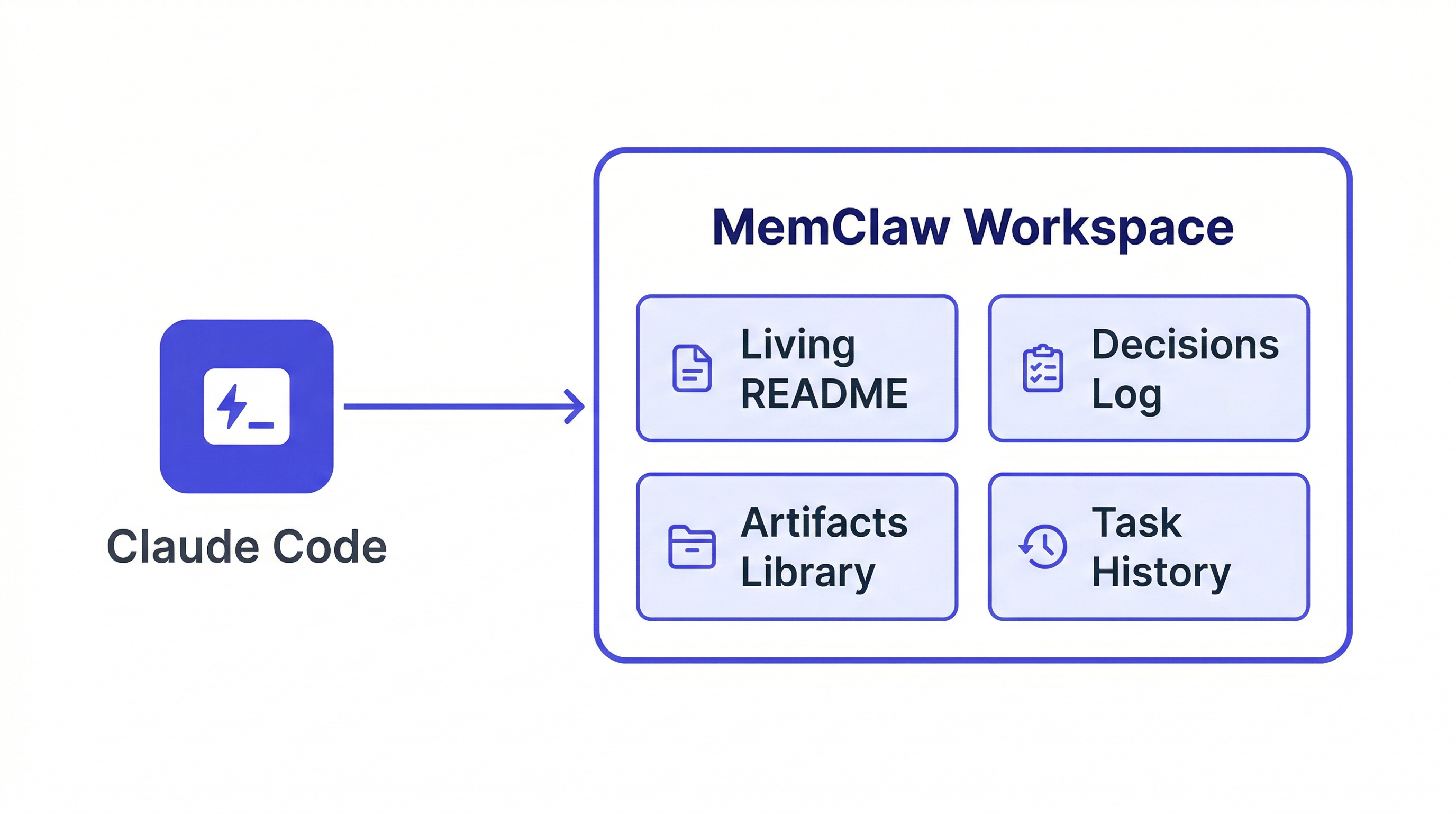
Each project gets a workspace — a structured knowledge base that the agent reads at session start and writes to as you work. The workspace stores:
- Living README — project background, your preferences, current progress
- Decisions — choices made with rationale, preventing the agent from re-opening closed questions
- Artifacts — documents, reports, analyses, URLs produced during the project
- Tasks — auto-tracked for every substantive action the agent takes
Context restoration takes about 8 seconds. Load the workspace, and Claude already knows the project.
How MemClaw Works
MemClaw installs as a skill — no server to run, no database to configure. It connects to Felo's API for workspace storage and retrieval.
The session lifecycle:
Session start:
Load the [Project Name] workspace
Claude reads the workspace — background context, recent decisions, current status — and is immediately oriented.
During the session:
Add to workspace: decided to use Postgres over MySQL — simpler ops for our team size
Save that spec to the workspace
Update workspace status: auth flow complete, starting on dashboard
The agent reads from the workspace when you ask questions, and saves to it when you tell it to.
End of session: The workspace retains everything logged. Next session starts with the same context, updated with whatever was added.
This is the read-write loop: the agent reads context at the start, does the work, and files decisions and status back in before the session ends. Every session adds something. The knowledge base compounds.
Installation
Claude Code (recommended):
/plugin marketplace add Felo-Inc/memclaw
/plugin install memclaw@memclaw
OpenClaw:
bash <(curl -s https://raw.githubusercontent.com/Felo-Inc/memclaw/main/scripts/openclaw-install.sh)
Manual:
git clone https://github.com/Felo-Inc/memclaw.git
cp -r memclaw/memclaw ~/.claude/skills/
Set your API key:
export FELO_API_KEY="your-api-key-here"
Get your key at felo.ai/settings/api-keys. The free tier covers individual workflows.
Full installation walkthrough: MemClaw Installation Guide
First-Time Setup
After installation, create a workspace for each active project:
Create a workspace called [Project Name]
Then add foundational context — this is a one-time setup per project:
Project background:
Add to workspace: This is a SaaS dashboard for Acme Corp.
Stack: Next.js + Supabase. Main contact: Sarah ([email protected]).
Deadline: Q2 launch. Budget: fixed.
Existing decisions:
Add decision: Using JWT httpOnly cookies for auth because
Acme's security team requires it. Not negotiable.
Current status:
Update workspace status: auth flow complete, starting on payment integration
You don't need to add everything at once. Start with the basics and let the workspace grow.
Using MemClaw Day-to-Day
Load at session start — every session, without exception:
Load the [Project Name] workspace
Log decisions when you make them:
Add decision to workspace: using Tailwind not custom CSS —
faster development, client doesn't need custom design system
Don't wait. Decisions logged immediately are available in every future session. Decisions that stay in chat are gone when the session ends.
Save useful outputs immediately:
Save that requirements document to the workspace
Save the competitor analysis to the workspace
Update status at the end of each session:
Update workspace status: finished the payment form, webhook handling is next
One line is enough. This is what the agent reads first when you return to the project.
Query the workspace:
What did we decide about authentication?
Where did I leave off?
What artifacts do we have in this workspace?
Claude reads the workspace and gives accurate answers — because the information was logged there, not reconstructed from memory.
Multi-Project Setup
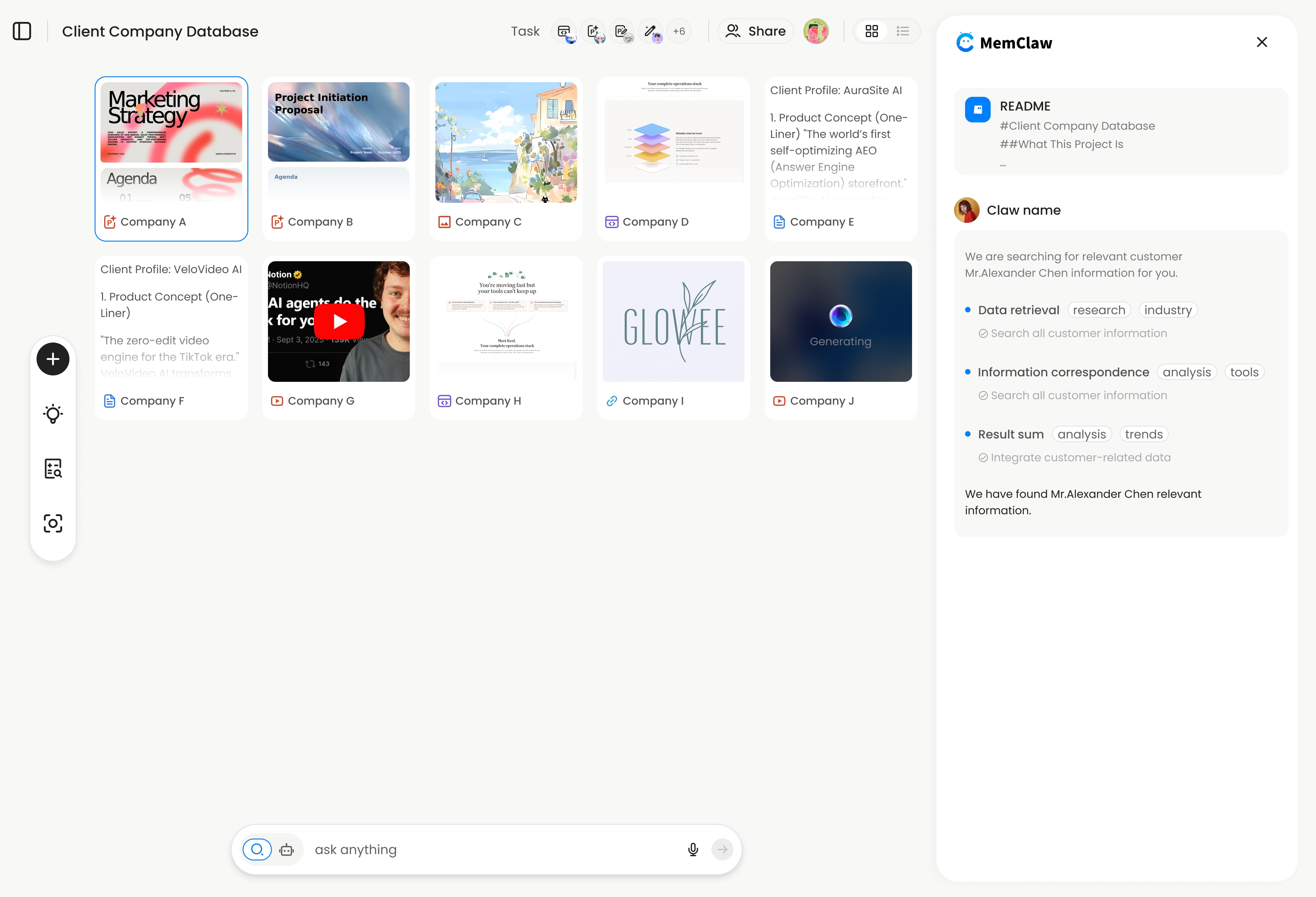
MemClaw's value compounds when you're managing multiple projects simultaneously.
Create one workspace per project:
Create a workspace called Client Alpha
Create a workspace called Client Beta
Create a workspace called Internal Dashboard
Loading a workspace gives Claude that project's context only. Switching between projects:
Load the Client Alpha workspace
→ Claude has Client Alpha context

Load the Client Beta workspace
→ Claude switches to Client Beta context. Client Alpha is gone from the picture.
This isolation is the core value for anyone running multiple projects in parallel. No context bleed between clients. No mixing up requirements between projects.
How freelancers use MemClaw for multiple clients →
Team Setup
If multiple people work on the same project, share the workspace:
One team member creates the workspace and invites teammates. Each team member installs MemClaw with their own API key, then loads the shared workspace.
Load the [Project Name] workspace
Everyone operates from the same project context — architecture decisions, conventions, sprint goals, session history. A decision logged in one developer's session is available to every other developer's next session.
MemClaw for Teams — full guide →
Cross-Agent Compatibility
MemClaw works across agents. If you use both Claude Code and OpenClaw, the same workspace is accessible from both. A decision logged in a Claude Code session is available in an OpenClaw session on the same project.
This matters for teams where different people use different agents, or if you switch between tools for different tasks.
Cross-Agent Compatibility Guide →
Best Practices
Keep it current. Update the workspace when decisions are made, not a week later. Stale context is less useful than no context.
Log decisions with rationale, not just outcomes. "Using Postgres" is less useful than "Using Postgres because the client's DBA only supports Postgres and we can't change that." The rationale is what prevents the agent from re-opening the question.
Save artifacts immediately. "I'll save that before I close" becomes "I forgot to save that." When the agent produces something useful, save it now.
Don't over-engineer the structure. MemClaw handles organization. Natural language is enough — no templates, no required fields.
Create workspaces upfront. One per active project, immediately after installation. Having them ready means you can start any session instantly.
Pricing
MemClaw requires a Felo API key. The free tier covers most individual workflows. Paid plans add storage, team features, and longer history.
Get your key at felo.ai/settings/api-keys.
Getting Started
- Install MemClaw (memclaw.me)
- Create a workspace per active project
- Add baseline context to each workspace
- Load at the start of every session
The workspace gets more useful the more you put into it. Start simple and let it grow.