MemClaw MCP Setup: Connect Claude Code to Your Workspace in 5 Minutes

Step-by-step guide to connecting Claude Code to your MemClaw workspace via MCP. Configure mcp_config.json, test the connection, and set up slash commands in 5 minutes.
MCP (Model Context Protocol) is how Claude Code connects to external tools. MemClaw uses MCP to give Claude access to your workspace memory.
This guide walks through the complete setup.
Create your MemClaw workspace → memclaw.me
Prerequisites
- Claude Code CLI installed
- Node.js 18+ installed
- A MemClaw account and workspace
Step 1: Create Your Workspace
- Go to memclaw.me and create an account
- Create a new workspace for your project
- Note your Workspace ID and API Key from Settings
Step 2: Create the MCP Config File
In your project root, create .claude/mcp_config.json:
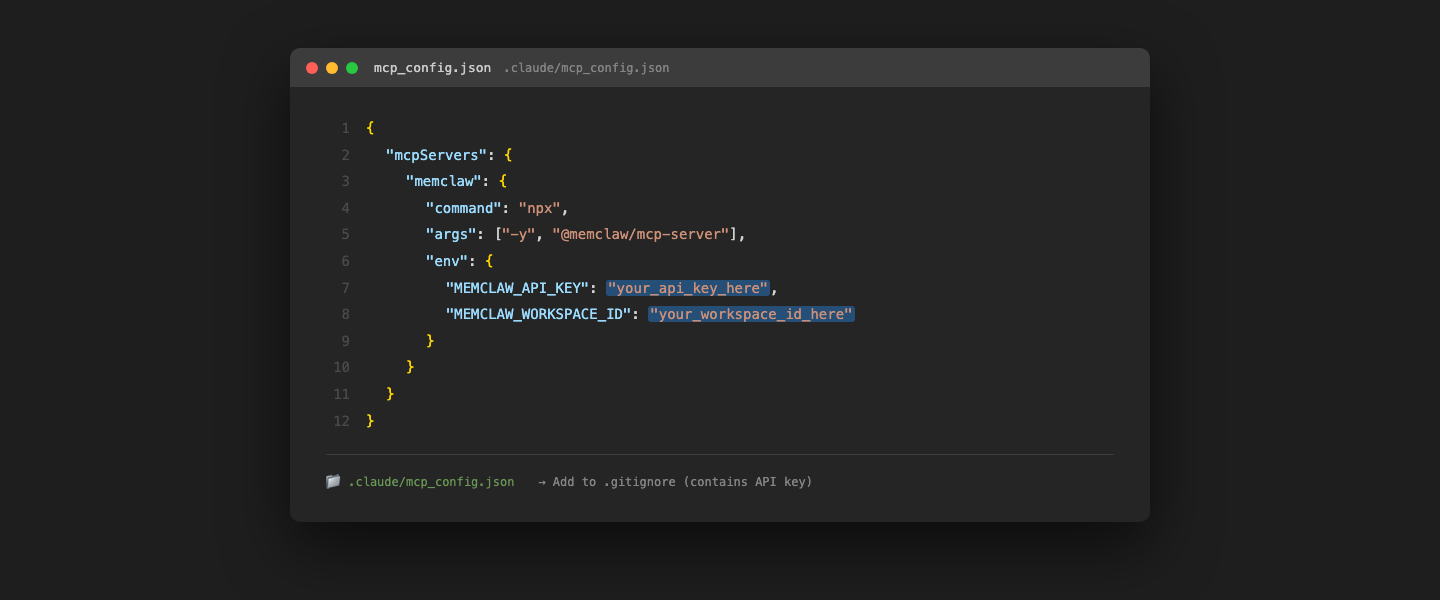
Replace your_api_key_here and your_workspace_id_here with your actual values.
Step 3: Add to .gitignore
The MCP config contains your API key. Add it to .gitignore:
.claude/mcp_config.json
For team setups, use a template file instead:
.claude/mcp_config.json.example
Step 4: Test the Connection
Start a Claude Code session and test:
claude
> Read my MemClaw workspace and tell me what's in it.
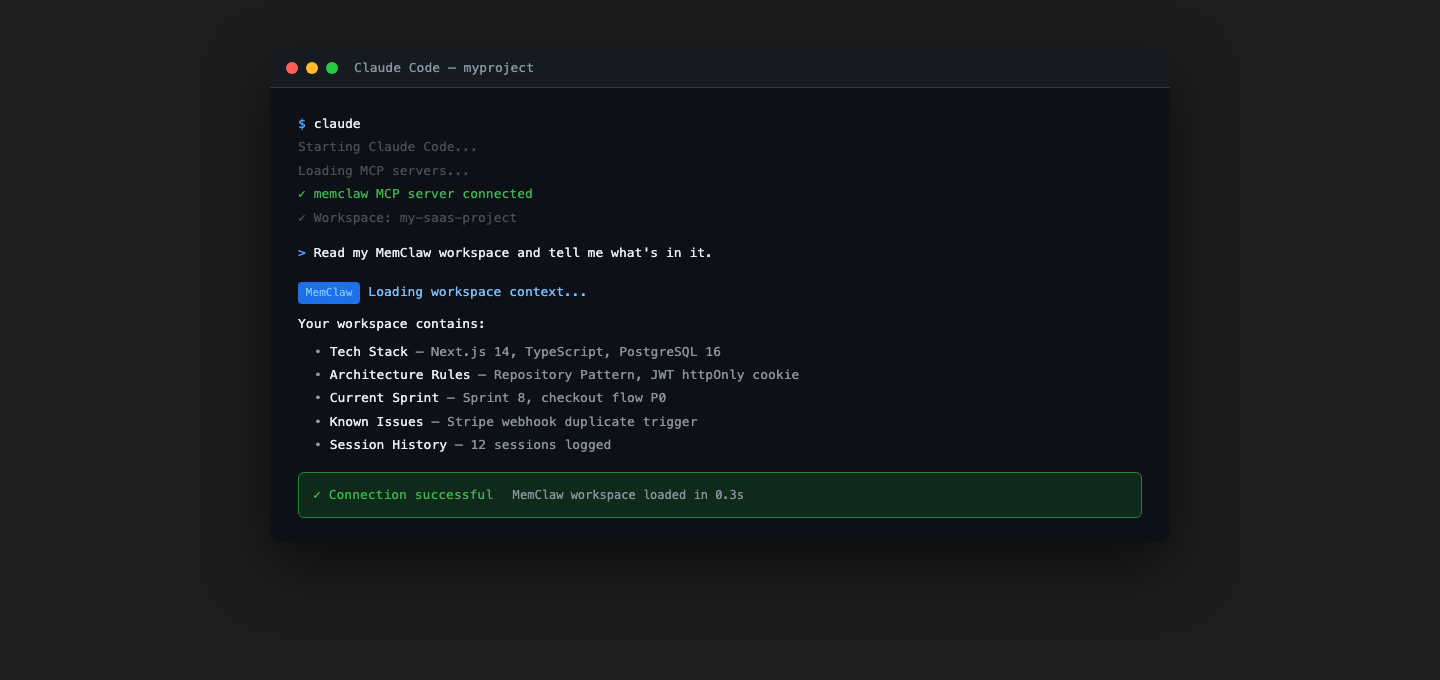
If the connection works, Claude will describe your workspace content. If it fails, check the troubleshooting section below.
Step 5: Create Slash Commands
Create .claude/commands/start.md:
Load my MemClaw workspace context and summarize the current project state.
Create .claude/commands/end.md:
Save a summary of what we accomplished in this session to my MemClaw workspace.
Troubleshooting
"MCP server not found"
- Check that Node.js 18+ is installed:
node --version - Try running manually:
npx -y @memclaw/mcp-server
"Authentication failed"
- Verify your API key in MemClaw Settings
- Check for extra spaces in the config file
"Workspace not found"
- Verify your Workspace ID in MemClaw Settings
- Make sure the workspace exists and is active
Claude doesn't seem to have workspace context
- Run
/startexplicitly to trigger workspace loading - Check that the MCP config file is in the project root's
.claude/directory
Getting Started
- Create workspace at memclaw.me
- Create
.claude/mcp_config.json - Test with a workspace read command
- Create
/startand/endslash commands