MemClaw vs Cursor: AI Memory for Claude Code vs AI Code Editor

MemClaw and Cursor solve different problems. This guide explains what each tool does, where they overlap, and whether you can use both together.
MemClaw vs Cursor: AI Memory for Claude Code vs AI Code Editor
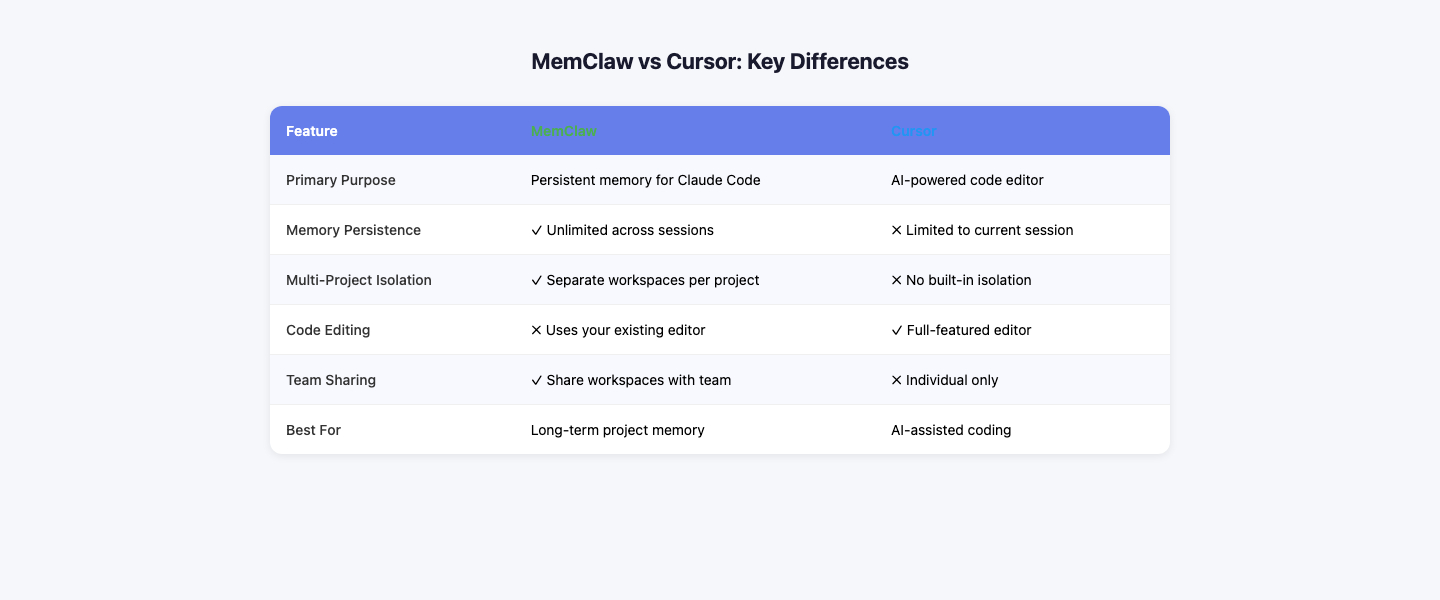
MemClaw and Cursor are often mentioned together in discussions about AI developer tools. But they solve fundamentally different problems. MemClaw adds persistent memory to Claude Code — the CLI tool. Cursor is an AI-powered code editor (fork of VS Code). They're not direct competitors. You might use both. Add persistent memory to Claude Code with MemClaw → memclaw.me
What Each Tool Does
MemClaw
MemClaw is a memory layer for Claude Code. It connects via MCP and maintains a persistent workspace for each project. What it solves: Claude Code has no memory between sessions. MemClaw fixes this. How it works: You configure it in .claude/mcp_config.json. Claude loads your project context at session start, saves progress at session end. Who it's for: Developers who use Claude Code in the terminal.
Cursor
Cursor is a code editor built on VS Code with AI features built in. It has inline code completion, chat, and the ability to reference your codebase in AI conversations. What it solves: Switching between your editor and an AI tool. Cursor puts AI directly in the editor. How it works: You write code in Cursor. AI features are available inline and via a chat panel. Who it's for: Developers who want AI assistance integrated into their editor.
Key Differences
Can You Use Both?
Yes. They serve different workflows:
- Cursor for writing code in an editor with inline AI assistance
- Claude Code + MemClaw for complex multi-step tasks, code review, and architecture discussions in the terminal Many developers use Cursor for day-to-day coding and Claude Code for more complex tasks that benefit from a conversational interface.
Which Should You Choose?
Choose Claude Code + MemClaw if:
- You prefer terminal-based workflows
- You need persistent memory across sessions
- You want slash commands for repeatable workflows
- You need team-shared context
- You work on complex multi-step tasks Choose Cursor if:
- You prefer a GUI editor
- You want inline AI code completion
- You're already using VS Code and want AI features
- You don't need persistent memory across sessions Use both if:
- You want the best of both worlds
Getting Started with MemClaw
- Install Claude Code:
npm install -g @anthropic-ai/claude-code - Create a workspace at memclaw.me
- Configure MCP in your project
- Run your first memory-enabled session Get started with MemClaw → memclaw.me