Native 2K AI Video vs Upscaling: What Changes?

Understand native 2K AI video versus upscaling. Learn what Felo generates, when an existing-file workflow fits and how to evaluate resolution changes.
Felo tools: Native 2K Video Generation · MiniMax H3.
Native 2K AI video generation creates a new clip at the selected output resolution. Video upscaling starts with an existing clip and processes it into a larger output. They can both be part of a high-resolution workflow, but they solve different problems.
The distinction matters when you already have a take you like. Asking a generator for a new 2K version can change its motion, composition and details. It should not be treated as a way to enlarge the same performance while keeping every moment intact.
Felo's current high-resolution path is native generation through MiniMax H3, up to 2K. This guide explains when that path fits and when an existing-video enhancement workflow is the more relevant task.
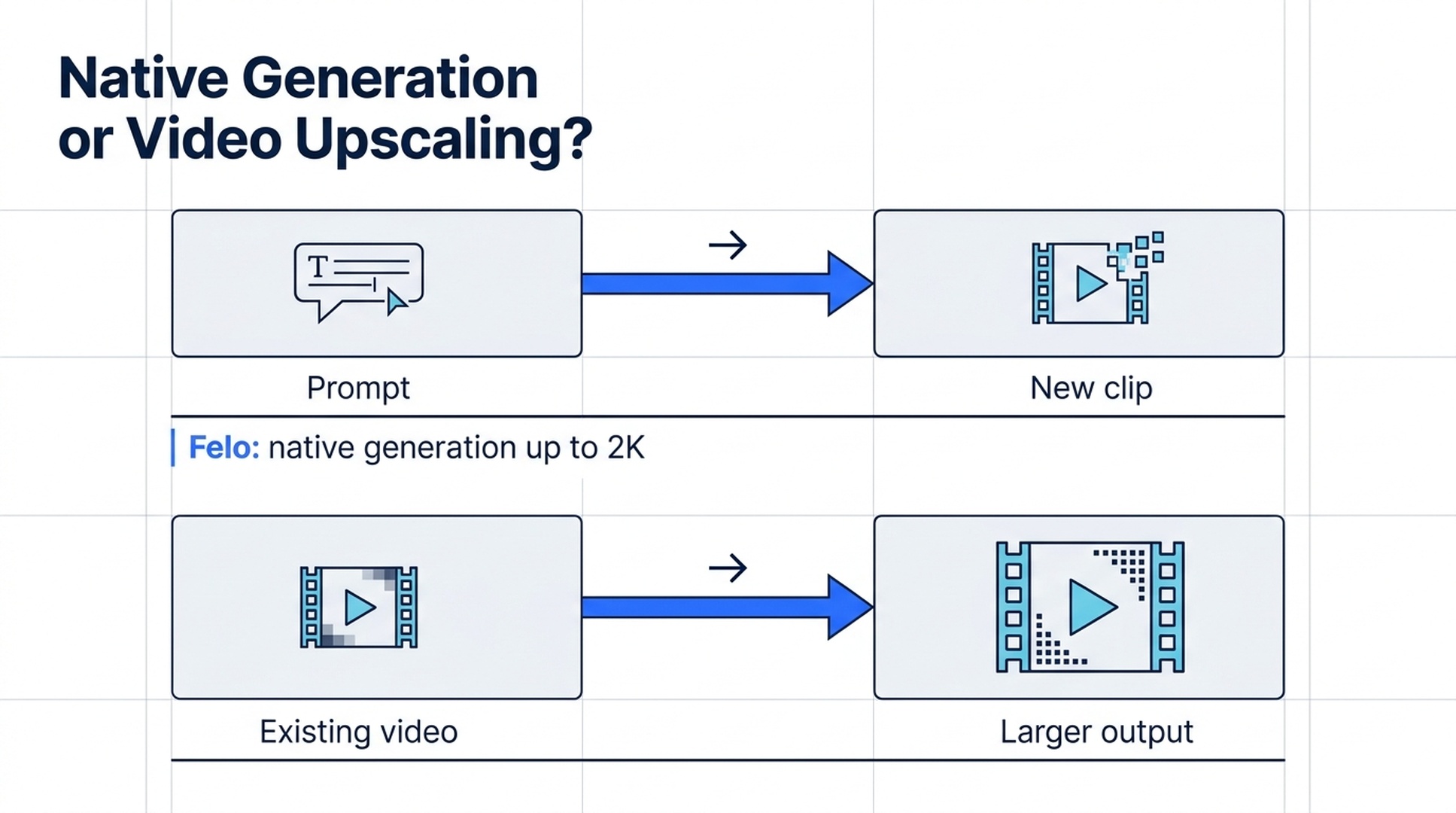
Illustrative guide; not a screenshot or a generated-video result.
Compare the starting material
| Question | Native high-resolution generation | Upscaling an existing video |
|---|---|---|
| What is the input? | A prompt and any supported guidance assets | A video file that already exists |
| What is being produced? | A new generated take | A processed version of the source clip |
| Can the action change? | Yes; it is a new generation | The goal is generally to retain the source sequence while processing its image |
| What should you inspect? | Subject, motion, composition, artifacts and detail | Source fidelity, texture, edges, motion consistency and processing artifacts |
| When is it relevant? | You are still creating or selecting the shot | You have chosen a take and need a larger output |
Upscaling is not a guarantee of perfect recovery of detail that was never captured. Enhancement systems can introduce or alter texture. The useful question is whether the processed result improves the actual delivery, while preserving what matters in the source.
For an example of the existing-file category, Magnific's video upscaler describes uploading video for enhancement. That is a different input workflow from Felo's native generation.
What Felo currently means by high-resolution video
Felo's video-upscale page explicitly describes native generation rather than a tool for uploading an existing video and enlarging it.
Among the current model integrations, MiniMax H3 supports 480P, 768P, 1080P and 2K. At 1080P and 2K, the duration range is 4–15 seconds. At 480P and 768P, it is 4–30 seconds. See MiniMax H3 in Felo.
The distinction also applies across models. Seedance 2.5 currently goes up to 720P in Felo, while Wan 3.0 Prime and Kling 4.0 go up to 1080P. A high-resolution setting offered by one integration does not automatically apply to another.
If you need an existing approved clip enlarged, a new MiniMax generation is a different creative operation. It may produce a useful alternative, but it is not the same file with more pixels.
Scenario 1: You are still designing the shot
Suppose you need a close-up of a ceramic cup for a large presentation screen. You have a product reference and a camera idea, but no approved video yet.
Native generation is a relevant starting point because the shot itself is still being created. Decide the final aspect ratio, intended duration and main movement before choosing resolution. For a 2K MiniMax attempt, keep the duration within its documented range.
Review the result in two passes. First judge the creative requirements: does the cup remain recognizable, does the camera move as intended, and does the ending fit the sequence? Then inspect detail and artifacts at the intended display size.
Higher resolution does not rescue a wrong subject or an unusable action. Accepting the shot should depend on both its content and its technical suitability.
Scenario 2: You already have the take you need
Now imagine you have a lower-resolution clip with exactly the right expression, timing and motion. The creative decision is complete; the remaining problem is delivery size.
This is the situation where an existing-video upscaler is relevant. Preserve the original file and compare the processed version against it. Watch moving edges, fine textures and facial or product details across frames, not just in a still preview.
If you instead regenerate the scene at a higher resolution, save that output as a new take. Compare it creatively as well as technically. Even a similar prompt and reference set can produce a different moment.
The decision is therefore about what must remain fixed. If the performance is the asset you need to preserve, starting from that video file matters.
Scenario 3: You need a different composition too
A resolution change and a composition change are separate requests. Enlarging a landscape clip does not by itself create a well-composed vertical shot. Cropping it can remove the subject or the destination of its movement.
If the composition needs substantial redesign, a new generation may be appropriate. Prepare the intended ratio and describe where the subject starts, moves and ends within it. Review the new shot as an adaptation rather than an enlargement of the previous one.
If only a small crop is needed and the source contains enough room, your editor may handle that part of the workflow. Decide how much of the original shot you need to preserve before choosing the operation.
A practical resolution workflow
Write down the delivery requirements before generating: frame shape, minimum accepted resolution, duration and any sound requirement. These requirements determine which model configurations are eligible.
When exploring composition, a lower-resolution attempt can help assess direction. But treat the later high-resolution request as another generation, not a guaranteed identical render. Keep all accepted previews until you have reviewed the final candidate.
Check the displayed credit estimate at each setting. Resolution, duration and model can affect usage, so do not assume that an exploratory attempt and final generation cost the same amount.
After selecting the clip, complete captions, sound and assembly in your editing workflow. Inspect the exported final sequence too: a sharp source file can still look poor if later delivery settings or scaling decisions are unsuitable.
How to compare results without a misleading before-and-after
Use the same viewing size for a fair visual check, and label the source of each result. A newly generated 2K take should not be presented as “the same clip upscaled” when its motion or composition changed.
For an actual upscale comparison, keep the original and processed files together. Inspect an identical moment, then play both through the same action. A cleaner still frame does not establish better temporal consistency.
This article does not contain a controlled native-versus-upscaled footage test. Its purpose is to help you select the right workflow; any quality claim about a particular result should come from reviewing those actual files.
Frequently asked questions
Can Felo upscale an uploaded video through this page?
The current Felo page describes native high-resolution generation. It is not an uploaded-video upscaler.
Can I generate a 30-second 2K clip with MiniMax H3 in Felo?
Not under the documented settings. Its 2K duration range is 4–15 seconds; the 30-second maximum applies to lower-resolution options.
Is native generation always better than upscaling?
No universal quality ranking follows from the workflow difference. Native generation creates a shot; upscaling processes an existing one. Evaluate each for the task and actual result.
Does choosing 2K guarantee correct details?
No. Resolution is an output setting. Subject accuracy, motion and artifacts still need review.
For a new high-resolution shot, check Felo's native 2K generation options and select settings that fit the intended delivery.
This post is also available in 简体中文, 日本語, 한국어, 繁體中文, हिन्दी, Français, العربية, Русский, اردو, Bahasa Indonesia, Deutsch, Tiếng Việt, Türkçe, Italiano, ไทย, Español, বাংলা and Português.