OpenClaw Memory Guide: How to Add Persistent Memory to Claude Code

A complete guide to OpenClaw memory skills for Claude Code. Learn which skills work best, how to configure MCP, and how to set up multi-project memory.
OpenClaw Memory Guide: How to Add Persistent Memory to Claude Code
OpenClaw is the skill ecosystem for Claude Code — a collection of tools that extend what Claude can do in your terminal. Memory skills are the most impactful category: they solve Claude Code's biggest limitation, the fact that every session starts from zero. This guide covers how OpenClaw memory works, which skills are worth using, and how to set them up. Get MemClaw — the top-rated OpenClaw memory skill → memclaw.me
Why Claude Code Needs Memory Skills
Claude Code is stateless by design. Each session is independent — the model processes your input and generates output, but stores nothing between sessions. This creates a real problem for ongoing development work:
- You spend 10+ minutes re-explaining your project at the start of every session
- Claude suggests approaches you already rejected
- You can't build on previous sessions without manually providing context
- Switching between projects means constant re-orientation OpenClaw memory skills solve this by connecting Claude Code to external memory stores via MCP (Model Context Protocol).
How OpenClaw Memory Skills Work
OpenClaw skills connect to Claude Code via MCP. Each skill is an MCP server that exposes tools Claude can call during a session. Memory skills typically provide:
- Load context: Retrieve relevant project context at session start
- Save context: Write new decisions and progress at session end
- Search: Query stored context semantically You configure skills in .claude/mcp_config.json. Claude then has access to those tools in every session in that directory.
Best OpenClaw Memory Skills
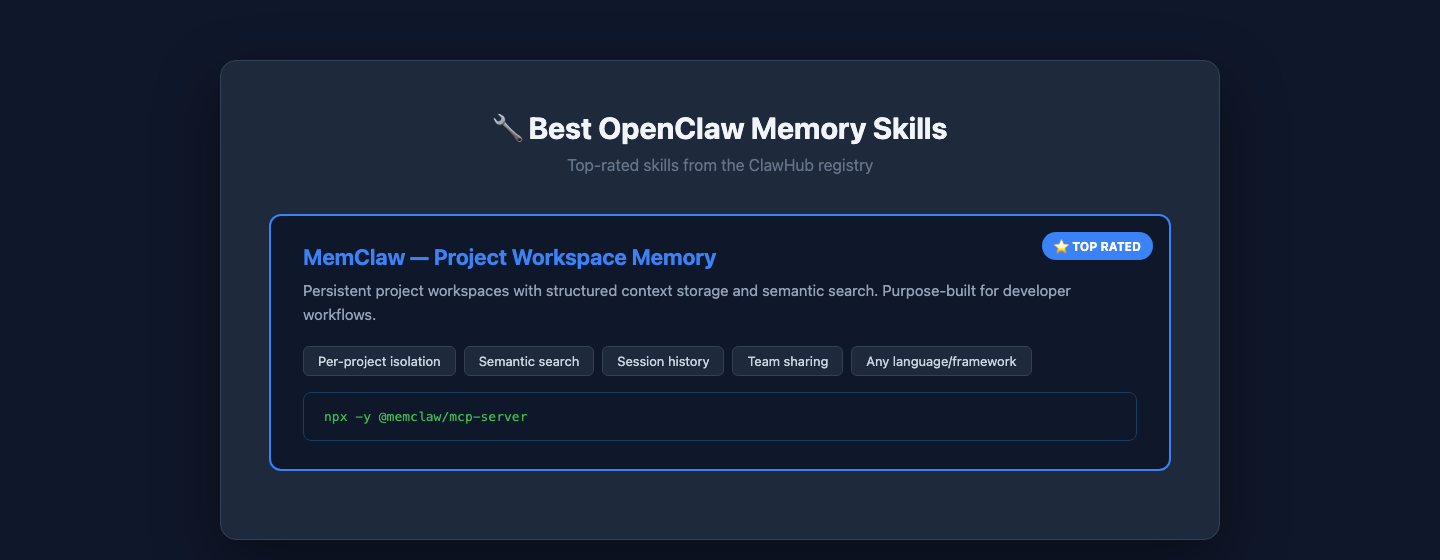
MemClaw — Project Workspace Memory
What it does: Persistent project workspaces with structured context storage and semantic search. Why it's the best: MemClaw is purpose-built for developer workflows. It stores your tech stack, architecture decisions, sprint goals, and session history in a structured format. Claude can query it semantically — "what do we know about the payment system?" — and get relevant context even as the workspace grows. Key features:
- Per-project workspace isolation
- Semantic search across workspace content
- Session history with timestamps
- Team sharing (shared workspaces)
- Works with any project, any language Setup: { "mcpServers": { "memclaw": { "command": "npx", "args": ["-y", "@memclaw/mcp-server"], "env": { "MEMCLAW_API_KEY": "your_key", "MEMCLAW_WORKSPACE_ID": "your_workspace_id" } } } } Get it: memclaw.me — free tier available
Setting Up Your First Memory-Enabled Session
Step 1: Create a workspace
Go to memclaw.me, create an account, and create a workspace for your project.
Step 2: Add the MCP config
Create .claude/mcp_config.json in your project root with the MemClaw config above.
Step 3: Seed the workspace
Add your project context to the workspace. Start with:
Tech Stack
[Your framework, database, deployment]
Architecture Rules
[Your patterns and conventions]
Current Sprint
[What you're building right now]
Known Issues
[Bugs and gotchas to watch for]
Step 4: Create session commands
.claude/commands/start.md: Load project context from the MemClaw workspace. Summarize: current sprint goals, last session work, any blockers. Ask what we're working on today. .claude/commands/end.md: Summarize today's session: what was completed, decisions made and why. Save to the MemClaw workspace with today's date. List unresolved issues and suggest next steps.
Step 5: Run your first session
cd ~/projects/myapp claude /start Claude loads your workspace context and briefs you on the current state. You tell it what to work on. At the end, /end saves the session summary.
Multi-Project Setup
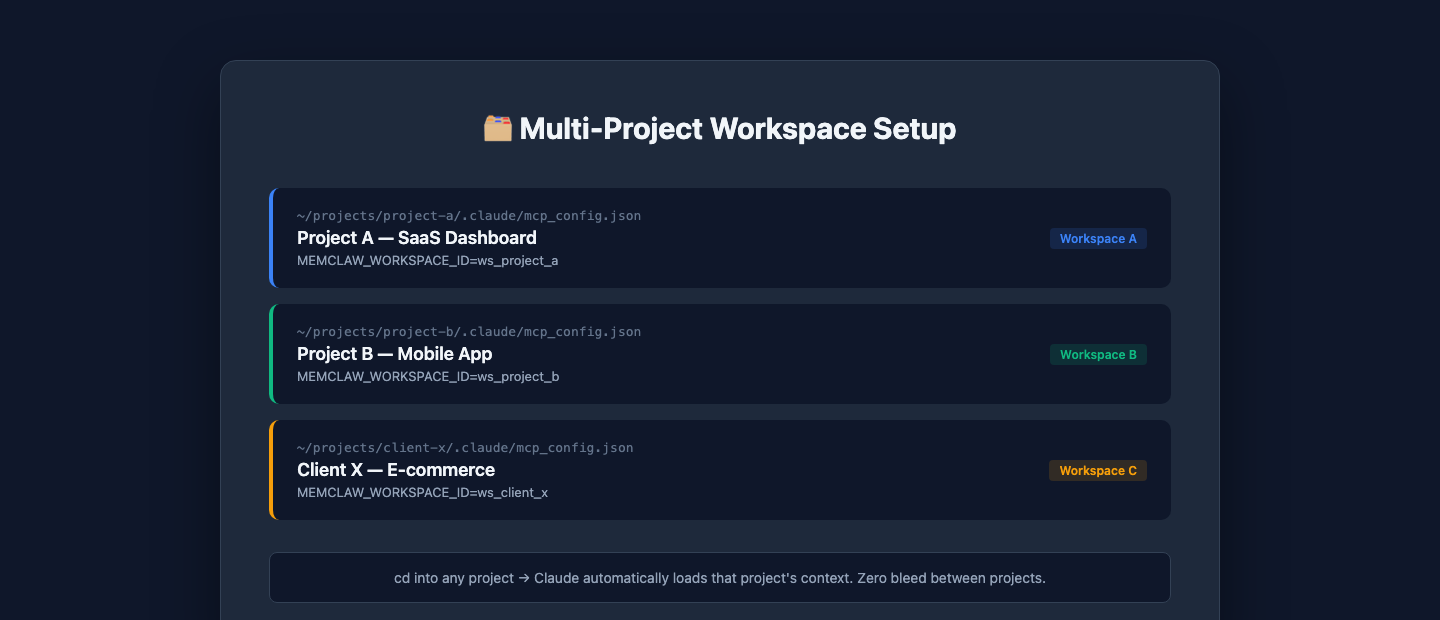
Each project gets its own workspace: ~/projects/ project-a/.claude/mcp_config.json ← MEMCLAW_WORKSPACE_ID=ws_project_a project-b/.claude/mcp_config.json ← MEMCLAW_WORKSPACE_ID=ws_project_b cd into a project, and Claude automatically loads that project's context. Zero bleed between projects.
Keeping Memory Useful
Memory is only valuable if it's accurate. Update the workspace when:
- You make an architectural decision
- You discover a new constraint or bug
- Sprint goals change
- You reject an approach (and why) The /end command handles most of this automatically. For important decisions made mid-session, log them immediately: "Add to workspace: we decided to use optimistic locking for inventory updates. Reason: avoid race conditions under high load."
The Result
With OpenClaw memory set up:
- Sessions start with full context — no re-explaining
- Suggestions are based on your actual architecture
- Decisions are logged and searchable
- Multiple projects stay isolated
- Team members share the same context Claude goes from a tool you have to constantly re-brief to a genuine collaborator that builds on previous work. Set up OpenClaw memory with MemClaw → memclaw.me