How to Set Up Persistent Memory in OpenClaw (Step-by-Step Guide)

Learn how to give OpenClaw persistent memory that survives across sessions. Step-by-step setup with MemClaw — restore full project context in 8 seconds.
You're three weeks into a client project. OpenClaw knows the tech stack, the API quirks, the naming conventions you prefer. Then you close the terminal.
Next morning, you open a new session. OpenClaw has no idea who your client is.
This is how OpenClaw handles memory by default: everything lives inside the session. Once the session ends, the context is gone. If you're working on one project, that's annoying. If you're juggling five, it's a real problem.
This guide shows you how to set up persistent memory in OpenClaw — memory that survives across sessions, across days, across agents — so your projects actually stay where you left them.
How Memory Works in OpenClaw (by Default)
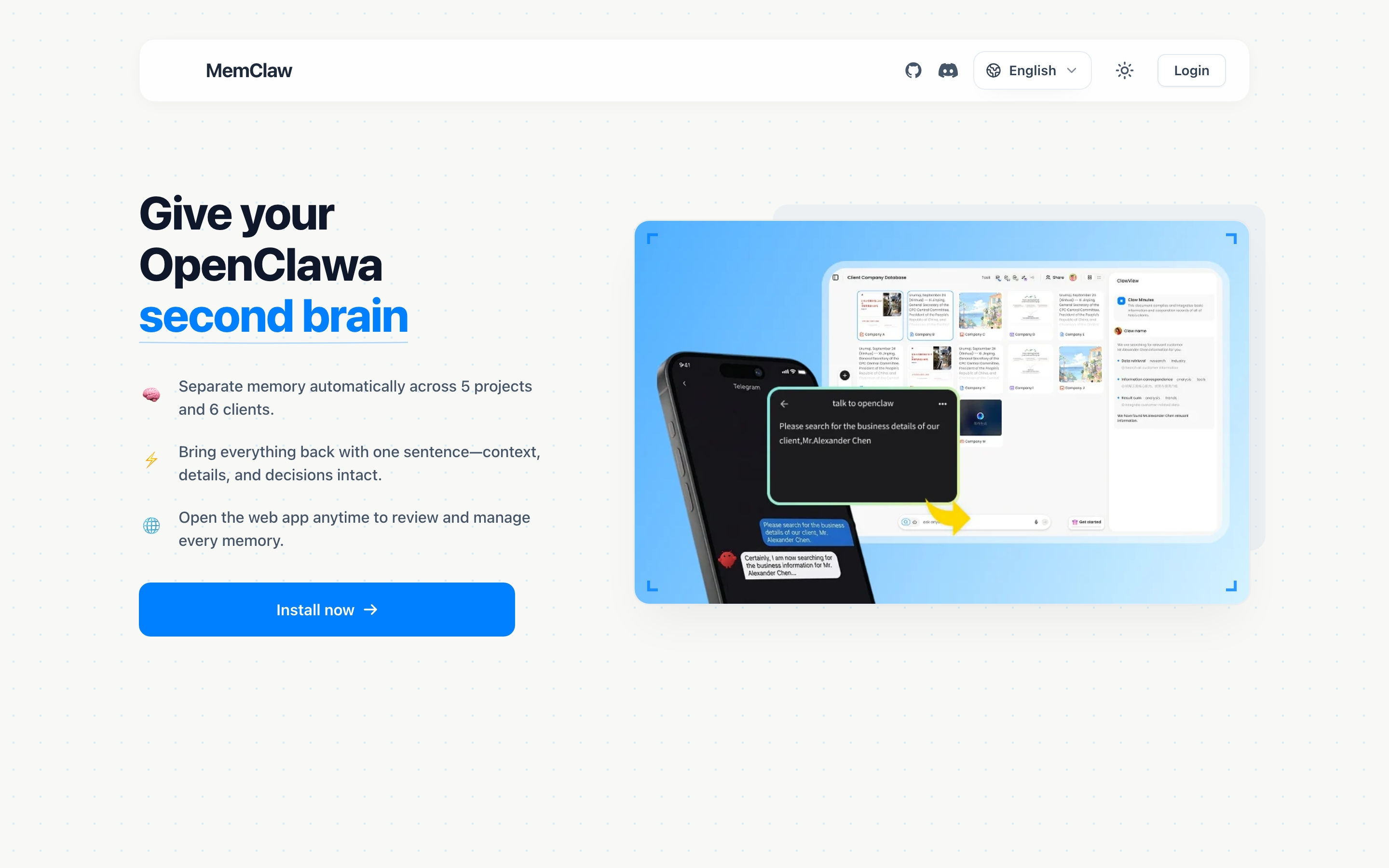
OpenClaw uses a session-based memory model. During a conversation, it remembers everything: your instructions, the files you've discussed, the decisions you've made. But that memory is tied to the current session.
Here's what that means in practice:
- Start a session — OpenClaw has zero context about your project
- Work for an hour — OpenClaw builds up a rich understanding of what you're doing
- End the session — all of that understanding disappears
- Start a new session — you're back to square one
This is fine for one-off tasks. Ask OpenClaw to write a script, fix a bug, generate a report — done. No memory needed.
But if you're using OpenClaw as an ongoing work partner across multiple projects, session memory isn't enough. You end up repeating yourself constantly:
"Remember, this project uses PostgreSQL, not MySQL." "We decided last week to go with JWT auth." "The client prefers bullet points over long paragraphs."
That's not productive. That's babysitting.
Session Memory vs. Persistent Memory
The difference is straightforward:
| Session Memory | Persistent Memory | |
|---|---|---|
| Lasts | Until you close the session | Across sessions, days, weeks |
| Scope | Single conversation | Entire project lifecycle |
| What it stores | Chat history | Decisions, preferences, progress, documents |
| Multi-project | No isolation — everything is mixed | Each project has its own memory |
| Setup | Built-in (no setup needed) | Requires a memory tool |
Session memory is like a whiteboard you erase every night. Persistent memory is like a project notebook that stays on your desk.
Why OpenClaw Doesn't Have Built-In Persistent Memory
OpenClaw is designed as a general-purpose AI agent. It connects to tools (skills), follows instructions, and generates output. But it doesn't ship with a built-in way to store and recall project-specific context across sessions.
There are good reasons for this:
- Privacy — persistent storage means your data lives somewhere. That's a design decision, not a default.
- Scope — different users need different things stored. A developer's "memory" looks nothing like a sales rep's.
- Flexibility — by keeping memory as an add-on, you choose the tool that fits your workflow.
This is where third-party memory tools come in. The most common approach is to install a memory skill that handles storage and retrieval for you.
Setting Up Persistent Memory with MemClaw
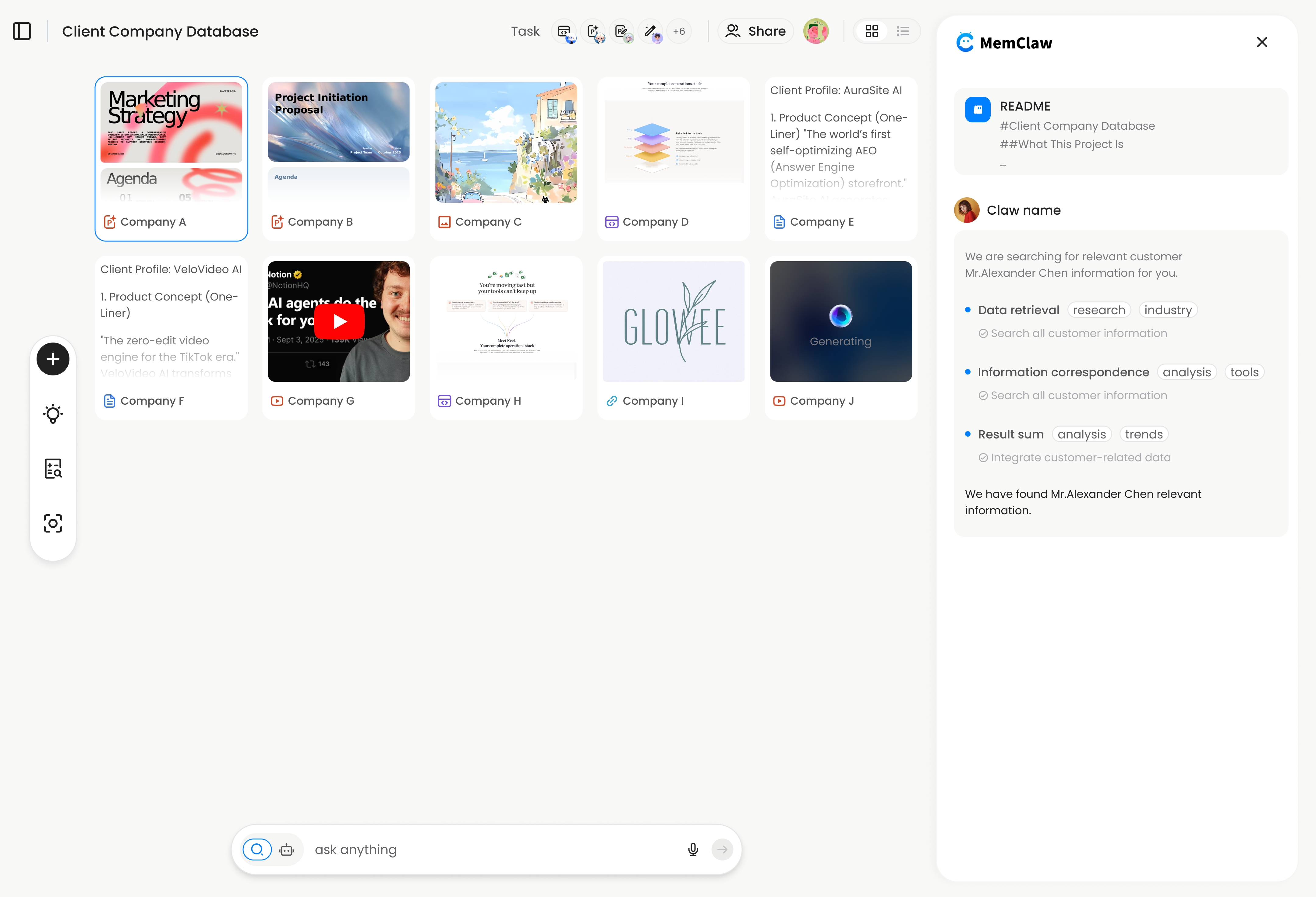
MemClaw is a persistent workspace tool built specifically for OpenClaw and Claude Code. It gives each project its own isolated workspace — with a living README, artifacts, and auto-tracked tasks — that the agent loads at the start of every session.
Here's the full setup, start to finish.
Step 1: Get Your API Key
MemClaw uses the Felo API for storage. You need an API key (free to start):
- Go to felo.ai/settings/api-keys
- Create a new API key
- Copy it somewhere safe
Set it as an environment variable:
# macOS / Linux
export FELO_API_KEY="your-api-key-here"

# Windows PowerShell
$env:FELO_API_KEY="your-api-key-here"
To make it persist across terminal sessions, add the export line to your ~/.zshrc or ~/.bashrc.
Step 2: Install MemClaw
Choose the method that matches your setup:
Option A: OpenClaw install script (recommended)
bash <(curl -s https://raw.githubusercontent.com/Felo-Inc/memclaw/main/scripts/openclaw-install.sh)
Option B: Natural language install
Send this message directly to OpenClaw:
"Please install https://github.com/Felo-Inc/memclaw and use MemClaw after installation."
OpenClaw will clone the repo and set it up as a skill.
Option C: Manual install
git clone https://github.com/Felo-Inc/memclaw.git
# Copy to your agent's skill directory:
cp -r memclaw/memclaw ~/.claude/skills/   # Claude Code
# or: cp -r memclaw/memclaw ~/.gemini/skills/  # Gemini CLI
# or: cp -r memclaw/memclaw ~/.codex/skills/   # Codex
Option D: ClawHub
clawhub install memclaw
Step 3: Create Your First Workspace
Once MemClaw is installed, just tell OpenClaw what to do:
"Create a workspace called Client Acme"
That's it. MemClaw creates an isolated workspace for the Acme project. It stores:
- Living README — background, preferences, current progress
- Artifacts — documents, reports, URLs, files produced in conversation
- Tasks — auto-tracked as the agent works
No JSON config. No file editing. Natural language all the way.
Step 4: Load a Workspace
Next session, when you want to continue working on the Acme project:
"Load the Acme workspace"
MemClaw restores the full project context in about 8 seconds. OpenClaw immediately knows:
- What the project is about
- What decisions have been made
- What's currently in progress
- What still needs doing
No re-briefing. No "remember, we're using PostgreSQL." The agent just picks up where it left off.
Step 5: Save Context as You Work
As you work, you can explicitly save important decisions:
"Add to workspace: we decided to use Stripe for payments because the client already has a Stripe account"
"Save that competitive analysis to the workspace"
MemClaw's agent also auto-captures context during natural conversation, so you don't have to manually save everything.
Managing Multiple Projects
This is where persistent memory changes your workflow the most. Instead of one long conversation where everything blends together, you have clean separation:
Workspace: Client Acme     → API redesign, prefers REST, 2-week timeline
Workspace: Client Beta      → E-commerce site, Shopify integration, budget concerns
Workspace: Internal Tool    → Admin dashboard, React + TypeScript, tech debt backlog
Switch between them naturally:
"Load the Beta workspace"
OpenClaw immediately shifts context. Acme's API redesign doesn't bleed into Beta's e-commerce project. Each workspace is isolated.
Real Workflow Example
A freelance developer manages three active clients:
Monday morning:
"Load the Acme workspace" "Where did we leave off on the payment integration?"
OpenClaw responds with the current status — the Stripe webhook handler is half-built, and there's an open question about retry logic.
Monday afternoon:
"Load the Beta workspace" "The client approved the product page mockup. Let's start building it."
OpenClaw already knows the tech stack (Next.js + Shopify), the client's preference for minimal design, and the specific product categories.
Tuesday:
"Load the internal tool workspace" "Show me the tech debt items we've been tracking"
OpenClaw lists the items from prior sessions, with priority and notes attached.
No context confusion. No re-explaining. Three projects, three isolated memories.
What Gets Stored in Persistent Memory
MemClaw workspaces store several types of information:
Living README
The core of each workspace. A structured document that captures:
- Project background and goals
- Your preferences (coding style, communication preferences, tool choices)
- Current progress and status
- Key decisions and the reasoning behind them
The README updates as you work. You can also update it explicitly:
"Update the workspace: the client changed the deadline to April 20th"
Artifacts
Anything produced during conversation that you want to keep:
- Research reports
- Meeting summaries
- Code architecture decisions
- Competitor analyses
- URLs and references
Save them naturally:
"Save that report to the workspace"
Retrieve them later:
"Find the pricing analysis we did last week"
Tasks
Auto-tracked as the agent works. If you say "let's add dark mode to the dashboard," MemClaw logs it as a task. Check your task list anytime:
"Show workspace tasks"
Cross-Agent Memory: OpenClaw + Claude Code
One feature that matters for developers: MemClaw works across both OpenClaw and Claude Code. If you do research in OpenClaw and then switch to Claude Code for implementation, both agents read from the same workspace.
Supported agents:
- OpenClaw
- Claude Code
- Gemini CLI
- Codex
Install MemClaw to the appropriate skill directory for each agent:
| Agent | Skill Directory |
|---|---|
| Claude Code | ~/.claude/skills/ |
| Gemini CLI | ~/.gemini/skills/ |
| Codex | ~/.codex/skills/ |
The workspace data is stored via the Felo API, so it's agent-agnostic. Same workspace, same memory, regardless of which agent you're using.
Persistent Memory vs. Other Approaches
You might be wondering: can't I just use CLAUDE.md or paste context manually? Here's how persistent memory compares to common workarounds:
Manual Context Pasting
Copy-paste your project notes at the start of every session. Works for small projects. Falls apart when you have 5+ projects with different contexts and your notes file grows to 3,000 words.
CLAUDE.md / System Instructions
Good for static preferences ("always use TypeScript", "prefer functional components"). Not good for dynamic project state — what's in progress, what was decided yesterday, what the client said this morning.
Mem0
A memory layer for AI agents that stores conversation snippets. Different approach from MemClaw: Mem0 stores individual memories (facts, preferences) while MemClaw stores project-scoped workspaces (full context per project). If you need project isolation for multiple concurrent projects, workspace-based memory is the better fit.
No Memory at All
Some people just re-explain everything each session. It works until it doesn't. If you're spending the first 10 minutes of every session re-briefing your AI agent, you're losing hours per week.
Troubleshooting Common Setup Issues
"MemClaw skill not found"
Make sure the skill files are in the correct directory. Check the skill folder for your agent:
ls ~/.claude/skills/memclaw/    # Claude Code
ls ~/.gemini/skills/memclaw/    # Gemini CLI
ls ~/.codex/skills/memclaw/     # Codex
You should see the MemClaw skill files. If not, re-run the installation. For OpenClaw, the install script (Option A) handles placement automatically.
"API key not set"
Verify your environment variable:
echo $FELO_API_KEY
If empty, set it again and make sure it's in your shell config file (.zshrc or .bashrc).
"Workspace not loading"
Check that you're using the exact workspace name you created:
"List all of my projects"
This shows all workspaces and their names.
Context seems outdated
The living README updates automatically, but you can force an update:
"Update the workspace with our current progress"
Getting Started
Setting up persistent memory in OpenClaw takes about 2 minutes:
- Get your API key at felo.ai/settings/api-keys
- Install MemClaw with one command
- Create your first workspace: "Create a workspace called [project name]"
From that point on, every session starts with context — not from scratch.
If you're managing multiple projects in OpenClaw and spending time re-explaining context every session, persistent memory isn't optional. It's the difference between an AI assistant that forgets and one that actually keeps up.
Get started free at memclaw.me
MemClaw is available on GitHub. View the code at github.com/Felo-Inc/memclaw.