OpenClaw Workspace Organization: Best Practices for Multi-Project Setups

How to organize OpenClaw workspaces for multiple projects without context bleed. Workspace structure, naming conventions, and management tips for freelancers and teams.
OpenClaw Workspace Organization: Best Practices for Multi-Project Setups
Three projects in OpenClaw. Three different clients. Three different tech stacks. And somehow, the API spec from Client A keeps showing up when you're working on Client B's marketing copy.
This is the multi-project problem. OpenClaw doesn't separate project contexts by default — everything flows into one conversation. The more projects you juggle, the messier it gets.
Workspace organization fixes this. Each project gets its own isolated space with its own context, decisions, and history. But "create a workspace" is just the first step. How you structure, name, and manage those workspaces determines whether they actually save you time or become another thing to maintain.
This guide covers practical workspace organization patterns for people managing 3 to 20+ active projects.
The Core Problem: Context Bleed
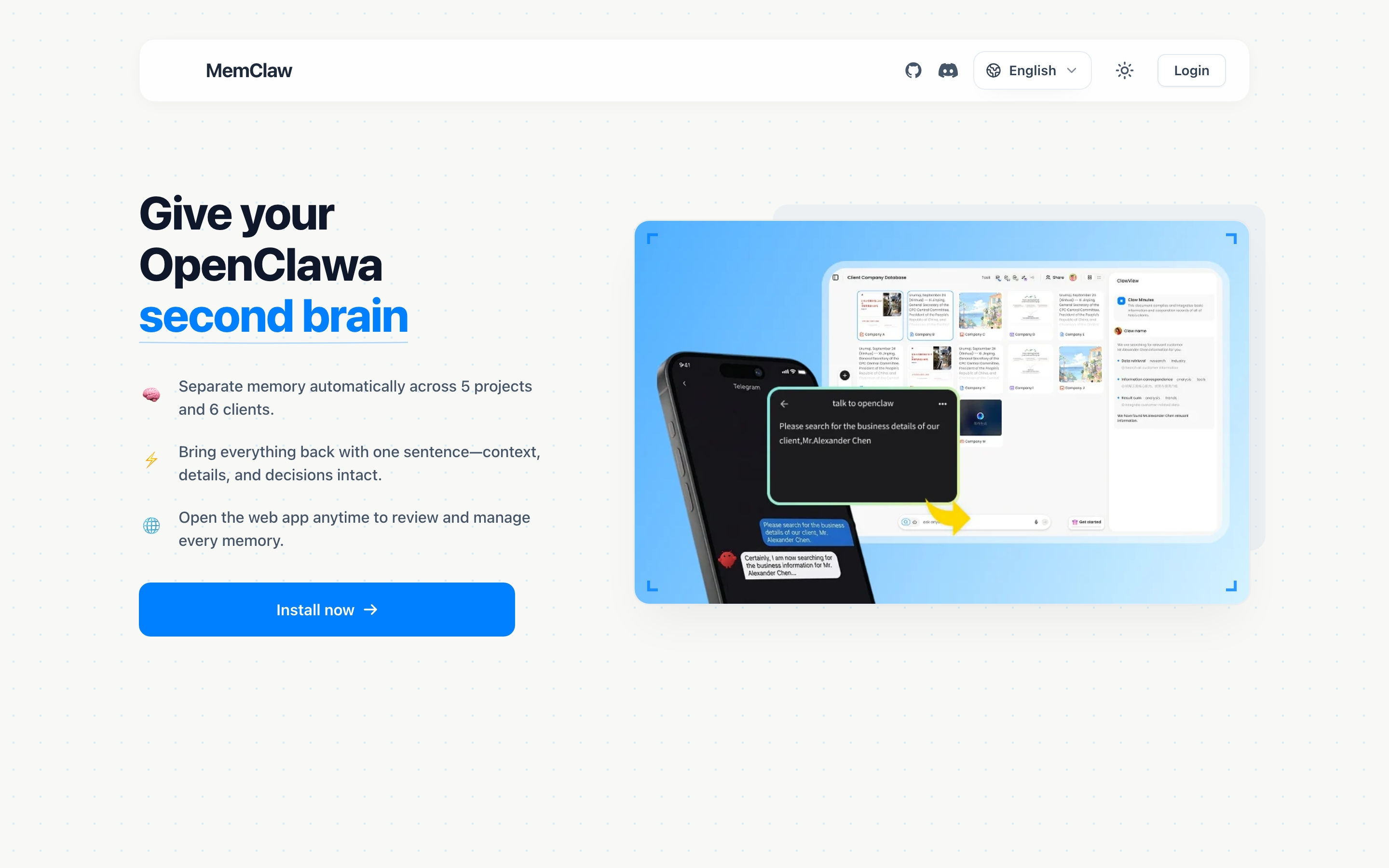
When you use OpenClaw across multiple projects without workspace isolation, you run into these problems:
- Context bleed — you mention "the database migration" and OpenClaw pulls from the wrong project
- Decision confusion — "we decided to use Redis" — but which project was that?
- Stale context — you haven't touched Project C in two weeks, but its context is still mixed into everything
- Briefing overhead — every session starts with "I'm working on Client Acme now, not Client Beta"
The root cause: OpenClaw's session memory doesn't know which project you're talking about. You need explicit project boundaries.
Setting Up Project Workspaces
MemClaw gives each project its own isolated workspace. Setup is straightforward:
# Set your API key
export FELO_API_KEY="your-api-key-here"
# Get a key at: https://felo.ai/settings/api-keys
Install MemClaw:
/plugin marketplace add Felo-Inc/memclaw
/plugin install memclaw@memclaw
Create a workspace:
"Create a workspace called Client Acme"
Load it in any session:
"Load the Acme workspace"
That's the basics. Now let's talk about how to organize things when you have more than a couple of projects.
Workspace Naming Conventions
Names matter more than you'd think. When you have 15 workspaces, you need to find the right one fast.
Pattern 1: Client-First (Freelancers)
If you organize work by client:
Client Acme
Client Beta Corp
Client Gamma Labs
Prefix with "Client" so they group together when you list all projects.
Pattern 2: Project-First (Product Teams)
If you work on multiple features or products:
Billing Dashboard v2
Auth System Migration
Mobile App Redesign
Use descriptive names that tell you the project's purpose at a glance.
Pattern 3: Category Prefix (Many Projects)
When you have 10+ projects, add a category prefix:
dev/payment-service
dev/user-auth
content/blog-pipeline
content/docs-rewrite
ops/ci-cd-migration
ops/monitoring-setup
The forward slash is just a naming convention — it helps you mentally organize things and makes listing workspaces more scannable.
What to Avoid
- Generic names: "Project 1", "Stuff", "Work" — useless at scale
- Too-specific names: "Fix bug #4521 in payment handler" — that's a task, not a project
- Names with dates: "Q1 2026 Sprint" — workspaces are ongoing, not time-boxed
Workspace Granularity: When to Split, When to Merge
The biggest organizational question: how granular should your workspaces be?
One Workspace Per Client (Recommended for Freelancers)
If you're a freelancer with 3-8 clients:
Client Acme       → all Acme work (website, API, mobile app)
Client Beta       → all Beta work
Client Gamma      → all Gamma work
This works because client context rarely overlaps. When you load the Acme workspace, you want everything Acme — their preferences, their tech stack, all active tasks.
One Workspace Per Project (Recommended for Product Teams)
If you're building multiple products or features within one company:
Auth System       → authentication service redesign
Billing v2        → new billing dashboard
Mobile App        → iOS/Android app
Split when projects have different tech stacks, timelines, or teams. The auth system migration has nothing in common with the mobile app redesign.
When to Split a Workspace
Split when:
- Two work streams have different tech stacks
- Different people are stakeholders
- The workspace's living README is getting cluttered with unrelated context
- You're spending time clarifying "I mean the billing part, not the auth part"
When Not to Split
Don't split when:
- It's the same client, same tech stack, just different tasks
- The project is small enough that one README covers everything
- You'd end up loading two workspaces back and forth in the same session
Managing Workspace Context
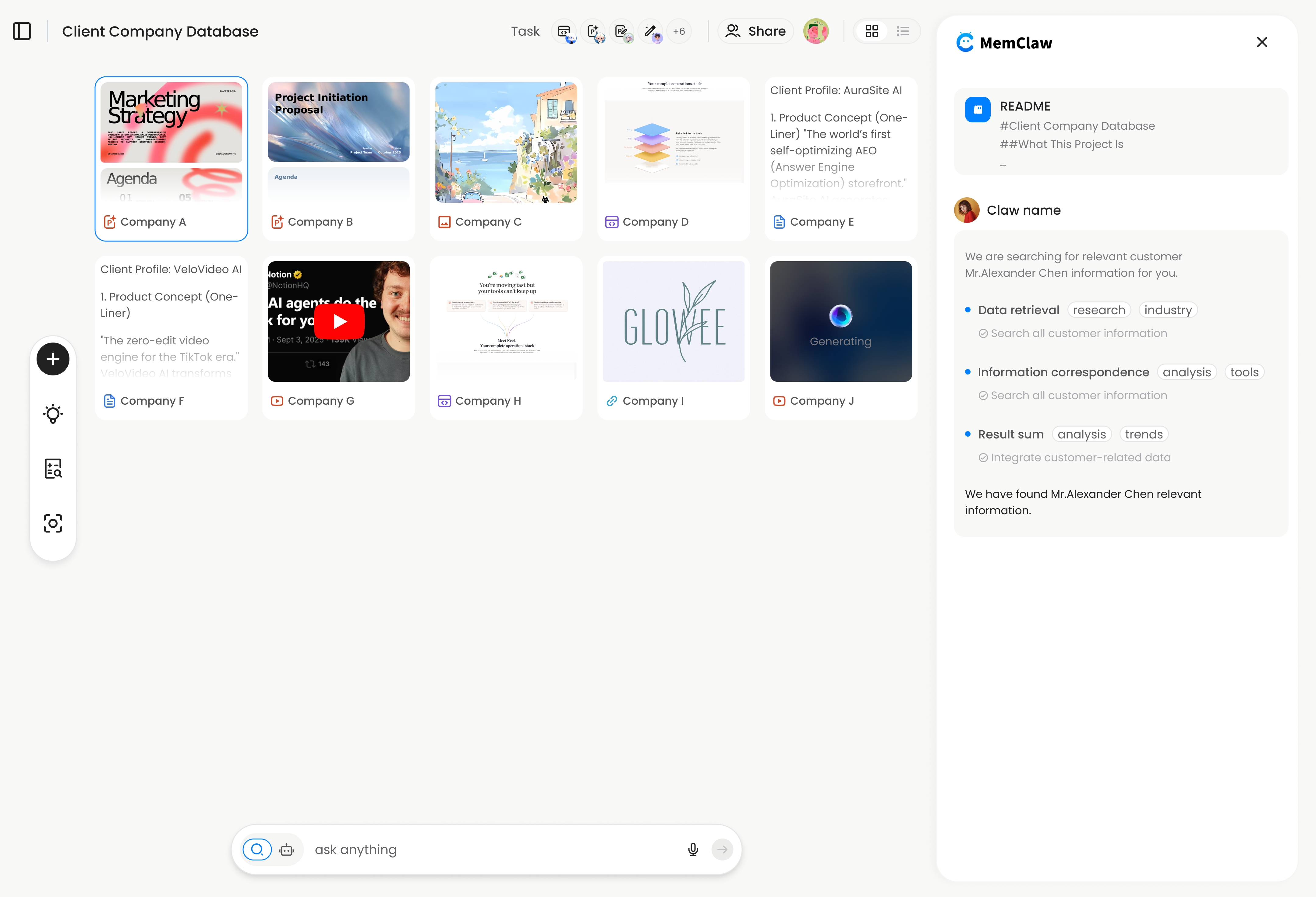
Each workspace stores a living README that evolves as you work. Here's how to keep it useful:
Seed Your Workspace on Day One
When you create a new workspace, give it a solid starting context:
"Add to workspace: this is a Next.js e-commerce app for Client Acme. Tech stack: Next.js 14, Prisma, PostgreSQL, Tailwind CSS. Client contact is Sarah ([email protected]). She prefers async updates via Slack. Budget is fixed-price, deadline is May 15."
The more specific you are upfront, the less explaining you do later.
Save Decisions Explicitly
When you make an important decision during work:
"Add to workspace: we decided to use Stripe instead of PayPal because the client already has a Stripe account and wants to keep their existing customer payment methods"
Including the reasoning matters. Three weeks from now, when someone asks "why Stripe?", the workspace has the answer.
Save Artifacts as You Go
Research reports, architecture decisions, competitive analyses — save them:
"Save that competitive analysis to the workspace"
"Save this API design doc to the workspace"
These become searchable later:
"Find the pricing analysis we did last week"
Review Workspace State Periodically
Every few sessions, check in:
"Summarize the current state of this project"
"What's in my workspace?"
"Show workspace tasks"
This helps you catch stale information and keep the workspace tight.
Multi-Agent Workspace Sharing
If you use multiple AI agents (OpenClaw + Claude Code, or OpenClaw + Gemini CLI), MemClaw workspaces work across all of them.
The workspace data lives in the Felo API — not in local files — so any agent with MemClaw installed can access it.
Supported agents:
- OpenClaw
- Claude Code
- Gemini CLI
- Codex
A practical pattern:
- Research in OpenClaw — use OpenClaw for brainstorming, research, analysis
- Build in Claude Code — switch to Claude Code for implementation
- Both share the same workspace — decisions and context flow between agents
No duplicate context. No re-explaining what you researched in one agent when you switch to another.
Team Workspaces
MemClaw supports team sharing. Invite a teammate to a workspace and their agent has the same project context yours does.
This is useful for:
- Handoffs — teammate picks up where you left off without a 90-minute knowledge transfer call
- Pair work — both agents have the same project understanding
- Continuity — if you're out for a week, the project context doesn't walk out the door with you
Scaling: 10+ Active Projects
When you're managing many projects simultaneously, a few practices keep things manageable:
Quick-Switch Workflow
Start each session by loading the right workspace:
"List all of my projects"
Pick the one you need:
"Load the Acme workspace"
This takes seconds, not minutes. No scrolling through notes, no context files, no "let me remember where I was."
Archive Completed Projects
When a project wraps up, don't delete the workspace — the context might be useful later (scope changes, maintenance work, follow-up projects). But you can mentally mark it as done:
"Update the workspace: project completed on April 5, 2026. Final deliverable was the v2 billing dashboard. Client has all credentials and docs."
Workspace-Per-Sprint (Not Recommended)
Some people try to organize by time period: "Sprint 23", "Q1 2026". This doesn't work well because:
- Projects span multiple sprints
- You lose continuity when you start a new sprint workspace
- The naming doesn't tell you anything about what's inside
Organize by project, not by time period.
Getting Started
If you're currently managing multiple projects in OpenClaw without workspace isolation:
- Get your API key at felo.ai/settings/api-keys
- Install MemClaw:
/plugin marketplace add Felo-Inc/memclaw
/plugin install memclaw@memclaw - Create a workspace for your most active project: "Create a workspace called [name]"
- Seed it with context: tech stack, client info, current status
- Next session, load it: "Load the [name] workspace"
Start with one project. Once you see the difference, create workspaces for the rest.
Get started free at memclaw.me
View the code at github.com/Felo-Inc/memclaw.