7 Product Explainer Video Script Examples

Explore seven product explainer video script examples with sample narration, visual plans, and practical adaptation tips.
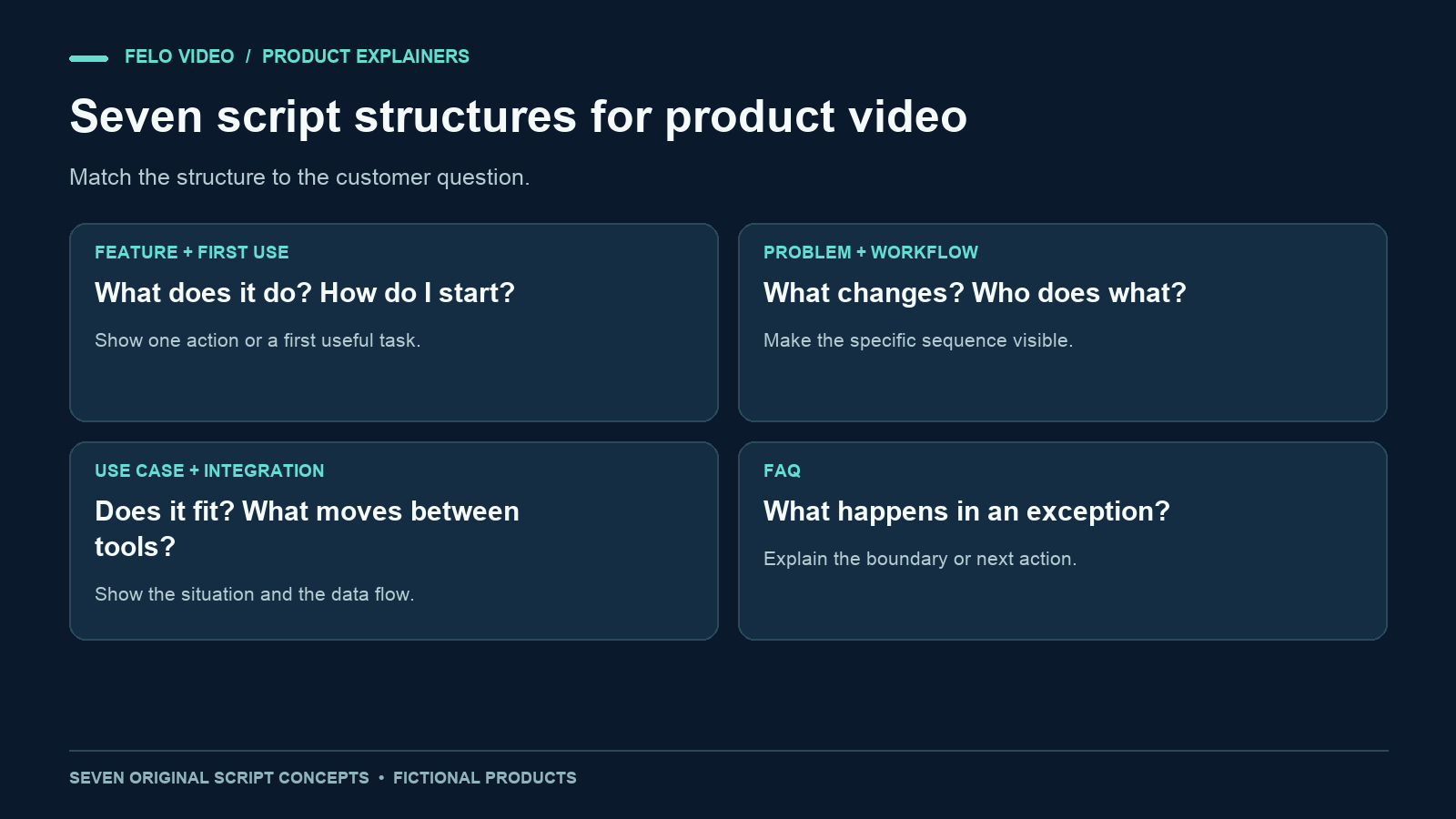
A product video becomes easier to write when you know the question it needs to answer. "What does this feature do?" calls for a different explanation from "How do I get started?"
These seven product explainer video examples are original script concepts for fictional products. Each includes narration, a visual plan, and an explanation of when the structure is useful. They are writing examples, not customer case studies or claims about measured conversion rates.
Use them to choose a structure for a real product. Then replace the fictional behavior with features you can demonstrate and verify.
Choose the question before the video format
You may be asked for a homepage video, a launch video, or a sales video. Those labels describe where the video will appear. They do not fully explain what the viewer needs to understand.
Ask the person requesting the video what confusion it should remove. A visitor may not understand the product category. A customer may know the category but need to see a specific action. An existing user may only need to learn what changed.
| Viewer question | Useful script structure |
|---|---|
| What does this feature do? | Single-feature explanation |
| How do I begin? | First-use walkthrough |
| How does this solve my problem? | Problem and resolution |
| What happens through the process? | Workflow explanation |
| Does this fit my situation? | Use-case example |
| How does it work with another system? | Integration explanation |
| What happens in this exception? | FAQ explanation |
Keep one primary question per video. If a draft tries to answer all seven, it will probably need a different structure and more time than a short explainer allows.
Seven product explainer video script examples
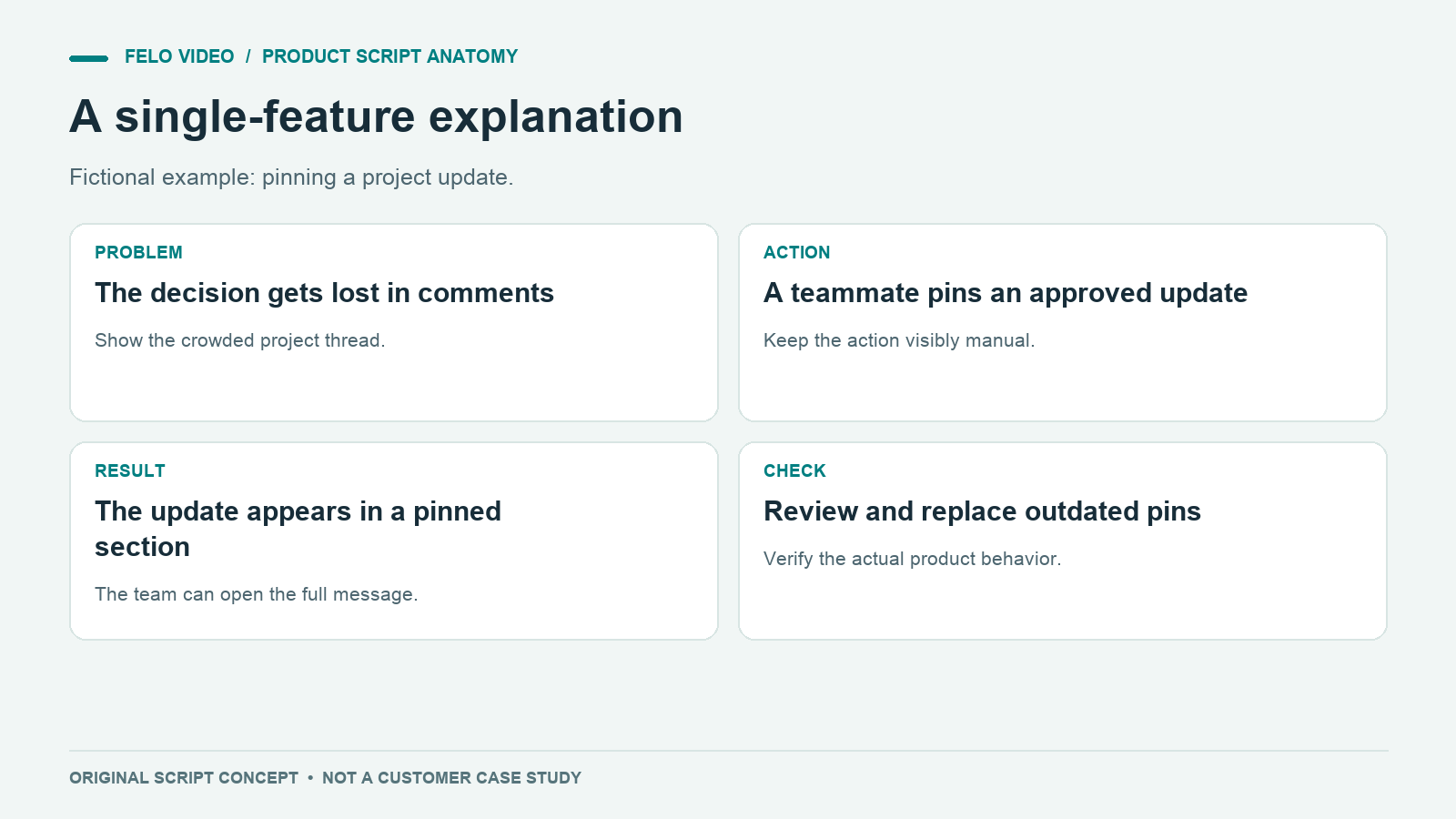
1. Explain one feature with a visible action
Fictional product: Pinboard, a shared project workspace with a way to pin an update.
Narration:
An important project update can disappear between everyday comments. Pinboard lets you pin the update the team needs to find. Open the project, select the approved update, and choose Pin. The update stays in the project's pinned section, where teammates can open the full message. When the information changes, review the pinned item and replace it with the current version. Use a pin for a decision people need to find again, such as the delivery date or the agreed scope.
Visual plan: Show a busy comment list, a deliberate pin action, and the pinned section. End with someone opening the full update.
Why it works as a structure: The feature has one clear job. The video demonstrates that job without describing every part of the workspace.
What to verify for a real product: Who can pin an item, whether pinning changes notifications, and how an outdated pin is replaced. If the feature does not notify anyone, do not show a notification arriving.
2. Help someone complete the first useful task
Fictional product: PackList, an app for reusable packing lists.
Narration:
Start your next trip with a list you can use again. In PackList, create a list and name it for the kind of trip, such as a two-day work visit. Add the items you actually need, then group them into clothing, work, and essentials. Save the list as your base. For the next trip, duplicate it and adjust the copy. Keep the base unchanged so a one-off item does not become part of every future trip. Your first useful result is a reusable list that fits the way you travel.
Visual plan: Show an empty list becoming a small, organized example. Then display the base list beside a duplicated trip copy.
Why it works as a structure: It gives the user a finish line. The video ends with a usable artifact rather than a tour of every menu.
What to verify: The real creation and duplication steps. Avoid showing saved templates if the actual product only supports a manual copy.
3. Connect a specific problem to a specific change
Fictional product: ReviewLane, a design review tool with comments attached to a selected version.
Narration:
A comment on last week's design can look like feedback on today's version. ReviewLane attaches each comment to the version being reviewed. Open the current design, check its version label, and leave the comment there. When a new version is added, keep the earlier discussion available as history. Before making a change, check which version the feedback refers to. The team can then discuss the same design instead of guessing whether a comment still applies.
Visual plan: Begin with two versions and an ambiguous comment. Attach the comment visibly to one version, then show the current version being reviewed.
Why it works as a structure: The opening problem is concrete enough to demonstrate. The product action resolves that specific ambiguity.
What to verify: How comments behave when a new version is added. Do not imply that comments migrate automatically unless that behavior is confirmed.
4. Explain a workflow across several people
Fictional product: RequestDesk, a request tracker with manual assignment and closure confirmation.
Narration:
A request starts with the person who needs help. In this example workflow, they submit a description in RequestDesk. A coordinator assigns an owner, and that owner records the result when the work is finished. The requester then confirms that the result answers the request. Keep those roles visible: requester, coordinator, and owner. If the result is incomplete, the request stays open for another action. The workflow ends with confirmation, so a finished task and an accepted result are easy to distinguish.
Visual plan: Use a request card moving between labeled roles. Show the incomplete-result branch returning to the owner.
Why it works as a structure: It explains handoffs and completion conditions, which a list of features would miss.
What to verify: Actual statuses, permissions, and exception handling. A clean diagram must not invent a simpler workflow than the product supports.
5. Show a use case that matches the viewer's situation
Fictional product: BriefBox, a workspace for preparing client-meeting notes.
Narration:
Tomorrow's client meeting involves three open questions and two recent decisions. Create a meeting brief in BriefBox and place those items in separate sections. Link the source note under each decision so anyone can check the detail. During preparation, mark which questions need the client's answer and which your team can resolve beforehand. Share the brief with the meeting participants. The result is a focused starting point for this conversation, with the supporting material available when someone needs it.
Visual plan: Show scattered sample notes becoming a brief with open questions, decisions, and source links.
Why it works as a structure: The scenario helps a viewer recognize a job they already do. It offers a concrete result without claiming a universal time saving.
What to verify: Supported source types and sharing behavior. Do not show automatic retrieval or summarization if the real workflow requires manual preparation.
6. Explain an integration by showing what moves
Fictional product: TaskBridge, with a hypothetical calendar connection that copies selected due dates as calendar events.
Narration:
A project deadline belongs in the task record, but you may also want it on your calendar. In this fictional TaskBridge integration, connect the calendar account and select which task due dates to copy. Each selected date creates a calendar event linked to the task. Before relying on it, check how changes and deletions are handled in your actual setup. Keep the task record as the place where you manage the work. The calendar entry helps you see the deadline alongside the rest of your schedule.
Visual plan: Show the connection, the explicit selection of a task, and the resulting event with a link back. Label the whole demonstration as a fictional integration concept.
Why it works as a structure: It identifies the source, destination, and data being transferred. Those details help viewers evaluate a connection more than an animation of two logos joining.
What to verify: Direction of sync, supported fields, delay, permissions, and behavior after deletion. Integration videos are especially easy to overstate.
7. Answer the exception that blocks a decision
Fictional product: GuestRoom, a booking tool with a waitlist request.
Narration:
The room you need is already booked. In GuestRoom, you can submit a waitlist request for that time. Add the date, time, and contact details, then check the request status. Joining the waitlist does not confirm a booking. If space becomes available, follow the confirmation steps shown in the message you receive. Until you have that confirmation, keep an alternative plan. The waitlist records your interest while making the difference between a request and a reservation visible.
Visual plan: Show the unavailable slot, the waitlist form, and a status labeled "Requested." Finish with a clear distinction between requested and confirmed.
Why it works as a structure: It resolves a practical uncertainty that may prevent a customer from proceeding.
What to verify: Whether notifications exist, how priority works, and what confirms the reservation. Avoid promising availability.
Adapt an example without copying its assumptions
For a reusable scene-by-scene structure, start with the explainer video script template. Begin with a verified product brief. Write down the feature's behavior, the user role, prerequisites, and exceptions. Use that brief to replace the fictional details in the selected structure. If the narration is already approved, Script to Video is a suitable starting point for working from it.
Then inspect the verbs. Words such as "detects," "syncs," "approves," and "publishes" imply specific behavior. If the product merely helps someone perform the action, show the person's role.
Build the visual plan from real assets where appropriate. A simplified diagram can explain a process, but it should not be presented as a screenshot of a working interface. Label conceptual scenes when they could be mistaken for actual functionality.
A good review question is: could a customer reasonably expect the product to do everything shown here? If the answer is uncertain, revise the scene before polishing the animation.
Prepare a product explainer brief for Felo
Provide the approved product description, relevant screenshots or source material, and the chosen script. State the audience and the question the video should answer.
For example:
Explain one approved product workflow for new users. Follow the attached script and use only the supplied feature information. Keep prerequisites and exceptions visible. Use diagrams when screenshots are too dense. Do not add automatic actions, integrations, customer quotes, or performance statistics. End with the single action named in the brief.
Felo's Product Explainer Video entry point is designed around explaining product information and uses. Treat its output as a draft to review against the product brief, especially where a scene could imply behavior that was never specified.
Questions about product explainer examples
Which structure belongs on a homepage?
Choose the question a new visitor needs answered first. That may be a problem-and-resolution story or a use-case example. A feature walkthrough can come later when the visitor understands the product's role.
Should every example end with a signup request?
No. An existing user's next step may be completing a task or checking a setting. Match the action to the audience and the page where the video appears.
Can a script example replace a real product demonstration?
A script helps plan the explanation. A real demonstration provides evidence of behavior. Use both when a purchasing or onboarding decision depends on what the product actually does.
Choose the customer question you need to answer, verify the corresponding workflow, and explore Felo Product Explainer Video.