Track Brand Mentions on X: Your AI Agent Builds the Weekly Report

Step-by-step tutorial: connect your agent to Felo OpenAPI, then automate brand monitoring on X with sentiment analysis and weekly presentation reports.
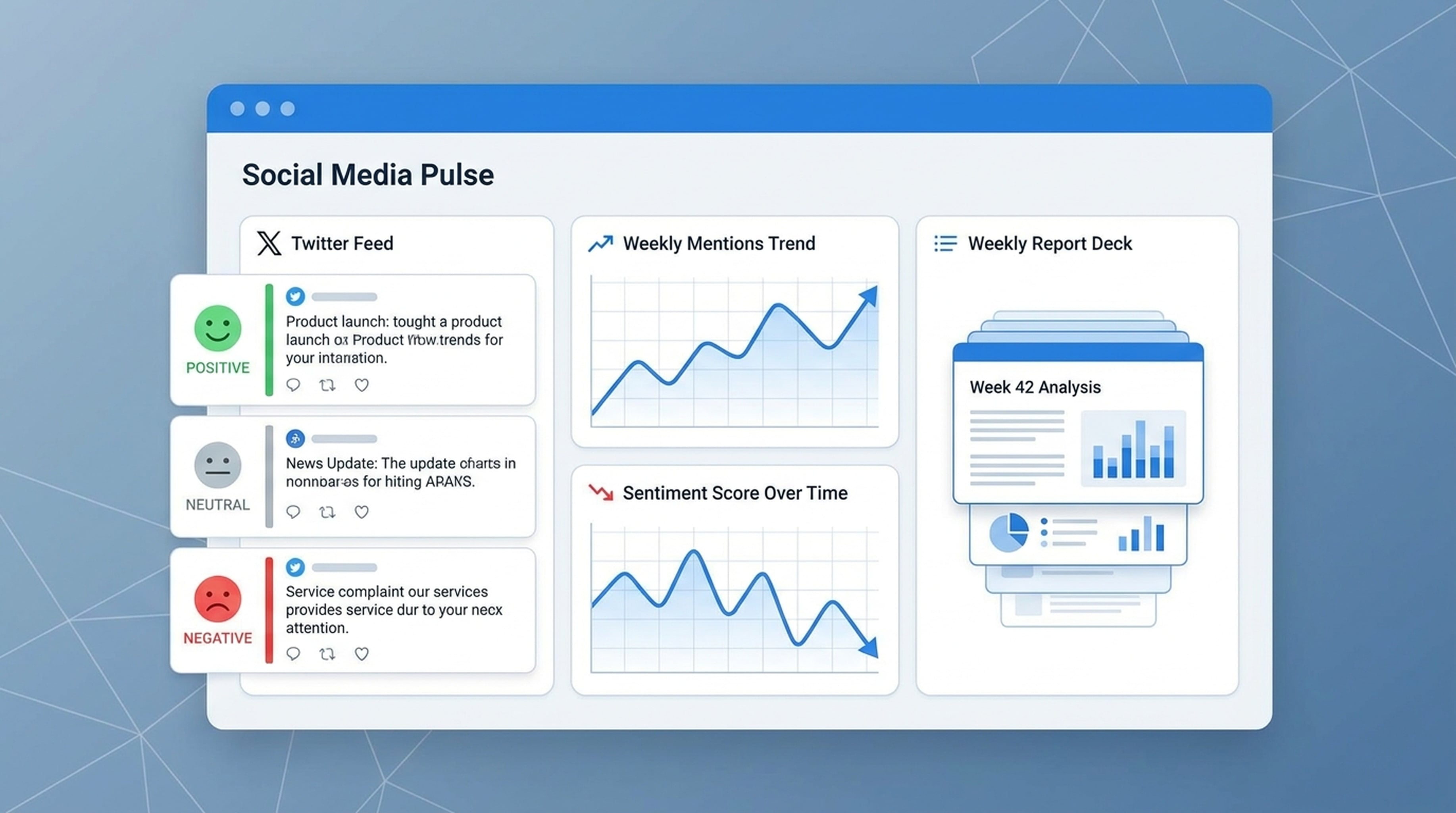
Monday morning. Your VP asks: "How did we do on X last week?"
The old way: spend Sunday afternoon searching, copying tweets, counting sentiment, making a spreadsheet. The new way: your agent already has the report ready.
Here's the report the agent produced this morning:
Brand Monitoring Weekly Report — Felo AI
Overview
- Total mentions: 1,247 (↑ 18% from last week)
- Sentiment: 72% positive, 15% negative, 13% neutral
- Top discussion: New multi-language search feature launch (43% of mentions)
Key Discussions
1. "Finally an AI search that works in Japanese" — @tech_tokyo (12.4K followers)
- Thread about Felo's Japanese search accuracy compared to competitors
- 340 likes, 89 retweets
- Sentiment: Strongly positive
2. "API pricing seems steep for startups" — @indie_dev_sarah (3.2K followers)
- Comparison thread with Perplexity and You.com pricing
- 120 likes, 45 replies (mostly discussing alternatives)
- Sentiment: Negative on pricing, neutral on product quality
3. "LiveDoc feature is underrated" — @product_hunter_mike (8.7K followers)
- Detailed walkthrough of using LiveDocs for team research
- 280 likes, 62 retweets
- Sentiment: Positive
Share of Voice
| Brand | Mentions | Sentiment | | -| ---|-----------| | Felo AI | 1,247 | 72% positive | | Perplexity | 3,890 | 65% positive | | You.com | 890 | 58% positive |
Recommended Actions
- Respond to pricing concerns: Consider a startup tier or free tier announcement
- Amplify LiveDoc advocates: Reach out to @product_hunter_mike for a case study
- Monitor competitor response: Perplexity announced a similar multi-language feature — track their launch timeline
How to Set This Up
Connect your agent to Felo OpenAPI:
Connect to Felo OpenAPI:
- Models: Claude Opus 4.8, Claude Sonnet 4.6, Claude Haiku 4.5, GPT-5.6 Sol, GPT-5.6 Terra, Grok 4.5
- Search: POST /v2/chat (AI Search), POST /v2/web/extract (Web Fetch)
- Social: POST /v2/x/tweet/search (X Search), POST /v2/x/user/tweets (User Tweets), GET /v2/youtube/subtitling
- Output: POST /v2/ppts (PPT), POST /v2/mindmap, POST /v2/landing_page, Image Generation
- Memory: LiveDocs (semantic retrieval, file upload, URL resources, tasks, records)
Base URL: https://openapi.felo.ai
API Key: [YOUR_API_KEY] — get one free at openapi.felo.ai

When I ask for brand monitoring:
1. Use X Search (POST /v2/x/tweet/search) to find brand mentions
2. Analyze sentiment (positive, negative, neutral)
3. Compare with previous reports in LiveDocs
4. Generate a summary report and presentation
Get your free API key at openapi.felo.ai. Replace [YOUR_API_KEY] and you're connected.
The Prompt
Search X for mentions of "Felo AI" from the past week.

Analyze:
1. Total mention count and sentiment breakdown
2. Top 5 discussions and themes
3. Notable KOL mentions with engagement metrics
4. Comparison with last week's data (stored in LiveDocs)
5. Recommended action items

Generate an executive summary presentation and save all data to LiveDocs.
What the Agent Does
It searches. Called POST /v2/x/tweet/search with "Felo AI" and a 7-day time range. Pulled 1,247 tweets including retweets and replies.
It also searches competitors. Pulled mentions of Perplexity and You.com for share-of-voice context.
It reads and categorizes. Went through the tweets, identified key discussions, flagged KOL accounts, and categorized sentiment based on language patterns and engagement.
It compares. Retrieved last week's report from LiveDocs and calculated week-over-week changes. Flagged the 18% increase and the new discussion theme (multi-language feature).
It reports. Generated the structured report above with specific tweets, engagement numbers, sentiment breakdown, and actionable recommendations.
It saves. Stored this week's data in LiveDocs so next week's report automatically has historical context to compare against.
Reuse for Any Brand
Search X for mentions of "[BRAND]" from the past week.

Analyze:
1. Total mention count and sentiment breakdown
2. Top 5 discussions and themes
3. Notable KOL mentions with engagement metrics
4. Comparison with last week's data in LiveDocs
5. Recommended action items

Generate an executive summary and save all data to LiveDocs.
Swap [BRAND] for any brand, product, or topic. Add competitor names for share-of-voice analysis.
Daily Alerting
Search X for mentions of "[BRAND]" from the last 24 hours. If negative sentiment exceeds 30%, flag it as an alert and summarize the key complaints. Otherwise, just log the data to LiveDocs.