
How to Transcribe a Voice Memo with Codex and a Speech-to-Text API

Turn a voice memo into a transcript and organized notes with Codex and the Felo Speech-to-Text API. Follow a practical step-by-step workflow.
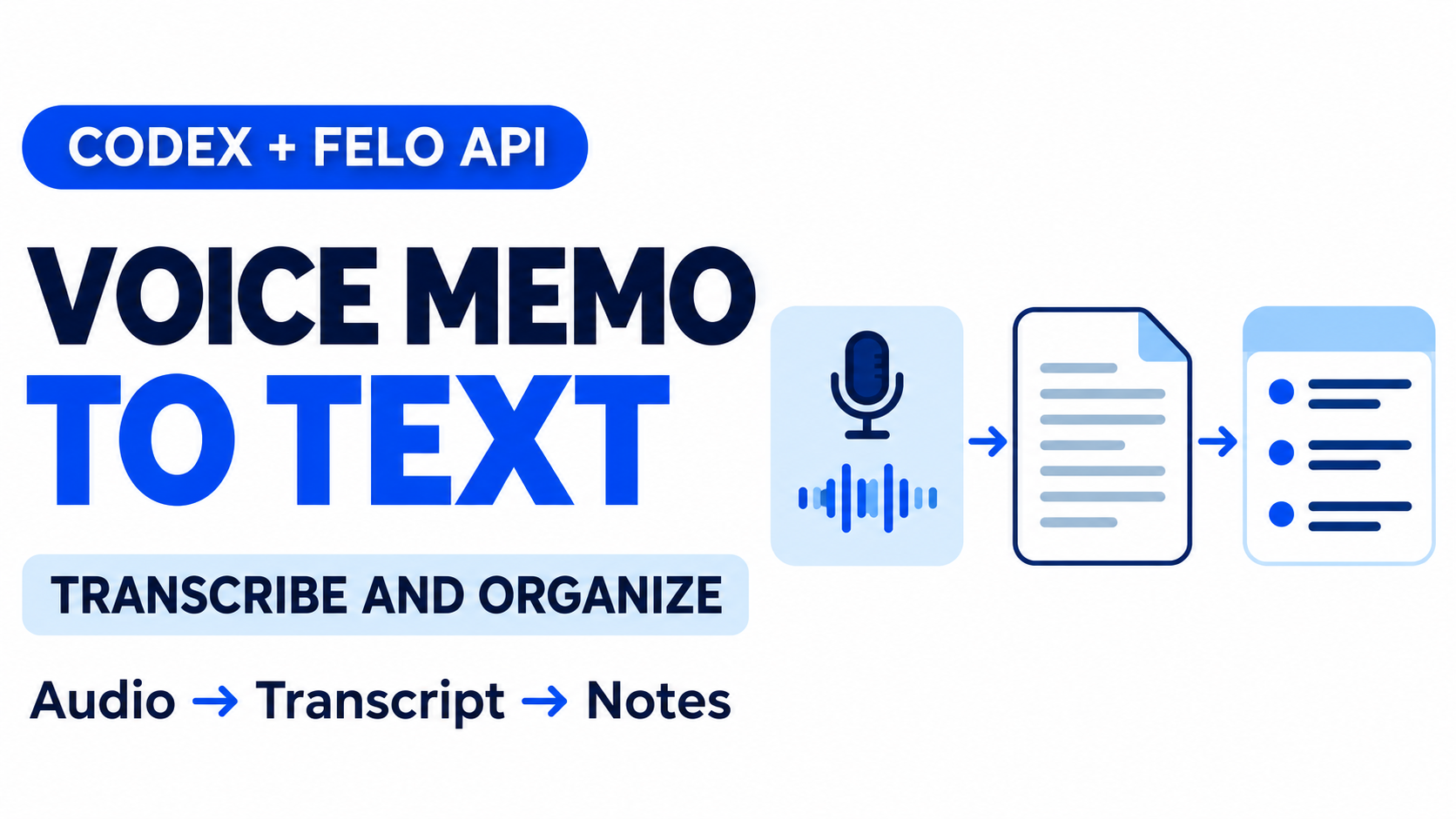
You recorded an idea on your phone because speaking was faster than typing. Now you need the useful parts in a document, not another audio file to search through later.
Codex and the Felo Speech-to-Text API can help you build that workflow. Give Codex a recording and a clear task: prepare the audio, send it to Felo for transcription, save the original transcript, and create a separate set of organized notes.
In this guide, you'll work toward two files: transcript.txt, containing the recognized speech, and notes.md, containing a readable summary and action items. The recording used in the example is illustrative; your transcript and notes will depend on your own audio.
What Codex and Felo each do
Codex helps carry out the steps in your workspace: checking files, preparing audio, running the request, and organizing text. The Felo Speech-to-Text API receives the prepared audio and returns a transcript in JSON. Codex can then use that transcript to create notes.
The API call and the note-writing step are separate. A summary can miss context or interpret a sentence incorrectly, so keep the original transcript and check important details against the recording.
The Felo file-transcription workflow described on its Speech-to-Text models page accepts a complete mono PCM WAV file of up to 25,000,000 bytes. Channel-specific sample-rate and duration limits also apply. It returns JSON; streaming and timestamps are unavailable through this workflow.
What you need before you start
- Codex with access to a local workspace and the ability to run commands in your environment.
- A voice memo you have permission to process. Place a copy in your workspace, for example
voice-memo.m4a. - A Felo API key with access to the speech-to-text endpoint and any required account balance. API usage may incur charges.
- A way to convert the recording to the required WAV format. This guide uses FFmpeg if it is available.
Codex can help you check for FFmpeg and prepare the file. Its ability to run commands, access the network, and read files depends on your environment and permissions. You may need to grant the relevant access when prompted.
Keep your API key private. Don't paste it into a Codex prompt, commit it to a repository, or put it in a shared document. Configure FELO_API_KEY securely in the environment where the API request will run; environment setup differs by operating system and Codex session.
Step 1: Put your voice memo in the workspace
Copy the recording into the folder Codex can access. For this example, call it voice-memo.m4a.
A short recording is a good first test. Make sure you know what it contains and that you are comfortable sending it to the API for processing. If other people appear in the recording, follow the consent and privacy requirements that apply to your situation.
Ask Codex to inspect the file:
Check the audio file voice-memo.m4a in this workspace.
Tell me its format and duration. Don't send it anywhere yet.
This gives you a chance to confirm the correct file before making a request. If the file is missing, give Codex the correct path or place a copy in the workspace.
Step 2: Ask Codex to prepare the audio
Felo's documented workflow expects mono PCM WAV rather than an arbitrary phone recording format. Ask Codex to prepare a separate copy:
Prepare voice-memo.m4a for the Felo Speech-to-Text API.
Create a mono PCM WAV file named voice-memo.wav. Use a sample
rate supported by the selected model and channel, verify the
file is non-empty, and check its size and duration against the
current limits. Keep the original file unchanged.
For example, when 16 kHz is accepted by the selected channel and FFmpeg is installed, the conversion command can look like this:
ffmpeg -i voice-memo.m4a -ac 1 -ar 16000 -c:a pcm_s16le voice-memo.wav
A sample rate is not a universal guarantee: check the selected model and channel's current requirements before submitting. Converting a recording can also make it larger, so check the converted WAV, not only the original file, against the size limit.
If your recording exceeds a limit, ask Codex to split it at sensible boundaries and process each part in order. Review the joins afterward; a word that falls across a cut can be missed.
Step 3: Ask Codex to transcribe your voice memo
Once the key is available in the request environment and the WAV file is ready, give Codex the task:
Use the Felo Speech-to-Text API to transcribe voice-memo.wav.
Check the current model and channel requirements first. Use
my FELO_API_KEY environment variable without printing or saving
the key. Save the API's original JSON response as
transcript-response.json and the returned transcript as
transcript.txt. Report any error instead of inventing a result.
Felo's model page provides a curl example using the parakeet-ultra model. With a prepared file named voice-memo.wav, the request follows this pattern:
curl --fail-with-body https://openapi.felo.ai/api/v1/audio/transcriptions \
  -H "Authorization: Bearer $FELO_API_KEY" \
  --form-string 'model=parakeet-ultra' \
  --form-string 'response_format=json' \
  -F 'file=@./voice-memo.wav;type=audio/wav' \
  -o transcript-response.json
Codex can inspect the returned JSON and save the transcript field as transcript.txt. If the request fails, inspect the error before continuing. A missing or revoked key, an unsupported audio format, or a channel limit can prevent a successful response. Don't use an example transcript as if it were your API result.
The API key, model availability, pricing, and channel limits can change. Check the current Felo Speech-to-Text models page before running the request.
Step 4: Turn the transcript into useful notes
A transcript preserves what the model recognized. Notes make that material easier to use. Keep them as two files so you can check the summary without losing the source text.
Ask Codex:
Read transcript.txt and create notes.md with:

1. A short summary
2. The main points
3. Any explicit action items and deadlines

Do not invent names, dates, or tasks. If a detail is unclear,
mark it for review. Keep transcript.txt unchanged.
Suppose a recording contains an idea for a guide, a request for a colleague to review the outline, and a planned launch date. The resulting notes might have sections such as Summary, Main points, Action items, and Needs review. The exact content should come from the returned transcript, not from the prompt or an assumed example.
Pay special attention to names, dates, figures, and words that sound alike. Codex can organize a transcript, but it cannot guarantee that a mistaken transcription reflects what was actually said. Replay the original recording when a detail matters.
Step 5: Find and use your files
At the end of the workflow, your workspace can contain:
| File | Purpose |
|---|---|
voice-memo.m4a | Original recording |
voice-memo.wav | Prepared audio sent for transcription |
transcript-response.json | Original response from the API |
transcript.txt | Recognized speech in a readable text file |
notes.md | Organized summary and action items |
You can ask Codex to rename the files, create a dated folder, or format the notes for a project. Review the results before sharing them: a polished summary is still derived from an automatically generated transcript.
Troubleshooting
The API key is rejected
Check that a valid Felo API key is available to the environment running the request and that it has the required access. A key set in one terminal or app session is not necessarily available in another. Avoid displaying the key while troubleshooting.
The audio file is too large
Convert the file first and check the size of the resulting WAV. If it exceeds 25,000,000 bytes or a channel's duration limit, split it into smaller segments. Keep the parts in order and review the boundaries when joining transcripts.
The file is WAV, but the request still fails
A .wav extension alone doesn't establish that the file is mono PCM or that its sample rate meets the selected channel's requirements. Ask Codex to inspect the audio properties and check the current limits. Confirm the prepared file contains audio rather than an empty output.
I need speaker names or timestamps
The Felo file-transcription workflow described here returns JSON without timestamps or streaming. Don't assume the response contains speaker labels or timed captions. Check whether another workflow meets your requirements before building a feature that depends on them.
Frequently asked questions
Can Codex transcribe a voice memo without Felo?
Codex may have access to different tools depending on its environment. This guide specifically uses the Felo Speech-to-Text API for the transcription request and Codex to help prepare the file and organize the result.
Does this work with iPhone voice memos?
You can start with a recording exported from your phone, but prepare it in the format required by the selected Felo endpoint and channel. The original file may need conversion before upload.
Is the transcript the same as the notes?
No. The transcript is the recognized speech returned by the transcription workflow. Notes are a separate, edited or generated summary. Save both so you can review and correct the results.
How much does transcription cost?
Pricing depends on the model, channel, and usage. Check the current Felo model listing before running a request; Codex access does not automatically include Felo API usage.
A voice memo is most useful when you can find the idea again. With Codex handling the workflow and Felo providing the transcription, you can turn a short recording into a transcript and a set of notes you can edit, search, and reuse.