Talk First, Type Less: Introducing Voice Notes & Voice Commands in Felo LiveDoc

Meet Felo LiveDoc’s New Voice Notes and Voice Commands for Effortless Workflows
Over the past year, many of you have told us the same thing in different words:
“I think faster than I can type.”
“When I’m in a meeting, I don’t want to fight with the keyboard.”
“I just want to talk and let Felo handle the rest.”
Today, we’re happy to share something we’ve been quietly building for you.
On desktop browsers, Felo LiveDoc now supports two new ways to work:
- Voice Notes – speak your thoughts, meetings, or classes and turn them into structured, reusable knowledge.
- Voice Commands – talk to Felo to run AI actions, without touching your keyboard.
We didn’t build these as “flashy new features.” We built them because we want Felo to feel like working with a teammate who understands you when you speak.
Why We Built Voice-First Workflows
When you’re brainstorming, in a meeting, or working on the go, typing is often the slowest and most distracting part of your workflow. You lose ideas while switching windows, fixing typos, or formatting text. We see this every day in how you use LiveDoc for- Brainstorming new
- Taking meeting notes
- Capturing thoughts while your hands are busy
Our goal with Voice Notes and Voice Commands is simple:
- Lower the barrier to input – let you directly by speaking, without a blank page staring back at you.
- Guide you with real scenarios – so you’re not wondering “What should I do with this feature?”, but instead choosing from flows like Brainstorming, Meetings, or Chat & Record.
- Make interactions truly voice-first – once you start speaking, you shouldn’t have to stop and type to tell AI what to do next.
We don’t typing completely. But for many moments in your day, speaking is simply the most natural way to think.
Voice Notes: Take Notes With Your Voice
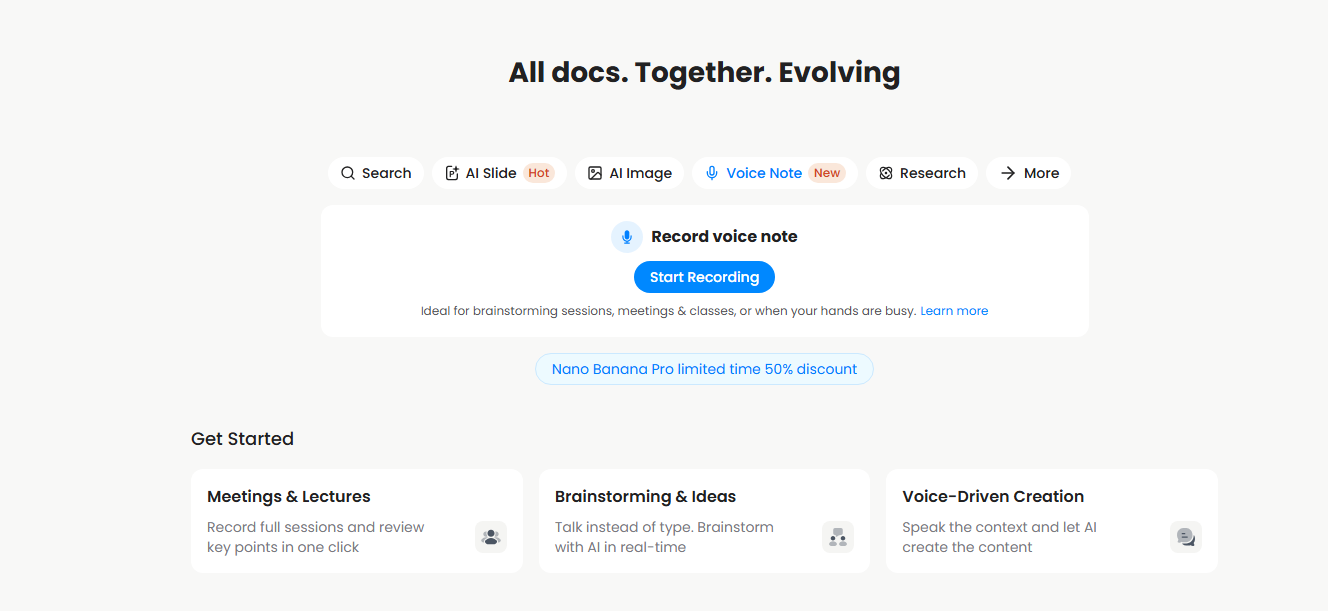
You can now start Voice Notes directly from the Felo home page on desktop.
One Click to Start Recording
In the Voice Note tab, there’s a large blue “Start Recording” button. When you click it:
- Felo creates a new blank LiveDoc.
- Voice Note recording mode opens in a floating window.
- Recording starts automatically.
From that moment, you can simply talk.
You might be:
- Describing ideas for a new project
- Walking through a product spec out loud
- Capturing thoughts after a client call
As you speak, Felo is not only recording. It is also preparing your words to become searchable, structured knowledge, not just one-off input that disappears after use.
Designed Around Real Scenarios
On the Voice Note home tab,’ll also find scenario cards that match how many of you already use Felo:
- Brainstorming – capture fleeting ideas before they vanish.
- Meetings – auto-transcribe discussions and make it easier to generate structured summaries later.
- Chat & Record – talk to AI while you’re recording, so thinking and doing can happen in one place.
you click a scenario card & Record**:
- Felo creates a new LiveDoc and a Voice Note card.
- Recording starts automatically.
Behind the scenes, we also tune the AI for that scenario. For example aings** scenario, later summaries are biased toward producing clear meeting minutes and action items rather than9]
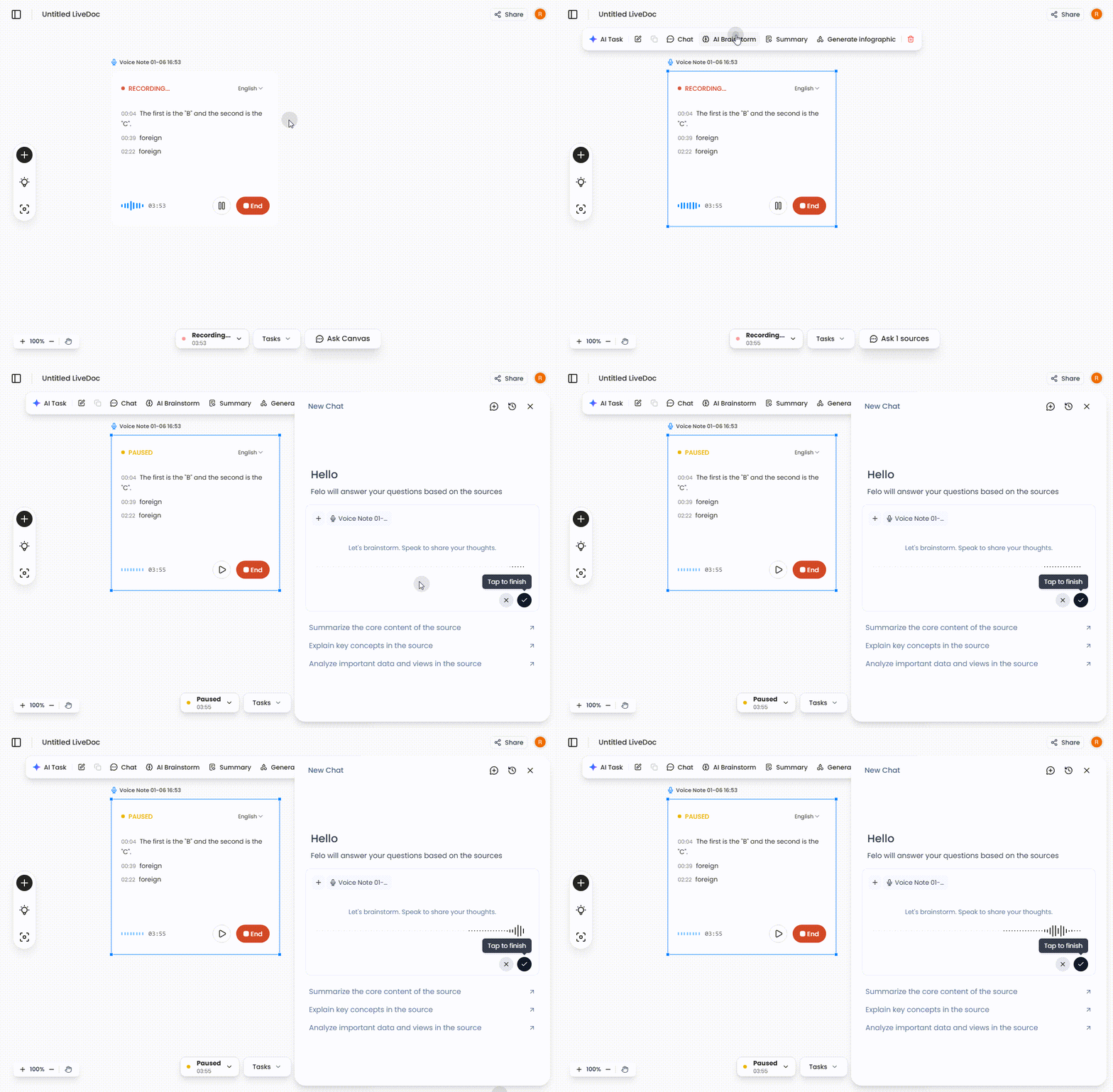
When you click**, we something slightly different:
- Felo creates a new Live chat sidebar.
- Voice input is turned on immediately for the.
- In this case, don Note card, so you can brainstorm directly with AI via voice.
The idea is to let you pick how you want to work, instead of forcing a single fixed flow.
Voice Commands: Just Say What You Want to Do
While Voice Notes focus on capturing and structuring your speech, Voice Commands are aboutacting on it.
With Voice Commands, you can:
- Free yourself from the keyboard – just speak what you want, in your own words.
- Correct yourself mid-sentencephrase, Felo will still execute the right action once you finish speaking.
- Trigger AI tasks like summarizing, brainstorming, generating slides, or creating images with one instruction.
You might say things like:
- “Summarize this meeting as bullet points for the team.”
- “Turn into a presentation outline.”
- “Give me brainstorm directions based on what I just said.”
The system is designed “one-shot” voice instruction: talk once, maybe rephrase as go, and F in one go—no extra clicking1## Voice-First make voice feel natural, we also revisited the in menus.
When you start recording a document, the top** updates with that are designed to work hand-in-hand with Voice Notes:
Ask While RecordingBrainstormSummary-Generate infographicthere to support real workflows such lecture while asking AI clarifying in parallel- Recording a meeting and then generating a structured summary in one click
- Turning your spoken explanation into a visual infographic when you’re done]
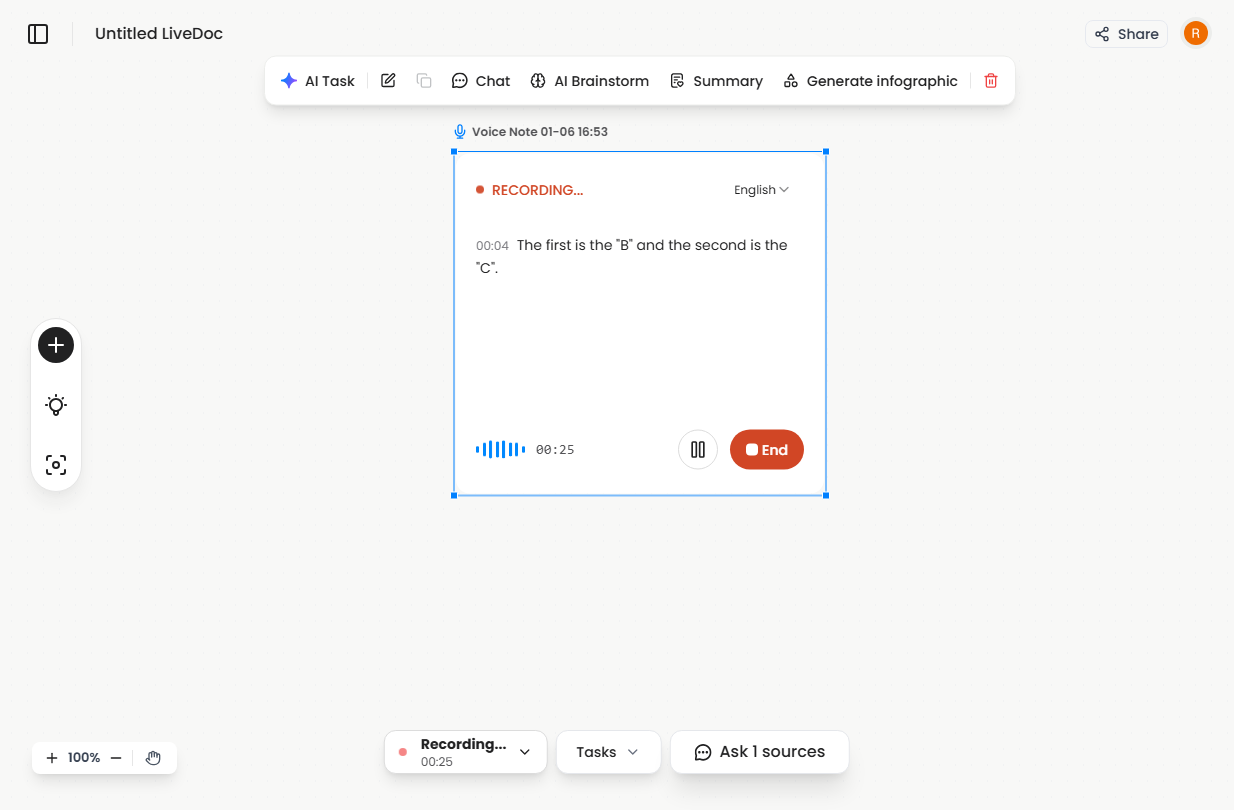
We know that in the middle of a call or class, you don’t have the time or focus to dig important actions are right where you need them, to your recording experience.
A More Visible, More Guided Voice Experience
One piece of feedback we:
“Voice features are powerful, but I didn’t notice them at:
- Added a Voice home page, with its own tab and hero area.
- Used scenario cards (Brainstorming, Meetings, Chat & Record) to guide into concrete, real-world workflows instead of abstract features.
- Connected certain scenario entries (like Brainstorming) directly to LiveDoc chat with voice input, so you can “talk to Felo” without extra steps.
Our intention is not to push you into using voice, but to make it obvious and easy whenever it would actually help## Where We’re Heading
With Voice Notes × Voice Commands, we see LiveDoc evolving toward a truly—your meetings, classes, ideas, and daily thoughts.- can **speak to actelo to, generate, brainstorm, and visualize without reaching for the keyboard.
We’re not trying to replace how you already work. We’re trying to remove friction in the when typing gets thinking.
As always, this is just the first step. We’ll keep adjusting- The ** the home page
- The AI behaviors behind each flow (like better meeting minutes, better brainstorm helpers)
- The menus and prompts that appear while you’re recording[##
Try It and Tell Us What You Think
If you’re on a desktop browser:
- Open Felo.
- Go to the Voice Note tab on the home page.
- Click Start Recording, or pick a scenario card that matches what you’re doing right now.
Just talk as you normally would in a meeting, class, or brainstorming session. Let Felo handle the capture and heavy lifting.
We built this for you, our long-time users who’ve treated Felo like part of your daily work. As always, your feedback is what shapes what we build next.
Thank you for building this voice-native future with us.