
PowerPoint to PDF
PowerPoint to PDF: export a copy, keep the slides editable
The PDF is a copy, not a move. It opens in a new tab, and the file you exported from stays on the canvas — edit it, then export a fresh one.
The PDF leaves. The slides stay.
Export your PowerPoint to PDF
The export
A copy leaves. The original stays.
Exporting does not move your file anywhere. Here is the split.
In the PDF
- One page per slide
- The slides on the canvas, in the order they sit, as fixed pages.
- A document that opens anywhere
- Any reader, any device — no PowerPoint and no fonts to install.
- A file you can pass on
- Attach it, print it, or send it on. A PDF does not reflow on the other side.
Still on the canvas
- The PowerPoint you uploaded
- It sits where you dropped it, as slides you can open and edit.
- The next export
- Change a number or reorder a page, then export again from the current slides.
- Everything you add later
- The PDF is a snapshot of one moment, not a lock on the file.
The format
What changes when slides become a PDF
A PDF is not a slideshow, and a few things follow from that.
- It does not play
- Transitions and animations belong to the slideshow, not to the page. A PDF holds still.
- It does not reflow
- The layout is fixed — which is why it looks the same in every reader, and why a long line cannot wrap its way out.
- It is not editable in place
- To change a word, edit the slides on the canvas and export a new PDF. The first export is untouched.
Where to find it
The export lives on the file
Right-click the file on the canvas. Export is one of the items, and it opens onto two: Export as PDF, and Download PPTX — the second one still carries a Beta badge.
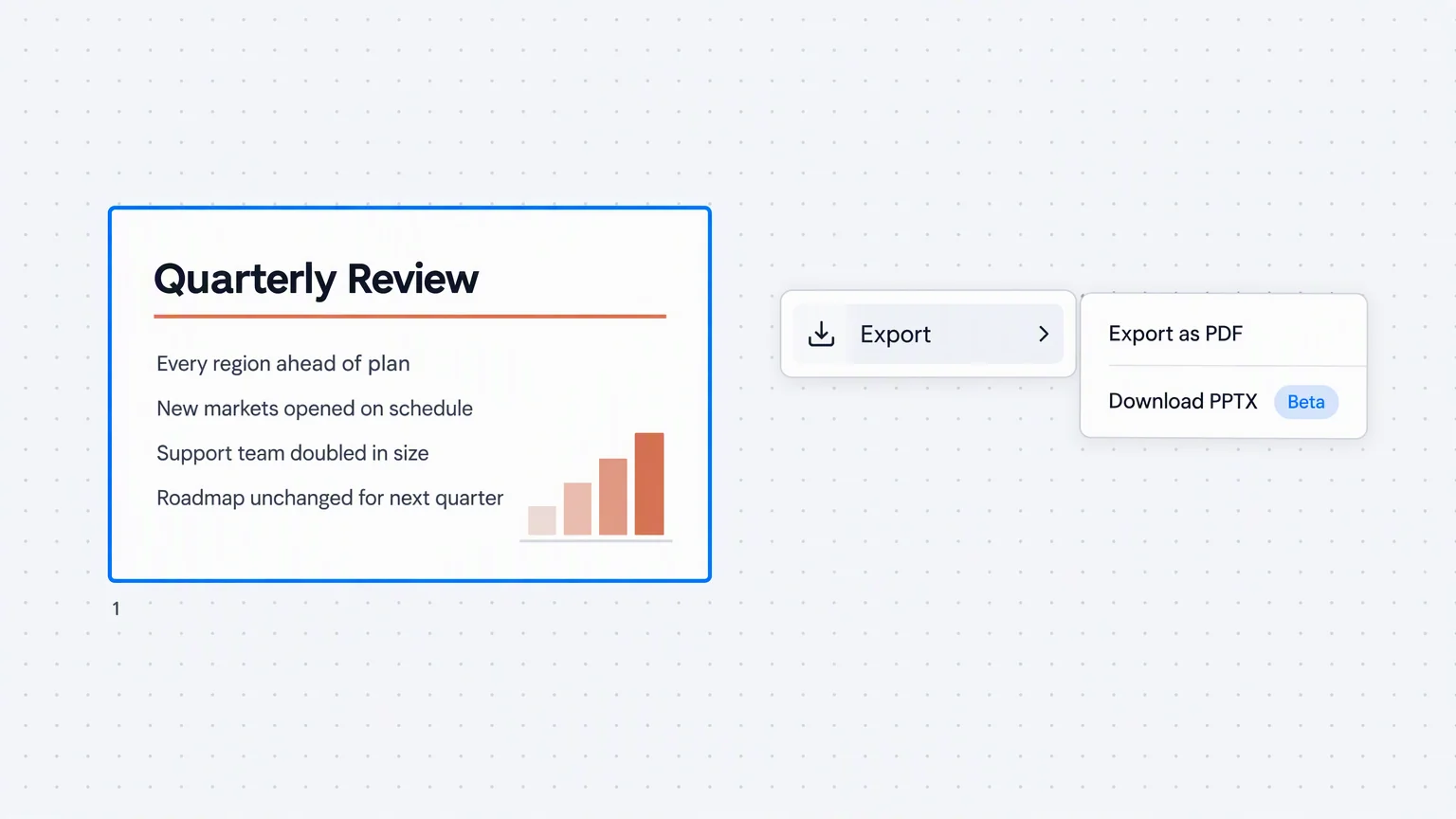
- Exporting PDF appears while it runs, and the PDF opens in a new tab when it is ready.
- Ask for a second export while the first is running and it tells you so, instead of queueing another.
- The menu belongs to that file, so nothing else on the canvas is involved.
The path
From a file on your desktop to a PDF
The file goes onto the canvas first. The PDF comes off it.
Drop the PowerPoint on the canvas
Drag a .pptx onto Felo LiveDoc. It lands where you dropped it, as slides you can open and edit.
Right-click it and open Export
The menu belongs to that file. Pick Export as PDF and the export starts.
Take the PDF, keep working
The PDF opens in a new tab. The slides are still on the canvas, ready for the next change.
Before you export
What else you can do with the file
Two of these work on the same presentation. The third goes the other way.
Export
Export a PDF, keep the file you made it from
Put the .pptx on the canvas and take the PDF off it. The slides stay editable.
Export your PowerPoint to PDF