
PowerPoint AI auto generation
PowerPoint AI Auto Generator
Give it a topic, notes, files, or a URL. Felo auto-generates the outline, slide order, and content, then hands you an editable PPTX to review.
Built for a full first draft, not a blank canvas you still have to fill in slide by slide.
Start PowerPoint auto generation20 million decks made with Felo, by 10,000+ teams.
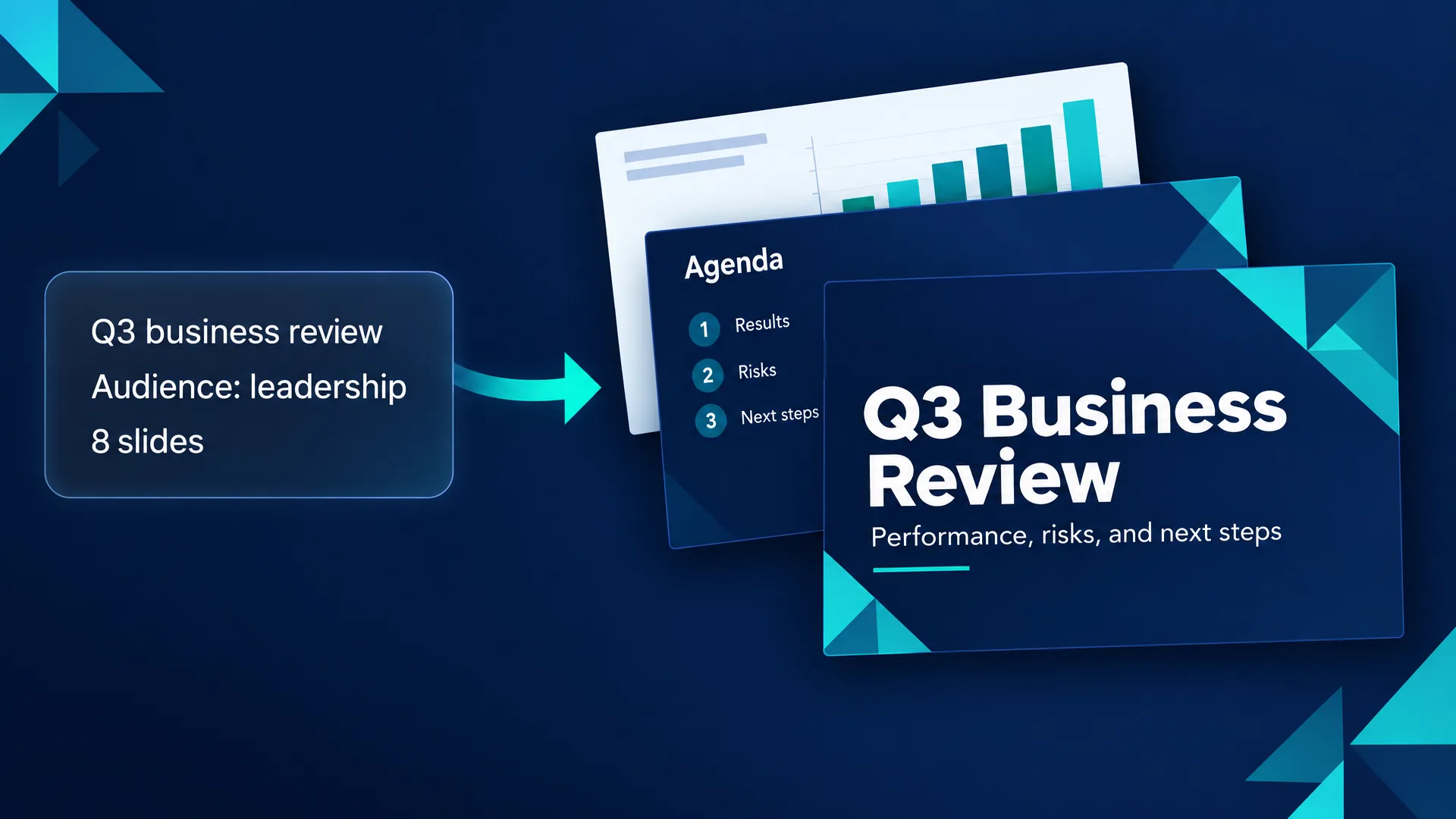
Deck routes
Choose the PowerPoint you need today
Tell Felo the job behind the deck. Auto generation works better once the audience, purpose, and slide route are clear.
Business proposal
Turn a client problem, budget, and recommended plan into a proposal deck.
Executive report
Convert metrics, risks, and recommendations into a concise leadership update.
Lesson slides
Build learning goals, examples, activities, and recap slides for a class.
Startup pitch
Shape problem, market, product, traction, business model, and ask.
Training deck
Explain a workflow step by step for onboarding or internal enablement.
Launch plan
Organize positioning, channels, timeline, and launch messages.
How auto generation works
From prompt to PowerPoint draft, automatically
Automatic generation works best when the AI has a task, context, and a review step. Felo keeps all three visible.
- 1
Write the deck brief
Name the topic, audience, goal, slide count, and tone so the first outline has direction.
- 2
Add notes, files, or URLs
Attach source material when the deck needs real facts, meeting notes, or document context.
- 3
Auto-generate the slide order
Felo plans the cover, agenda, sections, evidence, comparisons, and closing slides for you.
- 4
Review and hand off
Check claims, adjust wording, then move into an editable PowerPoint workflow.
What auto generation gets you
A structured draft, not loose bullet points
The generated result is a reviewable first draft: story, slide sequence, and content blocks in one place.
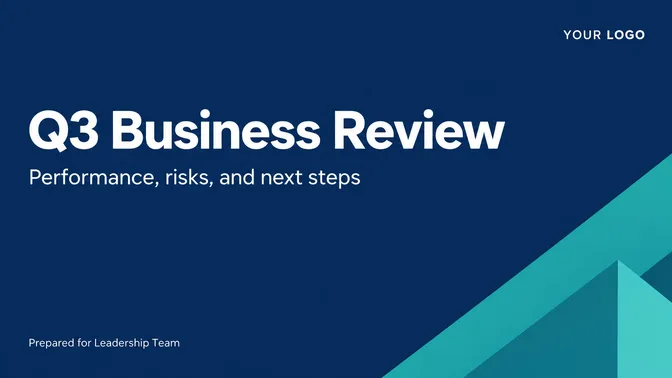
Start with the meeting goal, audience, and sections.
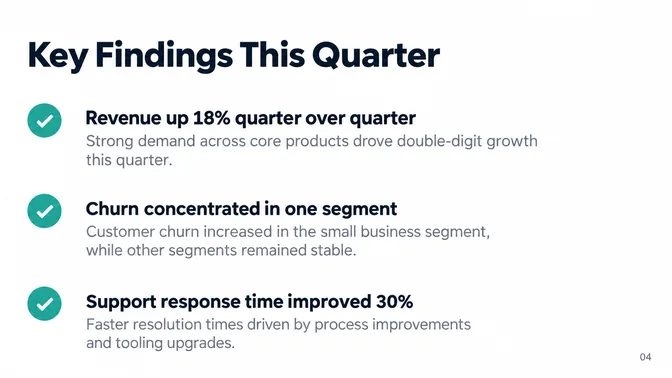
Turn notes or sources into concise findings and comparisons.
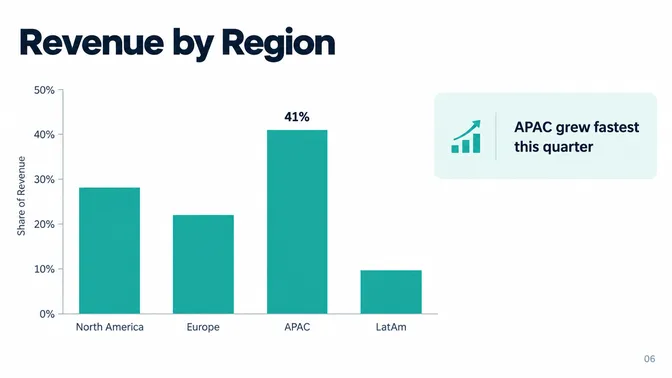
Slide layouts and chart suggestions matched to the deck's purpose.
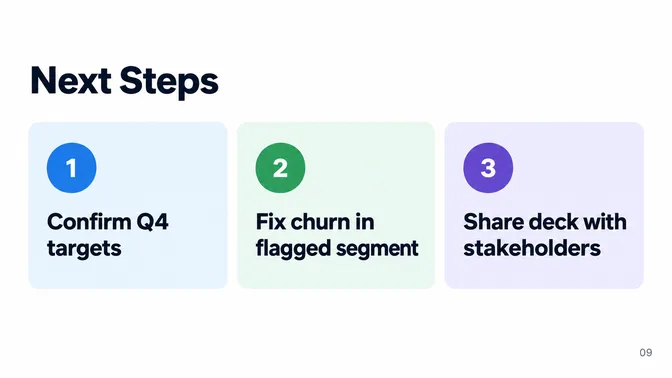
Move from draft to review, polish, and presentation prep.
Deck images are generated with GPT-Image 2.5 and Nano Banana.
Positioning
Auto generation vs. template browsing
Templates help once your content is ready. Auto generation helps earlier, while you still need the story and slide order.
| Need | PowerPoint AI Auto Generator | Template gallery |
|---|---|---|
| Starting point | PowerPoint AI Auto GeneratorA prompt, notes, files, or a URL, plus a deck goal. | Template galleryChoose a visual layout first. |
| Content work | PowerPoint AI Auto GeneratorOutline, evidence, section logic, and first-draft text, generated automatically. | Template galleryYou usually write or paste the content yourself. |
| Best fit | PowerPoint AI Auto GeneratorReports, proposals, lessons, pitches, and meeting decks. | Template galleryPolishing slides after the message is already decided. |
How to
How to auto-generate a PowerPoint with AI
Use this flow when you want more than a decorative slide set.
- 1
Describe the purpose, audience, slide count, and deadline.
- 2
Paste notes or attach source files and URLs when accuracy matters.
- 3
Pick the deck route: proposal, report, lesson, pitch, training, or launch.
- 4
Review the generated outline and edit claims before presenting.
PowerPoint AI Auto Generator FAQ
Try a different starting point
Auto generation works from a prompt. These use other material as the source.