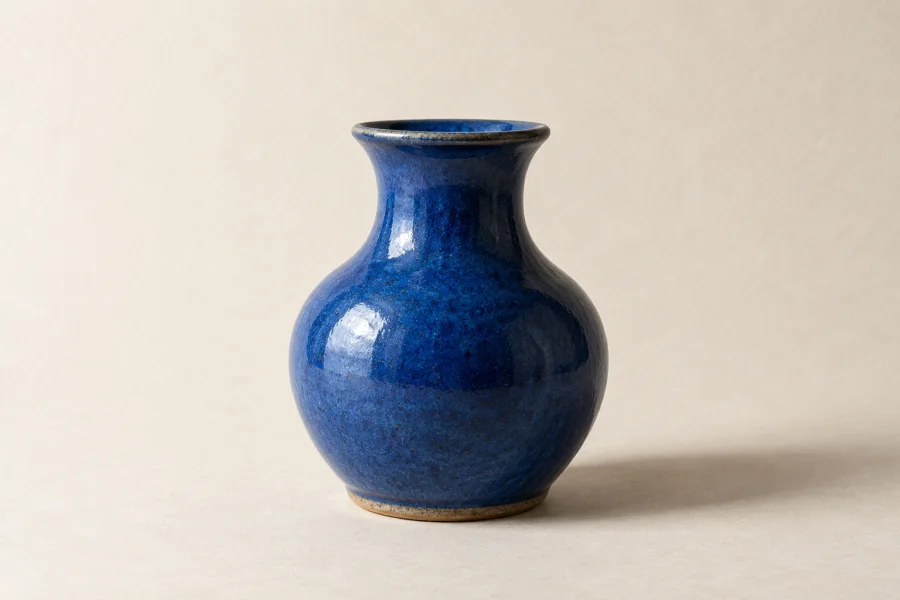
Product photos
Prepare a small product photo for a larger layout. Check labels and edges in the result.
ONE IMAGE. NO PROMPT.
Give a small image more room. Upload one photo, choose an output size and upscale without writing a prompt.
Sign in to upscale. 4K requires Pro; account limits apply.
Your image is uploaded to Felo when you start. Privacy policy
Your result appears here

Upload one image to get started. No text input is needed.
Results depend on the original image. AI can change fine details.
Select a JPG, PNG or WebP from your device.
Use 2K, or choose 4K with a Pro account.
Start the task, then open the full-size result to save it.
Drag to compare low-resolution and clear versions of the same illustrative image. This simulated example is not a measured AI upscaling result.
 Low-resolution exampleClear example
Prepare a small product photo for a larger layout. Check labels and edges in the result.
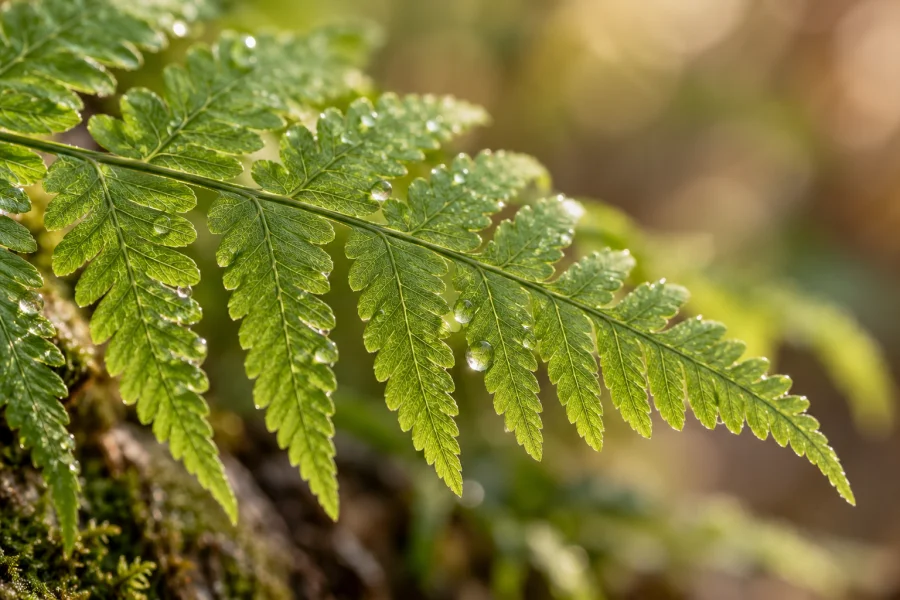
Enlarge a photo for your next project. Review delicate textures before publishing.

Enlarge a portrait for a presentation or profile layout. Review eyes, skin texture and fine hair; AI may change facial details.

Prepare artwork for a larger digital layout. Check outlines, small patterns and any lettering against the original.

Give a favorite everyday photo more space in a collage or album layout. Inspect shadows, fabric and other fine textures.

Prepare a room or building photo for a larger layout. Check straight lines, window frames and fine material textures.
AI-generated illustrative images, not measured before-and-after results.
Resizing changes the pixel dimensions. AI upscaling can also reconstruct edges and textures, but it may change small details rather than recover the original information.
Start with 2K for a larger image to use in a web layout. Choose 4K with Pro when your layout needs more pixels. These are output size settings, not fixed 2× or 4× enlargement factors; actual dimensions depend on the image and model.
Open the full-size result and inspect product labels, faces, fine textures and the edges of AI-generated artwork. Compare it with the original before using it in a product listing, presentation or larger design.
Upload the original file when possible, rather than a screenshot or a repeatedly compressed copy. For product photos and artwork, choose an image with readable text and clear edges; upscaling cannot reliably recreate missing information.
No. Upload one image and click Upscale image. The tool sends an automatic upscaling operation.
This page accepts one JPG, PNG or WebP up to 20 MB and 40 million pixels. Other formats and batch uploads are not supported here.
You can select 2K or 4K. 4K requires a Felo Pro plan; actual dimensions depend on the image and model.
Sign-in is required, and your account limits apply. This page does not offer unlimited free processing; 4K requires Pro.
No. AI may reinterpret small details, text or textures. Review the result before using it; your source file on your device is unchanged.
PNG upload is supported, but this tool does not currently guarantee that a transparent background will be preserved. Check the result before using it as a logo, cutout or overlay.
It may improve the appearance of edges and textures, but severe blur, compression or missing details limit the result. Check faces and text carefully; a larger image is not necessarily a more accurate one.