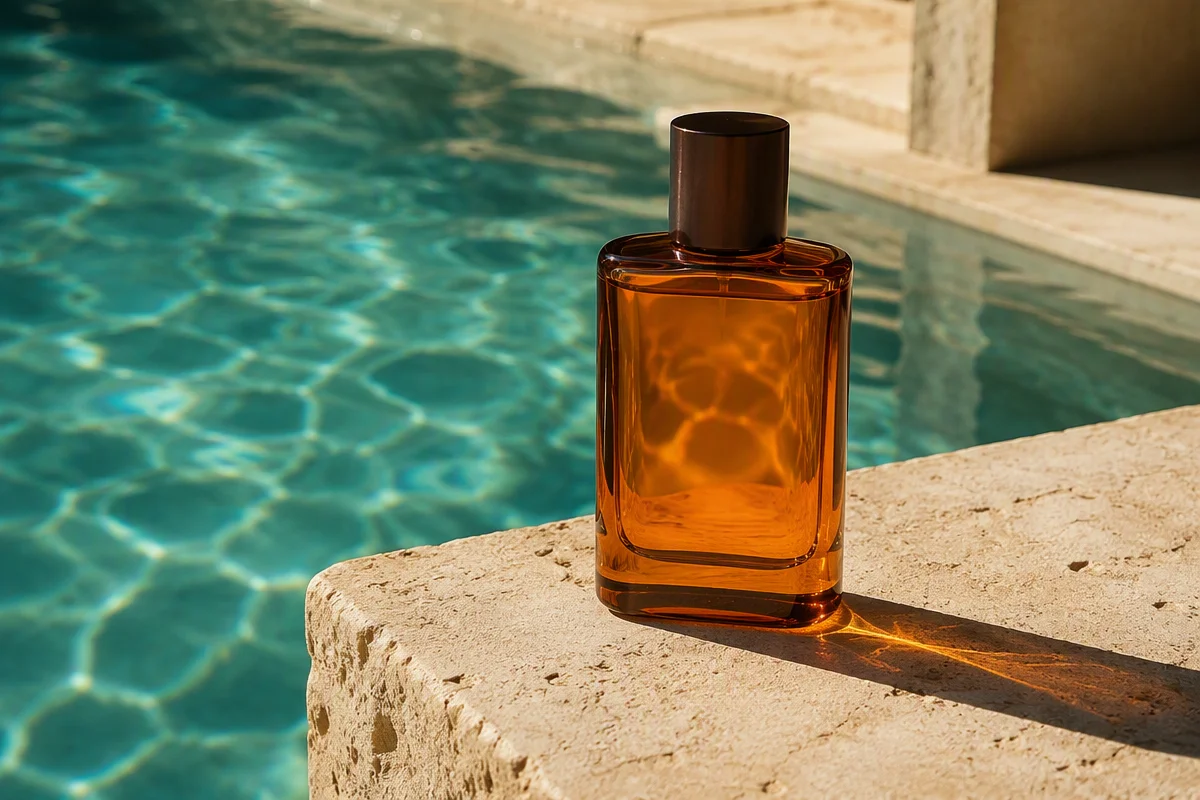
Starting image
Pool water rises into a cinematic wall around the bottle.
Product Visuals
Turn a product shot into a commercial moment
Build movement around the product with camera travel, reflections, water, fabric, smoke, or changing light.
Image to Video AI
Animate a photo, product shot, portrait, illustration, or AI image. Describe the subject motion, camera, atmosphere, and pace before you generate.
Available to Pro users. Credits are charged by generated video length and quality.
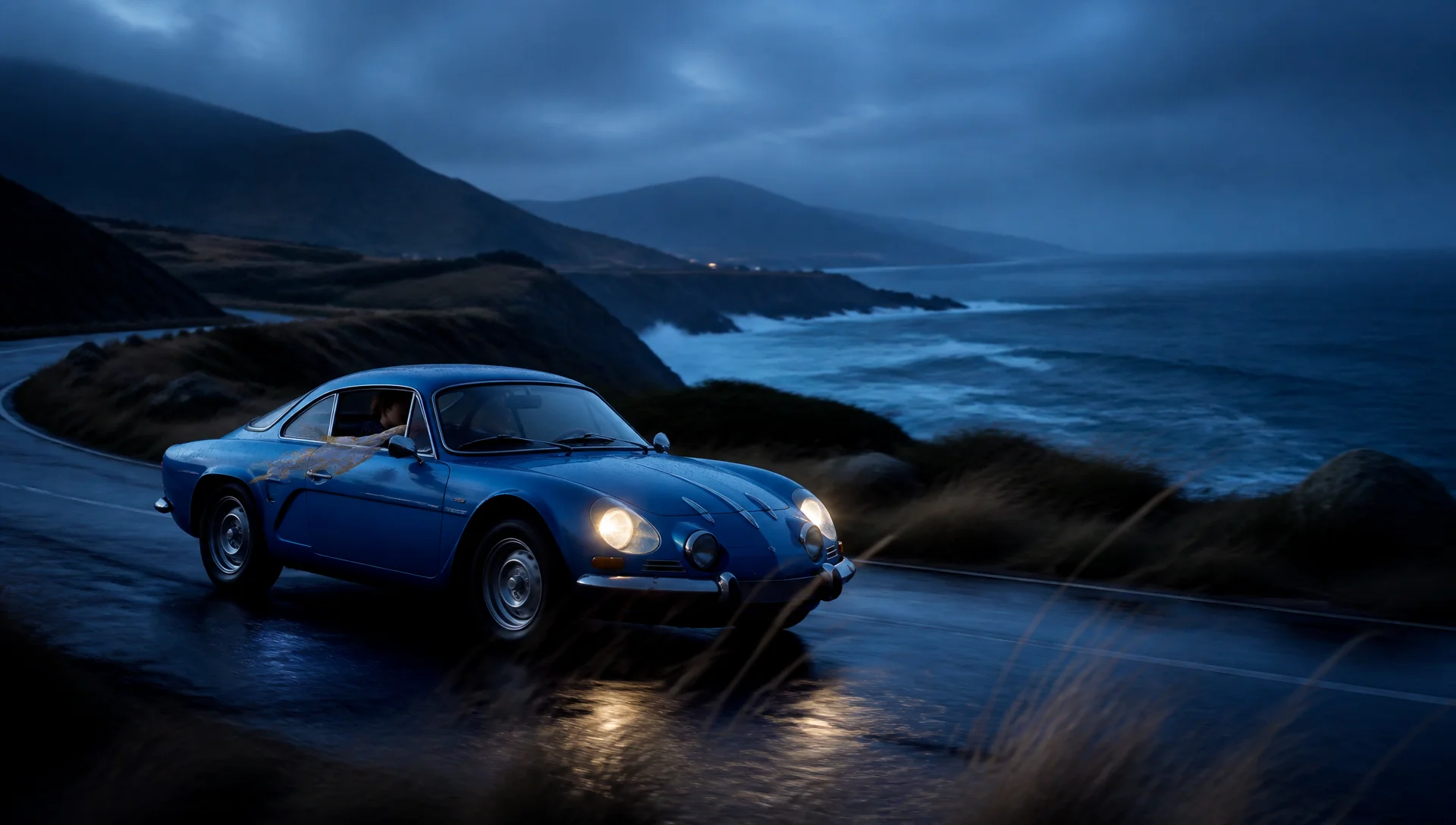
Starting image
A vintage car unfolds into an original mechanical warrior.
Image to Video Examples
A strong source image sets the subject, composition, and visual tone. The motion prompt decides what happens next.
Starting image
Pool water rises into a cinematic wall around the bottle.
Product Visuals
Build movement around the product with camera travel, reflections, water, fabric, smoke, or changing light.
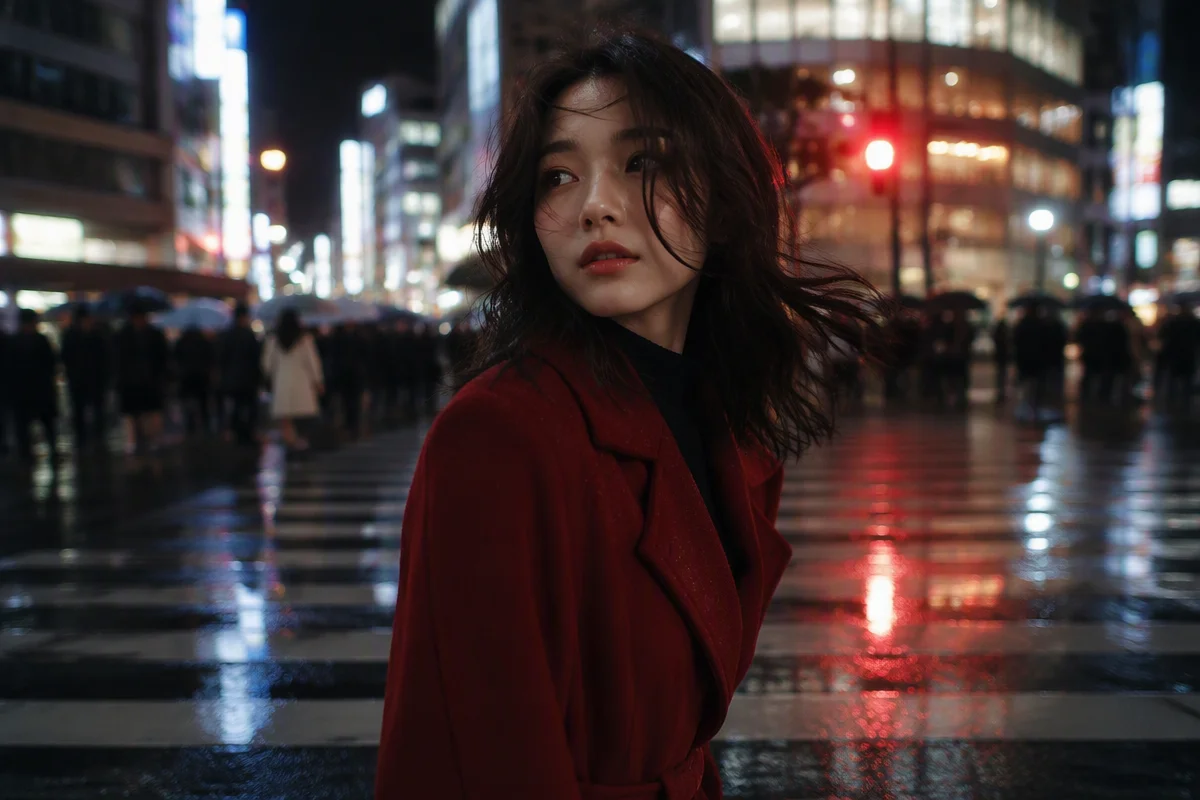
Starting image
A quiet portrait enters a fast-moving Tokyo night.
Portraits
Keep the person as the visual anchor while expression, hair, clothing, traffic, light, and camera motion bring the frame to life.
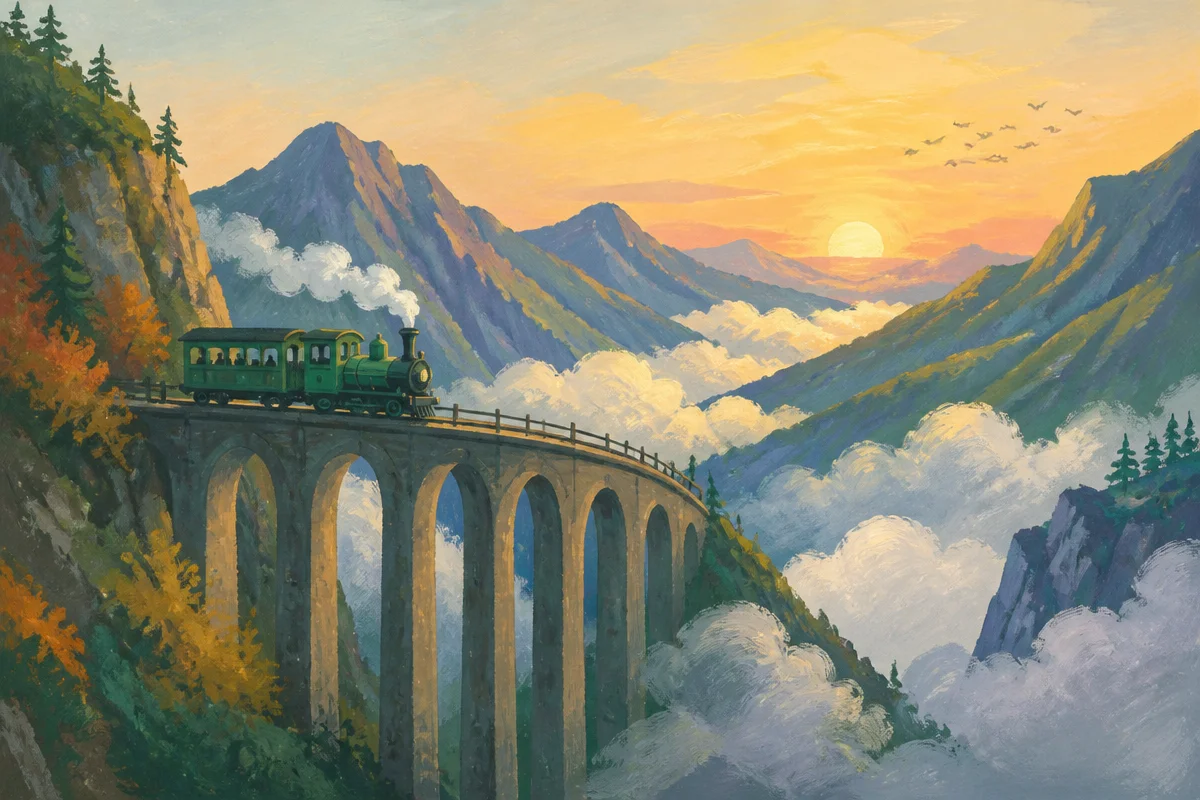
Starting image
A painted train races from the bridge into the clouds.
Illustrations
Animate vehicles, clouds, weather, depth, and camera movement without losing the style of the original artwork.
How Image to Video AI Works
Start with one image, define a transition between two frames, or combine several references. Tell the generator what each asset should control.
01
Use one image to set the subject, composition, and opening frame. The prompt directs what moves next and how the camera follows it.
02
Provide an opening image and an ending image, then describe the transition between them. This works well for product reveals, transformations, and scene changes.
03
Use up to nine images to reference a character, product details, clothing, setting, visual style, or ending frame. State what each numbered image contributes.
04
Use images for appearance, a reference video for motion or camera work, and audio for voice, sound, or rhythm. A request can include up to 12 reference files in total.
A Practical Workflow
A short instruction that explains the role of each asset is easier to follow and easier to revise.
01
For example: Image 1 is the opening frame, Image 2 is the ending frame, and Image 3 defines the character's clothing.
02
Write the subject action, camera path, environmental change, pace, and the final frame or pose.
03
Choose the duration and quality, review the result, then change one detail such as motion range, camera speed, or ending pose.
Commercial Image-to-Video Uses
Start with visuals your team already approved, then create short motion assets for ads, product pages, pitches, launches, and social campaigns.
01
02
03
04
05
06
Better Source Images
Photo-to-video AI works best when the subject is readable and the scene leaves space for the action you want.
A clear main subject with visible edges and room around it.
Lighting, perspective, and depth that are easy to read.
Enough detail to show faces, materials, textures, or illustration lines.
A composition that already resembles the opening frame you want.
Crowded scenes can create competing motion.
Tiny text and intricate patterns may change.
Hands, faces, logos, and product geometry need clear source detail.
A tightly cropped subject leaves little space for walking, turning, or transforming.
Treat the source image as the first frame, not as a loose mood board.
Image to Video AI Prompt
A useful prompt tells the generator what moves, how the camera sees it, what changes around it, and where the shot should arrive.
Too open
Make the car move and turn into a robot.
Directed shot
A cobalt-blue vintage coupe accelerates along a rain-soaked coastal road. Its body panels unfold into an original humanoid mechanical warrior while the camera tracks low beside it. Heavy rain, headlight reflections, stormy dusk, continuous transformation, cinematic timing.
The car accelerates and continuously unfolds into a mechanical warrior.
A low tracking camera stays beside the transformation.
Heavy rain, wet-road reflections, a coastal road, and stormy dusk remain visible.
The transformation progresses through one shot and ends on the completed warrior.
Keep the cobalt-blue color, wet-road reflections, and coastal setting recognizable.
Motion and Visual Anchors
Use the prompt for change. Use the source image for identity, composition, materials, and color direction.
Subject action and transformation
Camera path and shot distance
Weather, fabric, traffic, water, smoke, and light
Pace, transition, and final state
Main subject identity
Core composition and perspective
Product shape, material, and illustration style
Lighting and overall color direction
Image-to-video results can still vary. Clear source detail and a focused motion instruction make each revision easier to judge.
Image to Video vs. Text to Video
Both workflows create short AI videos. The right starting point depends on whether you already have a visual worth preserving.
Starts with
A photo, product shot, portrait, illustration, or AI image.
A written description of a scene.
Best when
The subject, composition, materials, or art direction already matter.
You want to invent the subject, composition, and setting from scratch.
Main direction
Motion, camera, environment, pace, and ending.
Scene, subject, visual style, action, camera, and mood.
Watch for
Instructions that conflict with the source image.
A broad prompt that leaves too many visual decisions open.
Better Image-to-Video Results
A shorter, more specific prompt is easier to revise than a long list of competing actions.
Name the action, speed, direction, and final state instead of asking for generic movement.
State which subject details, colors, materials, and parts of the composition should remain recognizable.
Choose one primary camera move for the shot, such as a push-in, side track, orbit, or locked frame.
Use a clearer source image and reduce large, conflicting actions around the most important details.
Describe an opening action, the change that follows, and the final pose or frame.
Nine role-specific examples show the kinds of details teams may notice when testing an image-to-video workflow.
“Using a first and last frame made the packaging reveal much easier to control. We could show the box closed, opened, and ready for the product page.”
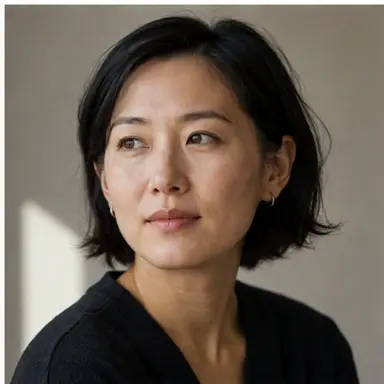
Maya Chen
E-commerce Creative Lead
“The multi-image references were the useful part for our pitch. One image held the character, another the location, and a third the final campaign look.”
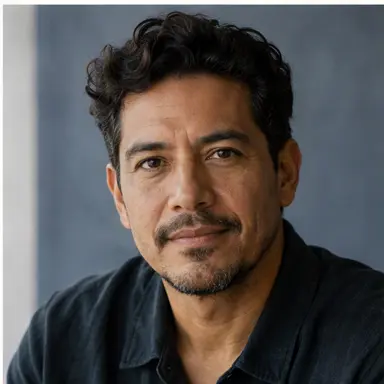
Daniel Reyes
Agency Producer
“I could keep the styling from the original editorial image while adding fabric movement and a slow camera orbit. It felt more directed than a generic animation.”
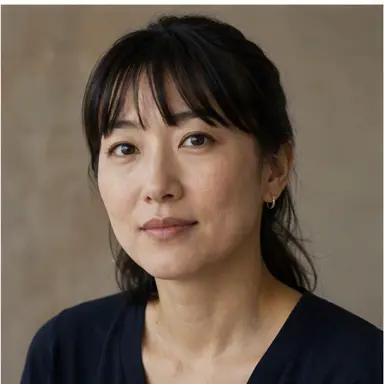
Aiko Tanaka
Fashion Content Editor
“Turning an approved campaign still into a vertical teaser saved us from rebuilding the concept for short-form video. The prompt still needed a couple of focused revisions.”
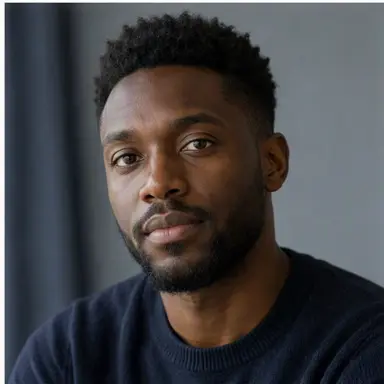
Noah Williams
Social Media Manager
“The product stayed recognizable while the reflections, liquid, and camera movement gave the fragrance image the pace of a real launch film.”
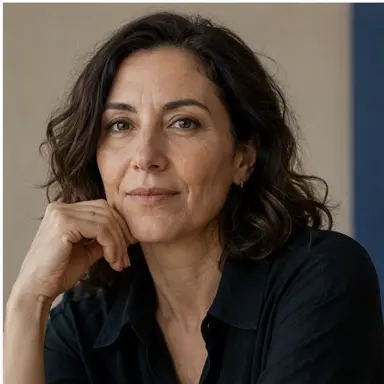
Sofia Moretti
Beauty Brand Founder
“The best results came when I left room around the subject and changed one instruction at a time. It works much better than asking for several movements at once.”
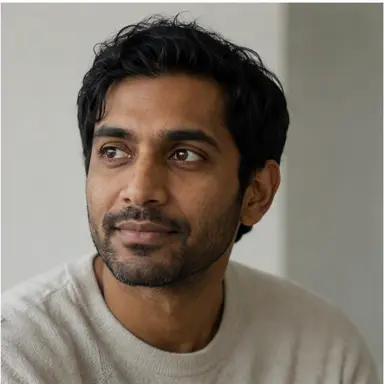
Arjun Mehta
Product Photographer
“A static interior render became a convincing walkthrough-style shot with a slow push-in and changing daylight. It was useful for an early sales presentation.”
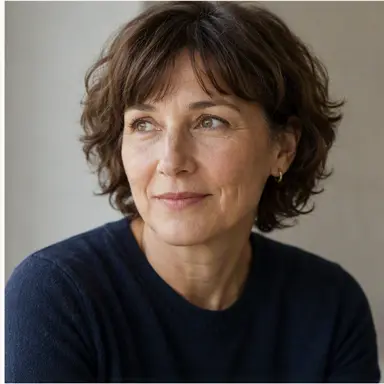
Claire Dubois
Property Marketing Consultant
“We used separate references for the character, armor details, and environment. Labeling each image in the prompt kept the visual direction much more consistent.”
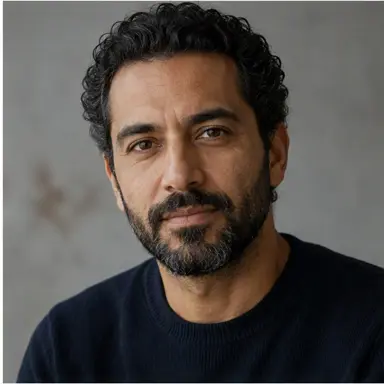
Omar Haddad
Game Publishing Producer
“First-and-last-frame control helped me plan a transformation shot before production. I still reviewed a few versions, but the intended ending stayed clear.”
Lina Park
Independent Filmmaker
Credits, Cost, and Access
Rates shown are limited-time offers. Estimated USD values use roughly 1,000 credits as US$1 and may change.
Image-to-video generation is available to Pro users. Current rates and available quality options appear in your workspace.
2K video
138 credits per second
About US$0.14 per second
768P video
86 credits per second
About US$0.09 per second
| Video length | 2K | 768P |
|---|---|---|
| 5 seconds | 690 credits · about US$0.69 | 430 credits · about US$0.43 |
| 10 seconds | 1,380 credits · about US$1.38 | 860 credits · about US$0.86 |
| 15 seconds | 2,070 credits · about US$2.07 | 1,290 credits · about US$1.29 |
Actual credit use and availability may change. Check your workspace before generating.
Image to Video AI FAQ
Clear answers about source images, prompts, workflows, cost, and access.
Describe the motion, camera, atmosphere, and ending you want, then generate a short video from that frame.
Animate an ImageAvailable to Pro users.