PNG
Create from a description
A square social post for a ceramics shop: a blue handmade cup on a warm stone table, soft daylight, editorial photography. Leave the upper third empty for a headline. No text or logos.
Felo AI · GPT Image 2.6
Describe what you want to make: a social post, a product visual or a short looping GIF. Choose the output format, adjust the size and quality, then check the result before sharing.
The input box defaults to GPT Image 2.6 Flare and PNG. For an animation, choose GIF in the settings.
GPT Image 2.6 is developed by OpenAI. On Felo AI, you describe the image you want, choose a model and output format, and generate it in your browser.
Use it for social posts, product displays, presentation visuals or a simple character loop. Start with one subject and a small motion; a clear brief makes the result easier to judge.
PNG
A square social post for a ceramics shop: a blue handmade cup on a warm stone table, soft daylight, editorial photography. Leave the upper third empty for a headline. No text or logos.
PNG
Using my uploaded product photo, replace the background with pale stone and soft daylight. Keep the product’s shape, color and label unchanged. Do not add text or objects.
GIF
A handmade paper bird with blue feathers stands on pale stone. It raises its wings, lowers them and returns to its starting pose. Keep its feet and the camera still. Make the motion loop smoothly.
These are prompt starters, not generated results. Upload your own photo for the edit; choose GIF in settings for the animation.
Describe a social post, product scene or presentation visual. Specify the subject, style and space for your own headline.
Upload a photo and describe the changes. Say which details should stay, then check the result against your original.
Use the sketch control to draw an arrangement or mark an area. Add a written instruction so the model knows what the marks mean.
Choose GIF and describe one motion, such as a mascot waving. Keep the camera still and ask for a return to the starting pose.
Describe the subject, style and intended use. For an edit, sign in, upload your reference and explain what to change.
Open the settings and choose GIF for animation, or keep PNG for a still image. For a first GIF, try 512×512, 9 frames and 200 ms.
Sign in and submit to open Felo’s creation page. When the result is ready, check text and details; for GIFs, also check the loop.
Describe your subject and leave space for a headline. Start with a still image, then check the crop at the size you will publish.
A short loop can show light moving across a product. Keep the product still, use a small movement and check that its shape and details stay consistent.
Ask for one illustration that explains one idea. Keep labels short and check that small details remain readable on the page or slide.
Wave, blink and nod loops suit chat replies and community posts. Reuse the same character description in every prompt so each loop looks like the same mascot.
Explore pixel animation, event lettering and portrait motion. Open each case for its prompt and source.
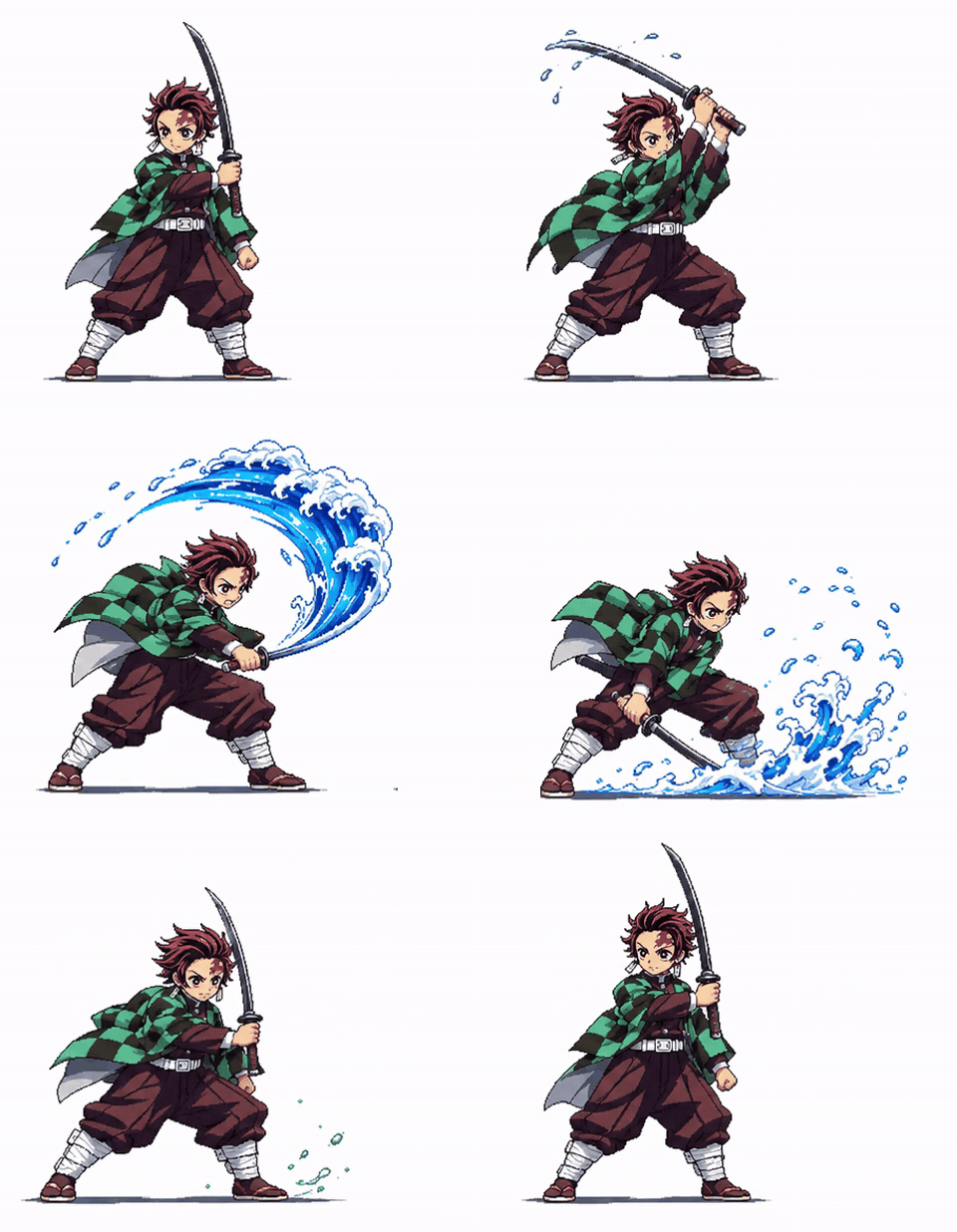
A reference character winds up, swings through a water effect and returns to a ready pose.
Kiki · @Mayz1169
View case and prompt
A waving chibi host accompanies Japanese event text and a 12:50 end time.
ササバ缶@AIを活用する情シス · @iidaatcnt
View case and prompt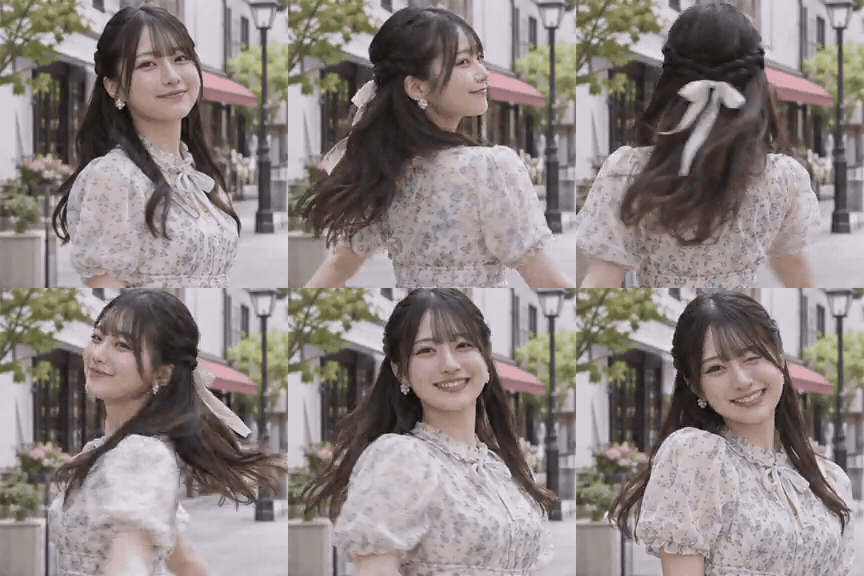
A woman turns toward the camera and smiles; the prompt asks for a turn and a wink.
Koei / こうえい | AI Creator · @koe_ai414
View case and promptExcerpts from users sharing their GPT Image 2.6 experiences on X. Translated where needed; open each post for the full context.
“The logo stayed the logo. The headlines came out spelled right. … It also made things up.”

Ahad Shams | AI Ads Guy
@spect3ral“It genuinely feels like a photograph captured by an experienced professional photographer with a high-end camera.”
Mitesh
@miteshxai“I turned one of my paintings into a full animation using the new GPT Image 2.6! … Still rough edges.”
kvick
@kvickart“Tried it with my own character, and it works surprisingly well!”
Kiki
@Mayz1169“The new GPT Image 2.6 can generate animated stickers from one sentence. Animated sticker freedom!”
Gorden Sun
@Gorden_Sun“Honestly blown away by the quality of the AI-generated art.”
Alex Nguyen
@alexcooldevCheck names, prices and numbers, then inspect hands, faces and logos. For a GIF, look through the frames rather than checking only the first one.
Look at the join between the last and first frames. If the subject jumps or changes shape, ask for a smaller motion and a clearer return to the starting pose.
Open the file in the intended app, page or slide. Check the crop and text size, and make sure the first frame communicates the idea on its own.
Sign in to upload a reference, use the sketch control or submit a request. Submitting opens Felo’s creation page to continue the task.
The selected model and quality can affect which options your account can use. Check the PRO labels and your available allowance.
Start with Medium quality and a short loop. Review the result before choosing more demanding settings.
Start with the selected Flare model. If a result needs more detail, try the same prompt with Sunburst and compare the text, edges and subject yourself.
For detailed visuals and precise edits.
For quick iterations and exploring ideas.
Keep these limitations in mind when deciding whether a result is ready to use.
Felo AI maintains this guide. The steps and default settings follow the controls available on this page; general model capabilities and limitations are referenced from OpenAI’s documentation.
The animations and creator credits come from the linked GPT Image 2.6 case pages, which include the original prompts and sources.
GPT Image 2.6 is an OpenAI image model family. Felo AI lets you use it in your browser to create images and short looping GIFs from a written description.
Yes. Choose GIF in the settings, describe one simple movement and ask the subject to return to its starting position. The format selector determines whether the result is a GIF or a still image.
Enter your idea, open settings to choose the format, size and quality, then sign in to generate. For animation, choose GIF explicitly. Review the result and adjust one detail before trying again.
Use the upload control beside the input box to add a reference image, then describe what to keep and what to change. Check the result carefully because small details can change.
Access depends on your account and the selected model or quality. Options marked PRO may require a suitable plan. Check your account allowance and the messages shown when you generate.
Proofread names and numbers, inspect faces and product details, and watch the join between the last and first frames. Preview the file in the app or page where you plan to use it.
The current panel offers 2–16 frames. Start with 9; more frames give the movement more steps.
Start at 200 ms per frame. A larger value makes the same number of frames play more slowly.
Start with 512×512 for a square loop. Choose a landscape or portrait preset to suit where you will use it.
9 frames at 200 ms per frame make a 1.8-second loop. Try a short loop first, then change one setting at a time so you can see what helps.
Choose GIF in the settings before generating. Writing “GIF” in the prompt alone does not change the selected output format.
These are suggested starting points, not measured results. The 9-frame, 200 ms row matches this page’s GIF defaults.
| Quick reaction | 6 × 100 ms = 0.6 s |
|---|---|
| Page default | 9 × 200 ms = 1.8 s |
| More motion steps | 16 × 100 ms = 1.6 s |
| Slower loop | 12 × 250 ms = 3 s |
A cobalt blue perfume bottle on pale stone. Sunlight and leaf shadows drift across the scene, then return to the start. Keep the bottle and camera still. Make the motion loop smoothly.
Use this prompt as a starting point. Then open the settings, choose GIF and keep 512×512, 9 frames and 200 ms. Change the subject to match your idea.
OpenAI’s guide gives one rule for a smooth loop: give the subject a starting pose to return to, and say whether the camera should move. In practice, that comes down to four parts.
Say what is in the frame, where it stands and how it looks.
Say what moves and in what order. One arm lifting loops more cleanly than a whole dance.
Name what must not change, such as the logo, the hands or the camera.
End with the way back: return to the starting pose, then make the motion loop smoothly.
Too vague
A cute bird flapping its wings, GIF.
Clearer
A handmade paper bird with blue feathers stands on pale stone. It raises its wings, lowers them and returns to its starting pose. Keep its feet and the camera still. Make the motion loop smoothly.
| What you see | What to try |
|---|---|
| The last frame jumps | Describe the starting pose in more detail and ask the subject to return to it. |
| The subject changes between frames | Use a smaller motion and name the details that must stay, such as colors and clothing. |
| Lettering shakes or changes | Keep text short and ask for it to stay still, or add it afterwards in a design tool. |
| The motion is too fast | Raise the frame time before you add more frames. |
| Colors look blotchy | Ask for flat colors and a simple background, which suit GIF’s 256-color limit. |
| The chosen settings cannot generate a result | Choose a preset size for the selected format, reduce the frame count and try again. Follow any size message shown on screen. |