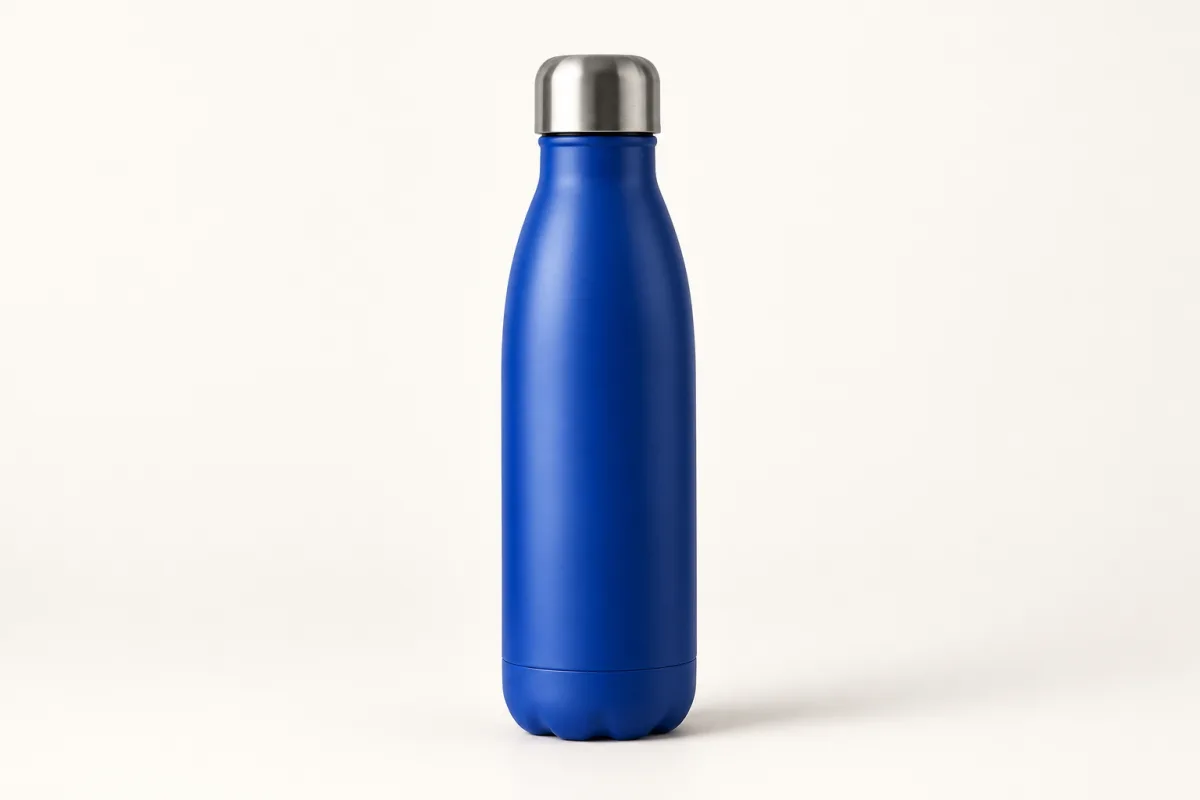
Clean studio
A neutral background and soft shadows for packaged goods, electronics and everyday products.
ONE PRODUCT. 12 SCENES.
Turn your product photo into a studio or lifestyle image. Upload a photo, choose a scene and create with GPT Image 2. No prompt required.
GPT Image 2 · Choose a composition. Sign-in required; account limits apply.
Your image is uploaded to Felo when you start. Privacy policy
Your result appears here
Clean studioAI-generated scene examples. Actual results depend on your uploaded product photo.
Upload a product photo and choose a scene to get started.
Review logos, labels, colors and proportions before publishing. AI may change product details.
Select a JPG, PNG or WebP from your device.
Pick a studio or lifestyle setting and an image ratio. Add instructions only if you need them.
Create one image, compare product details with the original, then open the full-size result to save it.
A neutral background and soft shadows for packaged goods, electronics and everyday products.
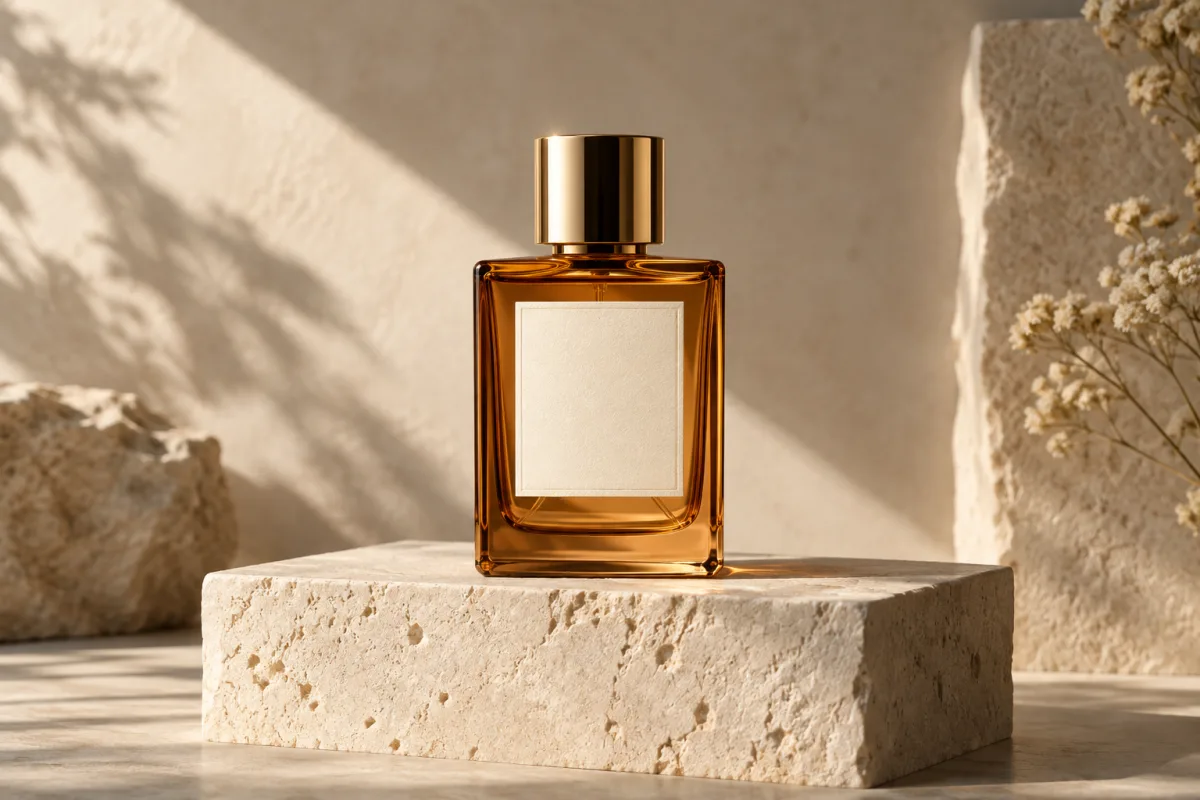
Directional light and a simple display platform for perfume, skincare and premium packaging.
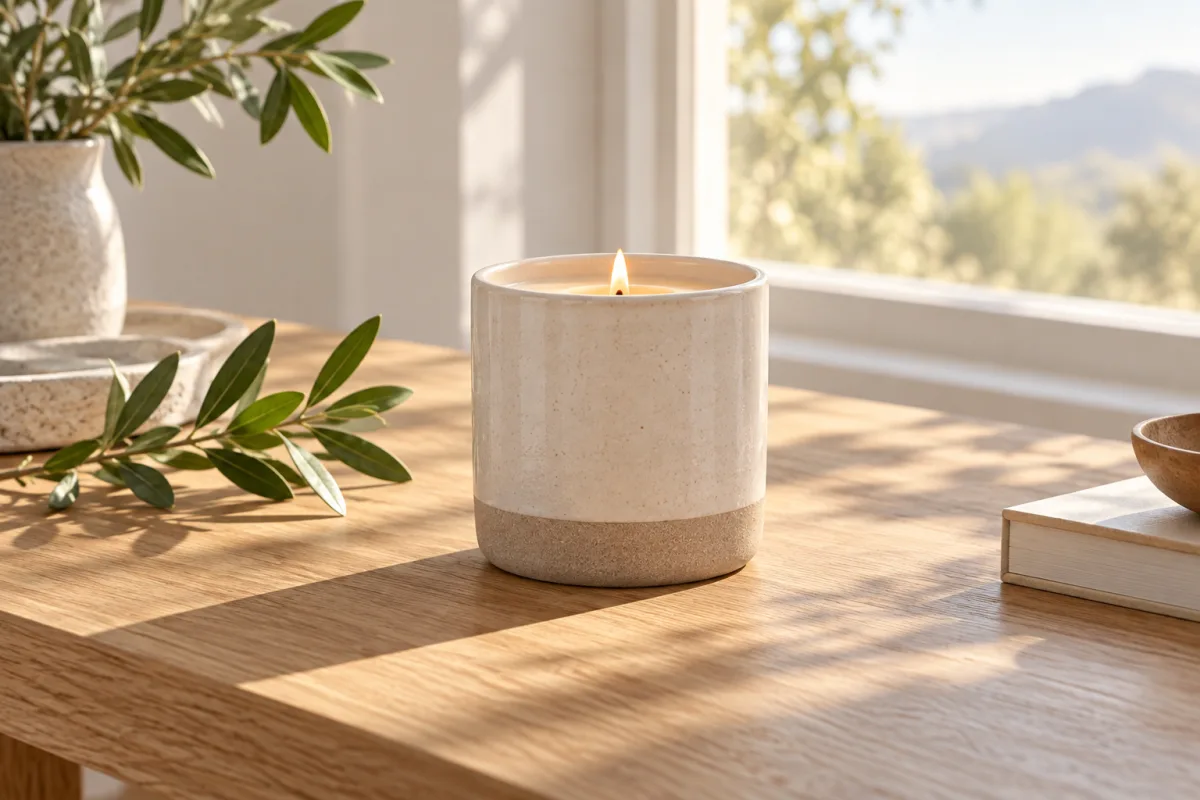
Window light and warm wood for candles, coffee and handmade products.
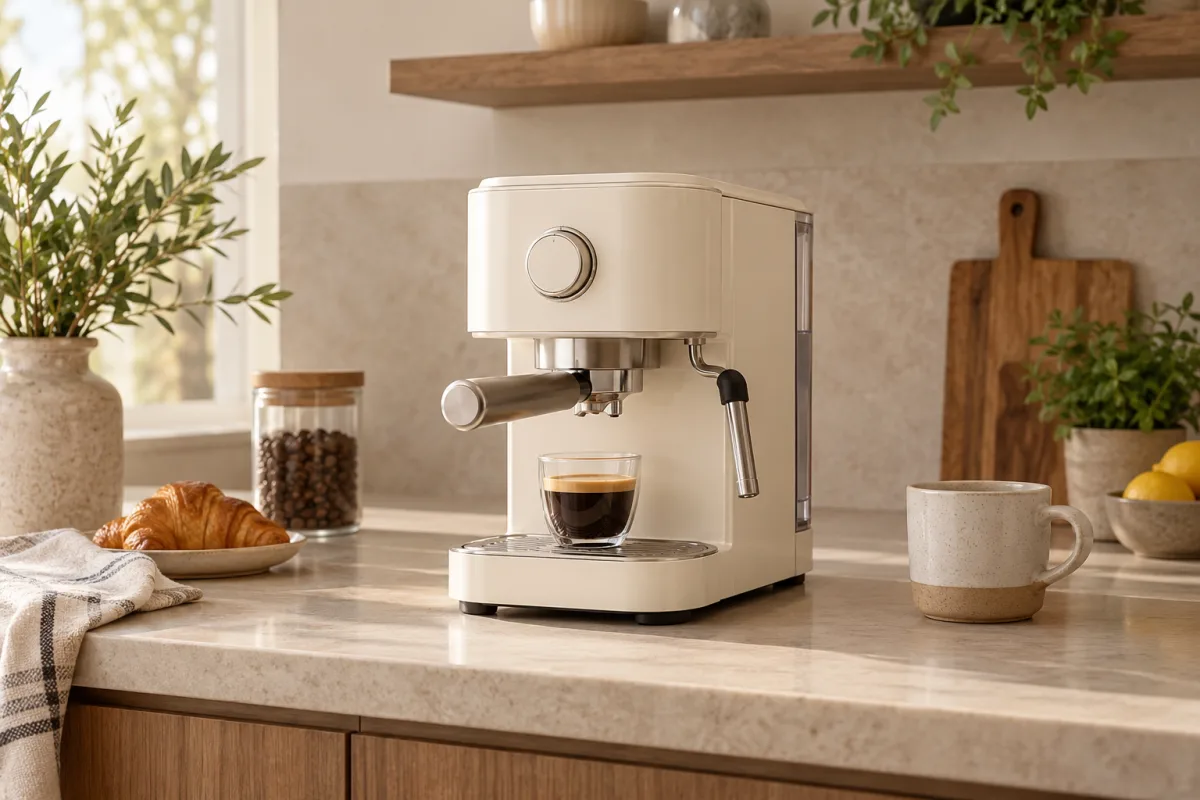
A kitchen, bathroom or living room setting chosen to suit your product. Check the scale of the surroundings.
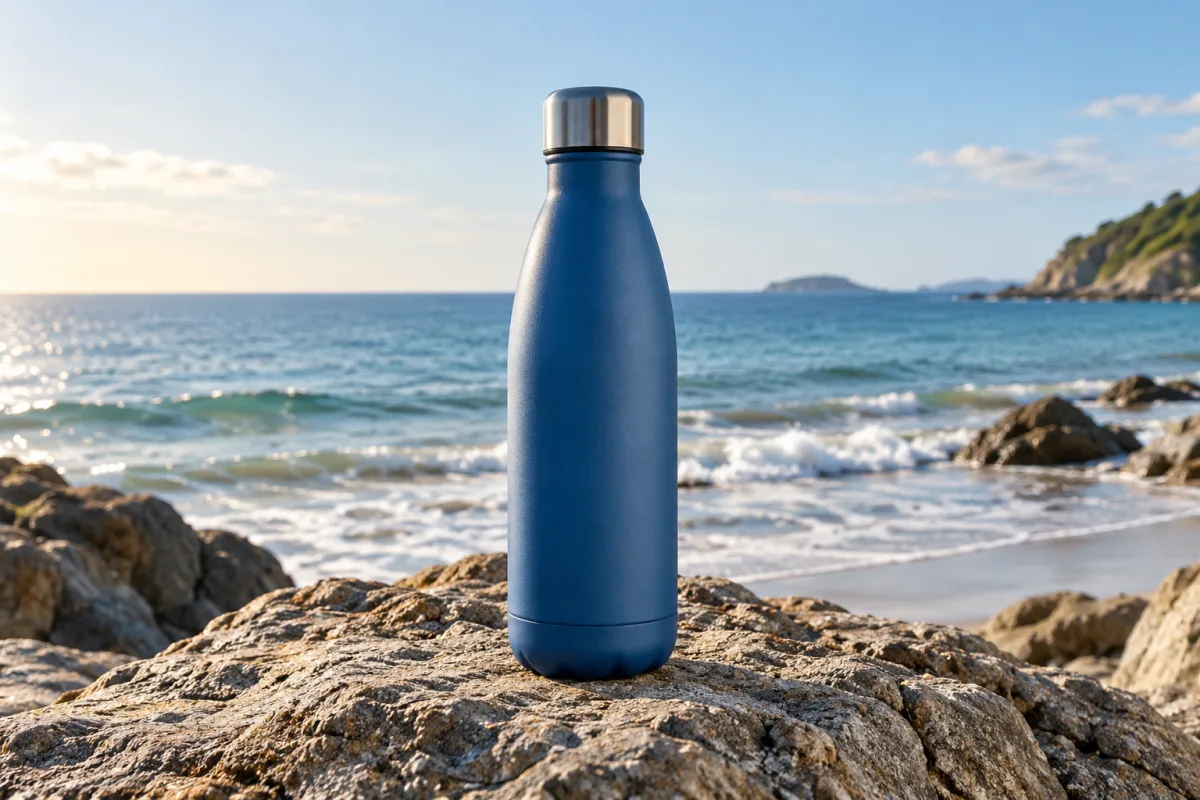
Natural light, stone or sand for bottles and outdoor accessories. Review the environment before using the image.
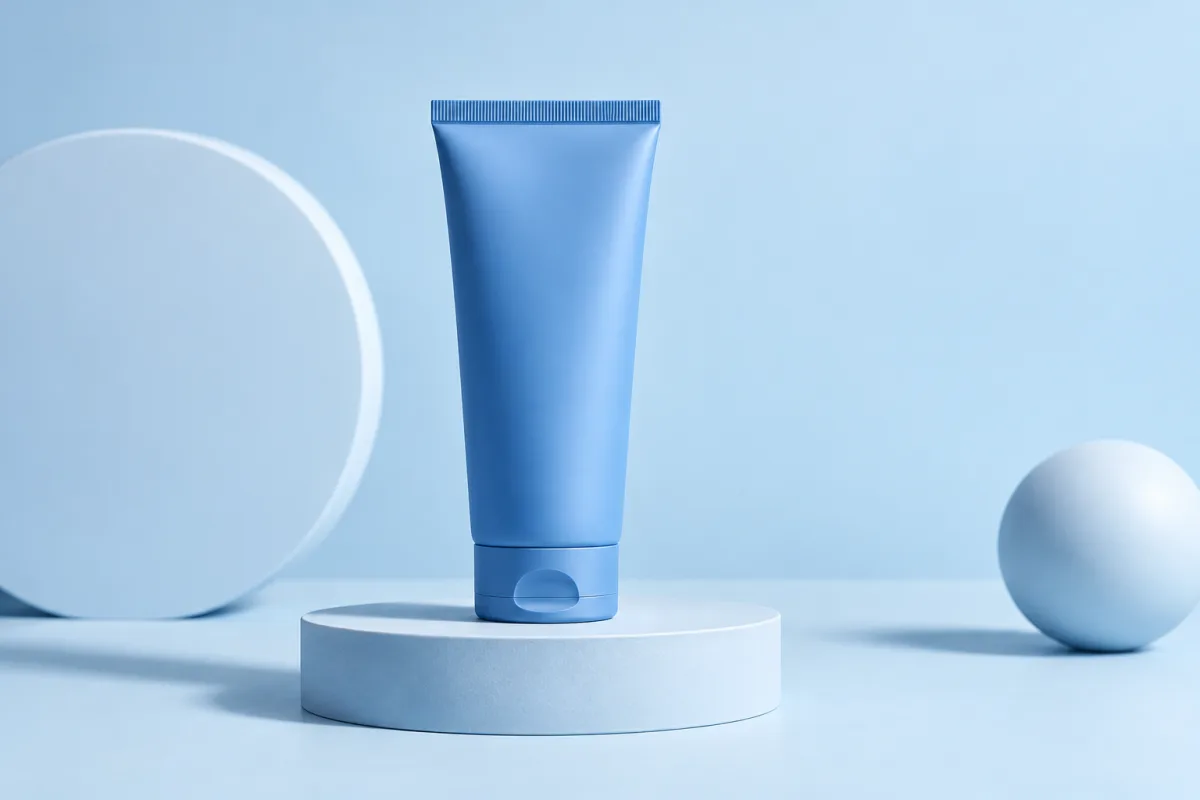
A pale blue backdrop and geometric props with room for your own copy. Suitable for social posts and campaign drafts.
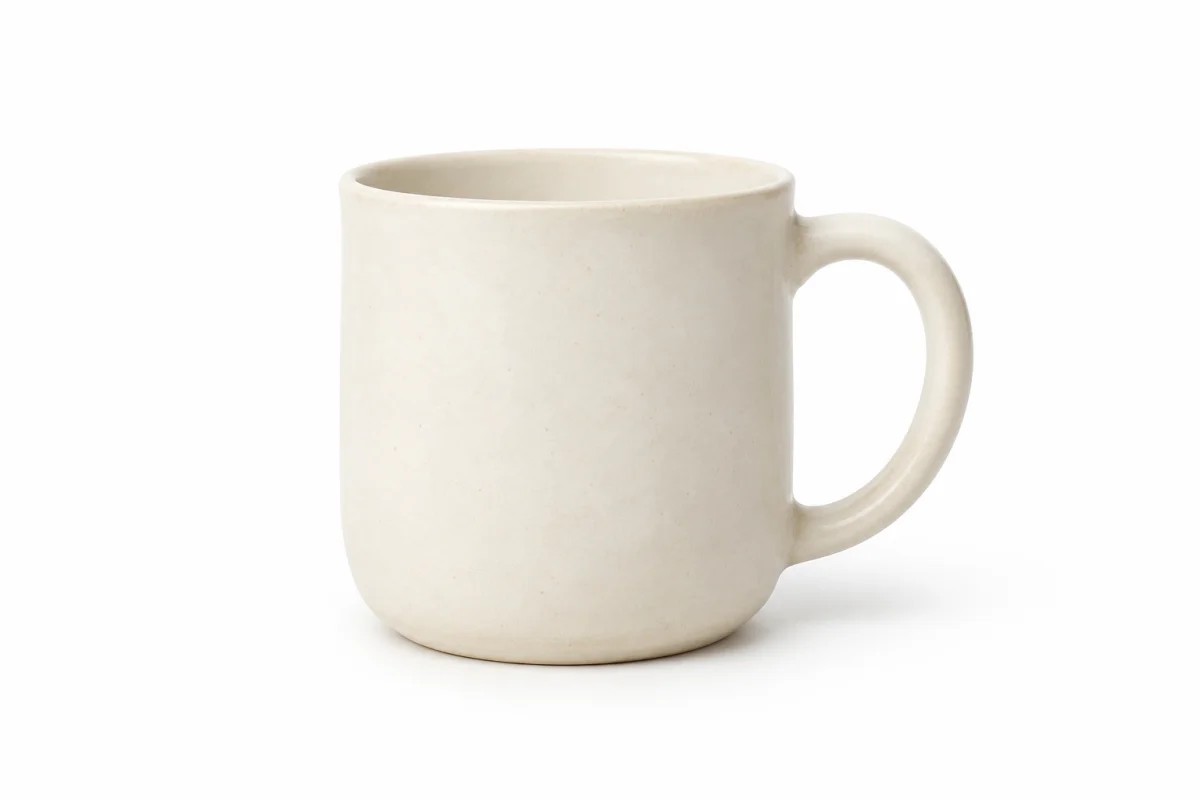
A clean white setting for electronics and packaged goods. Use a complete, sharp source photo and check edges and shadows.
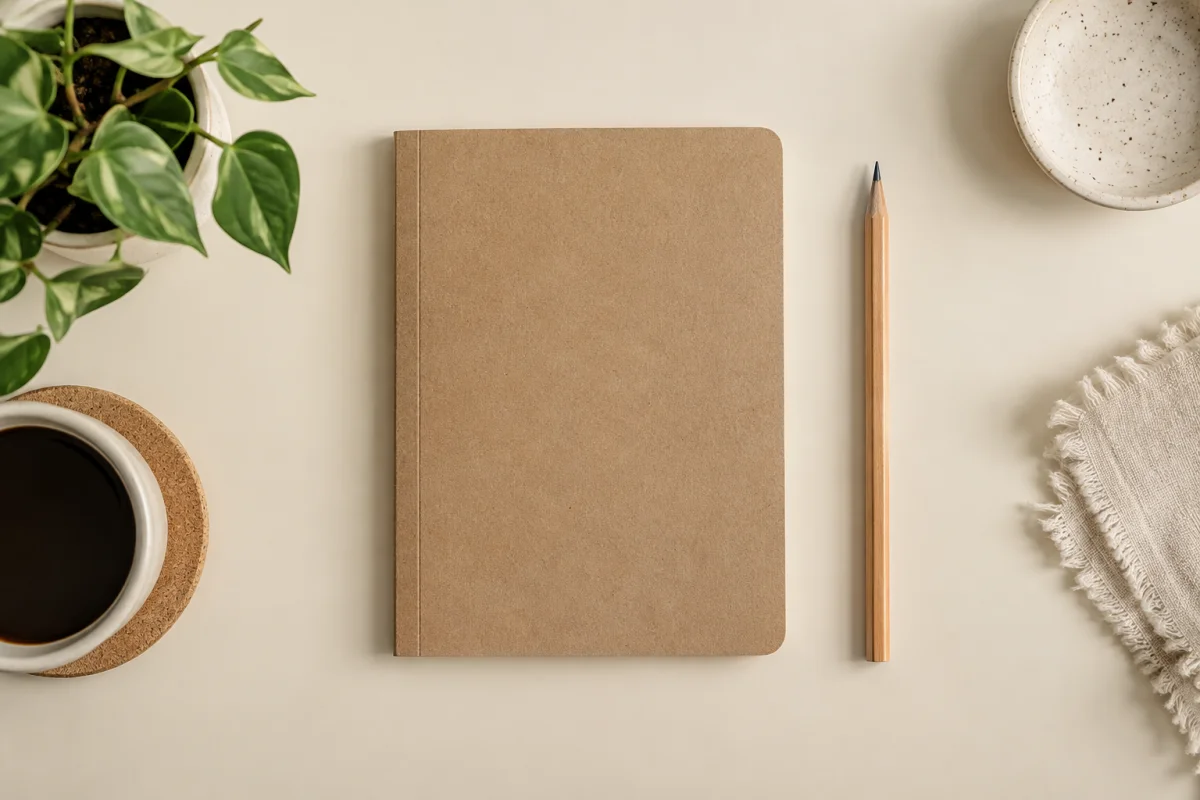
A simple tabletop composition for stationery and crafts. Upload an overhead photo; this scene preserves the source viewing angle.
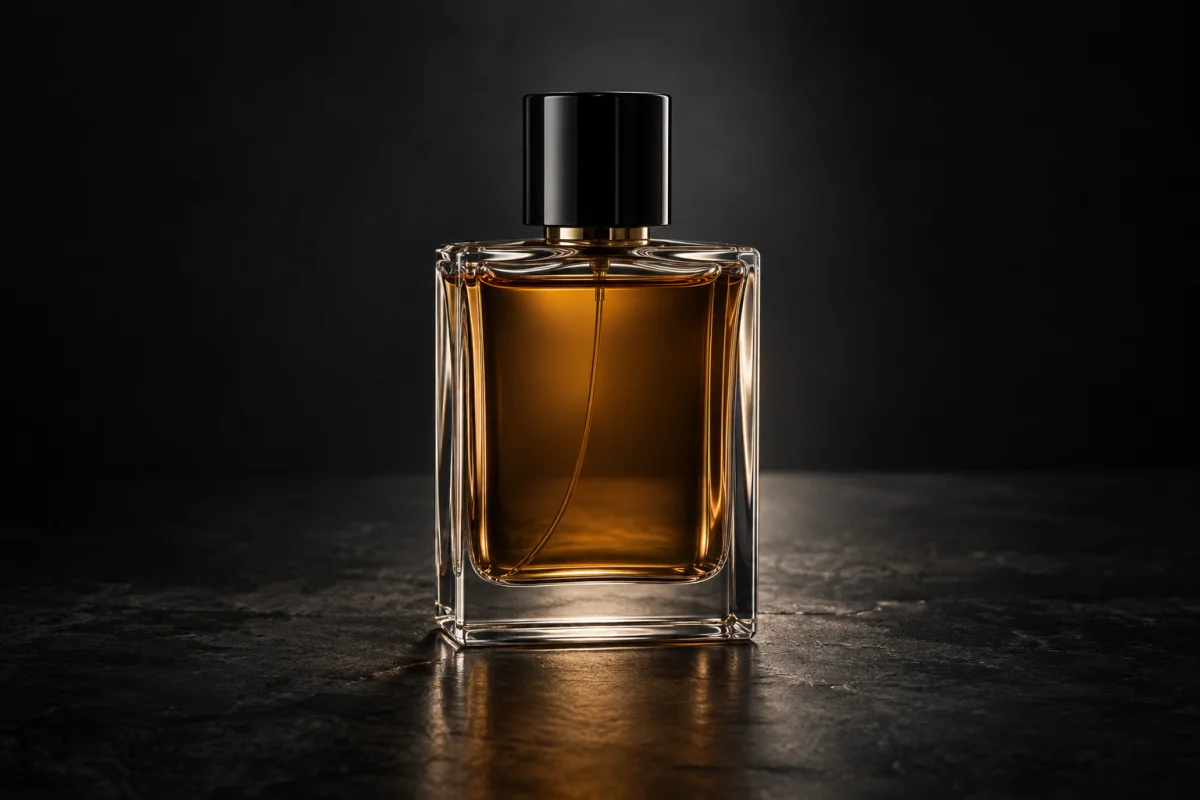
Charcoal surroundings and rim lighting for perfume and metal accessories. Start with readable labels and visible edges.
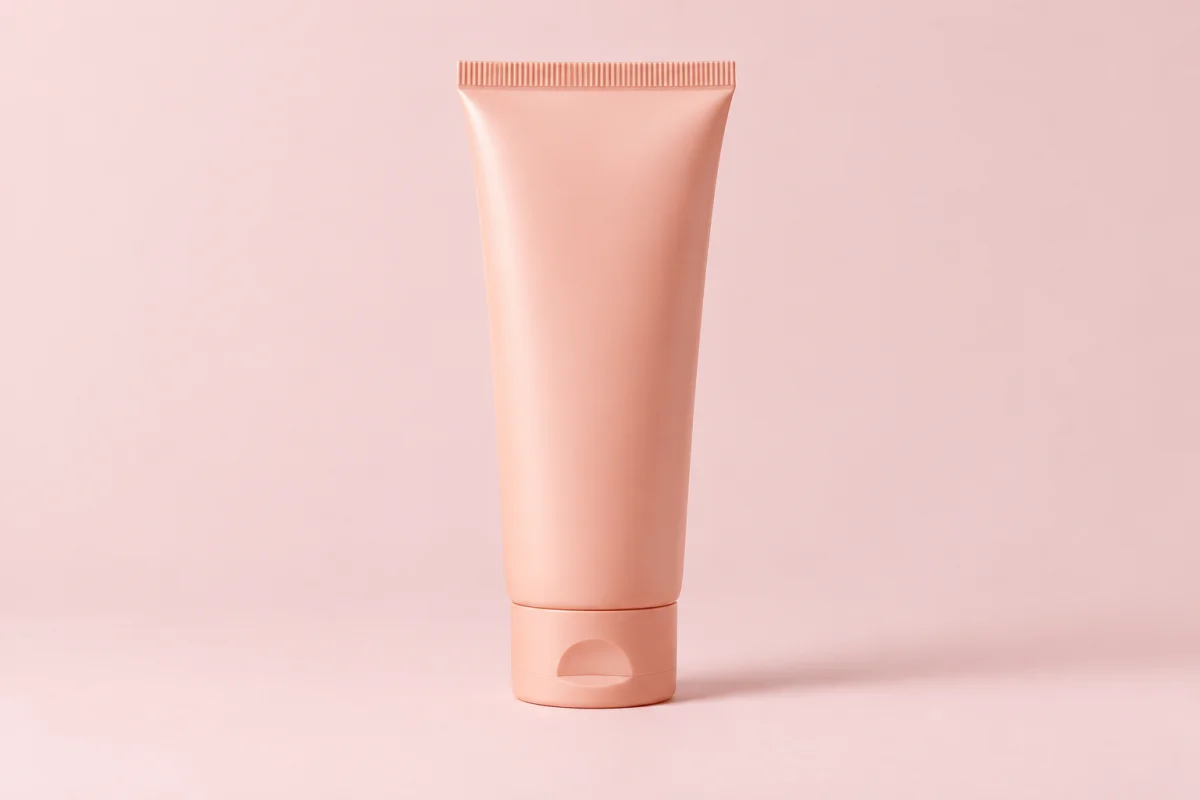
Gentle solid colors for skincare and everyday goods. Choose a clear source so the product color remains easy to check.
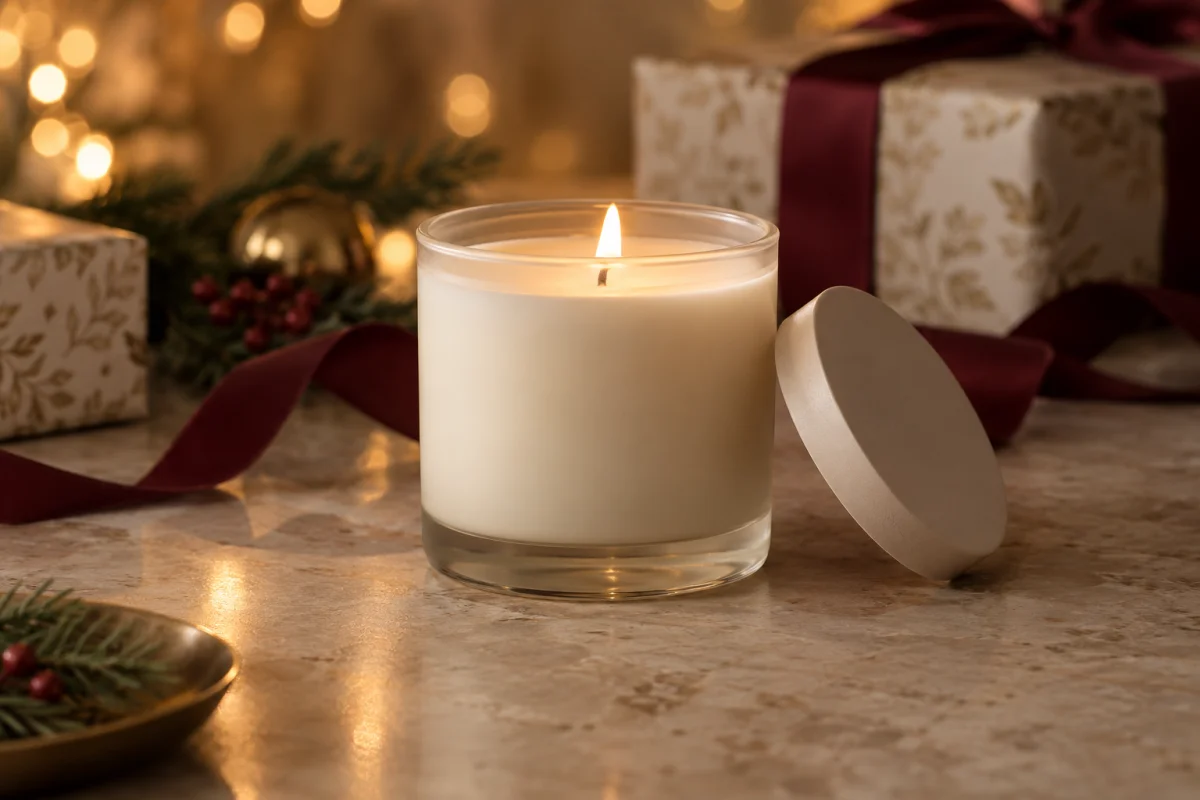
Paper and ribbon behind candles or gift products. Keep the original item fully visible; props should not imply included accessories.
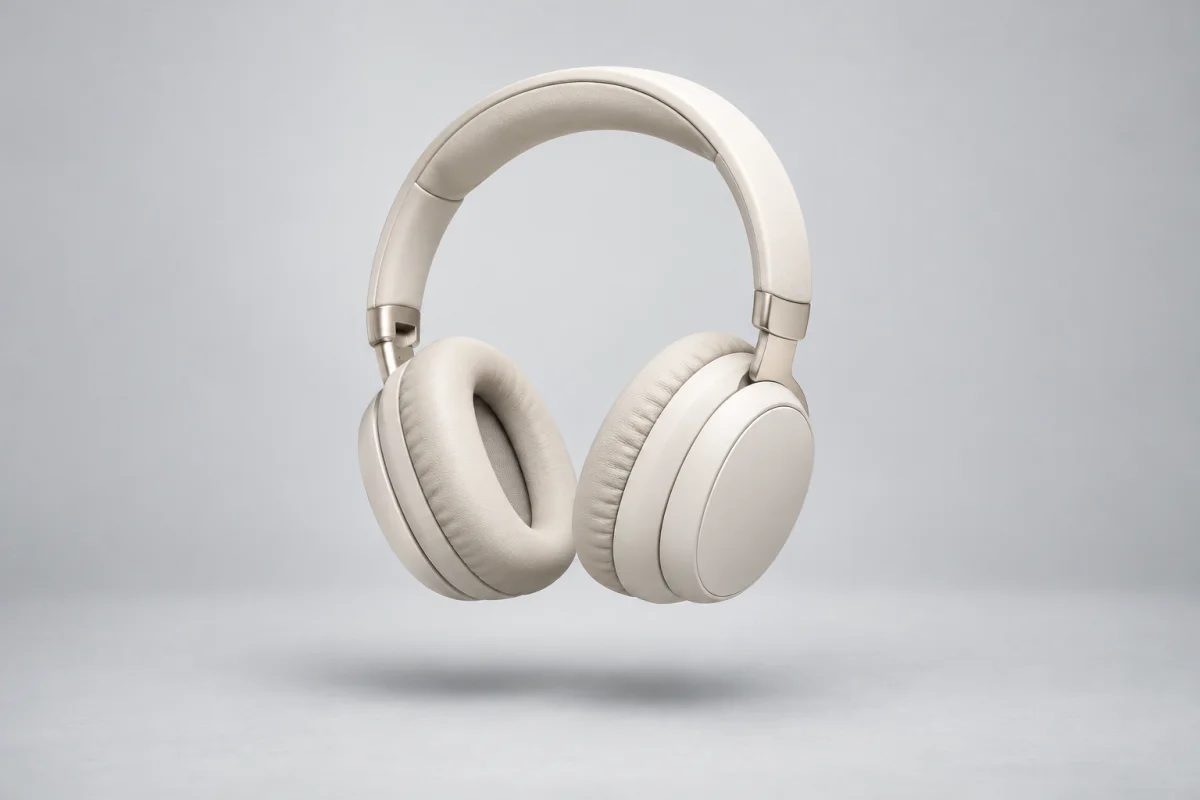
A floating composition for headphones and small products. Use a complete source image and check that no parts have changed.
AI-generated scene examples. Actual results depend on your uploaded product photo.
Try a stone pedestal or dark studio to frame the bottle. Use soft pastels for a gentler look; check label text and glass reflections.
Natural daylight adds a tabletop setting around the packaging. Keep ingredients and props separate so they do not suggest extra contents.
Use pure white for clear product presentation or minimal floating for campaign drafts. Review ports, buttons and proportions at full size.
Use a home setting to suggest context, or flat lay for stationery photographed from above. Check scale and material texture.
These are composition suggestions, not platform compliance presets. Check the destination’s current image requirements before publishing.
Start with a preset. If needed, add a short description of background, light or empty space in the optional field.
Ivory background, soft window light from the left, a simple stone surface; keep the bottle label visible.
Warm wood tabletop in morning light, a few coffee beans in the distance, no props covering the package.
Light gray studio background, soft contact shadow, reduce glare without changing the product color.
Place the product on the left and leave clean space on the right for text I will add later.
Use a well-lit photo of one complete product. Avoid cropped edges, heavy reflections and unreadable labels.
Match the scene to the product and its use. Keep the background simple so it does not compete with the item.
Compare packaging, text, color and shape at full size. Scene generation can alter details; correct mismatches before using a photo in a listing.
It uses an existing product photo to create a new setting and lighting with AI. This tool offers 12 scenes and optional instructions.
No. Upload one photo and choose a scene. You can optionally describe the background or lighting you want.
This tool sends image editing requests to GPT Image 2. The selected ratio is requested in the prompt; exact output dimensions and ratio are not guaranteed.
The instructions ask AI to preserve the product, but identical logos, text, colors and proportions are not guaranteed. Review the result against the original.
Sign-in is required. Availability and usage limits depend on your Felo account and plan; check the pricing page for current details.
Upload one JPG, PNG or WebP up to 20 MB and 40 million pixels. Use a clear product photo; PNG transparency is not guaranteed in the generated result.
Yes. Use a well-lit, sharp photo showing the complete product. Avoid heavy filters and reflections that hide its details.
No separate cutout is required by this workflow. A simple source background helps distinguish the product; inspect the generated edges.
Reuse the source image, scene, ratio and lighting instructions. Each generation can vary, so compare versions before using them together.
AI generates image details rather than preserving every original pixel. Check logos and small print against the source and correct inaccurate results before publishing.