Discord GIF Maker
Discord GIF Maker: make a GIF for chat, emoji or avatar
Make a GIF for a Discord chat, a custom emoji or an animated avatar. Describe one reaction and get a short loop for the spot you have in mind.
- Free to start
- One sentence is enough
- Chat, emoji and avatar GIFs
Free to start with the credits included in a Felo account; sign in to generate and download.
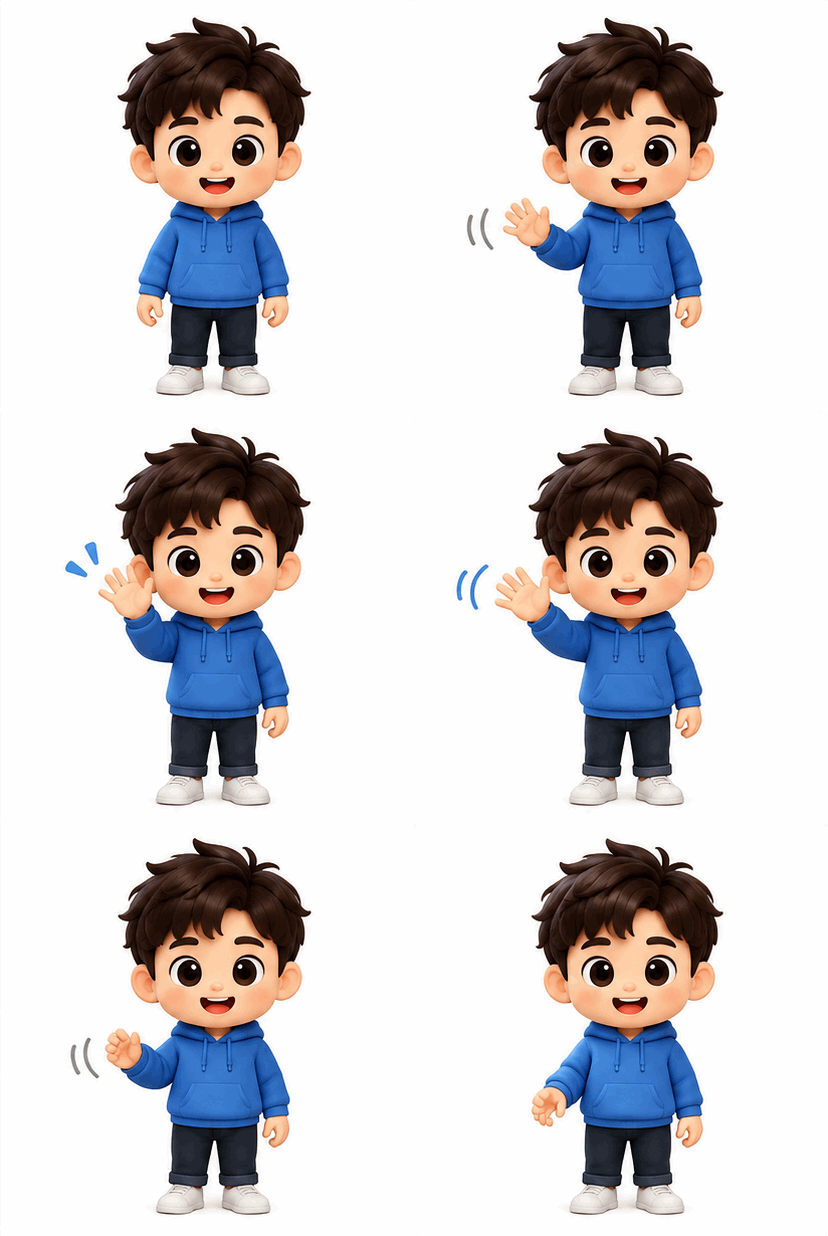 GIF
Real result, not retouched
Emoji wave · Made with this tool from prompt 01 below.
At a glance
A Discord GIF maker turns a written description into a short looping GIF for a chat message, a custom emoji or an animated avatar. It suits server owners and community managers who need a reaction without editing video. Discord applies a different upload limit to each of those slots, so check the current number before you generate.
- Input
- Prompt or existing image
- Output
- GIF for one Discord slot
- Model
- GPT Image 2.6 Flare
- Limit
- Set by Discord per slot
How to make a Discord GIF for chat, emoji or avatar
Choose the slot first, then describe one short reaction. A GIF sized for chat can still be too large for a server emoji, so start from the destination.
 1
Pick the slot
Decide between a chat GIF, a custom emoji or an animated avatar. Each one needs a different crop and a different file size.
 2
Describe one reaction
Name the character and a single action, such as a wave or a cheer. Add the crop hint, like space around the head for an avatar.
 3
Download and upload in Discord
Save the GIF, compare it with the limit shown in the upload dialog, then add it in Discord. If Discord rejects it, check the size limit and your permission for that slot.
Discord GIF ideas: emoji, avatar and announcement loops
An emoji needs one bold gesture, an avatar needs a centred head, and an announcement needs a wide loop. Tap a card to load the prompt, then edit the character.
- GIF01
Emoji wave
A single readable gesture for a server emoji.
PromptAnimated emoji of a small character waving once, single subject, bold shapes, plain background, centred, loops back to the first frame, readable when shown small, no text.
 GIF02
Avatar loop
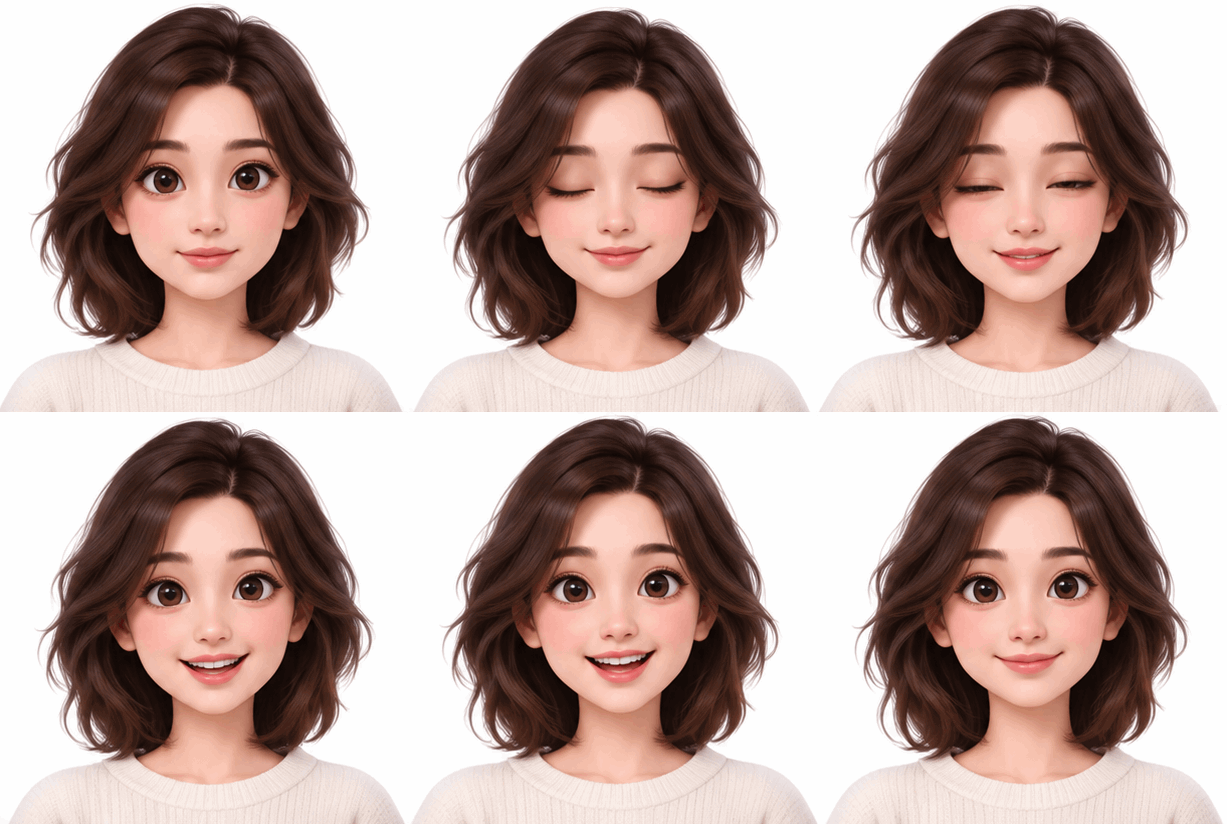
A centred head-and-shoulders loop for an avatar crop.
PromptAnimated avatar of a character blinking and smiling, head and shoulders centred, space around the head for a circular crop, plain background, loops back to the first frame, no text.
 GIF03
Announcement loop
A wide, slow loop for a launch or event post.
PromptWide animated loop for a server announcement, soft gradient background with one small floating shape, slow motion, loops back to the first frame, no text.
Best places to use a Discord GIF
Server emoji, avatars and announcement posts are the three common spots. Each one asks for a different crop and a different size.
Server emoji
Server owners can add a reaction emoji for launches or wins. One bold gesture reads better than a detailed scene at emoji size.
Animated avatar
Community managers can use a centred loop as a personal avatar. Leave space around the head so the circular crop keeps the face.
Announcement posts
A wide, slow loop works in a launch announcement or an event post. Keep the motion gentle so the text stays readable.
Felo vs. a classic GIF editor
A classic editor rearranges frames you already have. Felo draws new frames from what you describe.
- Starting point
- Felo: One sentence, plus a photo or GIF when the tool asks for one
- Classic GIF editor: A video clip or a folder of frames
- Making the motion
- Felo: The model draws each frame from your description
- Classic GIF editor: You trim, crop and time frames by hand
- Changing the style
- Felo: Rewrite the prompt: pixel art, clay, line art or photo
- Classic GIF editor: Filters on the footage you already have
- Words in the loop
- Felo: Name the words in the prompt, then check spelling at full size
- Classic GIF editor: A typed overlay placed on top of the frames
- Setup
- Felo: Runs in the browser after sign-in
- Classic GIF editor: Often a desktop or phone app to install
Discord GIF size limits and upload checks
Discord sets the size limit for each slot, and the upload dialog shows the current number. Check that number and the crop before you upload.
- 1
The slot's size limit
Compare the exported file with the limit shown in the upload dialog for chat, emoji or avatar. Adjust before the upload, not after a rejection.
- 2
The crop
Check the circular avatar crop or the small emoji preview in Discord. Keep the subject centred with space around it.
- 3
Readability at small size
Shrink the GIF until it matches how it appears in chat. Bold shapes and one subject survive; thin lines and small text disappear.
- 4
Permission and plan
Confirm that your role can add a custom emoji and that your account can use the avatar option. A correct file still fails without the permission.
Post it wherever GIFs play
A GIF needs no player or plug-in, so one file works in chat, docs and email.
- Discord
- Slack
- Telegram
- X
- Notion
- Google Slides
- Gmail
- iMessage
Free to start: credits and Discord GIF limits
Yes, starts free: a Felo account includes free credits, and paid plans add more.
Free to start
Every Felo account includes free credits, so the first Discord GIF costs nothing. No credit card is needed to try it.
Credits per generation
Each GIF uses credits, and paid plans raise the allowance. Pick the slot first so you do not spend credits on the wrong crop.
Discord's limits apply
Discord sets the size limit for each slot. The number in the upload dialog decides whether a correct GIF is accepted.
Discord GIF questions: size, upload and avatar
What is the Discord GIF size limit?
Discord gives each slot its own size limit, shown in the upload dialog. Check that number before you generate, because the same GIF may fit a chat message and fail as a custom emoji.
How do I upload a GIF as a Discord emoji?
A custom emoji is added to a server you manage, not sent in chat. Open the server's emoji settings, upload the file and give it a name if your role allows it.
Why was my GIF rejected by Discord?
The file most often breaks the slot's size limit or your account lacks permission for that slot. Compare the exported size with the limit in the upload dialog, then shrink or simplify the GIF.
Can I use AI to make a Discord GIF?
Yes, describe the reaction or the pose, then download a short loop and upload it in Discord. AI output varies, so check how it looks at the small size first.
Can I make an animated Discord avatar?
Yes, when your account and the current rules allow an animated avatar. Generate a centred loop with space around the head, then check the circular crop.
Do I need Nitro for a Discord GIF?
It depends on the slot and on Discord's current plan rules. Check the avatar and emoji settings in Discord before generating a set you cannot use.
Every Felo GIF tool
All 12 tools run in your browser with the same prompt box. Pick the one that matches what you start with.
 AI GIF GeneratorTurn one written moment into a short looping GIF with GPT Image 2.6 Flare.
 AI Image to GIFTurn one still photo into a short looping GIF by describing a single movement.
 Images to GIFTurn still photos into a looping GIF with AI from a reference image, or assemble exact frames yourself.
 GIF Meme MakerDescribe a reaction and get a looping meme GIF for chat, with exact captions when every word has to be right.
 Animated Text GIF GeneratorDescribe your words and motion and get a looping animated text GIF for titles, greetings and countdowns.
 Animated Sticker MakerMake an animated sticker GIF from a character, pet or photo, then send the loop in chat.
 AI Logo GIF GeneratorGive an existing logo a short GIF animation with GPT Image 2.6 Flare.
 AI Pixel GIF GeneratorTurn one pixel character into an idle, walk or attack animation loop, then download the GIF as a preview.
 Reverse GIFTurn one reference frame into a GIF loop that plays forward and back.
 GIF Background RemoverGive a GIF a clean cut-out background from one reference frame.
 GIF UpscalerUpscale a small or blurry GIF with an AI redraw that adds detail at a larger size.
Make your first Discord GIF
Pick the slot, describe one reaction and download a loop that fits the upload dialog.
Create a Discord GIF